

Keyword Cluster Generator is a powerful feature of StoreSEO, helping you to optimize your product descriptions with relevant keywords, which is a crucial step in improving your store’s search visibility and conversion performance. Our new feature simplifies this process by helping you automatically generate keyword clusters and SEO-optimized product descriptions tailored to your specific product.
This documentation will guide you through each step of the process from selecting your product to generating and refining keyword clusters, creating product descriptions, and making final edits. By following these instructions, you’ll be able to produce high-quality, keyword-rich product content that aligns with best SEO practices and drives more organic traffic to your store.
必ず StoreSEOアプリをインストールしました あなたの ショッピファイ 店. 次に、以下のステップバイステップのガイドラインに従って、StoreSEO を使用して Shopify ストアのキーワード ランク トラッカー機能の使用を開始します。.
StoreSEOキーワードクラスタジェネレーターを使った商品最適化の方法 #
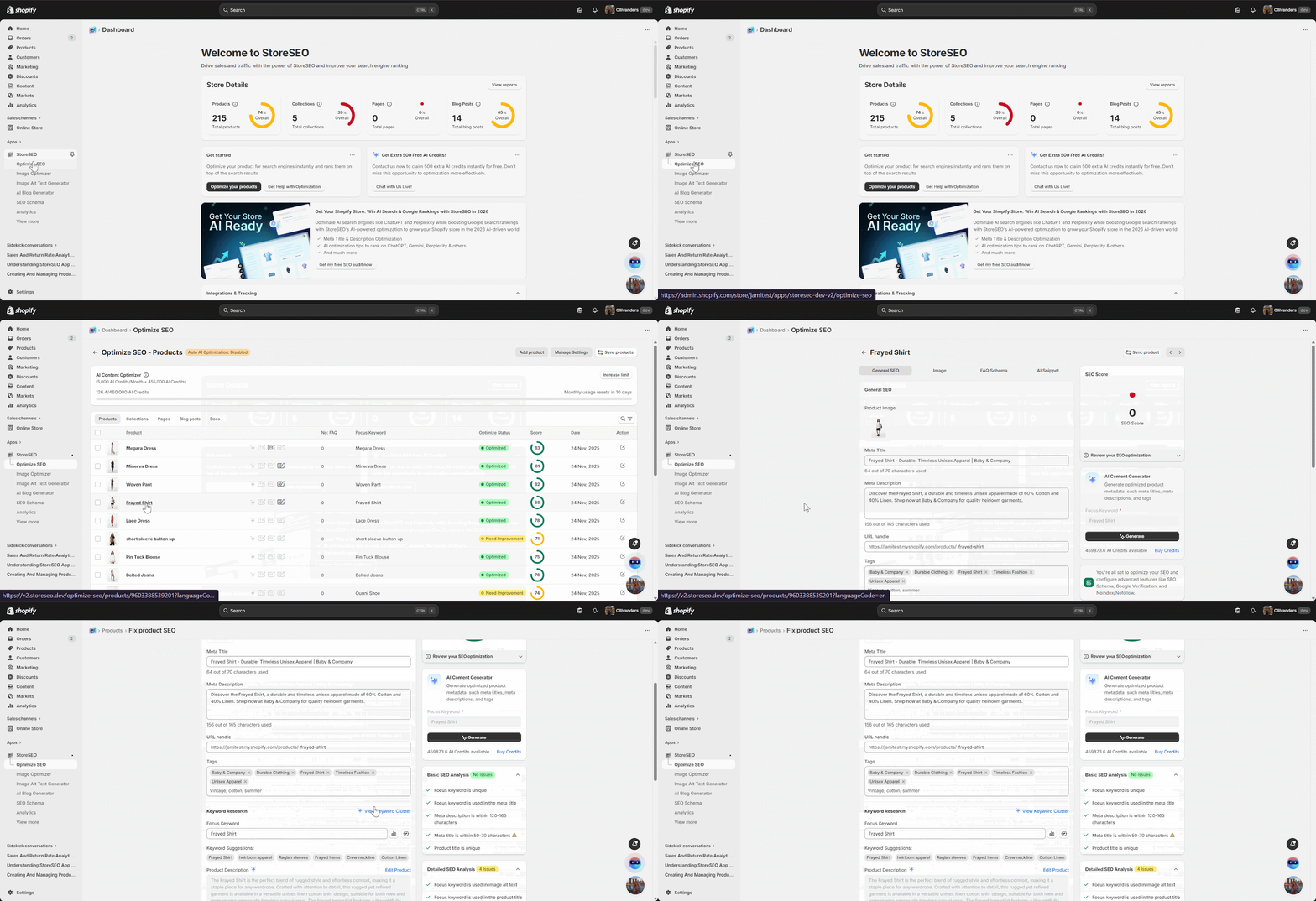
Step 1: Select the Product #
Start by navigating to the Optimize SEO dashboard. From there, choose the product for which you want to generate a keyword cluster. Selecting the correct product ensures that the generated keywords and descriptions are perfectly aligned with your product’s niche and audience intent.
Step 2: Generate a Keyword Cluster #
Once the product is selected, look for the Generate Keyword Cluster option within the Keyword Research panel. Click on the Generate Keyword Cluster button to begin the process.
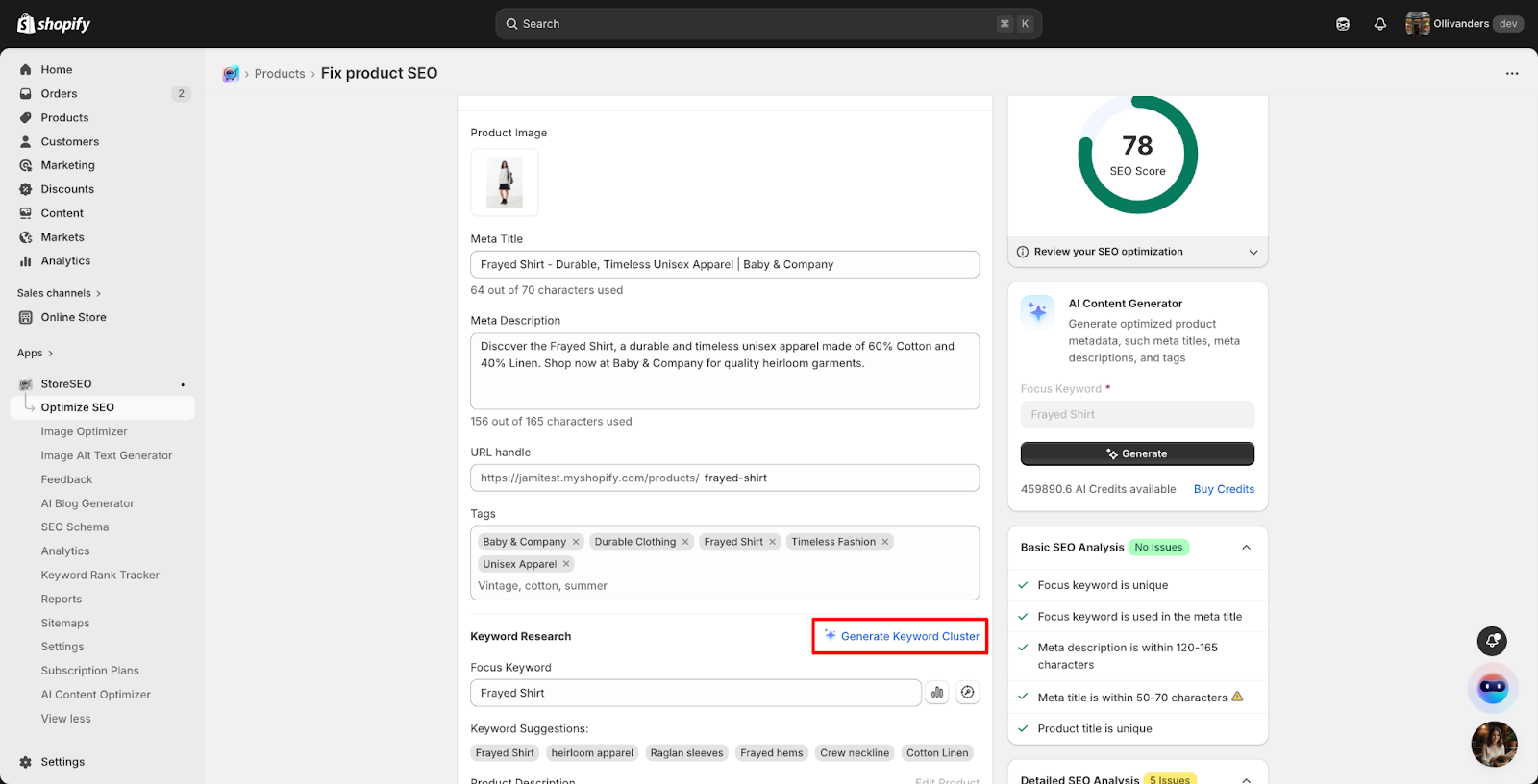
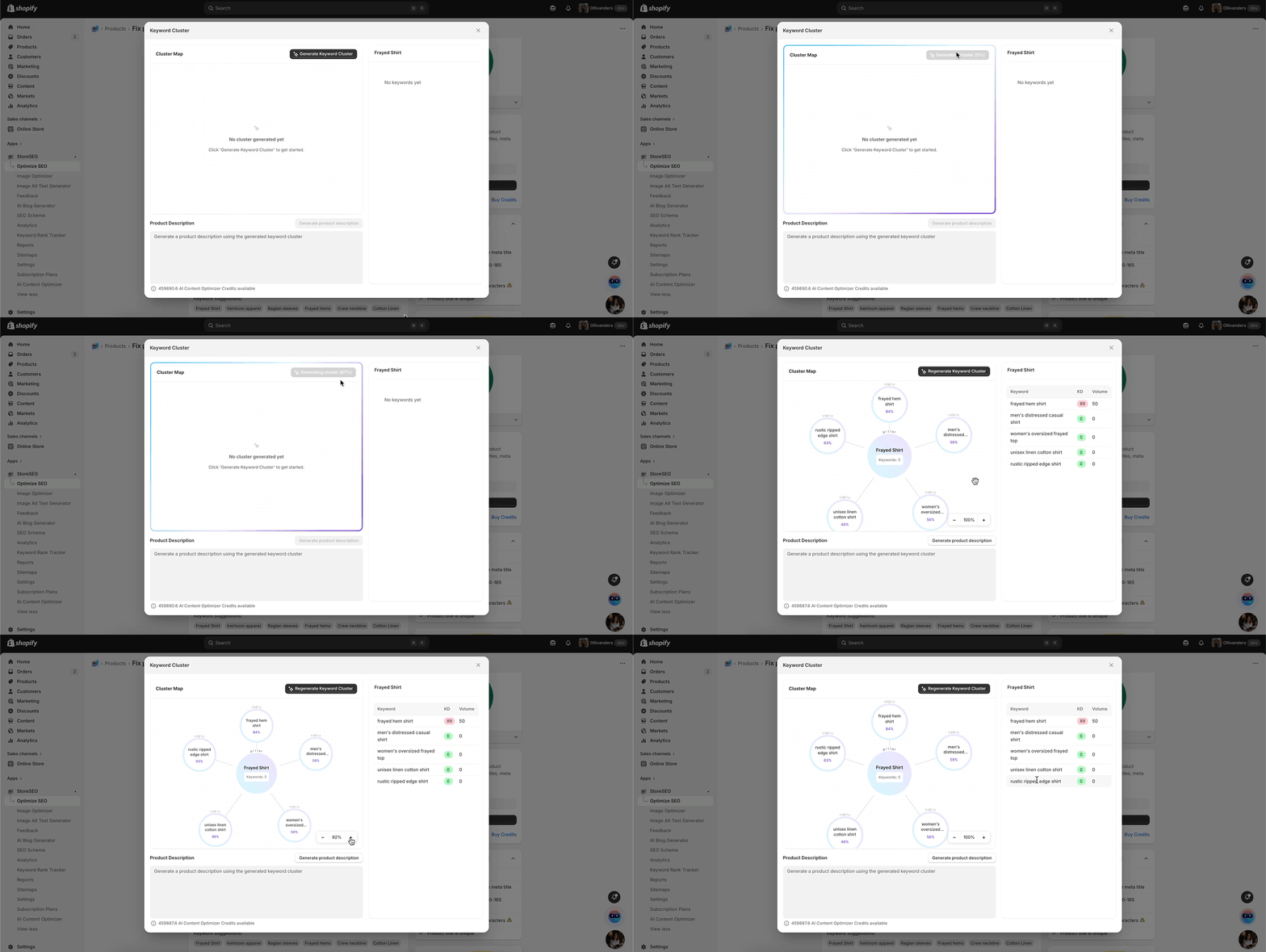
ストアSEO will automatically analyze your product and pull together a set of relevant keywords based on search intent and topical relevance.
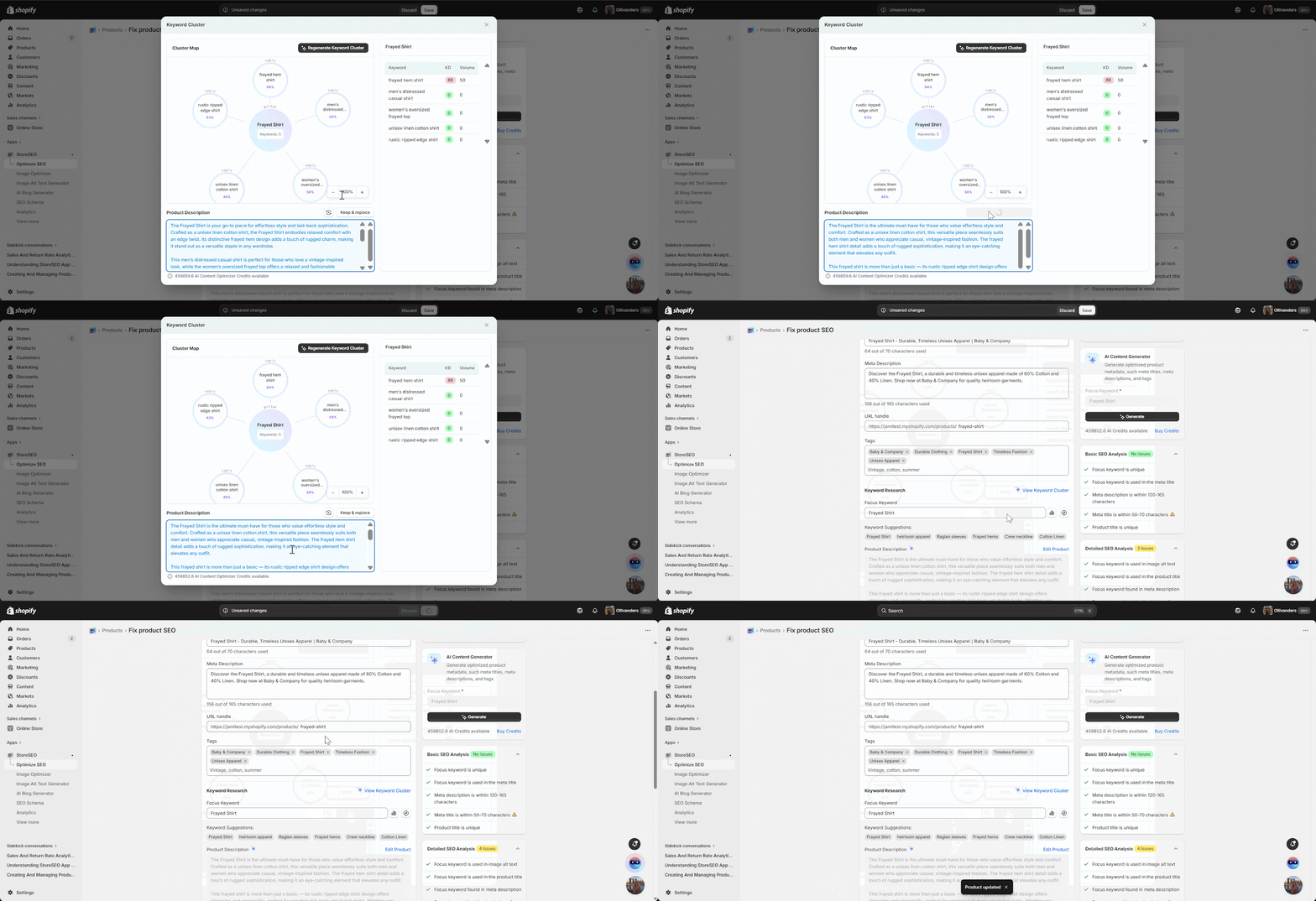
After a short while, your keyword cluster will appear along with a visual cluster map. You’ll also see a list of related keywords that can help shape the product’s SEO-friendly description.
Step 3: Generate the Product Description #
With your keyword cluster ready, it’s time to create your product description. Click on the Generate Product Description button. The system will use your selected keyword cluster to craft a compelling, SEO-optimized product description tailored to your product.
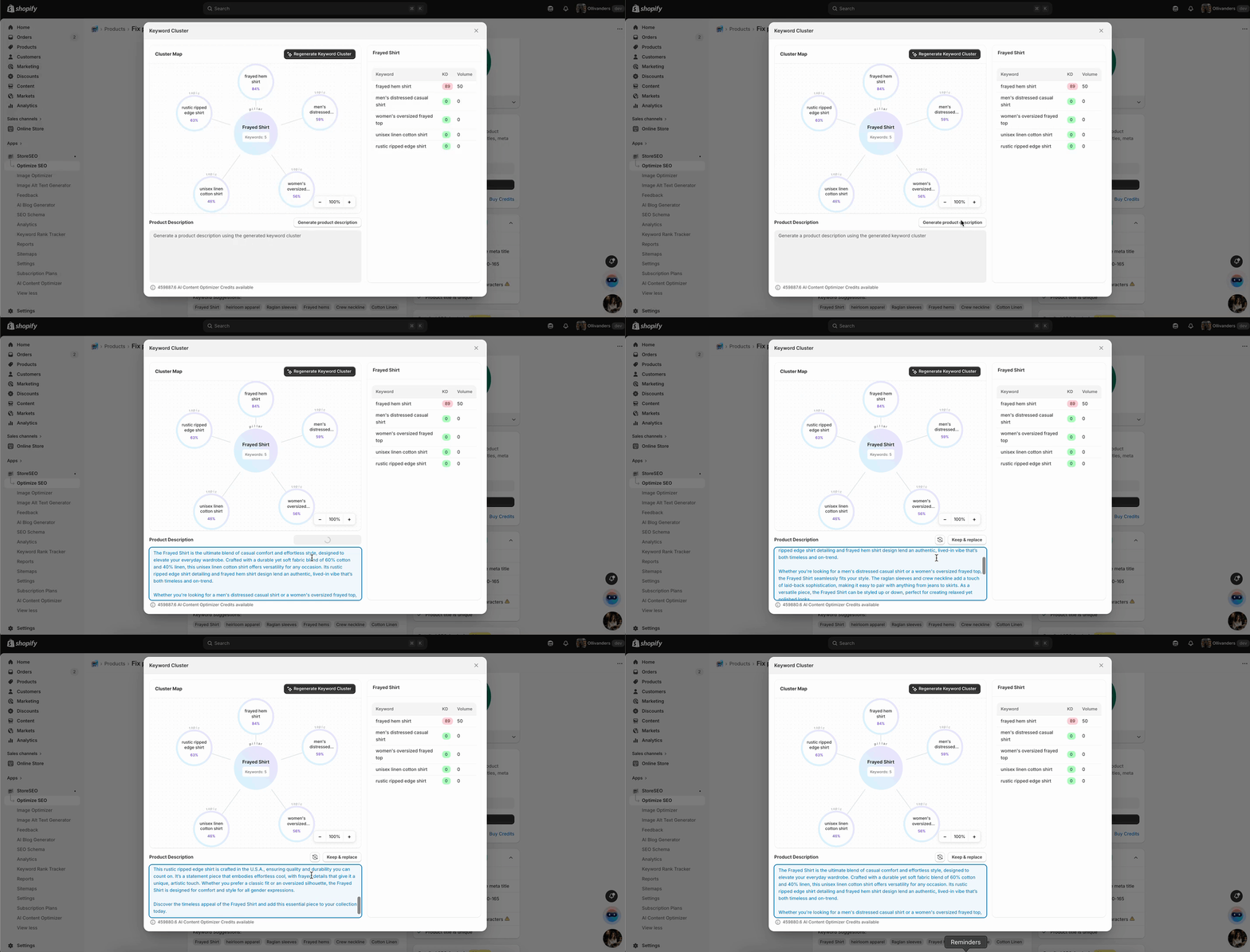
If you’d like a different variation, simply click on the Regenerate icon. Each regenerated version will still be based on the same keyword cluster, so every variant remains SEO-relevant. Once you’ve found the version you prefer, click Keep and Replace to finalize your choice. Don’t forget to click Save to secure all your progress.
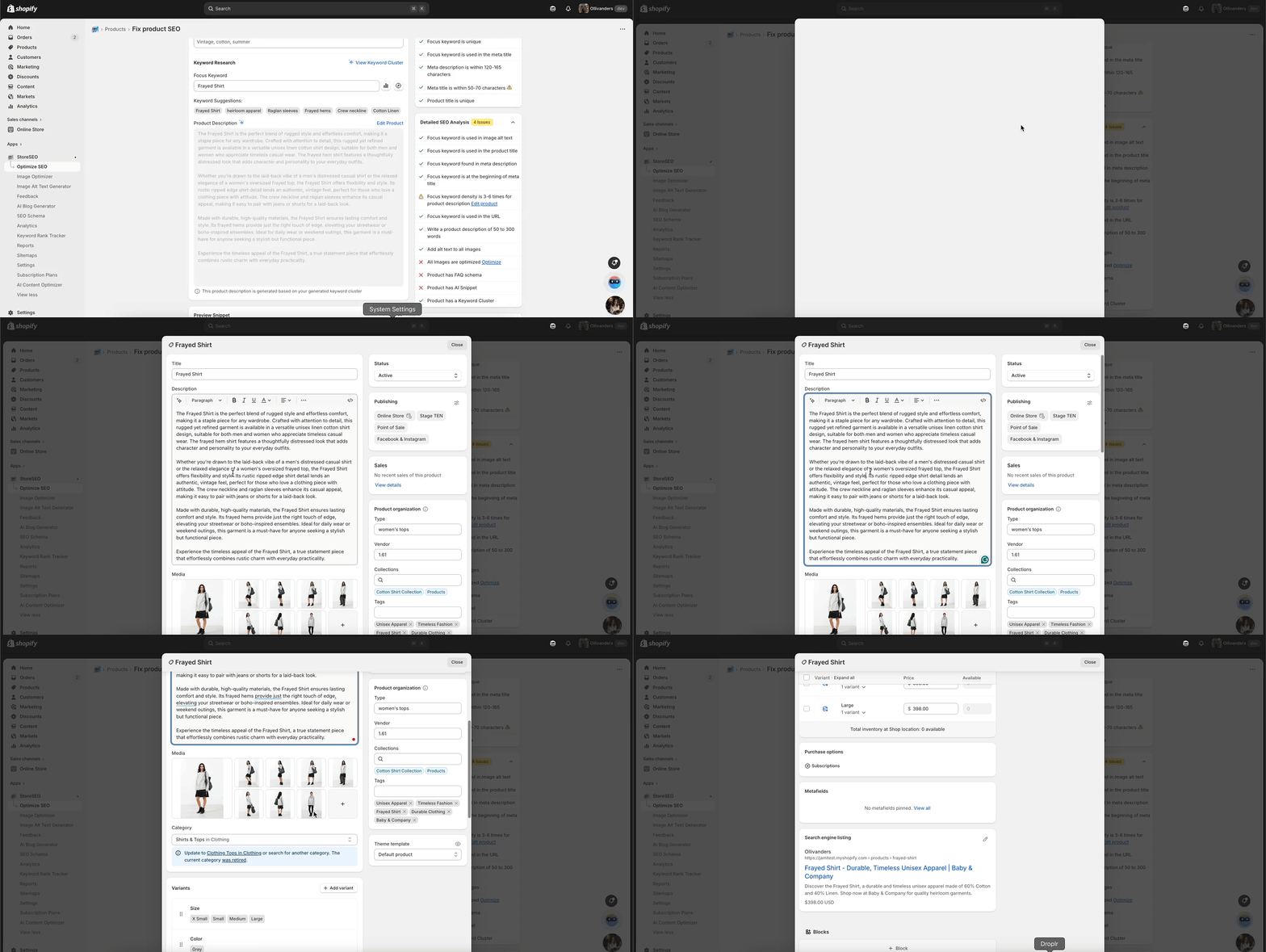
Step 4: Edit the Product #
If you need to fine-tune your description or adjust other details, click on the Edit Product button. This will allow you to make additional edits to the product description, metadata, or other attributes before finalizing your updates.
That’s how easily you can use the StoreSEO Keyword Cluster Generator feature. Following these steps ensures that your products are backed by accurate keyword research and written with strong SEO optimization for better visibility and conversions. If you need any assistance, feel free to contact サポートチーム.