
Track ChatGPT & Perplexity Traffic in GA4 (Shopify)
 Written by M Asif Rahman
GA4 now labels many ChatGPT and Gemini visits as its own AI Assistant channel automatically. A custom channel group with one short regex adds Perplexity, Claude and Copilot to that same view. Then cross-check the sessions against StoreSEO’s AI Referral Traffic Analytics, which turns those same visits into Shopify orders and revenue.
TL;DR: the ingredients, before the ten-minute setup.
| You need | Where | Do this |
|---|---|---|
| A GA4 property already linked to your store | Google Analytics, Admin | Confirm access; skip to the regex step if it is already connected |
| A custom channel group named AI Assistants | GA4 Admin, Channel groups | Paste the regex from the setup step below |
| StoreSEO’s Web Pixel switched on | StoreSEO dashboard, setup checklist | Turn it Active before you read Orders & Revenue |
| About 10 minutes | n/a | Read both reports side by side once data appears |
This is the StoreSEO blog, and StoreSEO is our product, so the second half of this guide names our own AI Referral Traffic Analytics feature. The GA4 half works whether or not you use StoreSEO at all, and every number below is sourced and dated.
What Does GA4 Already Track for AI Referrals?
Google quietly gave GA4 its own built in category for this. The Default channel group dimension, which every GA4 property already reports on, now includes a channel called AI Assistant. A session gets sorted into it the moment GA4 sets its medium to ai-assistant, which it does on its own when a visit’s referrer matches a list of AI assistants Google maintains internally.
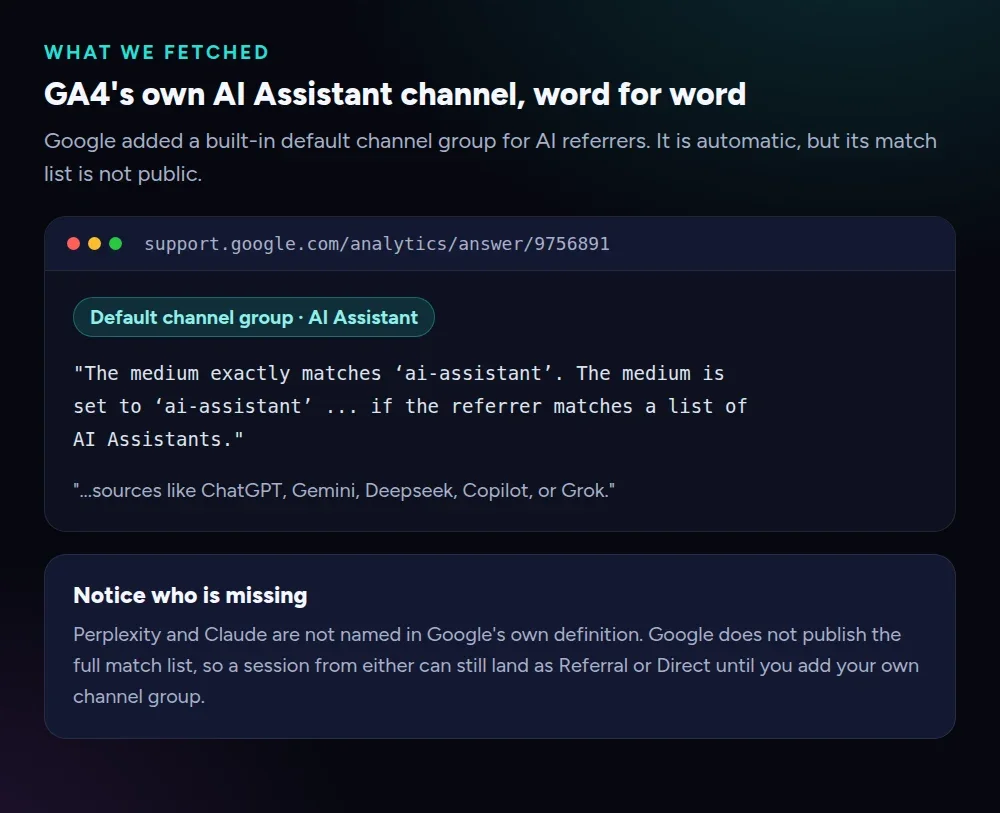 Google’s own wording for the AI Assistant default channel, fetched from Google Analytics Help on 26 September 2026.
Google’s own definition names ChatGPT, Gemini, Deepseek, Copilot and Grok as examples of what the AI Assistant channel catches. Perplexity and Claude are not in that sentence, and Google does not publish the full match list behind it, so there is no way to confirm from outside whether either one is quietly included. If you only need a rough read on AI traffic, open Acquisition > Traffic acquisition, set the dimension to Session default channel group, and look for the AI Assistant row: it needs no setup at all. If you want ChatGPT, Perplexity and Gemini broken out by name, or want to be sure Perplexity is not falling through to Referral, build the custom channel group in the next section. For the wider picture on connecting GA4 to a Shopify store in the first place, our Google Analytics integration guide covers the setup this section assumes.
How Do You Build a Custom Channel Group for ChatGPT, Perplexity and Gemini?
Google publishes a worked example for exactly this job under “custom channel groups,” and the steps below follow it with one change: matching referrer hostnames instead of loose keywords, so a legitimate *.ai business domain in your referral traffic never gets miscounted as an AI assistant.
- In GA4, go to Admin > Data display > Channel groups > Create custom channel group.
- Name the group AI Assistants.
- Add a channel, also named AI Assistants, and add a condition on the Session source dimension set to matches regex.
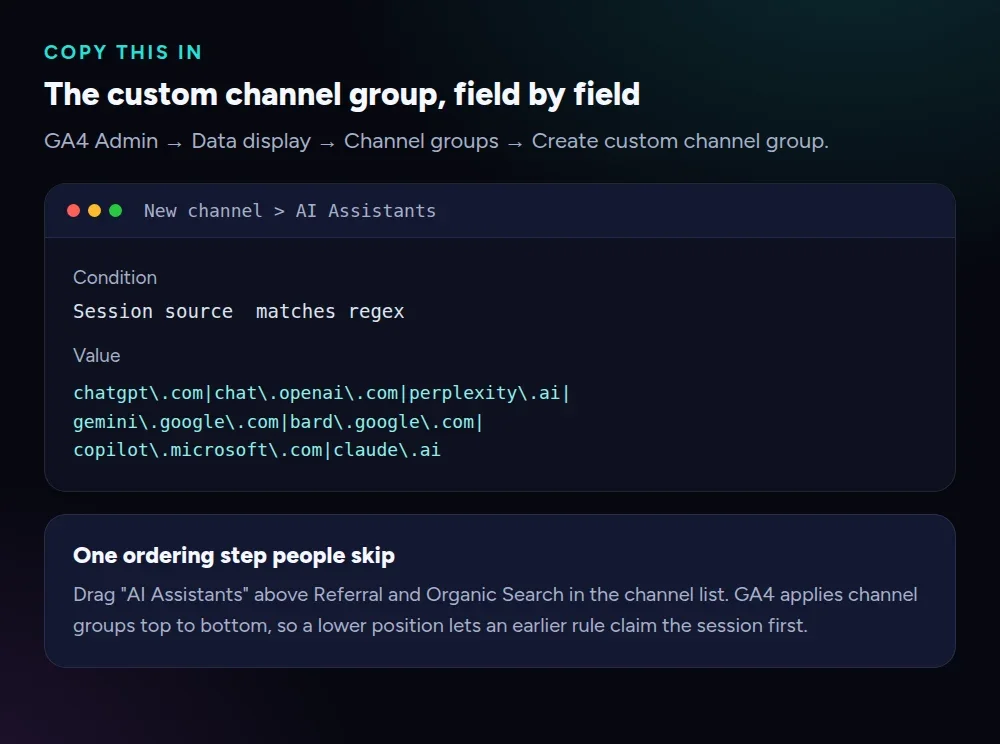 Field by field: what to type into GA4’s custom channel group screen.
- Paste this regex as the value:
chatgpt\.com|chat\.openai\.com|perplexity\.ai|gemini\.google\.com|bard\.google\.com|copilot\.microsoft\.com|claude\.ai. - Drag the AI Assistants channel above Referral and Organic Search in the group’s ordering. GA4 applies channel groups top to bottom, so a channel placed too low never gets a chance to claim a session first.
- Save, then open Acquisition > Traffic acquisition and select your new custom channel group as the report’s dimension.
Update the regex whenever a new assistant matters to your store; a domain missing from the list simply falls through to whatever channel would have claimed it anyway, so a stale regex costs you visibility, not accuracy.
How Do You Turn Those Sessions Into Orders and Revenue?
A session count answers whether an assistant sends people. It does not answer whether they buy, because GA4 has no view into your Shopify checkout unless you wire up ecommerce events yourself, and even then it is measuring your store, not attributing a specific order back to a referrer with certainty.
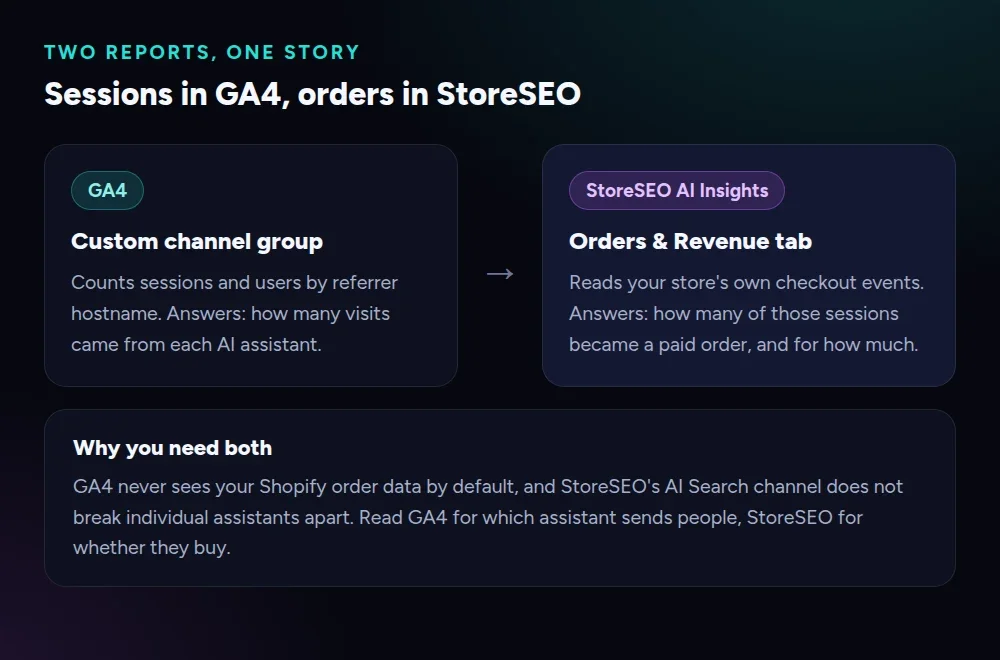 Read GA4 for which assistant sends visits; read StoreSEO for whether those visits become sales.
StoreSEO’s AI Referral Traffic Analytics, inside the AI Insights section of the StoreSEO dashboard, closes that gap from the Shopify side instead of the GA4 side. It reads your store’s own checkout events and groups every visitor into one of four channels: AI Search (ChatGPT, Gemini, Perplexity, Claude and other AI assistants), Organic Search, Paid Search and Direct. Against each channel it reports sessions, orders, revenue, conversion rate and average order value, which is exactly the order-level detail GA4 does not give you out of the box. Full access needs a paid plan; the free plan still shows the four headline totals. StoreSEO’s own guide to tracking orders and revenue by channel walks through every tab and card, and our earlier post on why the Order & Revenue feature matters covers what changed when StoreSEO added it.
One setup step gates all of it: StoreSEO’s channel attribution depends on its Web Pixel, which records the checkout events that connect a sale back to a channel. From your Shopify admin, open StoreSEO, stay on the dashboard, and look for the “Web Pixel Enabled” item in the setup checklist. Attribution only starts from the moment it shows Active, so an order placed earlier never appears in the report, even after you turn the pixel on later.
How Do You Read the Numbers?
Open both reports for the same date range and compare shape, not just totals. StoreSEO’s own guidance for its channel breakdown table is to watch for a channel with a small share of sessions but a large share of revenue: that mismatch is the one worth investing in next, because it means the visits it sends convert unusually well even though there are not many of them yet.
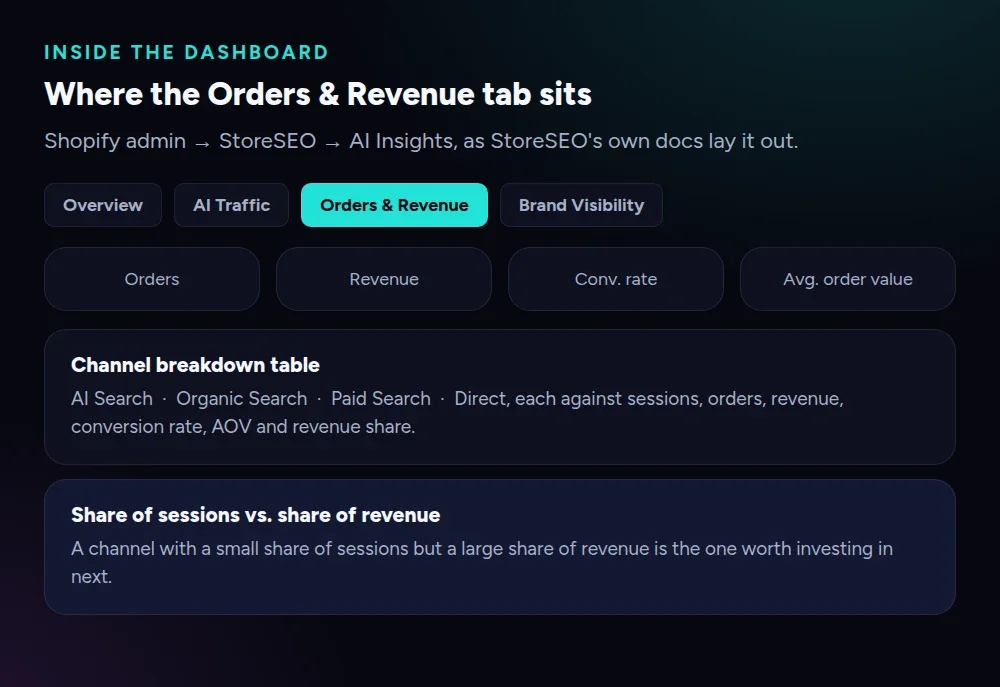 How the tabs and cards are laid out inside StoreSEO’s AI Insights, per StoreSEO’s own documentation.
| What you are checking | GA4’s custom channel group | StoreSEO’s AI Referral Traffic Analytics |
|---|---|---|
| Sessions per named assistant | Yes, one row per referrer your regex matches | No, grouped as one AI Search channel |
| Orders and revenue per channel | No, not without extra ecommerce setup | Yes, plus conversion rate and average order value |
| Works without installing anything new | Yes, if GA4 is already connected | No, needs the Web Pixel Active first |
If a channel’s session count in GA4 does not roughly track its order count in StoreSEO, look at average order value before assuming something is broken. A channel sending fewer, higher-value visitors can out-earn a channel sending more, cheaper ones, and that difference is the entire point of reading both reports together. Our general Shopify Analytics guide covers the store-wide metrics worth watching alongside this channel-level view.
What Are the Known Gaps in AI Attribution?
None of this is exact, and treating it as exact is the mistake to avoid.
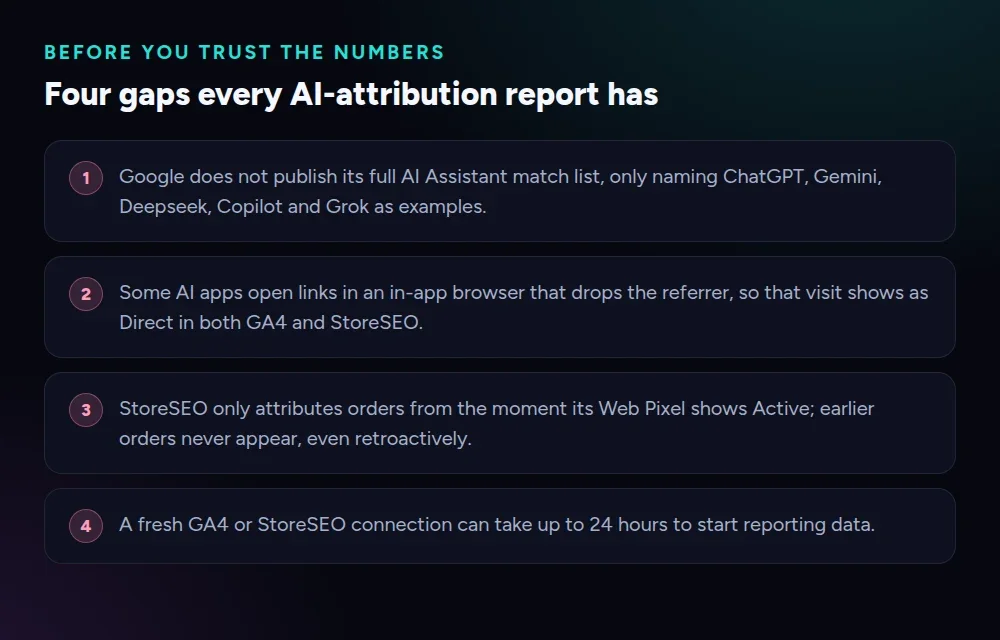 Read the numbers with these four limits in mind before you act on them.
Google does not publish the full referrer list behind its own AI Assistant channel, so you cannot audit exactly which sessions it catches beyond the five names it gives as examples. Some AI assistants open outbound links inside an in-app browser that strips the referrer header entirely, and a visit with no referrer shows up as Direct in both GA4 and StoreSEO, not as AI traffic, so the true AI-referred number is always a floor, not a ceiling. StoreSEO’s own attribution starts counting only from the moment its Web Pixel goes Active, and that cutoff is not retroactive. Finally, Google says a fresh GA4 connection can take up to 24 hours before it starts reporting data at all, so a custom channel group built minutes ago showing zero sessions is not yet a failure.
If you have not checked whether AI engines recommend your store to begin with, that question comes before either report: our guide on how ChatGPT, Gemini and Perplexity recommend Shopify products is the place to start.
Frequently Asked Questions (FAQs)
1. Does GA4 already show ChatGPT and Gemini traffic without any setup?
Yes. GA4 assigns many of those visits to its own AI Assistant default channel automatically, using a medium value it sets when the referrer matches its internal list. Google names ChatGPT, Gemini, Deepseek, Copilot and Grok in its own definition, so a rough read is already available under Session default channel group with no configuration at all.
2. Why isn’t Perplexity in GA4’s default AI Assistant channel?
Google maintains the referrer list behind the default channel group itself and does not publish the full set of domains it matches, only naming ChatGPT, Gemini, Deepseek, Copilot and Grok as examples. A session from Perplexity that the undisclosed list does not recognize falls back to Referral or Direct instead, which is the gap a custom channel group closes.
3. Can I edit GA4’s default AI Assistant channel?
No. Default channel groups cannot be edited in Google Analytics, so you cannot add Perplexity or Claude to the built-in list by hand. Google’s own recommended path is a separate custom channel group, which is exactly what the setup steps in this guide walk through.
4. Do I need StoreSEO to track AI traffic, or does GA4 cover it?
GA4 covers sessions, but it does not connect those sessions to which Shopify orders they led to on its own. StoreSEO’s AI Referral Traffic Analytics reads your store’s own checkout events and groups them into AI Search, Organic Search, Paid Search and Direct, showing orders, revenue, conversion rate and average order value per channel, not just visits.
5. Why does my StoreSEO Orders & Revenue tab show sessions but no orders?
This usually means the StoreSEO Web Pixel is not Active on your dashboard yet. Attribution only begins from the moment the pixel switches on, so any order placed before that point will not appear later, even after you enable it.
6. How long until a new GA4 channel group or StoreSEO connection shows data?
Google says GA4 can take up to 24 hours to report data after a property first connects, and a fresh Analytics link inside StoreSEO follows the same pattern. Give a new custom channel group at least a full day before judging whether the regex is catching the traffic you expect.
Start With the Report You Already Have
If you have never looked, open GA4’s Session default channel group today and see whether an AI Assistant row already exists; you may already have a rough number with nothing to set up. Add the custom channel group when you want ChatGPT, Perplexity and Gemini broken out by name, and turn to StoreSEO’s AI Referral Traffic Analytics the moment the question changes from how many visits to how much revenue.
When you are ready to see AI Search sit next to Organic, Paid and Direct in your own dashboard, try StoreSEO on the Shopify App Store.
Keep reading
40 ChatGPT Prompts for Shopify SEO, Tested
These 40 ChatGPT prompts draft Shopify meta descriptions, alt text, FAQs and schema, each with the one thing you must verify before publishing it.
Read article
We Checked 148 Shopify Stores for AI Crawler Blocks
We crawled robots.txt on 148 live Shopify stores and found only one blocking any AI crawler by name, and zero blocking GPTBot, ClaudeBot or PerplexityBot.
Read article
AI Search Intent: How to Map Shopify Content to ChatGPT & Gemini Query Patterns
Shoppers are skipping Google and asking ChatGPT or Gemini to recommend products instead. If your Shopify store content is not structured for AI search intent, your products will not appear in those answers. This guide breaks down how ChatGPT and Gemini interpret shopping queries differently, what content each platform favors, and how to map your product pages, collections, and blog posts to the new AI query patterns that decide what gets recommended.
Read article