
How to Track Orders & Revenue by Traffic Channel in Shopify Using StoreSEO?
StoreSEO is the AI SEO Agentic App for Shopify that helps your store get discovered on Google, Bing and inside AI answer engines like ChatGPT, Gemini, Perplexity and Claude. With the newly released ‘Order & Revenue’ feature, StoreSEO now closes the loop between discovery and sales by showing you the money behind every visit your store receives.
Knowing that AI assistants send you traffic is only half the story. What actually matters is whether those visitors buy. The Order & Revenue report inside AI Insights attributes orders, revenue, conversion rate and average order value to each channel that sends you visitors, so you can see exactly which discovery source is driving real sales and which one is only driving clicks.
This documentation walks you through enabling the tracking pixel, opening the Order & Revenue report, reading each metric correctly and turning those numbers into decisions for your Shopify store.
How to Track Orders & Revenue by Channel Using StoreSEO
Make sure you have installed the StoreSEO app on your Shopify store. Then follow the step-by-step guidelines below to enable order tracking and read your revenue data channel by channel.
Step 1: Confirm Web Pixel Is Enabled on Your Dashboard
Order and revenue attribution depends on the StoreSEO Web Pixel, which records the checkout events that let StoreSEO connect a sale back to the channel that referred the shopper. Without it, your dashboard will show sessions but no orders or revenue.
From your Shopify admin, open the StoreSEO app and stay on the Dashboard. Scroll down to the setup checklist and look for the ‘Web Pixel Enabled’ item. When it shows a checkmark with the green Active badge, tracking is live and StoreSEO has started collecting order data for your store.
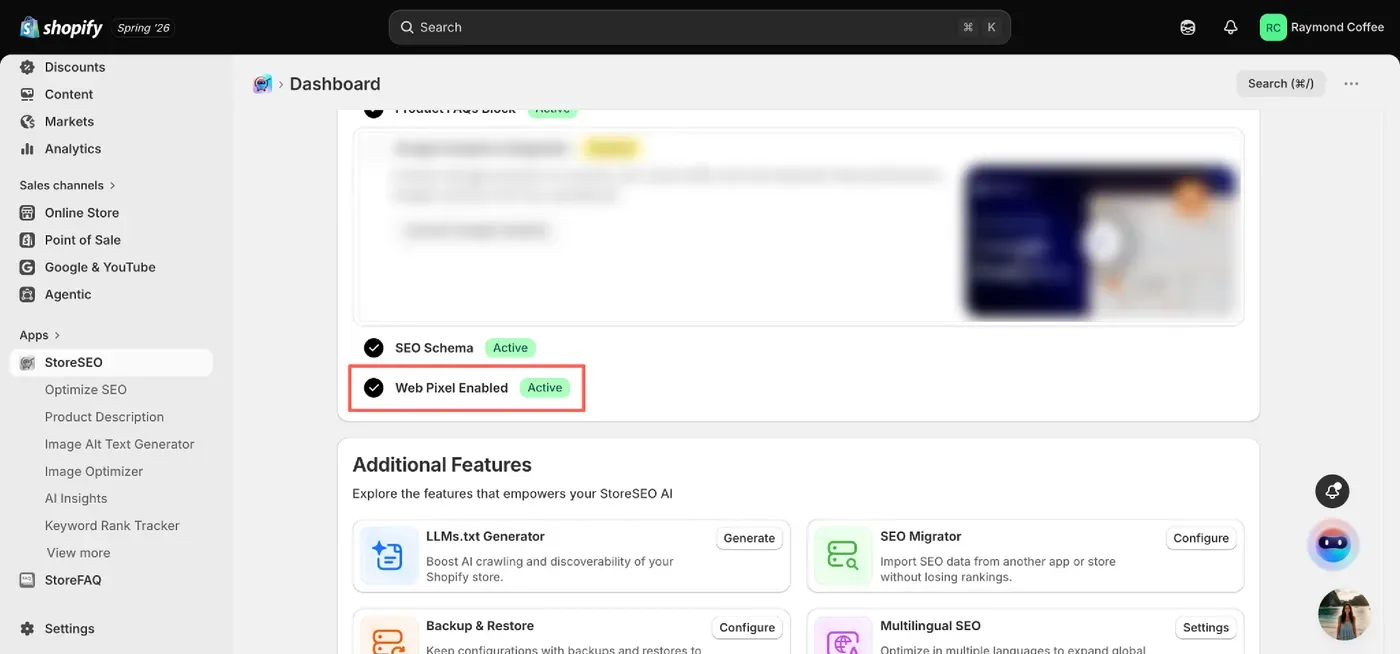
If the item is not marked as Active yet, enable it. Attribution only begins from the moment the pixel goes live, so orders placed before this step will not appear in your report.
Step 2: Open the ‘Orders & Revenue’ Tab From AI Insights
All of your channel performance data lives inside the AI Insights section of StoreSEO. From the left menu of your Shopify admin, click ‘AI Insights’ under the StoreSEO app. On the AI Insights screen, you will find four tabs: Overview, AI Traffic, Orders & Revenue and Brand Visibility. Click the ‘Orders & Revenue’ tab to load the report.
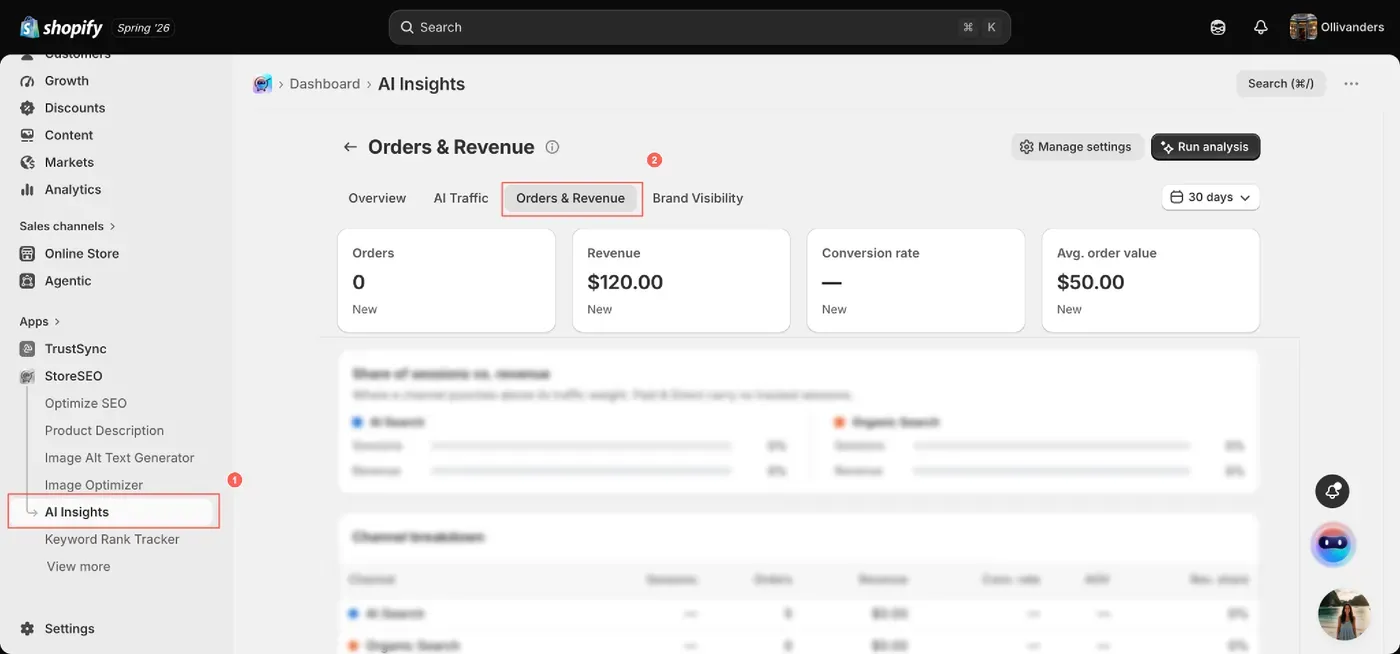
The top of the report shows your four headline cards for the selected period: Orders, Revenue, Conversion rate and Avg. order value. Use the date range selector on the right to switch between periods such as the last 30 days and click ‘Run analysis’ to refresh the data on demand.
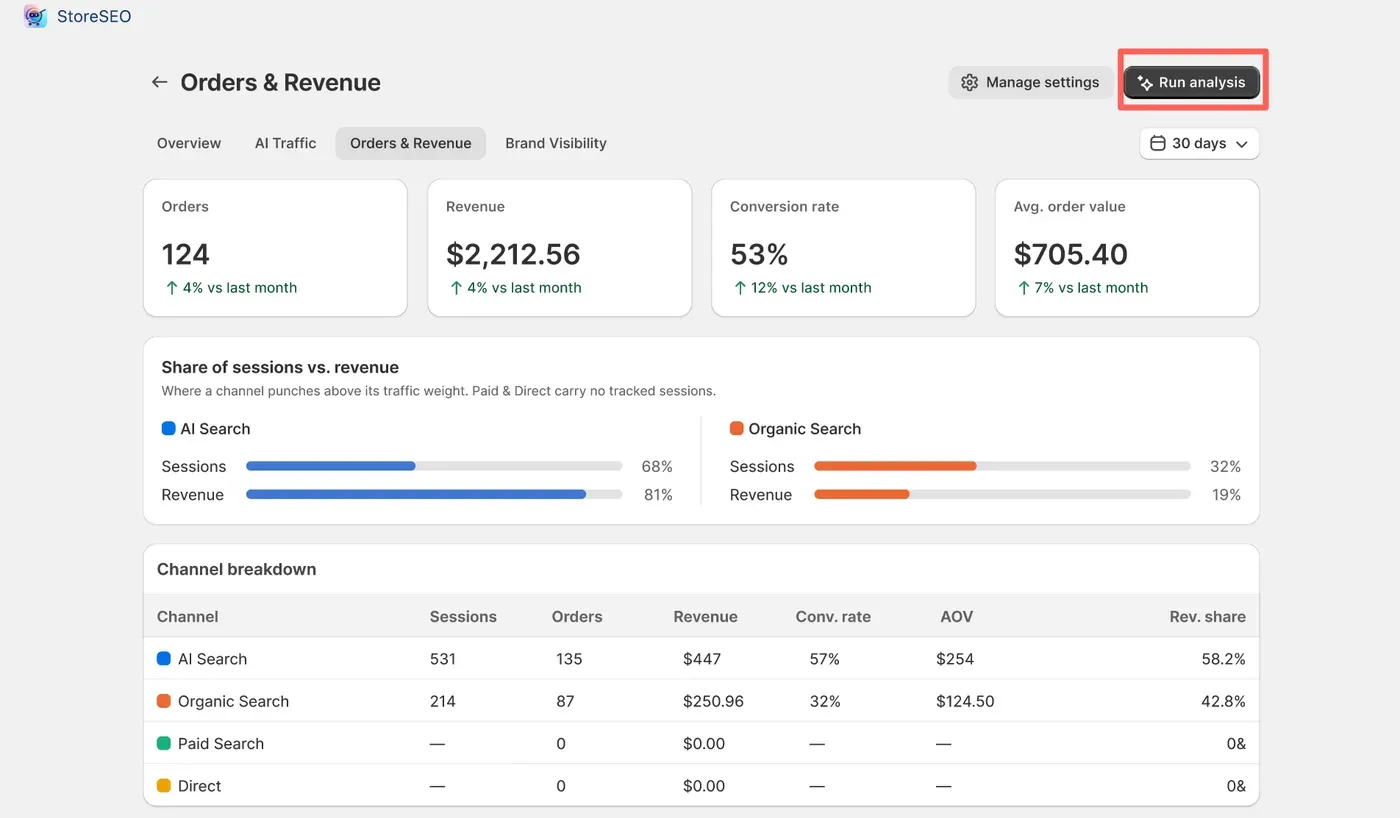
The ‘Manage settings’ button lets you adjust how your tracking and analysis are configured.
Note: If you are a free user, you can only check Orders, Revenue, Conversion Rate, and Avg. Order Value as shown. You need Pro access to view the rest of the advanced details.
Step 3: Analyze Channel Performance in Detail
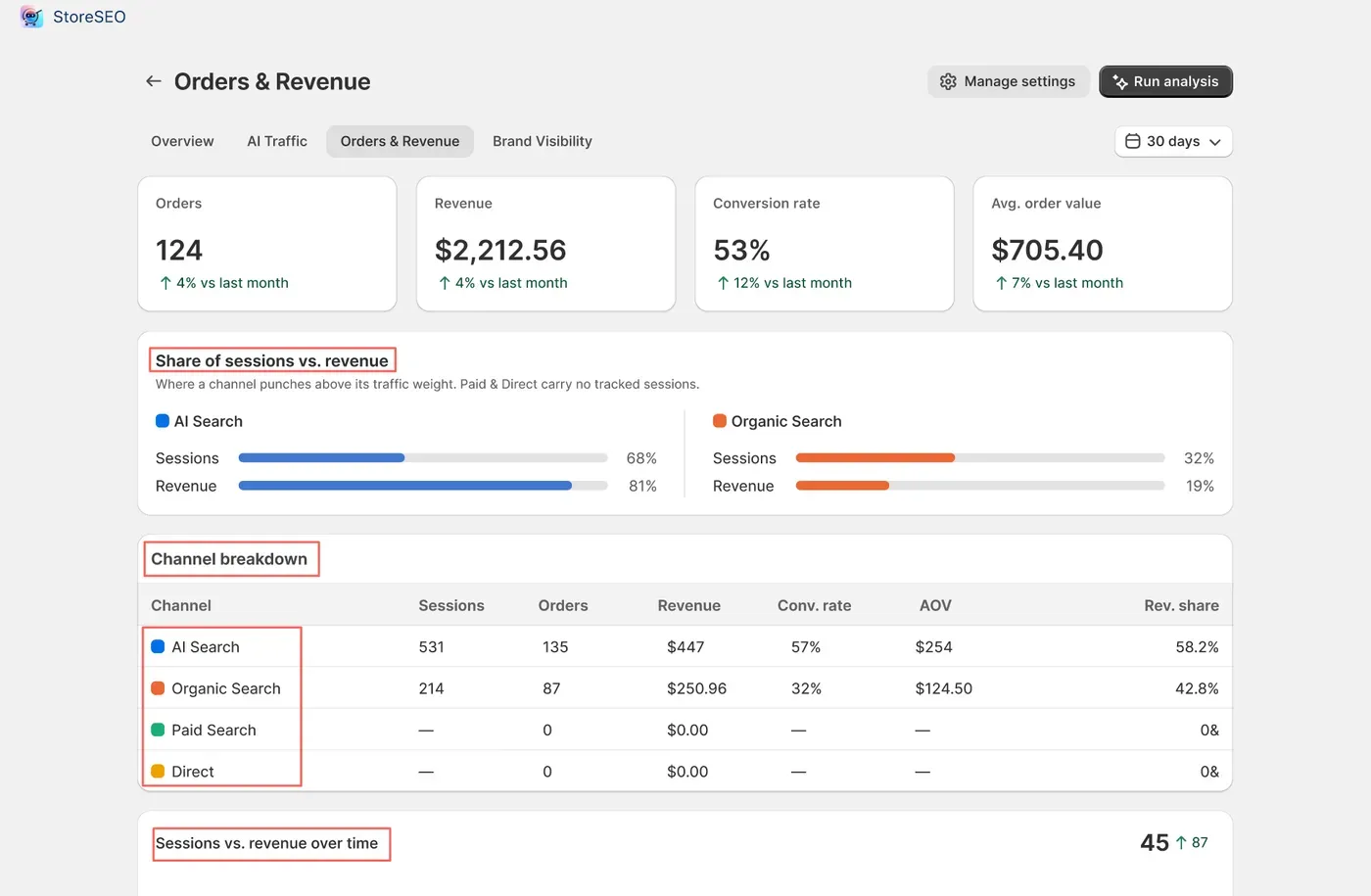
Scroll down to see channel-level details and discover which sources perform best. The report has three sections:
- Share of sessions vs. revenue: A side-by-side comparison that shows where a channel punches above its traffic weight. A channel with a small share of sessions but a large share of revenue is one worth investing in. Note that Paid and Direct carry no tracked sessions here.
- Channel breakdown: A full table listing AI Search, Organic Search, Paid Search and Direct against Sessions, Orders, Revenue, Conv. rate, AOV and Rev. share, so you can compare every channel on the same terms.
- Sessions vs. revenue over time: A trend chart that plots visits against earnings across the selected period, making it easy to spot the days when traffic and sales moved together or drifted apart.
Channels StoreSEO Attributes
Every visitor who lands on your store is grouped into one of four channels so that revenue can be attributed cleanly. Understanding what each label covers keeps your reading of the report accurate:
- AI Search: Visitors referred by ChatGPT, Gemini, Perplexity, Claude and other AI assistants that cited or recommended your store.
- Organic Search: Visitors who found you through unpaid results on search engines such as Google and Bing.
- Paid Search: Visitors arriving from paid search campaigns pointing to your store.
- Direct: Visitors who reached your store without a referrer, for example by typing your URL or using a bookmark.
If you need any assistance, feel free to contact our support team.
Still need help?
Our support team is happy to assist you.