How to Set Up Your StoreSEO Keyword Rank Tracker
Keyword Rank Tracker is a powerful new StoreSEO feature that allows you to monitor exactly where your Shopify store stands in search engine results. Instead of guessing your progress, you can track the real-time performance of your most valuable keywords and see how your optimization efforts are paying off.
This documentation walks you through the simple steps to set up tracking for your target keywords, interpret your ranking reports, and use data-driven insights to climb higher in search results.
Make sure you have installed the StoreSEO app on your Shopify store. Then, follow these step-by-step guidelines to start using the keyword rank tracker feature for your Shopify store using StoreSEO.
Step 1: Access the Keyword Rank Tracker
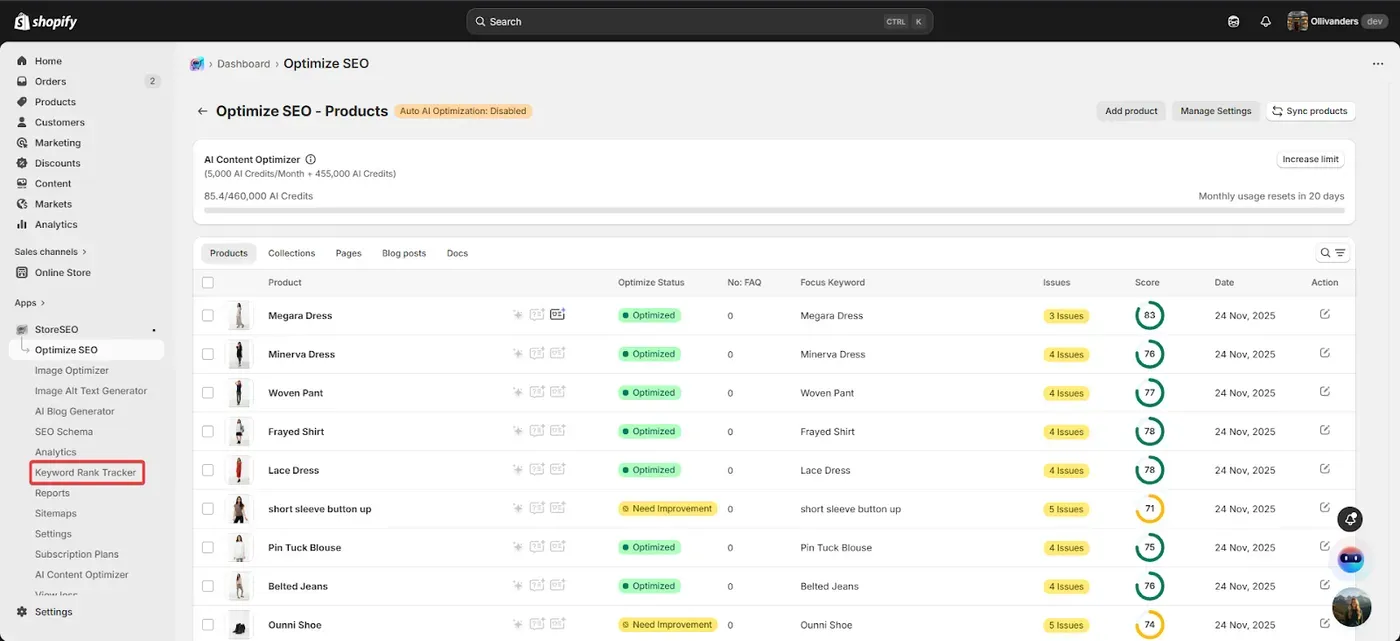
From your Shopify admin dashboard, open the StoreSEO app. Locate and select Keyword Rank Tracker from the features panel on the left sidebar.
Step 2: Choose Your Tracking Action
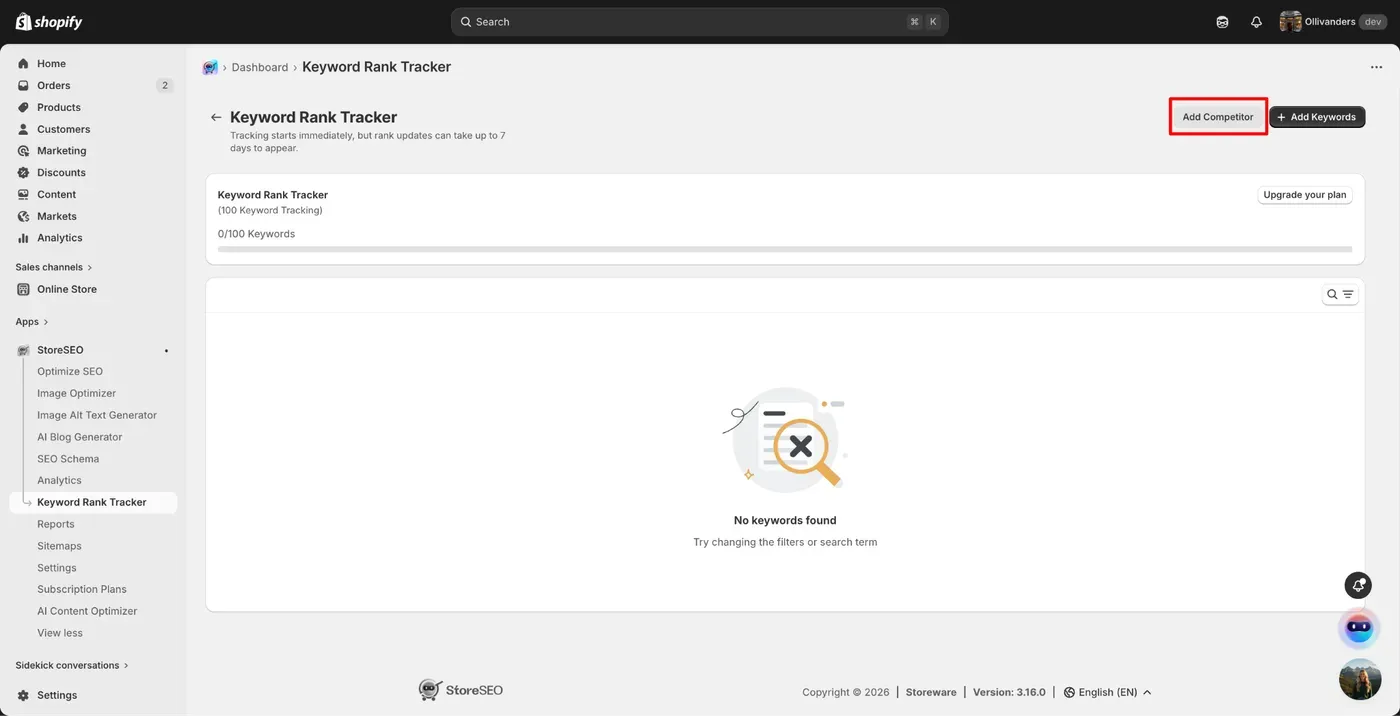
The dashboard provides two main configuration options: Add Competitors and Add Keywords. Start by clicking the Add Competitors button to establish a baseline for keyword ranking comparison.
Step 3: Configure Your Competitors
Enter the valid URLs of up to five competitors within your niche into the provided fields. Use this section to delete or adjust your list as your keyword strategy evolves. Click the Save button once your list is finalized to lock in these comparisons.
Step 4: Add and Configure Keywords
Click the Add Keywords button to input the specific search terms you wish to monitor.
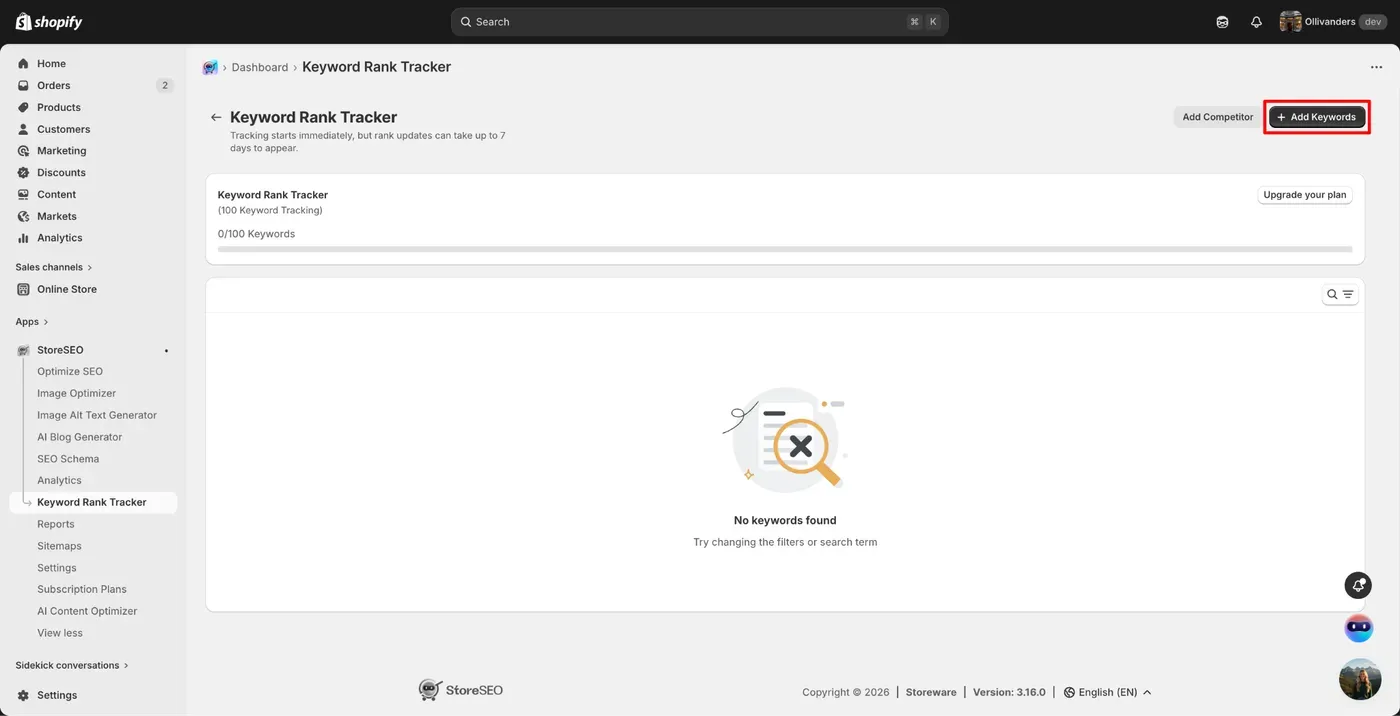
Use the dropdown menus to select the specific location, device type, search engine, and language that align with your target audience. Click the Add button to move these terms into your tracking list.
Step 5: Utilize Keyword Suggestions
Look to the keyword suggestion box on the right side of the screen to discover relevant terms based on your niche. Click on the Add button.
Review the AI-powered suggestions, which highlight high-performing terms already driving traffic in your industry. Click the Add button next to any suggested keyword to include it in your list, then click Save to confirm your selection.
Step 6: Analyze Performance Data
Return to the main dashboard to review the performance of your added keywords. Examine the status of each term, paying close attention to SERP features such as image rankings, featured snippets, and AI overviews. Compare your current ranking against the competitors you added earlier to identify where you are winning and where you need to improve.
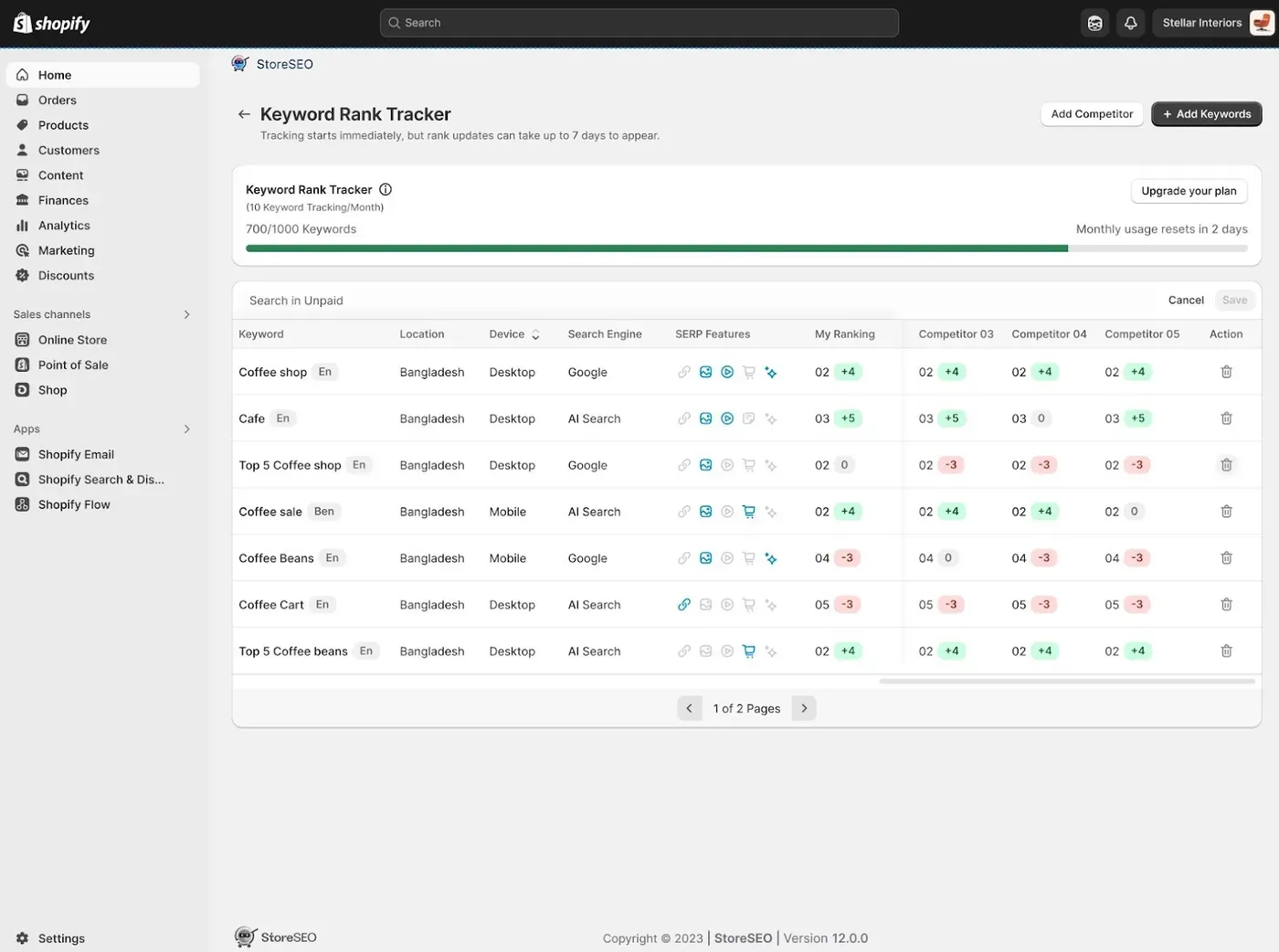
Step 7: Analyze Detailed Keyword Analytics
For individual keyword here’s the performance graph and detailed daily ranking cards. By tracking visibility across five critical search verticals: Overall, Links, Video, Shopping Results, and AI Search, the page provides you with a clear understanding of exactly where their traffic is originating and how they stack up against specific competitors like
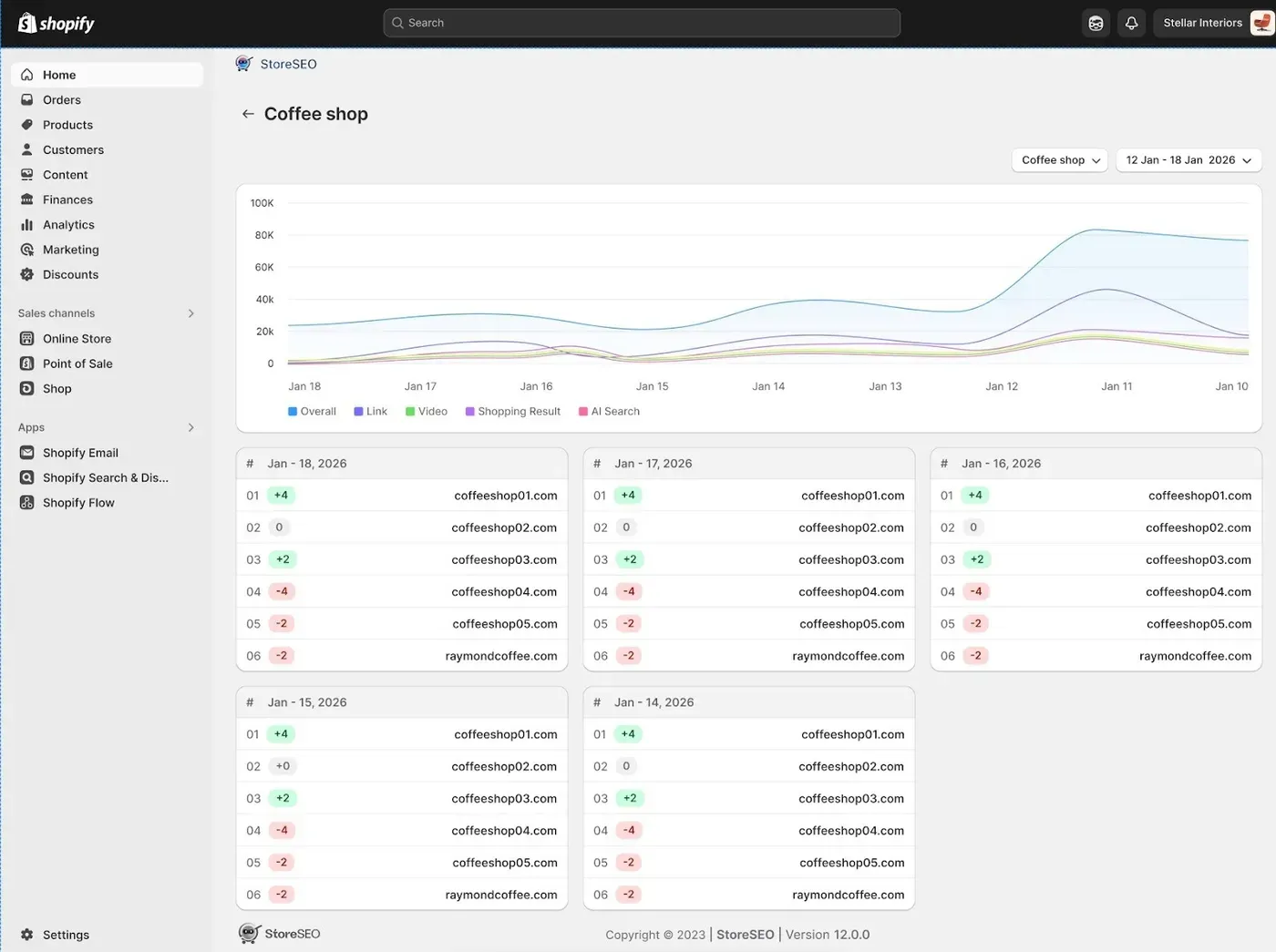
This is how easily you can utilize the keyword rank tracker feature for your Shopify store using StoreSEO. If you need any assistance, feel free to contact our support team.
Still need help?
Our support team is happy to assist you.