
The StoreSEO AI Toolkit is a feature that connects your Shopify store to AI coding assistants like Claude Code, Cursor, and VS Code through an MCP (Model Context Protocol) server. Think of it as a bridge that lets AI agents talk directly to your StoreSEO account. Instead of clicking around in the admin panel, you can simply type commands in your terminal and let AI handle SEO optimizations for you.
Before You Begin #
Make sure you have the following before you start:
- An active Shopify store with StoreSEO installed on it
- A Shopify store connected to StoreSEO
- Claude Code installed on your computer (download from claude.ai)
- Basic familiarity with using a terminal/command line
Step 1: Navigate to the AI Toolkit #
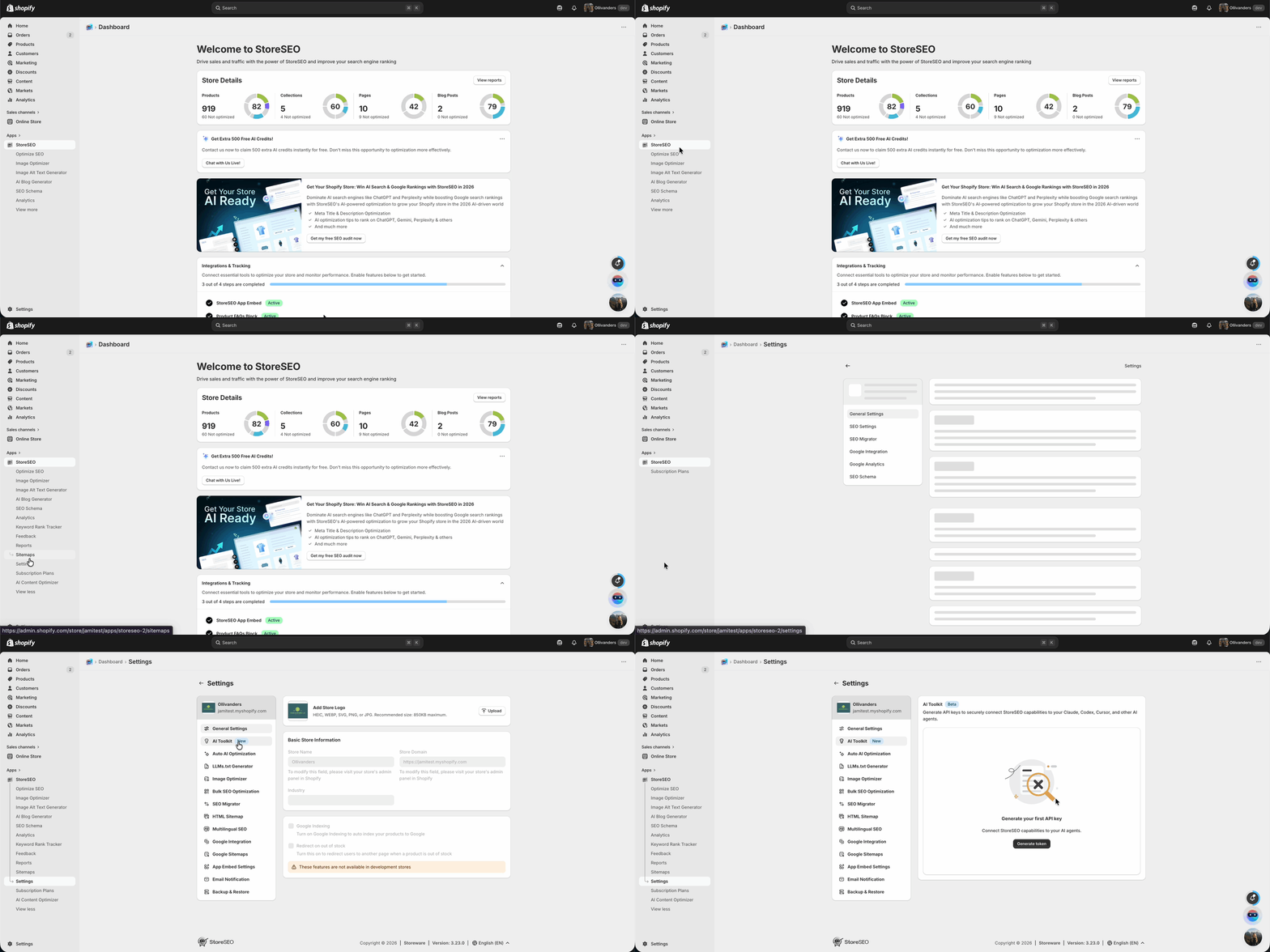
First, open your StoreSEO app. From the left sidebar, click on Settings. In the Settings menu, look for the AI Toolkit option and click on it. You will see a section that lets you generate API keys to connect StoreSEO with AI agents like Claude Code, Cursor, and VS Code.

Step 2: Generate Your API Token #
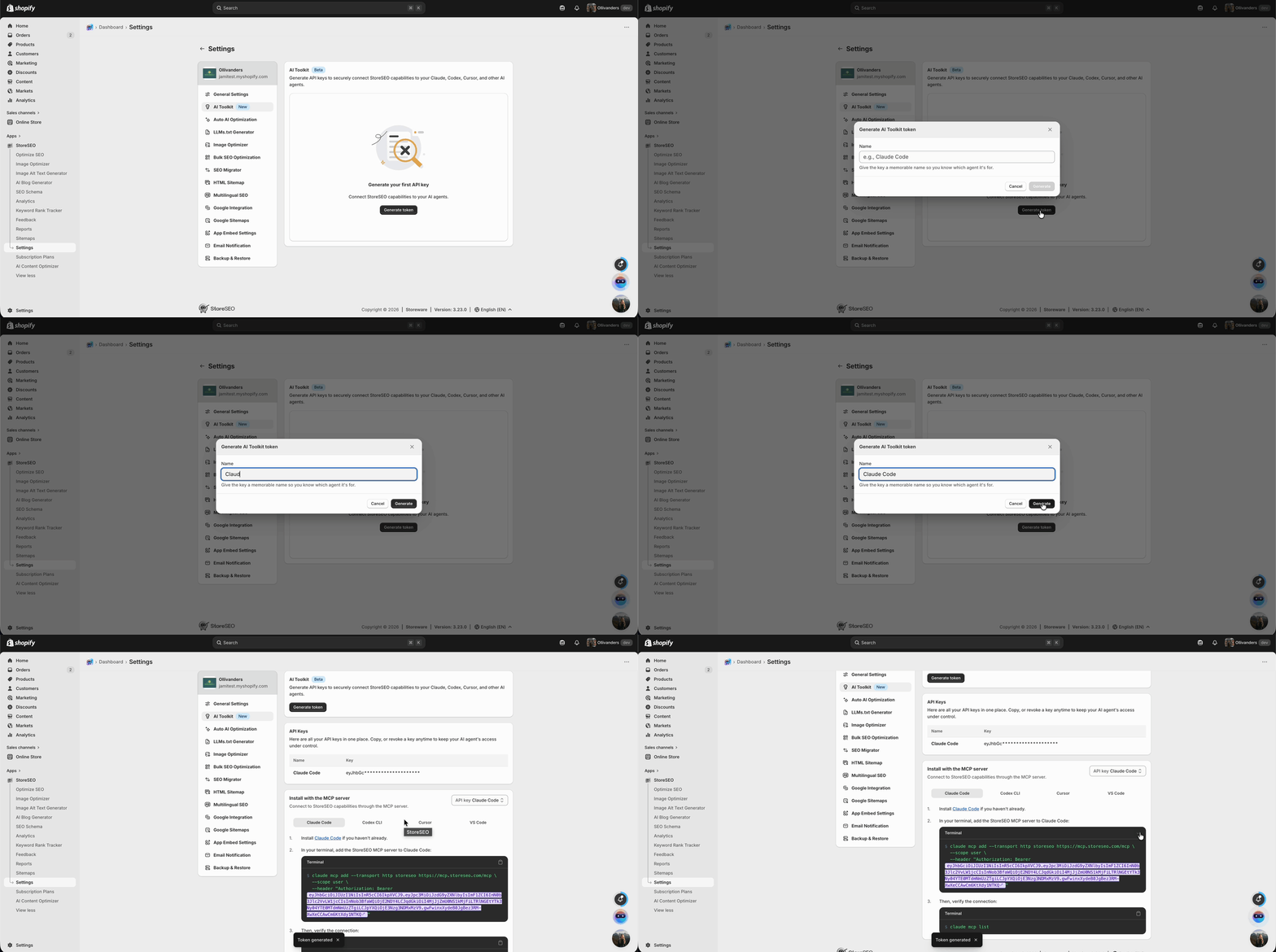
Once you are on the AI Toolkit page, you will see a prominent button labeled Generate Token. Click this button. A popup window will appear asking you to name your token. Give it a meaningful name so you can identify it later.
For example, if you are using Claude Code, name it Claude Code. This name is just a label for your reference and does not affect functionality. Click the Generate button after naming it.

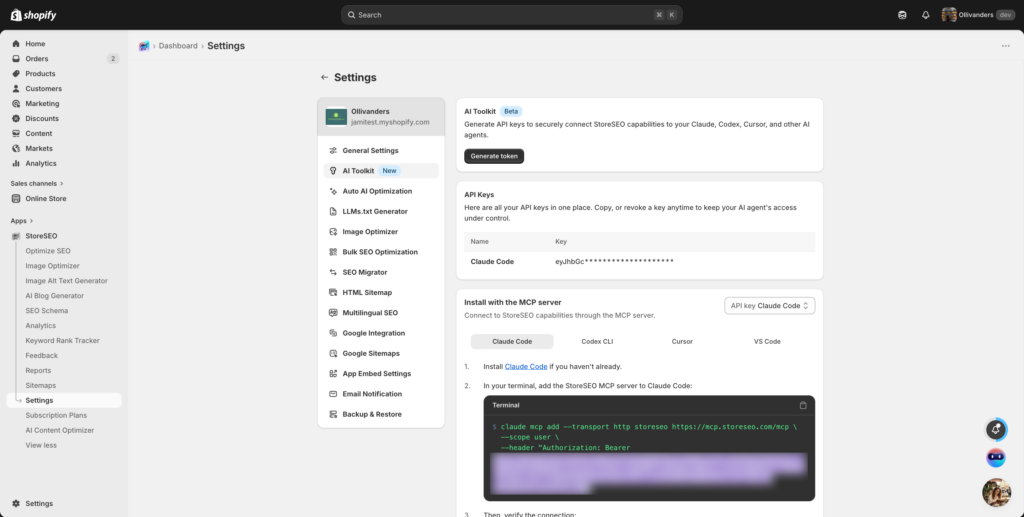
Step 3: Add the StoreSEO MCP Server to Claude Code #
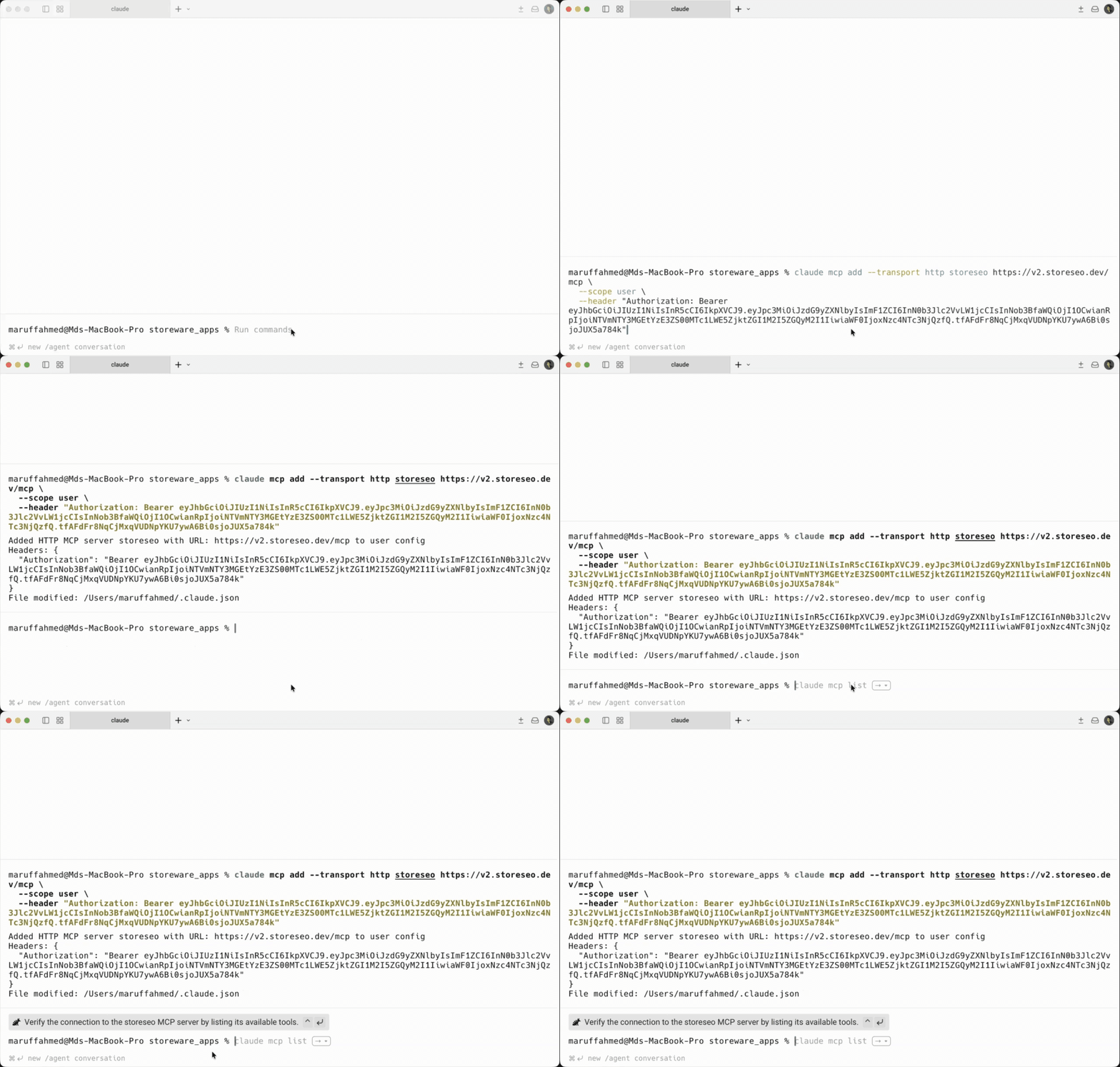
Open your terminal on your computer. Paste the command you copied in Step 3 and press Enter. The command will add StoreSEO as an MCP server to your Claude Code configuration. You will see a confirmation message showing that the HTTP MCP server was added successfully along with your StoreSEO URL.

Step 4: Verify the Connection #
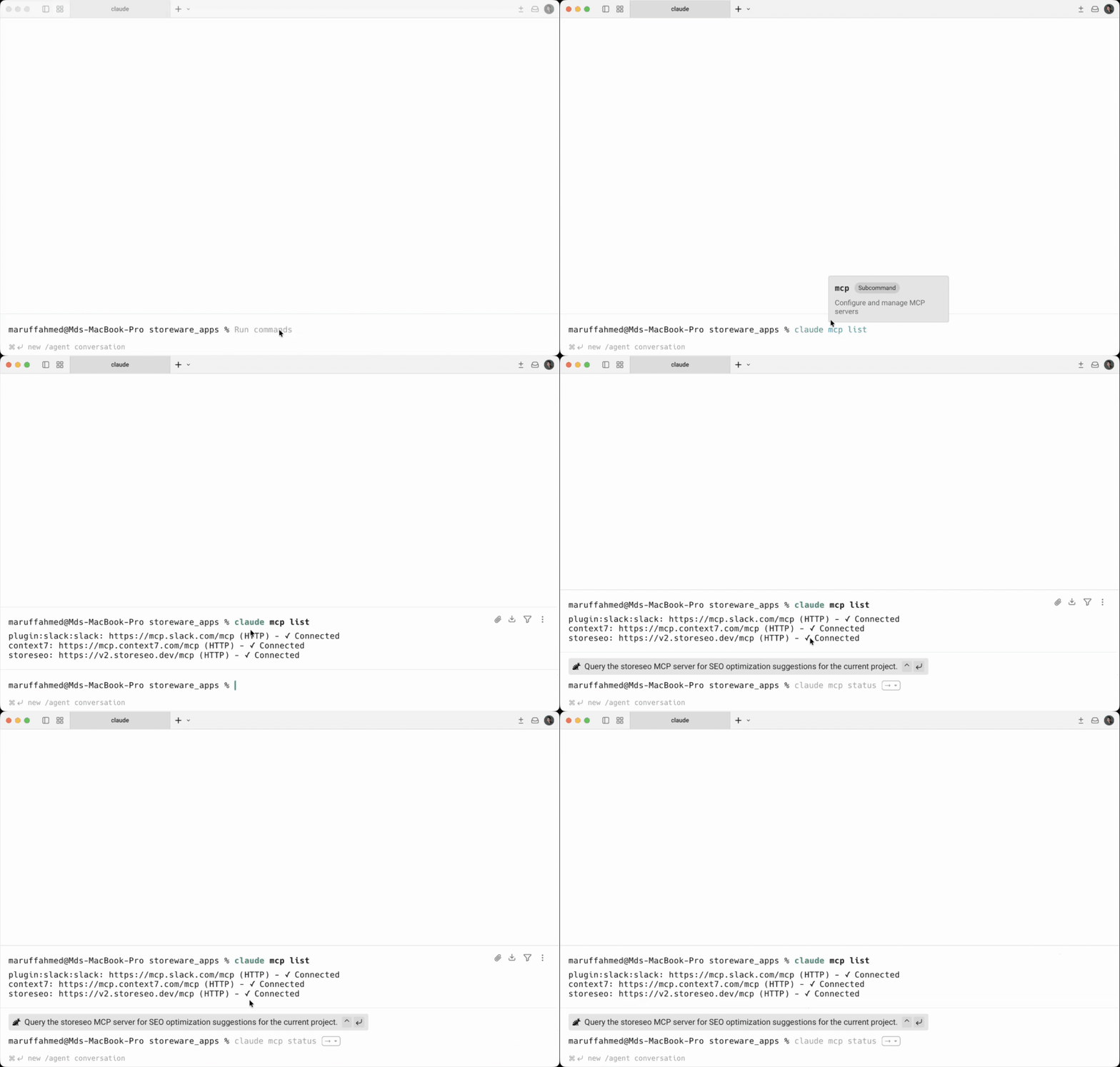
In your terminal, run the following command:
claude mcp list
This will show all connected MCP servers. Look for “商店SEO” in the list. If it shows Connected with a checkmark, your connection is working properly.

You should also see your StoreSEO URL (https://v2.storeseo.dev/mcp) listed next to it. If you see an error or the connection says disconnected, double-check that your token was copied correctly and try regenerating it from the AI Toolkit page.

Step 5: Start Using the Toolkit #
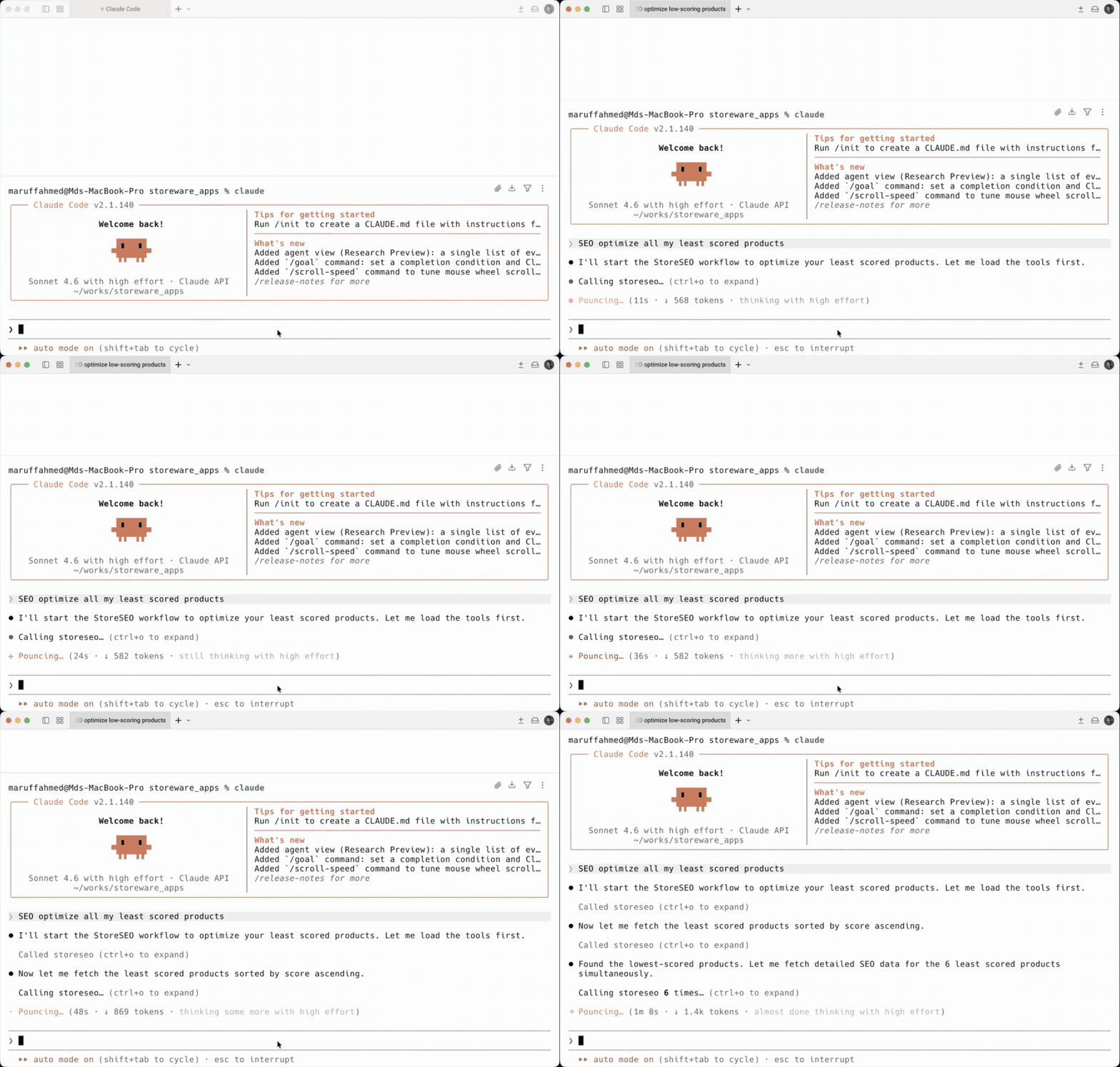
Now you are ready to use the StoreSEO AI Toolkit. In your terminal, type claude and press Enter to start Claude Code. You can now give commands in plain English to perform SEO tasks. For example, you can type: SEO optimize all my least scoring products. Claude will connect to StoreSEO, identify your low-performing products, and automatically optimize them. The AI will work through the optimization process and show you a summary of what was fixed and what still needs attention.
Sample Commands You Can Use:
- SEO optimize all my least scoring products
- SEO optimize all my least scored collections
- Generate alt text for all product images
- Fix meta descriptions for all products

Step 6: Final Overview #
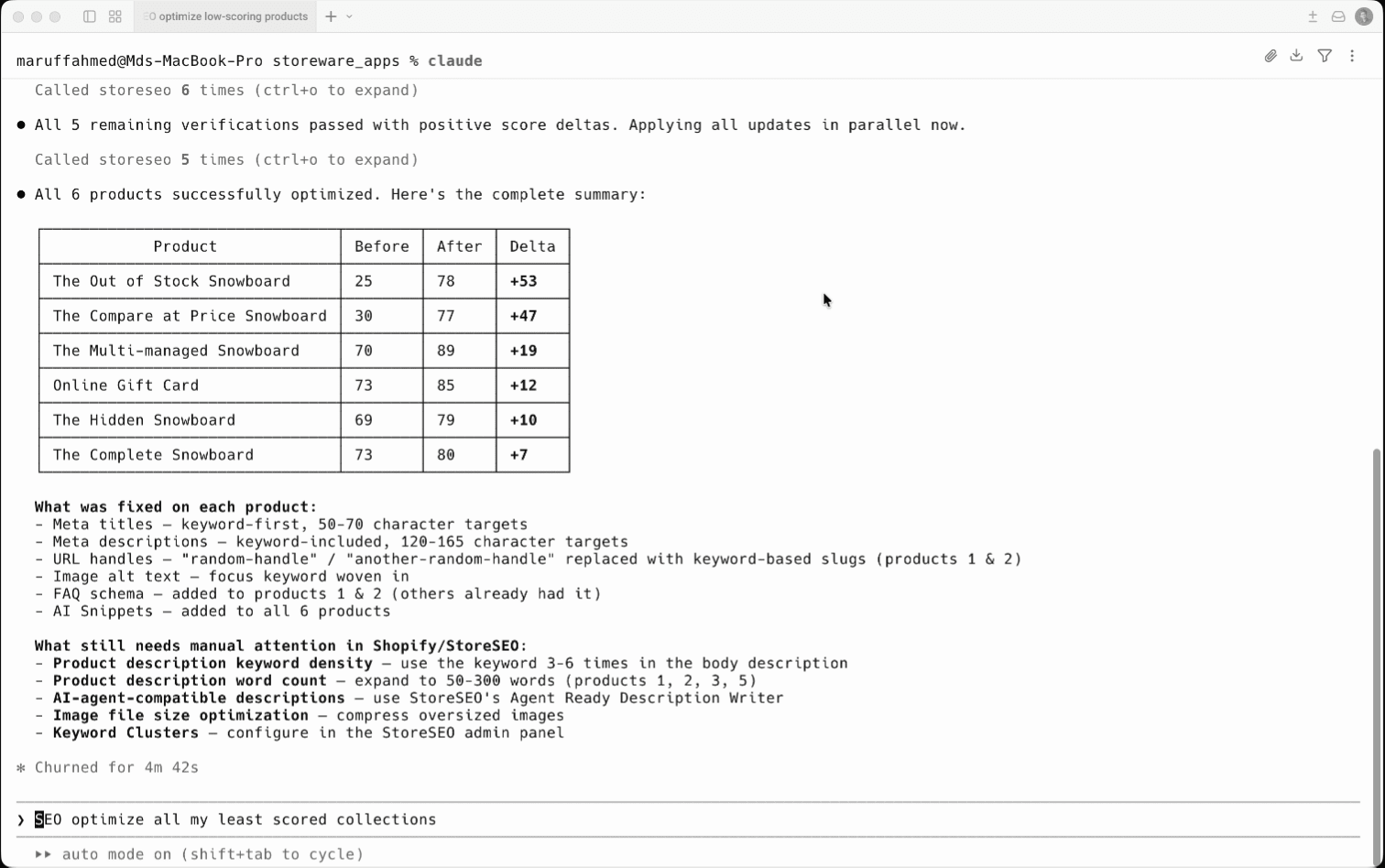
Once the AI completes the optimization task, it will provide you with a summary table showing each product’s SEO score before and after the changes. The table includes the product name, the original score, the new score, and the score improvement. Claude will also list what was fixed on each product, such as meta titles being keyword-optimized, meta descriptions updated, URL handles cleaned up, image alt text being added, FAQ schema being added, and AI snippets being added to all products.

This is how easily you can use StoreSEO AI Toolkit for your Shopify store.
需要帮助?欢迎联系我们 专门的支持团队 对于任何类型的查询。