

Zestaw narzędzi StoreSEO AI to funkcja łącząca Twój sklep Shopify z asystentami kodowania AI, takimi jak Claude Code, Cursor i VS Code, za pośrednictwem Serwer MCP (Model Context Protocol). Pomyśl o tym jak o pomoście, który pozwala agentom AI komunikować się bezpośrednio z Twoim kontem StoreSEO. Zamiast klikać w panelu administracyjnym, możesz po prostu wpisać polecenia w terminalu i pozwolić sztucznej inteligencji zająć się optymalizacją SEO za Ciebie.
Zanim zaczniesz #
Przed rozpoczęciem upewnij się, że masz:
- Aktywny sklep Shopify z zainstalowaną aplikacją StoreSEO
- Sklep Shopify połączony ze StoreSEO
- Kod Claude zainstalowany na Twoim komputerze (pobierz z claude.ai)
- Podstawowa znajomość korzystania z terminala/wiersza poleceń
Krok 1: Przejdź do zestawu narzędzi AI #
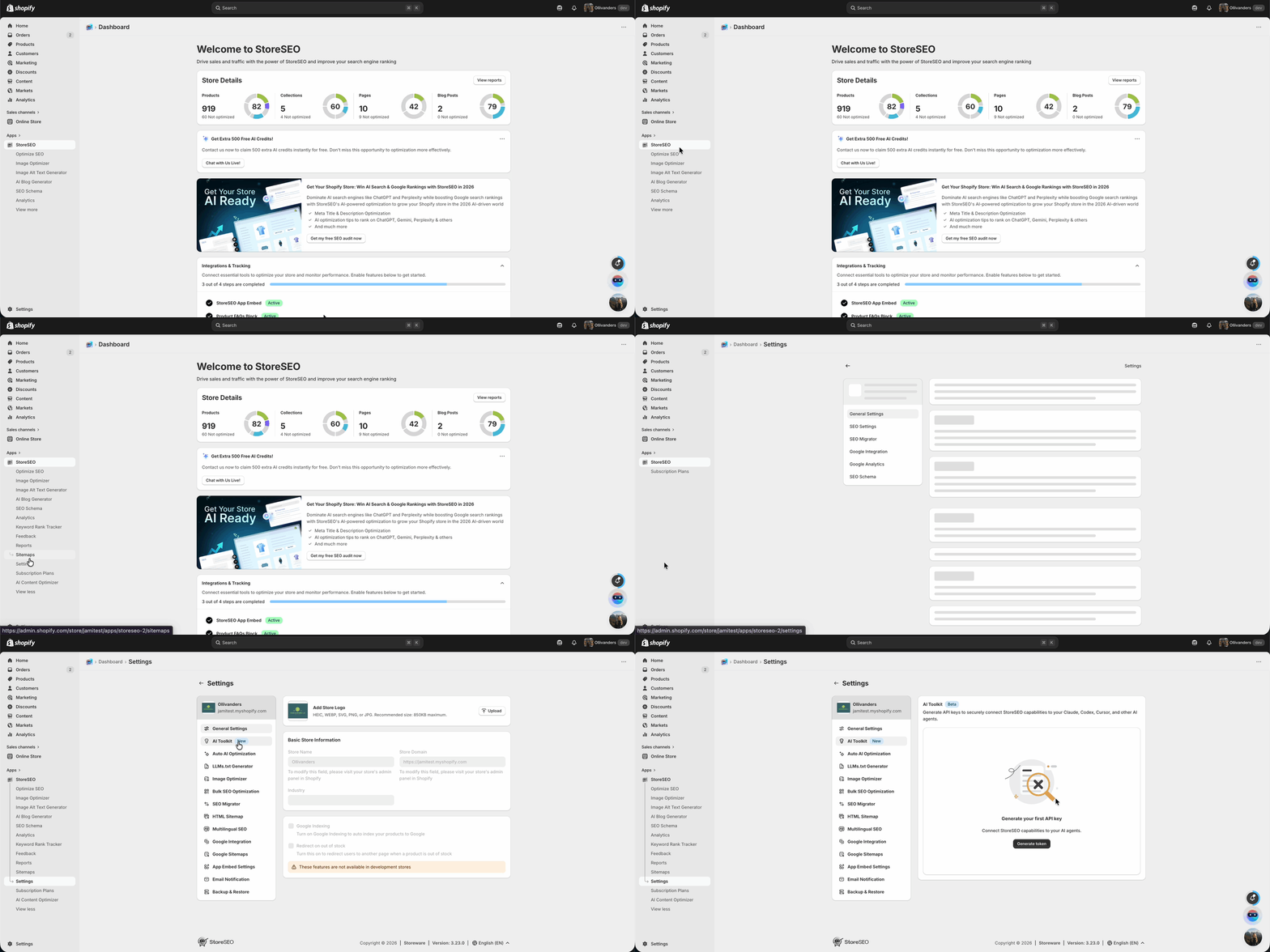
Najpierw otwórz aplikację StoreSEO. Na pasku bocznym po lewej stronie kliknij Ustawienia. W menu Ustawienia znajdź opcję AI Toolkit i kliknij ją. Zobaczysz sekcję, która umożliwia generowanie kluczy API do połączenia StoreSEO z agentami AI, takimi jak Claude Code, Cursor i VS Code.
Krok 2: Wygeneruj swój token API #
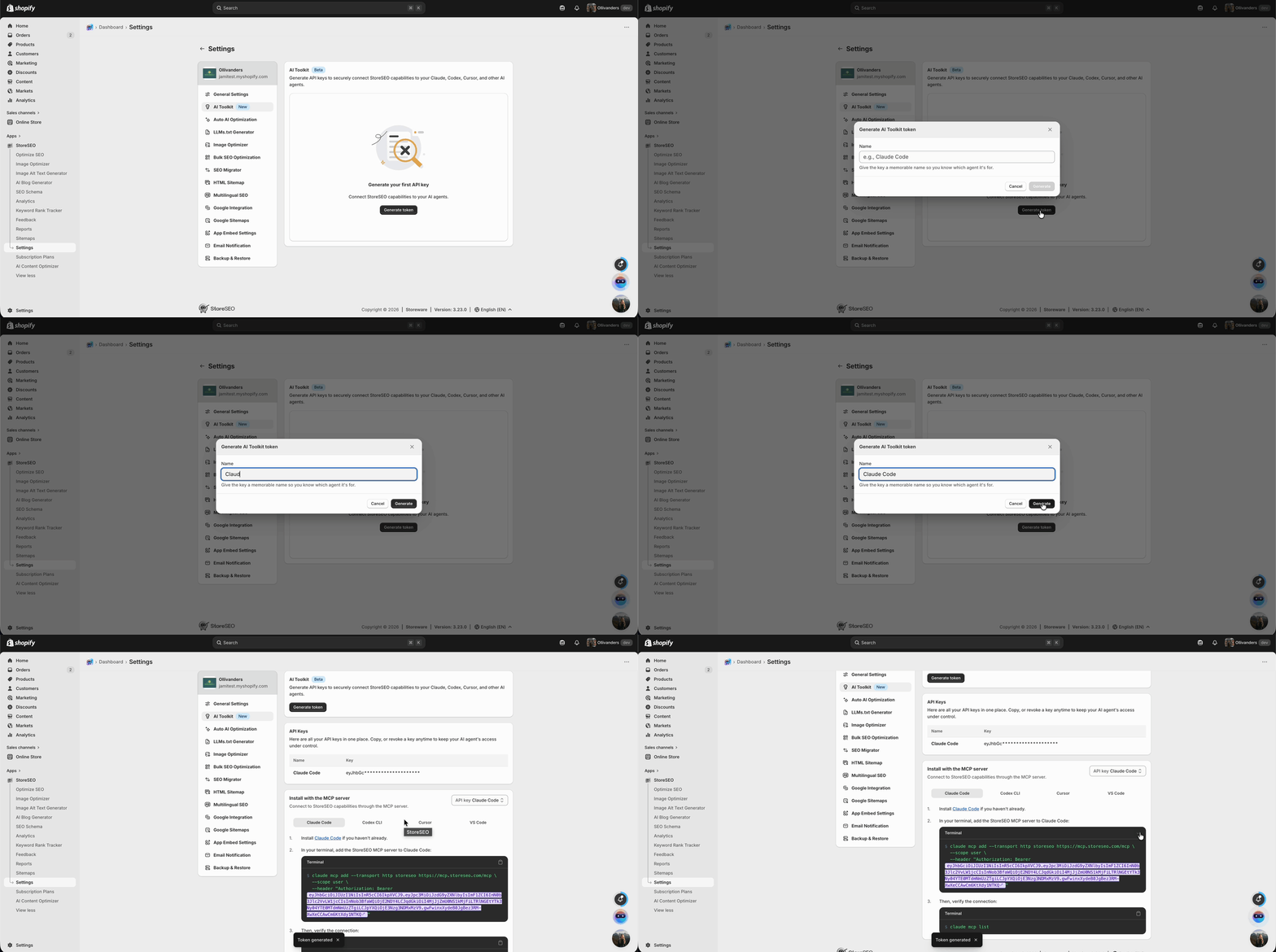
Po przejściu na stronę AI Toolkit zobaczysz widoczny przycisk „Generuj token”. Kliknij go. Pojawi się okno dialogowe z prośbą o podanie nazwy tokena. Nadaj mu zrozumiałą nazwę, aby później łatwo go zidentyfikować.
Na przykład, jeśli używasz Claude Code, nazwij go Claude Code. Ta nazwa jest jedynie etykietą referencyjną i nie wpływa na funkcjonalność. Kliknij przycisk Generuj po nadaniu nazwy.
Krok 3: Dodaj serwer StoreSEO MCP do kodu Claude #
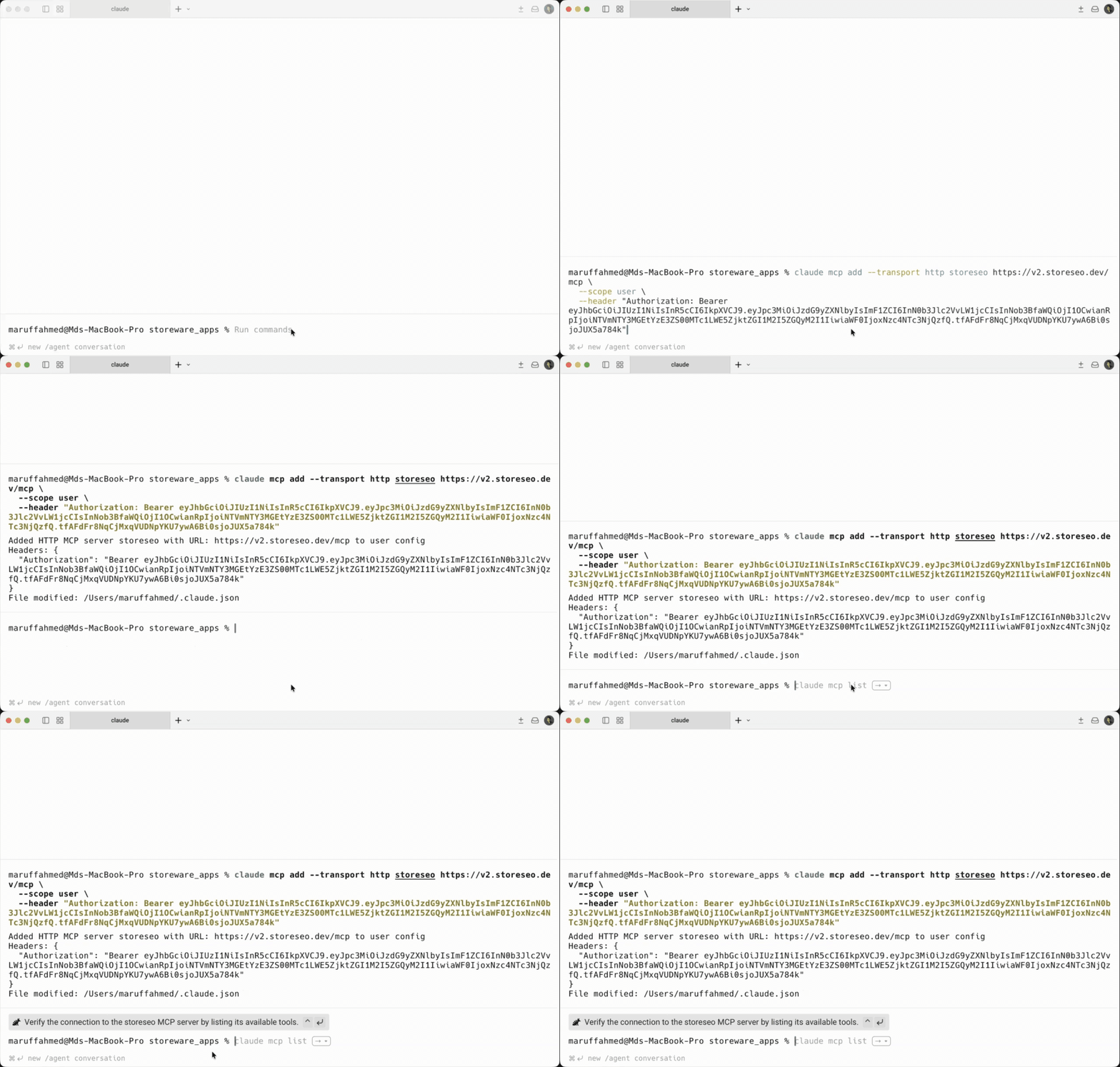
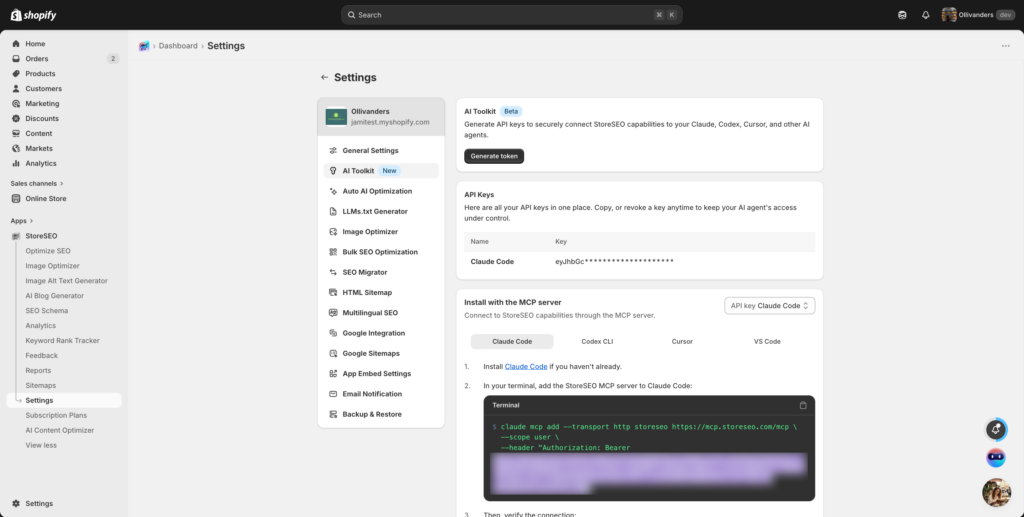
Otwórz terminal na swoim komputerze. Wklej polecenie skopiowane w kroku 3 i naciśnij Enter. Polecenie doda StoreSEO jako serwer MCP do konfiguracji Claude Code. Zobaczysz komunikat potwierdzający, że serwer HTTP MCP został pomyślnie dodany wraz z adresem URL StoreSEO.
Krok 4: Sprawdź połączenie #
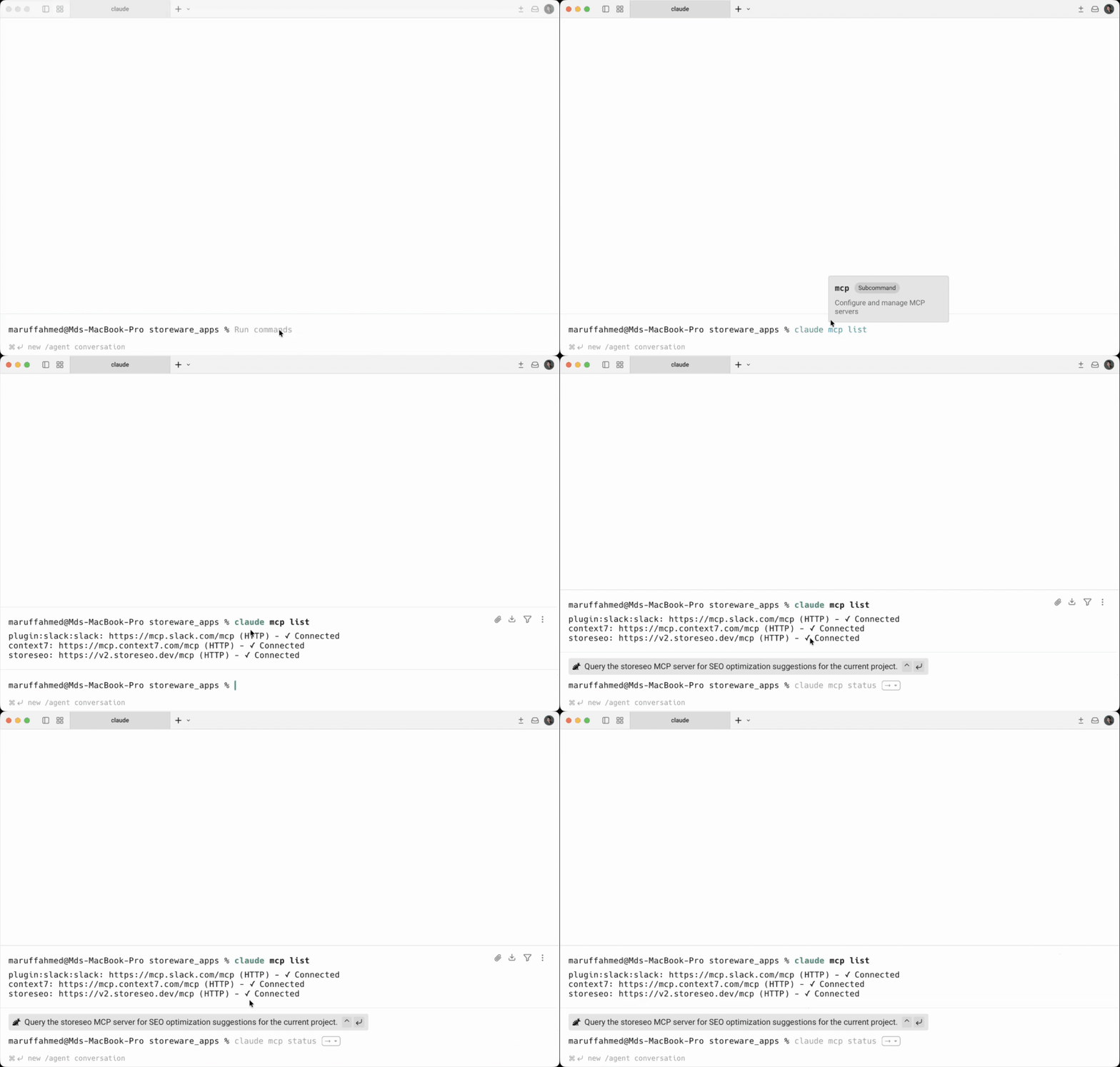
W terminalu uruchom następujące polecenie:
lista claude mcpSpowoduje to wyświetlenie wszystkich podłączonych serwerów MCP. Wyszukaj “SklepSEO” na liście. Jeśli wyświetla się komunikat „Połączono” z zaznaczeniem, połączenie działa prawidłowo.
Obok powinno być również widoczne potwierdzenie połączenia z adresem URL StoreSEO. Jeśli pojawi się błąd lub połączenie będzie oznaczone jako rozłączone, sprawdź dokładnie, czy token został poprawnie skopiowany i spróbuj wygenerować go ponownie ze strony AI Toolkit.
Krok 5: Rozpocznij korzystanie z zestawu narzędzi #
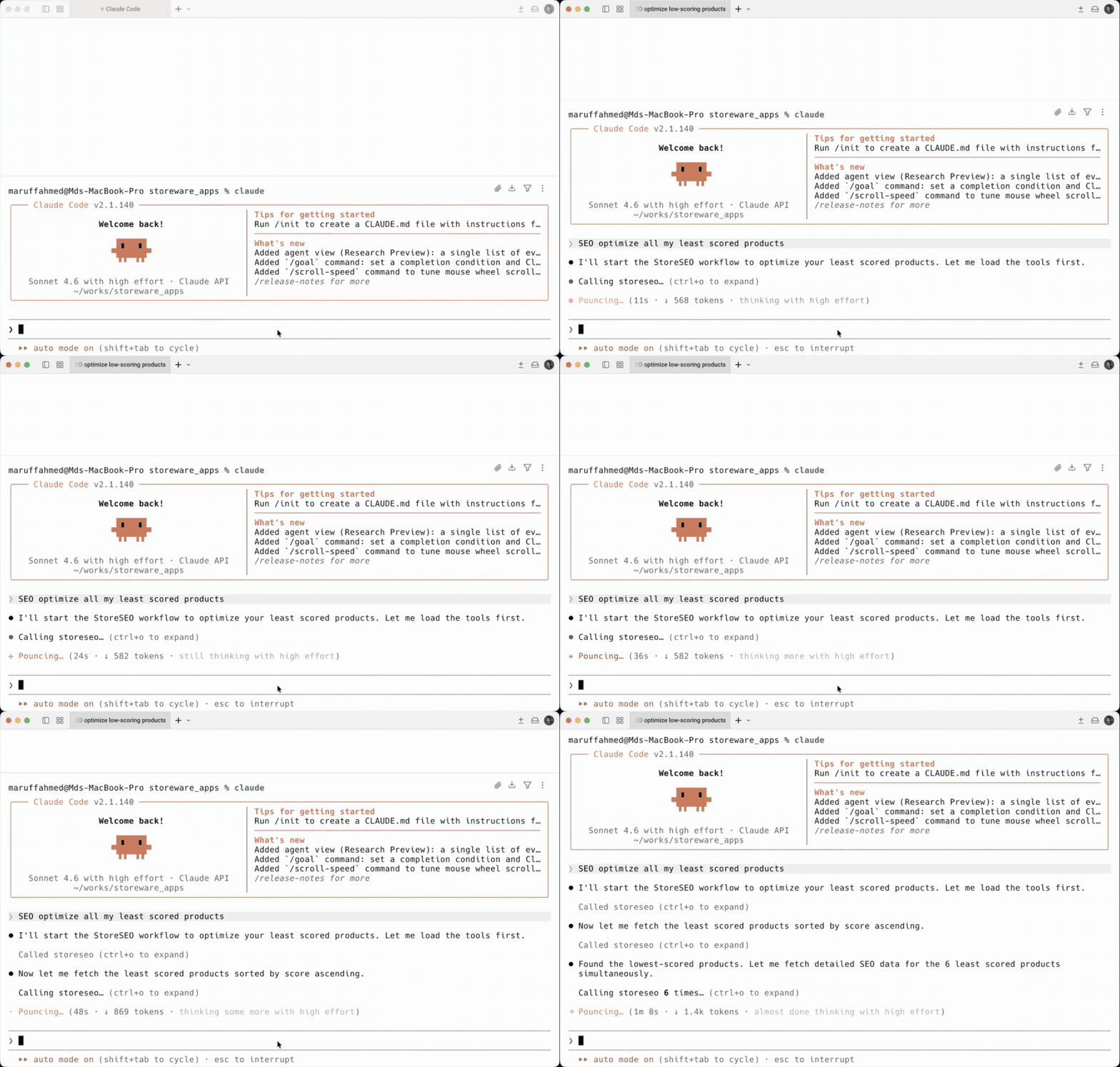
Teraz możesz korzystać z zestawu narzędzi StoreSEO AI. W terminalu wpisz claude i naciśnij Enter, aby uruchomić kod Claude. Możesz teraz wydawać polecenia w prostym języku angielskim, aby wykonywać zadania SEO. Na przykład, możesz wpisać: SEO optimize all my least score products. Claude połączy się ze StoreSEO, zidentyfikuje produkty o niskiej wydajności i automatycznie je zoptymalizuje. Sztuczna inteligencja przeprowadzi proces optymalizacji i wyświetli podsumowanie tego, co zostało poprawione, a co nadal wymaga uwagi.
Przykładowe polecenia, których możesz użyć:
- Zoptymalizuj SEO wszystkich moich produktów o najniższych wynikach
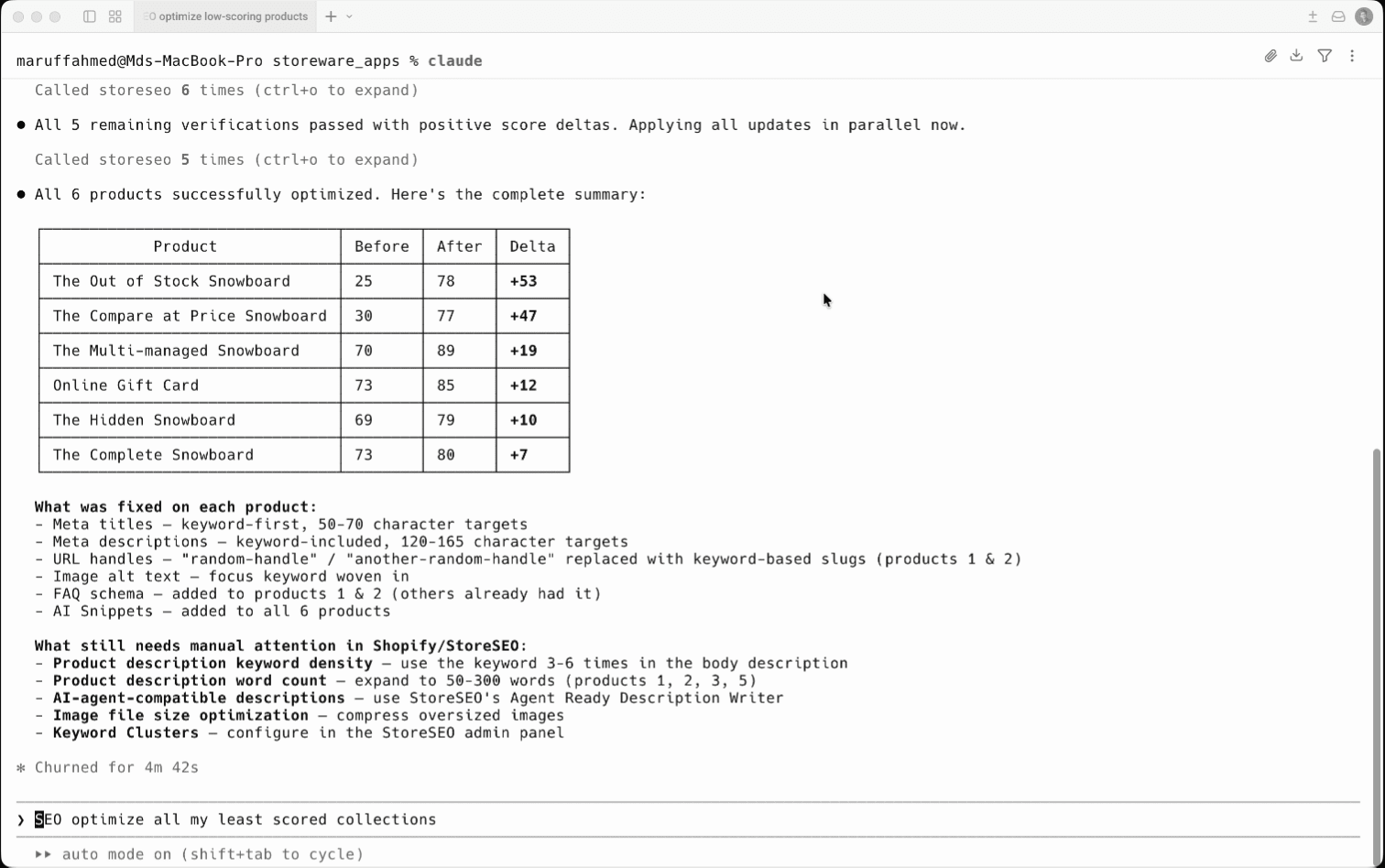
- Zoptymalizuj SEO wszystkich moich kolekcji o najniższych wynikach
- Wygeneruj tekst alternatywny dla wszystkich obrazów produktów
- Napraw metaopisy dla wszystkich produktów
Krok 6: Ostateczny przegląd #
Po zakończeniu optymalizacji sztuczna inteligencja wyświetli tabelę podsumowującą wynik SEO każdego produktu przed i po zmianach. Tabela zawiera nazwę produktu, pierwotny wynik, nowy wynik i poprawę wyniku. Claude wymieni również poprawki wprowadzone w każdym produkcie, takie jak optymalizacja metatytułów pod kątem słów kluczowych, aktualizacja metaopisów, oczyszczenie uchwytów adresów URL, dodanie alternatywnego tekstu obrazów, dodanie schematu FAQ oraz dodanie fragmentów kodu sztucznej inteligencji do wszystkich produktów.
Oto jak łatwo możesz używać zestawu narzędzi StoreSEO AI Toolkit w swoim sklepie Shopify.
Potrzebujesz pomocy? Skontaktuj się z nami dedykowany zespół wsparcia dla wszelkiego rodzaju zapytań.