
We Compressed 20 Shopify Product Photos 4 Ways
 Written by M Asif Rahman
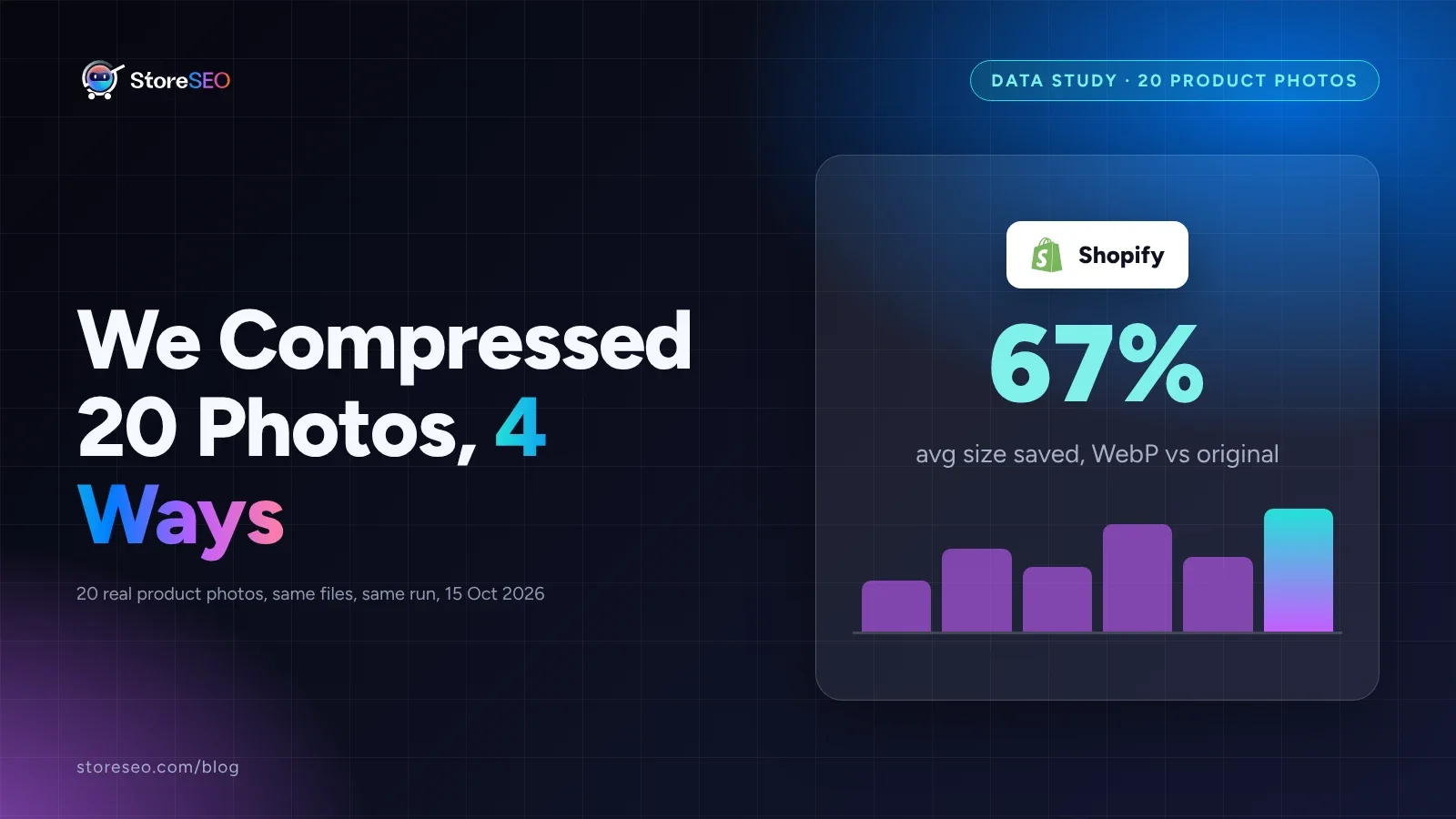
Converting to WebP cut average file size by 67% across 20 real product photos, more than any other method we tested. Re-exporting at a lower quality saved about half; barely nudging JPEG quality down with ImageMagick saved only 11%. All four stayed visually close to the original, measured, not guessed.
TL;DR
| Method | Avg size saved | Visual quality (SSIM) | Time per image | Verdict |
|---|---|---|---|---|
| D. Convert to WebP, quality 80 | 67.3% | 0.965 | ~1.8s | Best pick if your theme serves WebP |
| A. Re-export at quality 60 | 50.0% | 0.962 | ~0.2s | Fine in a pinch, inconsistent on busy textures |
| C. Optimized progressive JPEG, quality 75 | 46.0% | 0.969 | ~0.3s | Best JPEG-only fallback |
| B. ImageMagick, quality 82 (near-original) | 10.7% | 0.988 | ~0.4s | Skip if file size is the goal |
| StoreSEO Image Optimizer | not graded this run (see below) | n/a | one click, with Restore | Best for bulk, no terminal needed |
How Did We Test 20 Real Product Photos?
We downloaded 20 real, full-resolution product photos across 5 categories a Shopify catalog actually sells (sneakers, handbags, electronics, skincare, apparel), then ran the same 4 methods against every one of them, on the same machine, in the same run. We measured three things for each result: how much smaller the file got, how close it still looks to the original (SSIM, structural similarity, a real metric, not a guess), and how long the conversion took. This builds on our existing 5 ways to reduce JPEG file size guide by putting real numbers behind the methods it describes, instead of general advice.
StoreSEO is our product. Its own Image Optimizer add-on could not be run live in this automated test, because it needs a connected Shopify store session, which this run does not have. We describe what it does from its own documentation below instead of grading it against the other four, and we say so plainly rather than inventing a result. Judge the four methods below on what was actually measured.
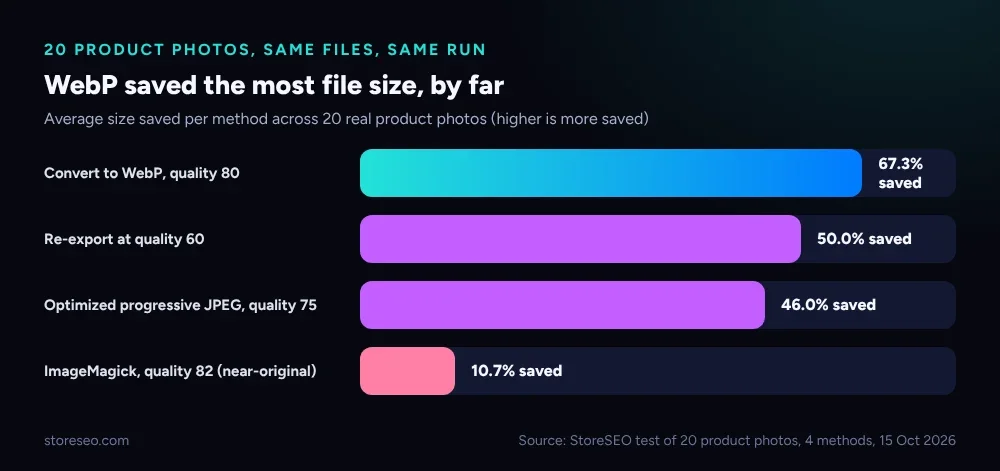 WebP conversion saved the most file size of the four methods tested, by a wide margin.
What Does Just Re-Exporting at a Lower Quality Save?
The simplest move a merchant actually makes: open the photo in an editor and re-save it at a lower quality setting, in this case JPEG quality 60. Across the 20 photos it saved 50.0% of the file size on average, with the worst single case saving only 21.5% and the best saving 66.7%. Visual similarity stayed high (SSIM 0.962 on average), but it dipped hardest on one dark, textured skincare bottle photo (SSIM 0.848, the single lowest score of the whole test), which is the shape of artifact a lower JPEG quality setting tends to show first: fine, low-contrast texture, not flat product backgrounds.
Does a Manual ImageMagick Recipe Beat the Default?
A common tutorial recipe looks like convert original.jpg -strip -quality 82 output.jpg: close to the source photo’s own quality, strip the metadata, and let 4:2:0 chroma subsampling do the rest. It kept the most visual similarity by far (SSIM 0.988 on average, 0.959 at its worst), but it only saved 10.7% of the file size. The lesson is not that ImageMagick is weak; it is that re-saving near a photo’s original quality barely touches the part of the file that actually takes up space. Stripping EXIF and color-profile metadata from a modern phone or DSLR photo typically removes only a few kilobytes against a multi-megabyte JPEG.
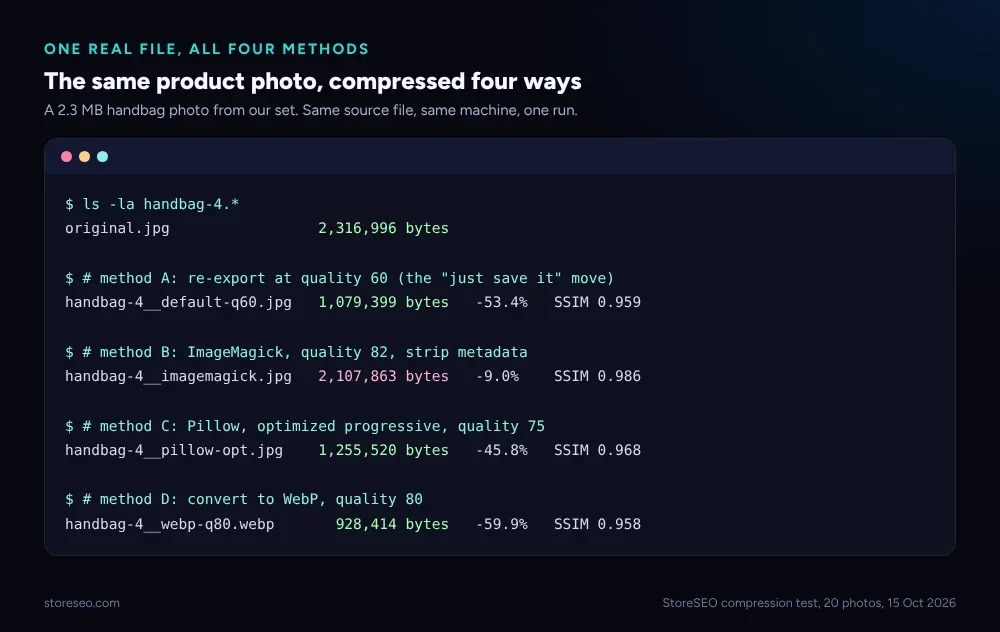 The same source file run through all four methods: the percentage saved tracks how much each one actually changes, not just what it claims to.
What Does a Properly Optimized Progressive JPEG Get You?
Pillow’s optimized, progressive JPEG export at quality 75 (optimize=True, progressive=True) rebuilds the file’s Huffman tables instead of just dialing quality down. It saved 46.0% on average, close to the blunt quality-60 re-export, but with better visual similarity (SSIM 0.969 against 0.962) because it is not relying on a harsher quality drop to get there. Worth knowing before you pick a quality number blind: a well-packed JPEG at quality 75 can look better and weigh about the same as a lazily re-saved one at quality 60.
Is WebP Really the Biggest Win?
Yes, clearly. Converting every photo to WebP at quality 80 saved 67.3% of the file size on average, the best single number in the whole test, while visual similarity (SSIM 0.965) landed in the same range as the JPEG methods, not below them. The reason is not a trick setting: WebP’s codec is simply more efficient than JPEG’s at a comparable visual quality, which is also why Google’s own web performance guidance on choosing an image format treats next-gen formats like WebP as the default recommendation over re-exporting an old-format file (updated 13 Aug 2024, confirmed live 15 Oct 2026). The cost is time: WebP conversion took about 1.8 seconds per photo in this test, roughly 5 to 9 times longer than the JPEG methods, though that is still trivial next to a human re-exporting photos one at a time.
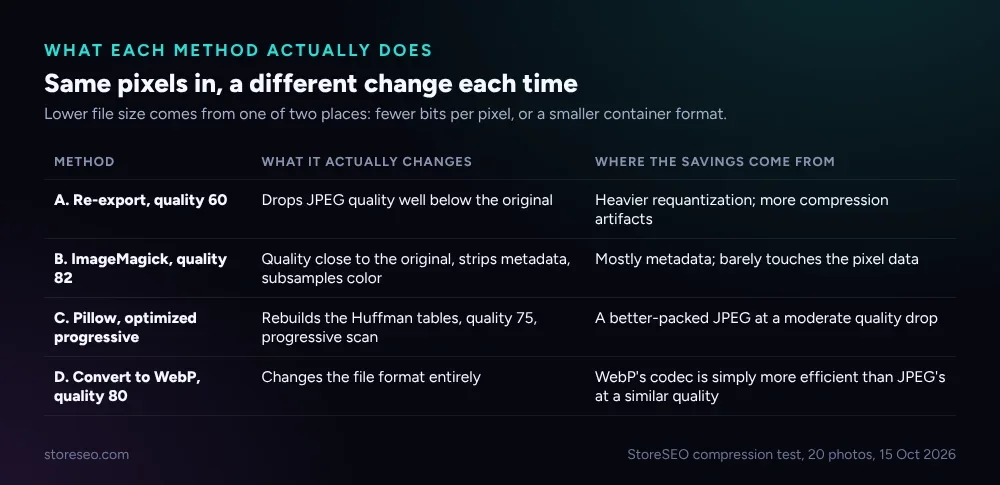 File size drops from one of two places: fewer bits spent per pixel, or a more efficient container format entirely. WebP is the only method here that changes the format.
What Does StoreSEO’s Image Optimizer Add That These Don’t?
StoreSEO’s Image Optimizer add-on runs compression, format conversion and resizing from inside the Shopify admin: set a default compression level, format and size once, then optimize or auto-optimize product images without touching a terminal, with a one-click Restore if a result looks wrong. That one-click workflow and the built-in Restore are real advantages over any of the four manual methods above, none of which offer an undo. The honest tradeoff: it is a paid add-on, bundled from the Lite plan at $19.99/month for 50 images, up to the Advanced plan’s 50,000 images a month, while every method in this test is free but needs a script, a terminal, or an export dialog a merchant has to run themselves, image by image.
Which Method Should a Shopify Store Actually Use?
For most Shopify catalogs, converting to WebP is the clearest win from this test: the largest size saving, visual quality in the same range as the JPEG methods, and Shopify serves modern image formats on supported browsers already. If a theme or app in the stack cannot handle WebP yet, the optimized progressive JPEG at quality 75 is the next best standalone choice, since it beats a blunt quality-60 re-export on both size and quality. Re-saving at a near-original quality like ImageMagick’s quality 82 is the one to skip if file size is the goal; it barely moves the number. For a catalog with hundreds or thousands of images, the real cost is not which setting wins, it is doing this one image at a time by hand, which is the gap a bulk, one-click optimizer like StoreSEO’s closes. Image weight is one line item on a longer list: our ultimate Shopify SEO checklist covers alt text, sitemaps and the rest of the technical basics it sits alongside, and if clean markup is next on your list, our audit of 300+ Shopify product pages’ schema found only 29% carrying complete structured data.
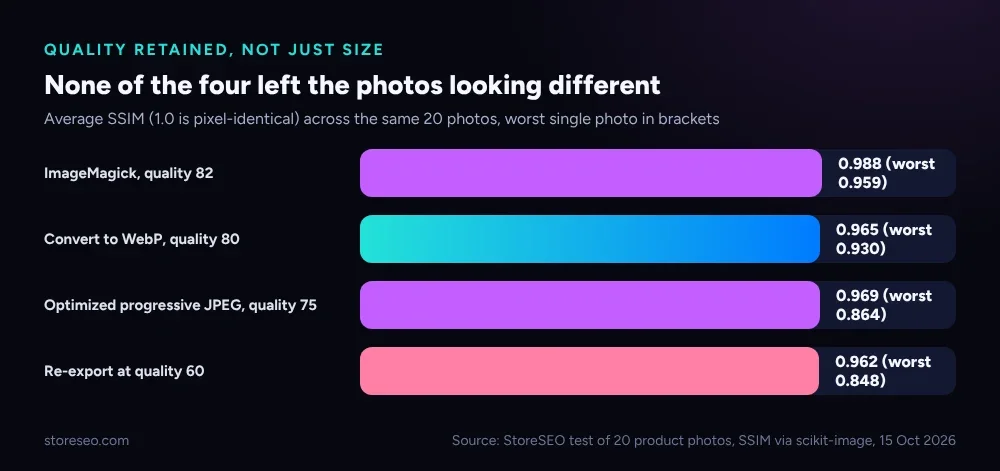 None of the four methods left the photos looking meaningfully different on average; the real tradeoff in this test is file size and time, not visible quality.
What We Didn’t Test
This was 20 photos, not 1,000, each run through one quality setting per method rather than a full quality sweep, so treat the exact percentages as directional for a catalog of different photos. We measured SSIM as a structural-similarity proxy, not a human panel’s judgment of “looks the same.” We did not test AVIF, did not measure real-world page speed or Core Web Vitals impact through an actual Shopify theme and CDN, and did not live-test StoreSEO’s own Image Optimizer end to end inside a connected store, for the reason disclosed above. Re-test on your own catalog before trusting an exact number for your store.
Frequently Asked Questions (FAQs)
1. Does WebP always beat JPEG for Shopify product photos?
In this test, yes, by a wide margin on file size, with visual similarity in the same range as the JPEG methods. It is not a guarantee for every single photo (two of the 20 individual WebP results saved less than ImageMagick’s best cases), but on average across 20 real photos it was the clear winner.
2. Is SSIM a reliable way to judge image quality?
SSIM measures structural similarity between two images on a 0 to 1 scale, and it is a standard, reproducible metric, not a subjective guess. It is not a perfect stand-in for a human looking at the photo, which is why this post reports it as a measured number rather than claiming it proves nothing changed visually.
3. Will Shopify automatically serve WebP images for me?
Shopify’s CDN can serve modern formats like WebP to supporting browsers, but that depends on your theme and how the image was uploaded; it is not automatic for every setup. Check your theme’s image tags, or use a dedicated optimizer that converts and serves the format directly, rather than assuming it happens by default.
4. Does compressing product images actually help SEO?
Smaller image files load faster, and page speed is one input into Google’s ranking and user-experience signals; it is not the only one, and it will not fix a page with weak content or no other proof. Treat compression as a speed fix, not an SEO strategy on its own.
5. What quality setting should I actually use?
Based on this test, quality 75 to 80 with an optimized, progressive export (or an equivalent WebP quality) is a reasonable starting point: most of the available size saving with visual similarity that stayed close to the near-original method in every case we measured. Re-check a sample of your own busiest, highest-detail product photos before applying one setting to a whole catalog.
6. Does this replace what StoreSEO’s Image Optimizer does?
No. This test compares manual, one-image-at-a-time methods that most merchants would have to script or run by hand. StoreSEO’s Image Optimizer does the same job of compressing, converting and resizing from inside the Shopify admin, in bulk, with a one-click Restore if a result looks wrong, which none of the four manual methods here offer.
The File Size Was Never the Hard Part
Every method here, even the weakest one, saved real file size without wrecking visual quality. The actual cost for most Shopify stores is not which setting to pick, it is running that setting across a catalog of hundreds or thousands of product images one by one. If you are chasing a clean technical score across the rest of your store too, our guide to a 100 SEO score on Shopify covers what else that number actually checks. try StoreSEO on the Shopify App Store
Keep reading
12 Shopify Product Titles That Rank (Annotated)
Twelve real Shopify product titles share three habits that work: name the product type, add exactly one differentiator, and put the brand name last.
Read article
What Happens When You Skip Google Product Category?
Skipping Google Product Category rarely blocks a sale, but in apparel, phones, software and alcohol it can quietly get a listing disapproved.
Read article
Shopify Product Description Template (6 Formats)
A Shopify product description template is a fill-in-the-blank structure for one niche that keeps every listing consistent, specific and fast to write.
Read article