
What Happens When You Skip Google Product Category?
 Written by M Asif Rahman
Nothing breaks for most Shopify products if you never touch Google Product Category: Google’s own AI assigns one from your title, description and images, and most listings pass fine. The risk is narrow but real: a handful of categories, apparel, mobile phones, software, alcohol, carry extra requirements that an auto-assigned category quietly enforces anyway.
TL;DR
| Scenario | What Google does | What AI shopping agents do | What to do |
|---|---|---|---|
| You leave the field blank on an ordinary product | Auto-assigns a category from your title, description and images | Reads the same feed Google builds, category included | Usually nothing, spot-check it once |
| Google auto-assigns a stricter category (apparel, phones, software) | Requires extra fields; missing ones get the product disapproved | Can’t resolve a disapproved listing either | Fill the extra fields, or override the category |
| You sell alcohol | Must match an approved alcohol category exactly | n/a | Set the category yourself, never rely on auto-assign |
| Customers check out on Instagram or Facebook Shop | Needs an explicit Google Product Category for tax, even with a Shopify category already set | n/a | Set it explicitly for those channels |
What Does Google Do If You Leave the Category Blank?
It does not leave the field empty. Google’s own Merchant Center documentation on the attribute says every product is “automatically assigned a product category from Google’s continuously evolving product taxonomy,” built from your title, description, images, price, brand and GTIN. The google_product_category attribute exists only to override that automatic call, and Google will only accept an override in three cases: a category carries extra required fields and Google guessed wrong, you organize Shopping ad campaigns by category, or you sell alcohol.
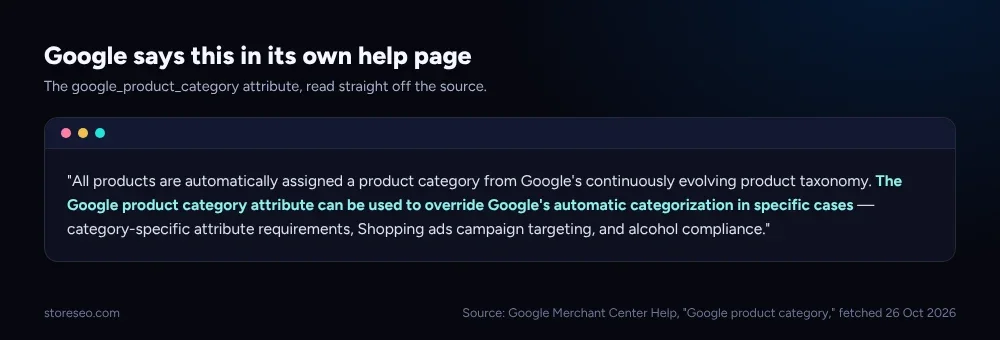 Google’s own wording, read straight off its Merchant Center help page.
Shopify runs a parallel system that confuses this further. The Category field in your Shopify admin is Shopify’s own Standard Product Taxonomy, not Google’s, and Shopify’s AI suggests one from your product details the moment you add a name, description and images. If you never touch it, an unmatched product saves as uncategorized, which is a Shopify-side state, separate from whatever Google’s own crawler decides for your feed. Shopify’s documentation is explicit that the two only line up automatically “if it matches a taxonomy value in English exactly, or the Unique Identifier (UID) is provided.”
Google Product Category is one small field in a much longer list. StoreSEO’s own product page SEO guide covers the rest of what a Shopify product page needs to rank and to qualify for rich results.
When Does Skipping It Actually Cost You a Sale?
Three situations turn a shrug into a real problem, and none of them is rare:
- A stricter category gets auto-assigned. Apparel & Accessories, Mobile Phones, and Software all carry category-specific required attributes. If Google’s AI sorts your product into one of these and the required fields are missing, Google disapproves the listing in free listings and Shopping, not your whole account, just that product.
- You sell alcohol. Google’s policy requires an exact, approved alcohol category; guessing wrong here is a compliance issue, not a cosmetic one.
- Checkout happens on Instagram or Facebook. Meta’s own checkout integration needs a Google Product Category for tax purposes even when a Shopify category is already set, because the two systems are not the same field.
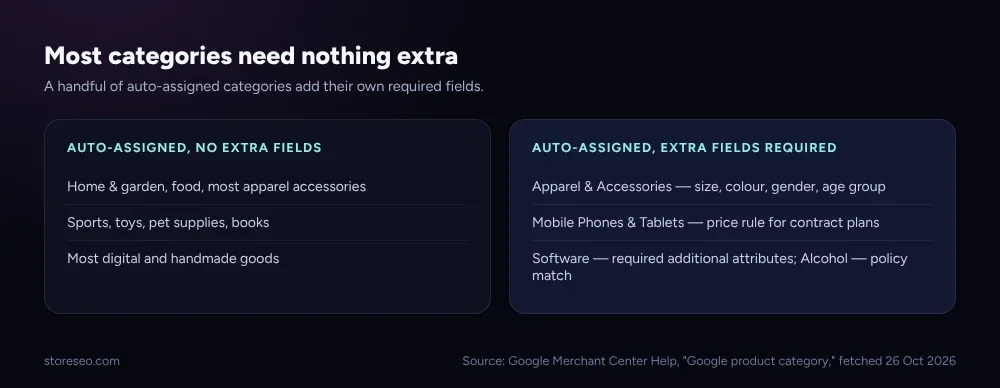 Most of the catalog needs nothing extra. A short list of categories does.
Outside those three cases, an auto-assigned category is Google’s own best guess from real product data, and for a plain product in a plain category it is usually a reasonable one.
Keep It Auto-Assigned or Set It Yourself? A Decision Table
| Your situation | Skip it (let Google auto-assign) | Set it yourself |
|---|---|---|
| Single, ordinary product category (home goods, food, most apparel accessories) | Fine, low risk | Optional, mainly for peace of mind |
| Apparel, mobile phones, software, or anything with category-specific required fields | Risky: a missing field disapproves the listing | Recommended, or confirm every required field is filled |
| Alcohol | Not recommended | Required, match Google’s approved category exactly |
| Instagram or Facebook Shop checkout enabled | Not enough on its own | Required for correct tax handling |
| Running Shopping ad campaigns grouped by category | May not match your ad structure | Recommended, override to match your campaigns |
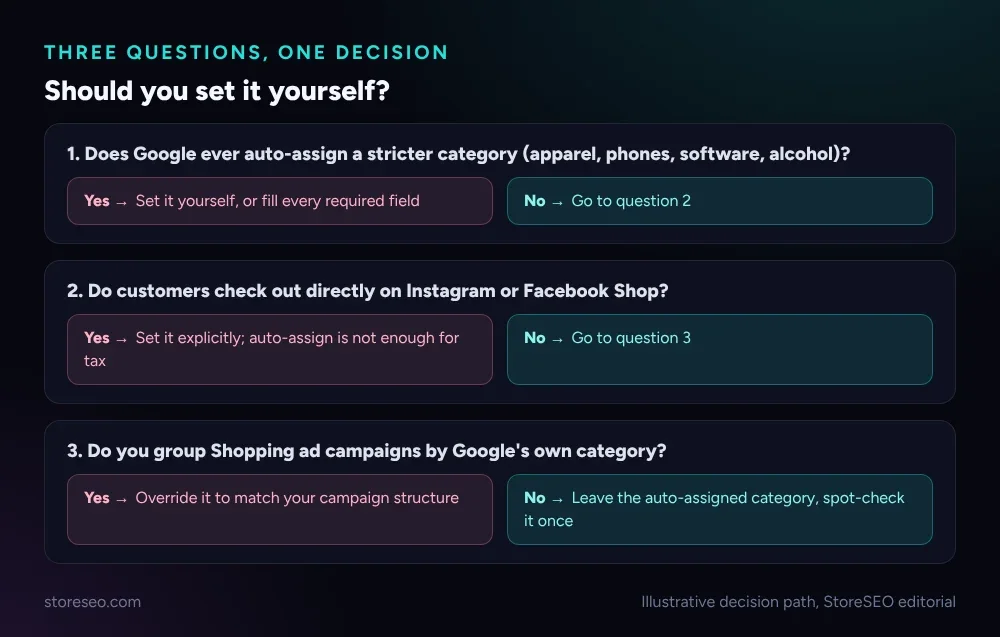 The same table, as three questions.
How Do You Set a Google Product Category in Shopify?
Shopify’s own Standard Product Taxonomy screen handles this, one product or many:
- Open the product in Shopify admin and find the Category section.
- Pick the category, accepting the AI-generated suggestion or searching the taxonomy yourself, down to the most specific level that fits.
- Save, then check the Category metafields that appear. These are the detail fields (size, colour, age group, and the rest) tied to whatever category you picked; fill the ones a buyer or a stricter category actually needs.
- Bulk-edit the rest of the catalog from the product list: select the products, choose Bulk edit, add the Product category column, and work through them without opening each one.
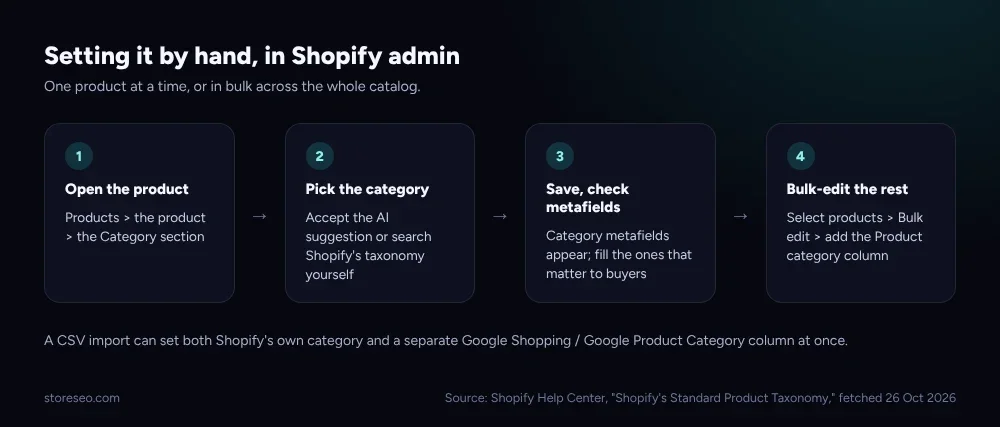 The same four steps StoreSEO users follow before checking their SEO Analysis score.
A CSV import can set Shopify’s own category and a separate Google Shopping / Google Product Category column in the same file, which is the fastest route for a catalog with hundreds of products already live.
StoreSEO’s own Google Product Category Mapping feature does this for you automatically: it sends your product category to Google as a standard Product Category code instead of a free-text label, so engines classify your catalog the way shoppers actually search for it. It is newly shipped and does not yet have its own docs page; for now the closest written guidance sits in StoreSEO’s schema and structured-data configuration docs, which cover the adjacent JSON-LD and Local Business markup settings rather than this feature specifically.
Does This Change Anything for AI Shopping Agents?
A little, and it is worth being precise about how much. StoreSEO’s own feature description for Google Product Category Mapping states plainly that a standard category code “matters for Shopping surfaces and for how AI assistants group what you sell,” which tracks with how these agents work: most read the same product feed Google builds rather than crawling your storefront HTML fresh, so a clean, standard category is one more clean signal in that feed rather than a free-text guess.
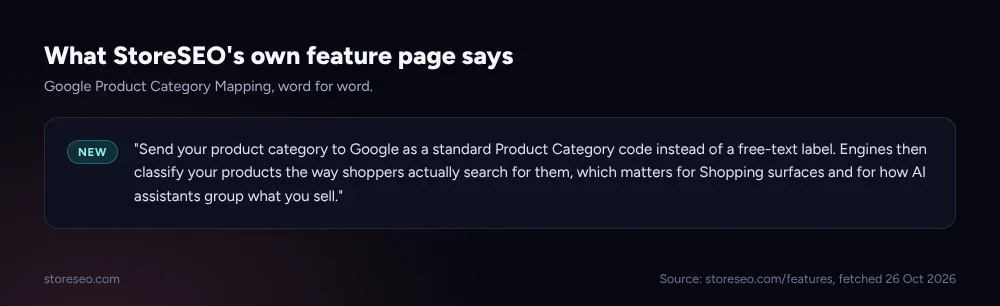 StoreSEO’s own wording for the feature, read straight off its features page.
There is no independent, published study yet measuring how much that specifically moves an AI shopping recommendation, so take it as good feed hygiene, not a guaranteed visibility lift. StoreSEO is not the only way to get there, Shopify’s own admin does the job for free, but it turns a manual, category-by-category task into one mapped field, the same instinct behind StoreSEO’s bulk SEO optimization and its work on tags, collections and filters.
If Shopping and free listings matter to your store at all, read the Google Merchant Center free listings guide next, since category requirements are one piece of a larger eligibility checklist, and the 300-product schema audit for how the rest of your product markup usually looks in practice.
Frequently Asked Questions (FAQs)
1. What happens if I never set a Google Product Category on Shopify?
For most products, nothing noticeable. Google’s AI assigns one automatically from your title, description, price and images, and that auto-assigned category is usually accurate enough to pass. The exception is a product that lands in a category with its own required fields, apparel, mobile phones, software, where a missing field can get the listing disapproved rather than just mis-categorized.
2. Does Shopify automatically assign a Google Product Category?
Not exactly. Shopify assigns its own Category field from its Standard Product Taxonomy, which is a separate system from Google’s taxonomy. The two line up automatically only when your existing Google Product Category value matches Google’s English-language taxonomy exactly, or you supply the taxonomy ID; otherwise Shopify’s category and Google’s auto-assigned one can differ.
3. Can skipping Google Product Category actually get a product disapproved?
Yes, but only in specific categories. Apparel & Accessories, Mobile Phones & Tablets, and Software all carry category-specific required attributes under Google’s policy. If Google’s AI sorts a product into one of these categories and the required fields are missing, the product can be disapproved in free listings or Shopping until those fields are added.
4. Do I need to set it if I only sell through my own online store, not Shopping ads?
Usually not. Google’s automatic category assignment is enough for a store that never touches Shopping or free listings. The one exception is checkout: if customers can buy directly on Instagram or Facebook Shop, Meta’s integration still needs an explicit Google Product Category for tax purposes, even when your Shopify store never runs a Shopping campaign at all.
5. How is Google Product Category different from Shopify’s Product Type field?
Shopify’s own documentation draws this line directly: Product Category is a standardized field used for tax calculation and for selling on channels like Google and Facebook, while Product Type is a free-text field unique to your own store, useful for internal organization but not standardized anywhere else. A product can and usually should have both.
6. Should every Shopify store manually set Google Product Category?
No. For a plain product in an ordinary category, Google’s automatic assignment is built from real product data and is usually close enough. Manual setting earns its time for stricter categories, alcohol, Instagram or Facebook checkout, or when a Shopping ad campaign is organized around categories specifically.
If you would rather not check every product by hand, try StoreSEO on the Shopify App Store.
Keep reading
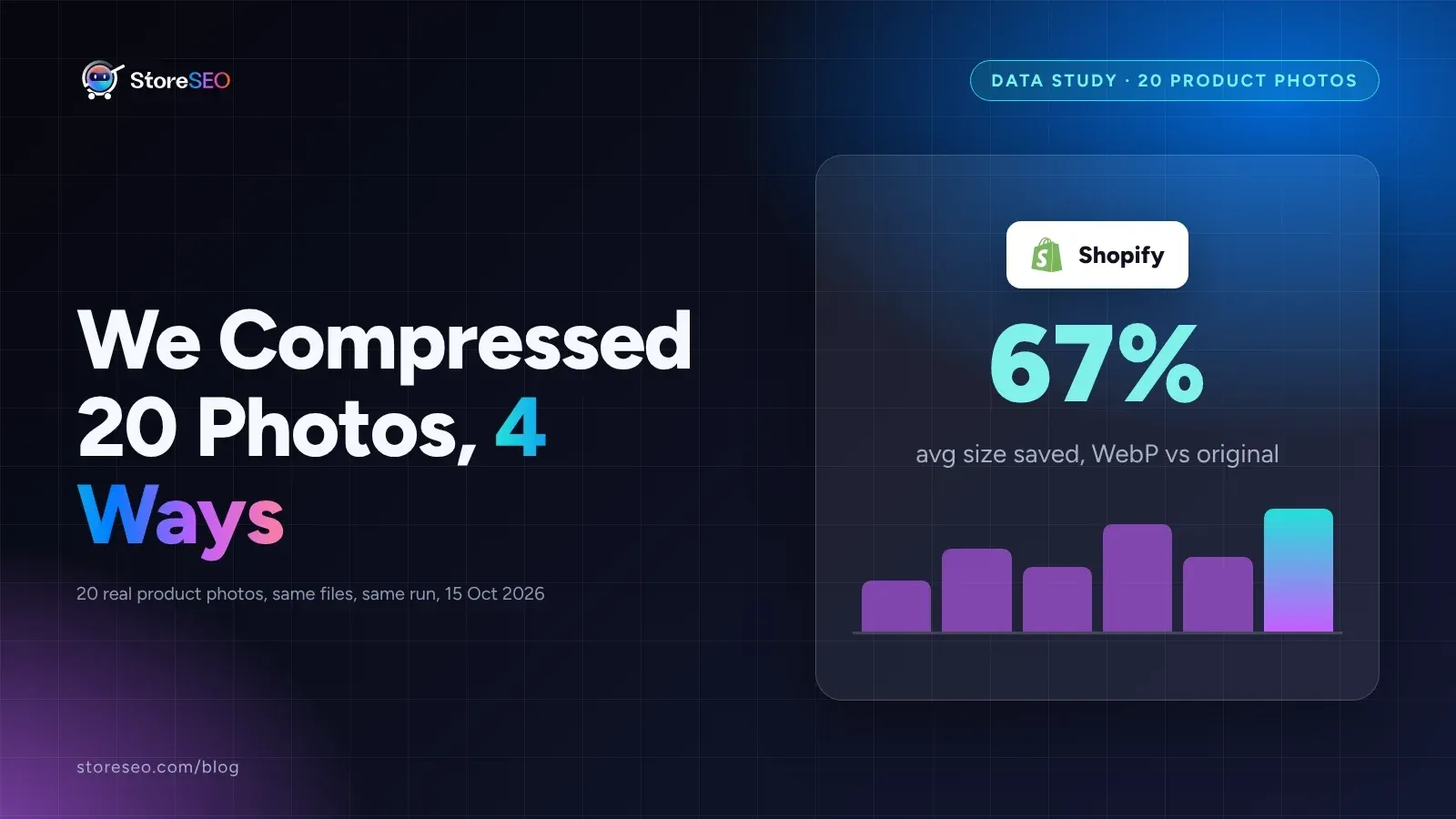
We Compressed 20 Shopify Product Photos 4 Ways
We compressed 20 real Shopify product photos 4 ways and found WebP cuts average file size by 67 percent, the biggest saving of the four we tested.
Read article
Shopify Product Description Template (6 Formats)
A Shopify product description template is a fill-in-the-blank structure for one niche that keeps every listing consistent, specific and fast to write.
Read article
12 Shopify Collection Pages, Annotated for SEO
Twelve real, public Shopify collection pages share three repeatable SEO patterns: a keyword-first title, a descriptive meta line, and a specific URL slug.
Read article