
Google Merchant Center Free Listings for Shopify
 Written by M Asif Rahman
Google Merchant Center’s free listings show your Shopify products on Search, Images, the Shopping tab, and Google Maps at no cost, once you install the free Google & YouTube channel app, meet Google’s return policy and shipping requirements, and confirm the free listings setting is on. Setup takes about twenty minutes for a typical catalog.
TL;DR: here is what Google requires before your Shopify products can show up in free listings, and whether a typical store already clears it.
| Requirement | What Google checks | Already true for most stores? | Fix if missing |
|---|---|---|---|
| Google & YouTube channel app installed | A connected product feed exists in Merchant Center | ✗ | Install the free app from the Shopify App Store |
| Products set to Active | Each product has a status Merchant Center can read | ✓ | Set the product to Active in Shopify admin |
| Return policy posted | A visible returns and refunds page | ✓ | Add a returns page and link it in Merchant Center’s Business settings |
| Shipping rates declared | A shipping cost or free-shipping rule for every country you sell to | ✓ | Add a flat rate under Merchant Center’s Shipping settings |
| Free listings setting on | The toggle is on by default for new accounts | ✓ | Turn it on under Marketing methods in Merchant Center |
Step 1: How Do You Install the Google & YouTube Channel App?
Merchant Center does not connect to Shopify on its own. You install Google & YouTube, a free app in the Shopify App Store built by Google (4.5 stars, 5,500-plus reviews as of 4 October 2026), and authorize it against your store. The app either creates a new Merchant Center account for you or links an existing one, and it starts reading your product catalog, titles, prices, images and availability, without a feed file to build or upload by hand.
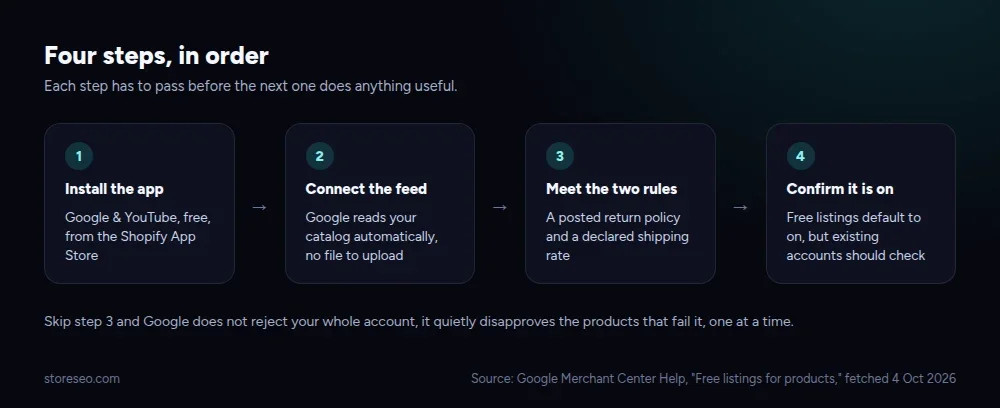 Each step has to clear before the next one does anything useful.
Step 2: Connect Your Product Feed to Merchant Center
Once the app is authorized, Google builds your feed automatically from the product data already in Shopify. There is no separate CSV to maintain the way older Content API integrations required. The first sync can take a few hours before Google starts reviewing items, and a full catalog can take a day or two to clear initial review. This feed is also one of the signals behind Google’s Shopping Graph, the same product index that powers Shopping tab results and AI-generated shopping answers.
Step 3: What Does Google Actually Require?
Google’s own Merchant Center Help page lists two hard requirements for free listings, confirmed 4 October 2026: a return policy your customers can find, and shipping costs or a shipping attribute set up for the countries you sell to, required outright in a long list of markets that includes the United States, Canada, the United Kingdom and most of the EU. Miss either one and Google does not reject your whole account, it disapproves the specific products that fail the check, one at a time, which is why a handful of missing items is usually a policy gap rather than a feed bug.
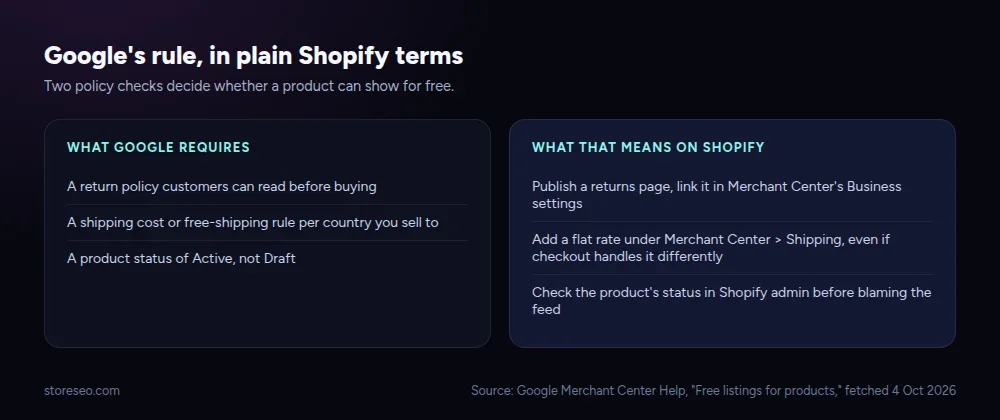 Two policy checks decide whether a product can show for free.
Step 4: Confirm Free Listings Are On, Then Check Your Category Data
New Merchant Center accounts are opted into free listings by default. If your account predates this app, check the Free listings card under Marketing methods and turn it on if it is not already. This is also where the product-level data Google uses to rank and categorize a free listing starts to matter: Google reads each item’s product category, brand and identifier fields to decide where it fits and how much it shows up. StoreSEO’s SEO Schema screen lets you set and review that structured data, including Google Product Category mapping, per product, without editing theme code (see how to customize your store’s JSON-LD).
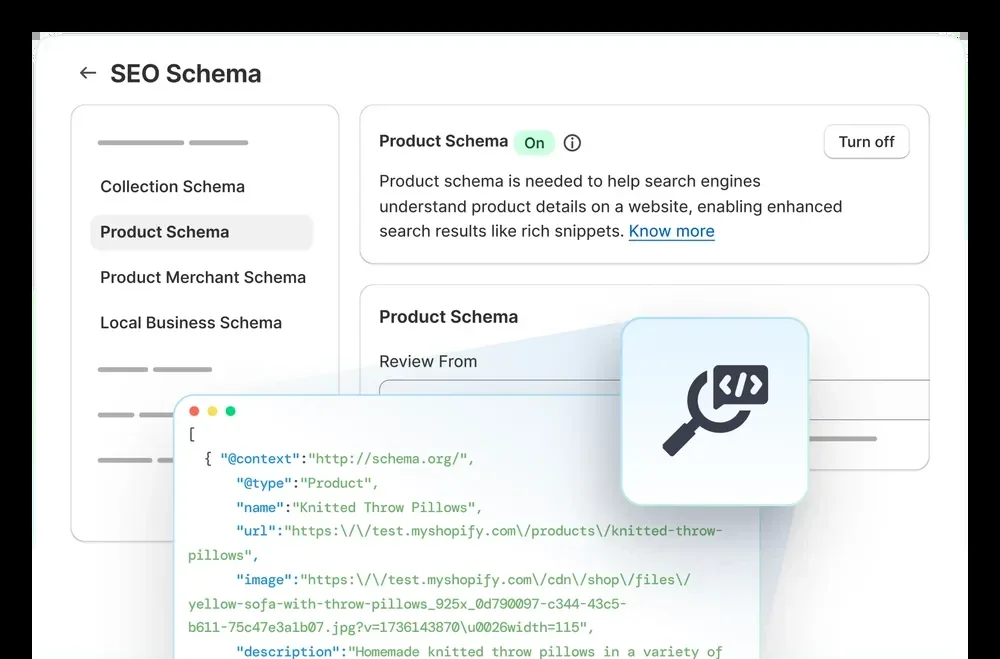 StoreSEO’s own Product Schema screen, captured 4 October 2026.
How Do You Know Free Listings Are Live?
Open Merchant Center’s Diagnostics tab first. It reports item-level issues (disapproved, suspended, limited) before anything shows publicly, and it is the fastest way to confirm a fix actually stuck. The Free listings card under Marketing methods shows impressions and clicks once Google starts serving items, usually within a day or two of a clean first sync. Searching your own product title in Google is the least reliable check: it can take longer to show in a live search than it takes to clear Diagnostics, so do not treat a quiet search result as a failed setup.
What Are the Most Common Setup Errors?
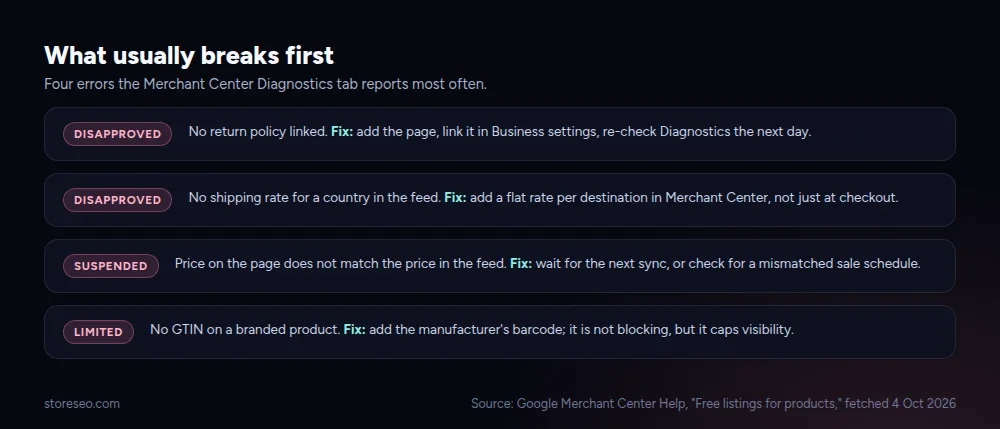 Four errors the Diagnostics tab reports most often.
The two disapproval causes above account for most first-time failures. Two more show up after launch: a suspended item usually means the price Google last read does not match what the page currently shows, which clears itself on the next sync or points to a sale schedule that only updated one side; and a “limited performance” warning on a branded product usually means no GTIN (the manufacturer’s barcode) is set, which does not block the listing but caps how often Google shows it. None of these require reinstalling the app. They are feed-data fixes, not connection problems.
Do You Need to Pay for Free Listings to Show Up?
No. Free listings carry no bid and no budget, and Google is explicit that they run alongside any paid ad campaigns a store already runs, not instead of them. A Shopify store with a clean feed and no ad spend at all is still eligible for the same Search, Images and Shopping tab placements as one running Performance Max. The free and paid layers read from the same product data, which is also why they tend to improve or break together: a disapproved item in Merchant Center is invisible to both.
Should You Still Run Paid Shopping Ads Too?
For most catalogs, yes, as a second layer rather than a replacement. Free listings are the low-effort baseline every eligible store should have on; paid Shopping or Performance Max campaigns add guaranteed placement and reach during the windows when competition for the same query spikes, like the run into Black Friday and Cyber Monday. The feed behind both is also increasingly what AI shopping surfaces read from directly: several of the AI shopping agent tools merchants are testing pull from the same Merchant Center data, alongside the structured product information covered in getting featured in Google’s AI Overviews. A clean, eligible feed is the one piece of work that pays into all three.
Frequently Asked Questions (FAQs)
1. Does Google Merchant Center cost anything to use?
No. Creating a Merchant Center account and qualifying for free listings costs nothing, and there is no bid or placement fee involved. Paid Shopping and Performance Max campaigns are a separate, optional layer on top of the same account.
2. How long after installing the app do products start appearing?
Most stores see the first sync complete within a few hours, with Google’s initial review of the catalog finishing within a day or two. Individual items can take longer if they trigger a manual review, which Diagnostics will flag by name.
3. Do I need a GTIN on every product?
Only for branded, mass-produced items that already have a manufacturer barcode. Handmade or private-label products without one are not penalized, but adding a barcode where it genuinely exists tends to improve how often an item is shown.
4. What happens if my return policy page is missing?
Google disapproves the affected products rather than the whole account, and Diagnostics names the exact items. Adding the page and linking it in Merchant Center’s Business settings typically clears the flag on the next crawl.
5. Can free listings conflict with a Facebook or TikTok product feed?
No. Each platform reads Shopify’s product data independently through its own channel app, and none of them edit the others’ settings. The only shared ingredient is the underlying product data itself, which is why keeping titles, prices and categories accurate in Shopify benefits every feed at once.
6. Does StoreSEO submit my product feed to Google for me?
No, the free Google & YouTube app handles the feed connection itself, and that should not change. StoreSEO’s role is upstream of it: keeping the structured product data, including schema and category mapping, accurate on the pages that feed reads from.
A Feed Worth Keeping Clean
Free listings reward a boring, well-maintained product feed more than any clever setting: install the app, satisfy the return policy and shipping checks, and most of the ongoing work is just keeping product data accurate as your catalog changes. StoreSEO keeps the schema and category data behind that feed consistent across every product, so the setup done once here does not quietly drift out of compliance later. try StoreSEO on the Shopify App Store
Keep reading
Shopify FAQ Answer Template: 6 Fill-In Formats
Six copy-paste FAQ answer templates for shipping, returns, sizing, warranty, subscriptions, and general support, ready to fill in and publish today.
Read article
Does Changing Your Shopify Theme Hurt SEO?
Switching your Shopify theme keeps your URLs and settings intact, but it can quietly change the schema markup and headings your pages output.
Read article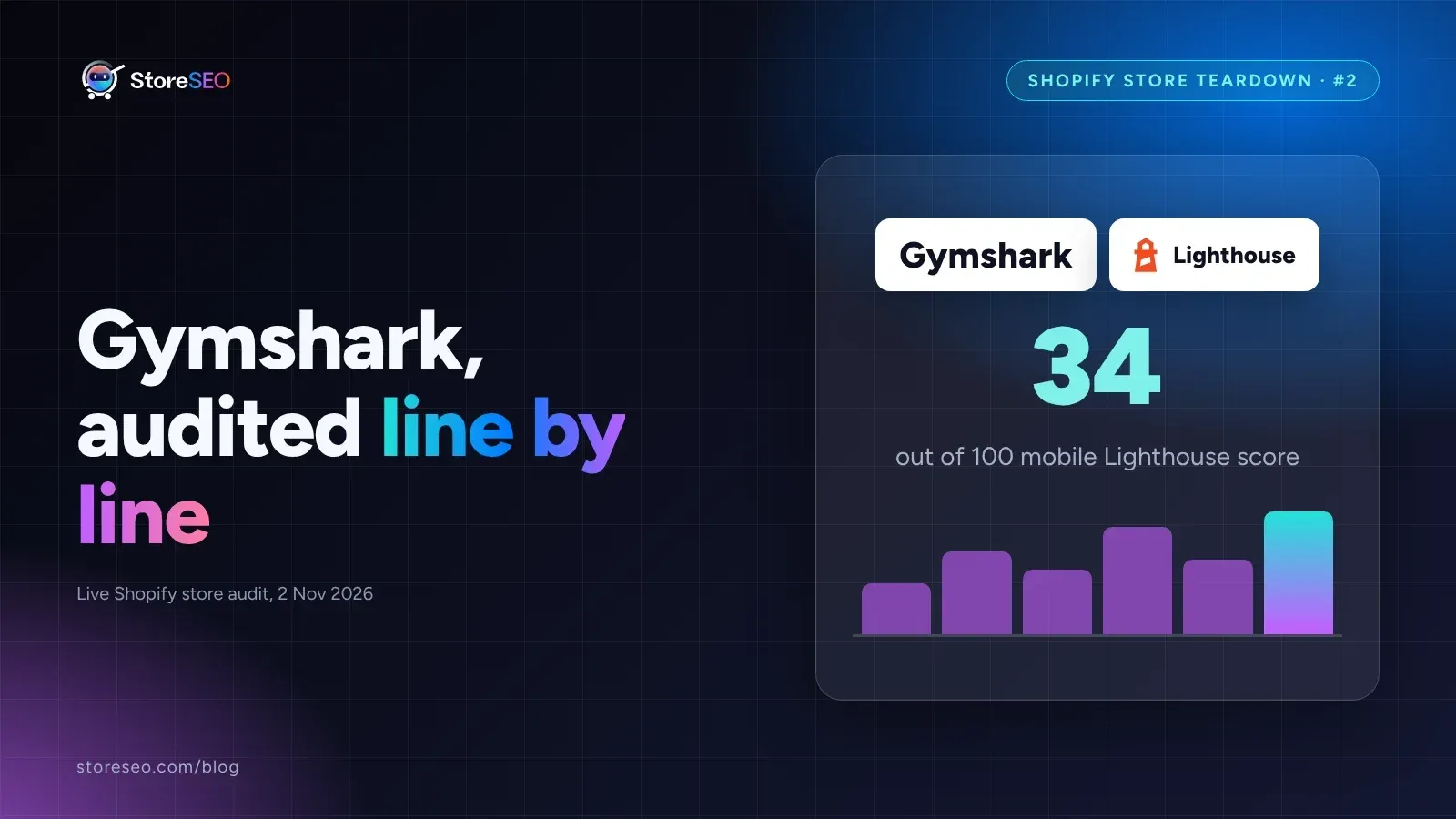
Shopify SEO Teardown #2: Gymshark
We audited Gymshark's live Shopify pages and found a 34-out-of-100 mobile Lighthouse score, a separate URL per color variant, and zero review schema.
Read article