
Does Changing Your Shopify Theme Hurt SEO?
 Written by M Asif Rahman
No, not automatically, but it can. Shopify keeps your URLs, redirects and core settings exactly as they are when you switch themes, since those live at the platform level, not inside the theme. What does move is the structured data and heading markup your new theme outputs, and that is where a careless switch can quietly cost you rankings.
TL;DR: what a theme switch actually touches
| What you are checking | Verdict |
|---|---|
| Your URLs, redirects and sitemap | Unchanged, Shopify generates these from the store, not the theme |
| Schema markup (JSON-LD) your pages output | Can change, some free themes ship more structured data than others |
| Heading hierarchy and page markup | Can change, each theme codes its own H1/H2 pattern |
| Your ranking on the morning you switch | Rarely moves immediately, but a lost schema type or heading compounds over the following weeks |
Why Does Switching Themes Affect SEO?
A Shopify theme controls how a page is built, not where it lives. The product, collection and page URLs, the canonical tag, your stored meta title and description, and your sitemap are all generated from the store’s own data, so none of them change when you install a new theme. What a theme does control is the HTML and structured data it writes around that content, which is why two themes can render the exact same product in two different ways for a search engine or an AI assistant to read.
What Actually Changed When We Switched Themes?
To see this instead of guessing at it, we pulled the live view-source of a real product page on two of Shopify’s own free themes, Dawn and Sense, on 3 November 2026. Both pages describe comparable products from comparable demo stores, so the comparison isolates the theme.
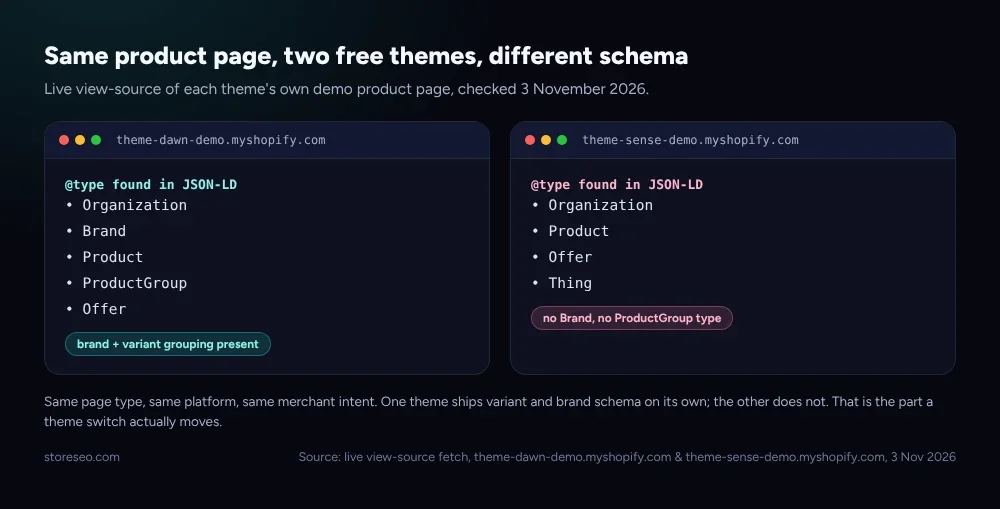 Live view-source JSON-LD on each theme’s own demo product page, checked 3 November 2026.
Dawn’s product page writes a Product entry nested inside a ProductGroup, with a Brand object naming the merchant. Sense’s product page writes Organization, Product and Offer types but no Brand and no ProductGroup. Neither theme is wrong by Shopify’s own rules, since both ship a valid Product result, but a merchant who switches from Dawn to Sense loses brand and variant-grouping markup they never touched directly. StoreSEO’s SEO Analysis and score catches exactly this: it reads what your live page actually outputs today, not what your previous theme used to send, which is the only way to know a switch changed anything.
How Do You Check Your Own Theme Switch?
Shopify’s own theme management documentation covers installing and previewing a theme before it goes live, which is also your SEO checkpoint. Do the comparison before you publish the new theme, not after.
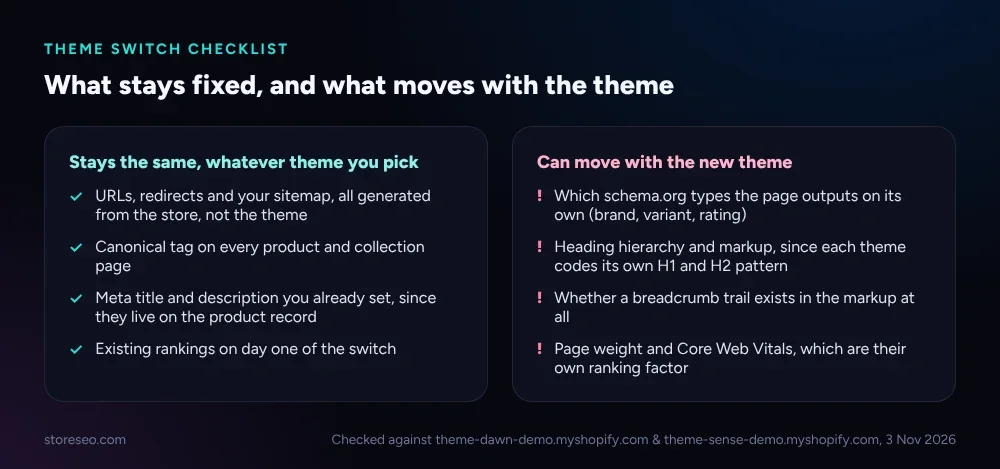 What stays fixed versus what can move, checked against the Dawn and Sense demo stores, 3 November 2026.
Open the new theme as a preview, pick two or three product pages plus your homepage, and view their page source. Look for the same things we checked above: which @type values appear in the JSON-LD block, whether there is a single <h1> matching the page title, and whether a breadcrumb trail exists anywhere in the markup. Shopify’s theme management help docs explain how to preview a theme without publishing it, which is exactly the window you want for this check.
What Should You Do Before and After Switching?
- Baseline your current theme first with StoreSEO’s SEO Analysis and score, so you have a schema and score snapshot to compare against once the new theme goes live.
- Hand your developer a brief, not a guess. Our Shopify SEO brief template for your theme developer lists the schema, heading and canonical checks a theme change should never break, and the Black Friday SEO brief for your Shopify developer covers the same ground on a deadline.
- Re-run the same checklist after the switch goes live, using the steps in our Ultimate SEO Checklist, and compare the new theme’s view-source output to what our Dawn theme SEO audit found so you know whether you gained or lost structured data.
Frequently Asked Questions (FAQs)
1. Does switching your Shopify theme change your URLs?
No. Shopify generates your product, collection and page URLs from the store’s own routing, not from the active theme, so switching themes does not create redirects or break existing links on its own. The one exception is a URL you hand-edited inside the old theme’s custom code, which a new theme will not recreate for you.
2. Will a new theme automatically add the structured data StoreSEO already optimized?
Not necessarily. Shopify’s free themes ship their own baseline Product schema, but how much they include, such as brand or variant grouping, varies by theme, exactly as the Dawn-to-Sense comparison above shows. StoreSEO’s SEO Analysis checks what your live pages output after a switch, not what the old theme used to send.
3. Does a theme change affect your meta titles and descriptions?
Your stored title and meta description carry over, since they live on the product or page record rather than inside a theme file. What can change is how the new theme’s template wraps them, so a quick check of a few live pages after switching is still worth the few minutes it takes.
4. How soon after switching themes should you check your SEO?
Check before you unpublish the old theme, by previewing the new one and viewing the page source on a handful of products, collections and your homepage. Search engines typically re-crawl a changed page within days to a few weeks, so catching a missing schema type or heading before that crawl happens protects the ranking you already built.
5. Can changing themes hurt Core Web Vitals and indirectly your SEO?
Yes, if the new theme loads more scripts, larger images or more third-party app embeds than the old one did. Core Web Vitals are their own ranking factor, so a heavier theme can cost you even when every schema type and heading stays correct. Run a speed check on the new theme before and after switching to catch this early.
6. Do you need to resubmit your sitemap after a theme change?
No. Your sitemap is generated from your store’s products, collections and pages, not from the active theme, so the same URLs carry over automatically. You only need to touch Google Search Console again if you also changed URLs or added new pages at the same time as the theme switch.
Treat a theme switch like any other SEO-adjacent launch: check what you have before you flip it live, and check again right after. That two-minute habit is the difference between a redesign that costs you nothing and one that quietly erases schema you never knew you had, so try StoreSEO on the Shopify App Store.
Keep reading
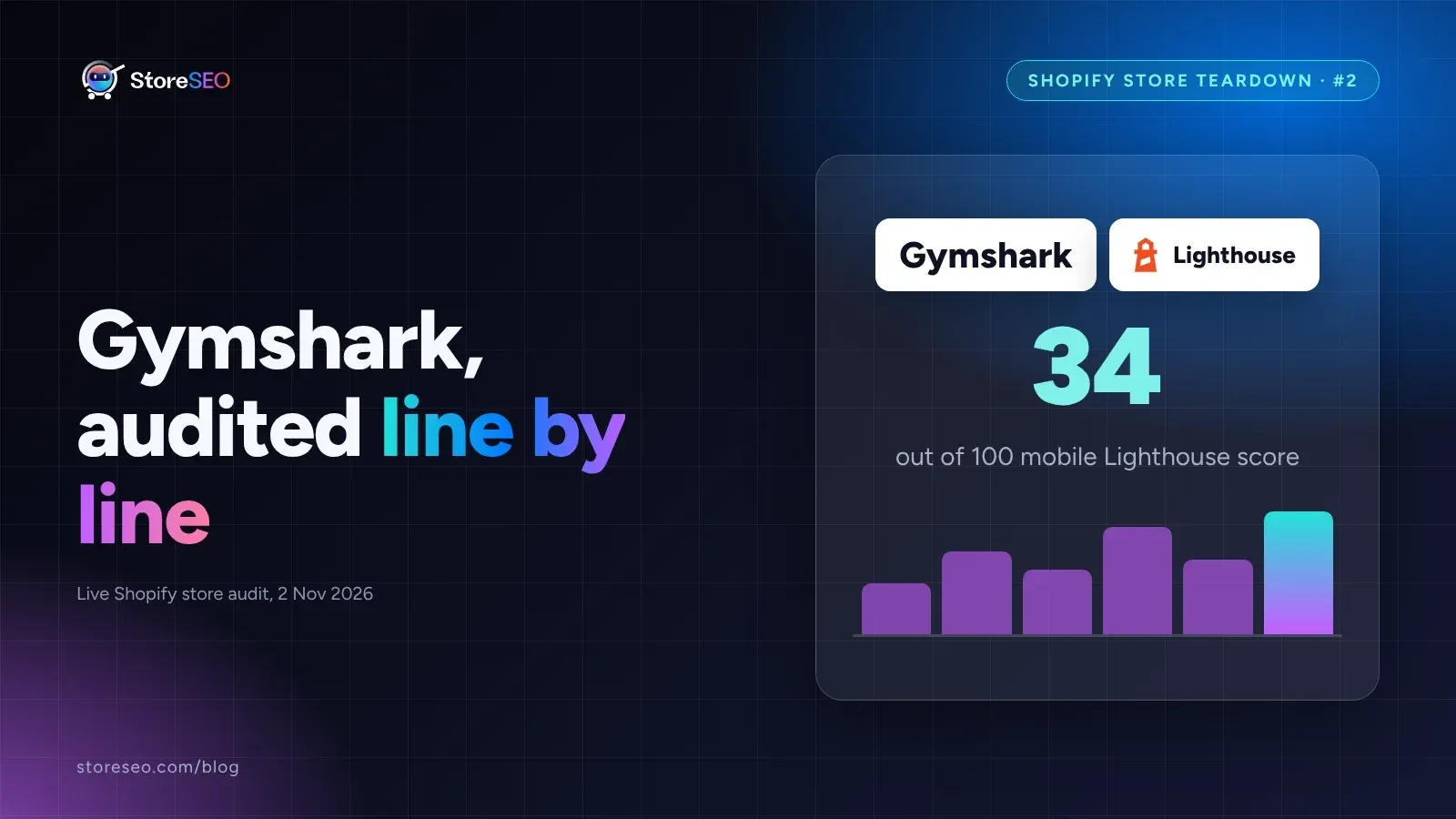
Shopify SEO Teardown #2: Gymshark
We audited Gymshark's live Shopify pages and found a 34-out-of-100 mobile Lighthouse score, a separate URL per color variant, and zero review schema.
Read article
Switch From TinySEO to StoreSEO Without Losing Data
Switching from TinySEO to StoreSEO takes about ten minutes with the built-in wizard, and your schema and image alt text carry over automatically.
Read article
Does a Sitemap Actually Speed Up Shopify Indexing?
A sitemap helps Google and Bing discover new Shopify pages faster, but IndexNow, StoreSEO's instant-indexing feature, never reaches Google at all.
Read article