
Switch From Booster SEO to StoreSEO (No Data Loss)
 Written by M Asif Rahman
Yes, you can switch from Booster SEO to StoreSEO without losing your SEO work. StoreSEO’s built-in migration wizard carries across meta titles, meta descriptions and JSON-LD schema in a few minutes; redirects and Booster SEO’s own LLMs.txt file need a short manual pass, both covered below.
TL;DR
| Data | Moves automatically | What to do |
|---|---|---|
| Meta titles | Yes | Spot check the top 10 pages after import |
| Meta descriptions | Yes | Spot check the top 10 pages after import |
| Product and page schema (JSON-LD) | Yes | Re-validate with StoreSEO’s schema tool |
| Image alt text | Not listed | Re-run StoreSEO’s bulk alt text tool |
| Redirects Booster SEO created | No | Rebuild with the Bulk URL Redirect Manager |
| Booster SEO’s own LLMs.txt file | No | Regenerate with StoreSEO’s own LLMs.txt tool |
Step 1: Install StoreSEO And Weigh The Switch
Booster SEO is a genuinely capable app: automatic meta tags, alt text, speed and broken-link fixes, plus newer AEO tools like its own LLMs.txt generator. On the Shopify App Store it carries a 4.8 rating across 5,492 reviews (checked 2 Oct 2026). StoreSEO’s listing sits at a full 5.0 across 760 reviews the same day, a smaller base but a cleaner score, and its entry paid tier opens well below Booster SEO’s.
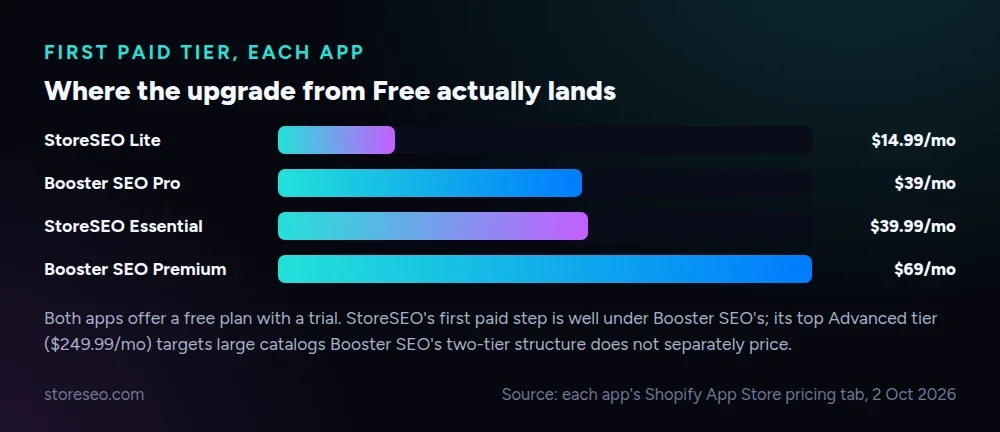 StoreSEO’s Lite plan opens at less than half of Booster SEO’s Pro tier; its Advanced tier exists for catalogs Booster SEO’s two-tier pricing does not separately price (Shopify App Store pricing tabs, 2 Oct 2026).
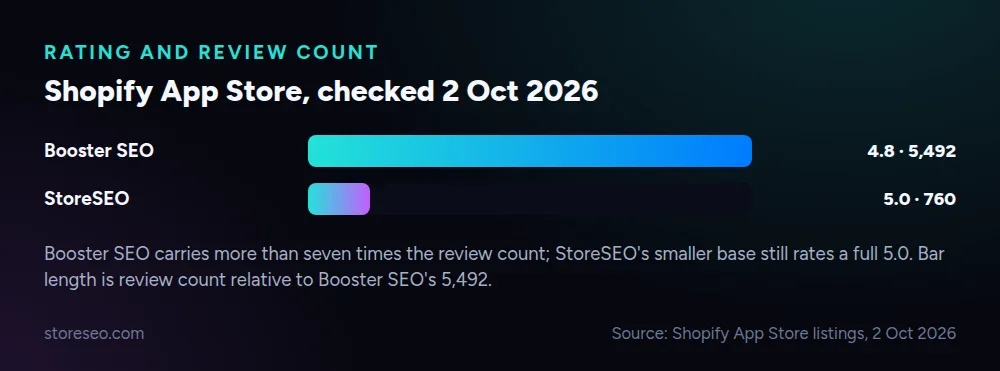 Booster SEO’s review base is more than seven times larger; StoreSEO’s smaller base still holds a full 5.0.
Once you have decided, install StoreSEO on its Free Forever plan and run it alongside Booster SEO at first: nothing on your storefront changes until you choose to switch over. Before touching any settings, open StoreSEO’s own Backup Your SEO Data tool and save a restore point, so a bad import is a few clicks from undone. For the full picture of what each app covers, the best Shopify SEO apps, expert tested ranks both alongside the rest of the field.
Step 2: Run The Built-In Migration Wizard
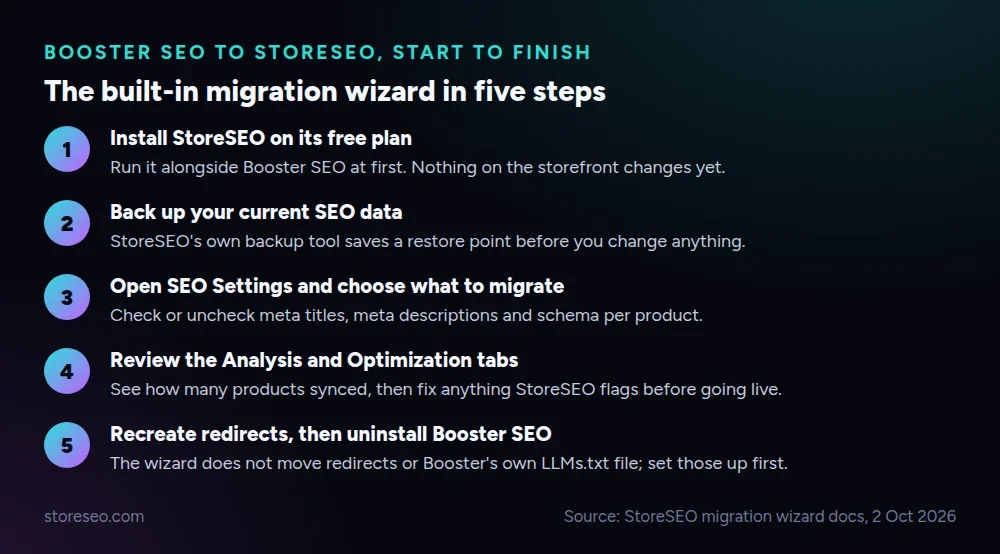 StoreSEO’s wizard is app-agnostic: it reads whatever meta titles, descriptions and schema already exist on your products, whichever app wrote them.
From the StoreSEO dashboard, open SEO Settings and start the migrate your data wizard. Check the boxes for the fields you want to bring across, then click Next to reach the Analysis tab, which reports how many products were found and synced. The Optimization tab flags anything StoreSEO thinks needs attention before you finish; the Success tab confirms the import is done and links out to StoreSEO’s documentation and support.
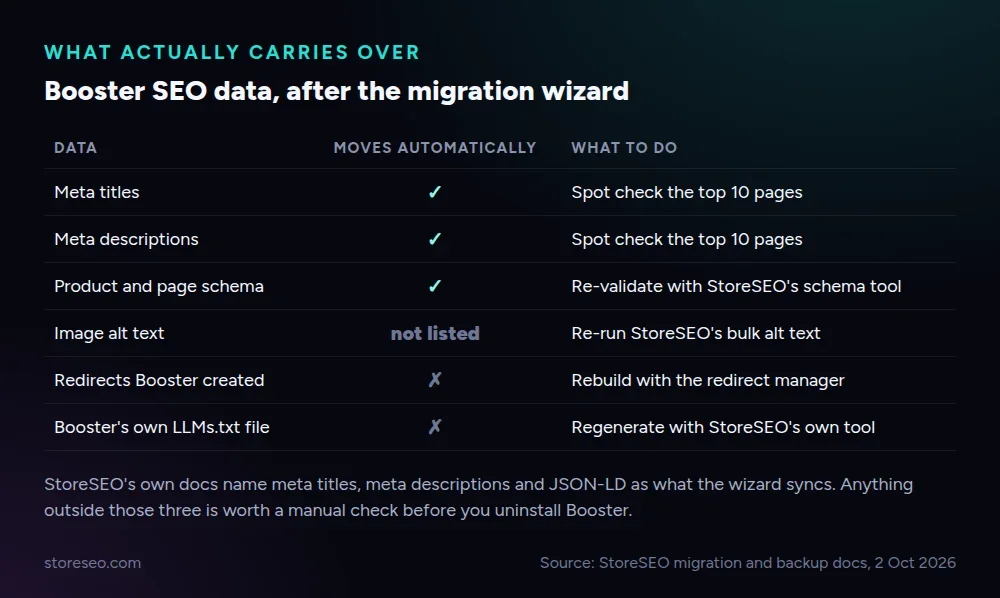 StoreSEO’s own documentation names meta titles, meta descriptions and JSON-LD as what the wizard syncs; treat anything else as worth a manual check.
StoreSEO is explicit that the wizard moves meta titles, meta descriptions and JSON-LD; it does not promise image alt text, so re-run StoreSEO’s own bulk alt text tool as a precaution. Two things the wizard never touches: any redirects Booster SEO set up, and Booster SEO’s own LLMs.txt file. Recreate the redirects with StoreSEO’s Bulk URL Redirect Manager before you uninstall Booster SEO, and regenerate your llms.txt from inside StoreSEO once it is your primary SEO app. If you are not ready to commit, StoreSEO vs Booster SEO: Comparing the Power of Shopify SEO Apps and 7 Best Booster SEO Alternatives in 2026 both cover the decision in more depth before you install anything.
What Should You Check After Switching?
Give the store a week before you call the migration finished. Check these in order:
- Search Console coverage. Confirm the same pages are still indexed; a sudden drop points at a meta tag or canonical that did not carry over cleanly.
- A handful of product pages, viewed live. Open three or four in a browser and read the title tag and meta description exactly as Google would see them.
- Structured data. Run a few product URLs through StoreSEO’s own schema check and confirm one clean JSON-LD block, not two competing ones.
- Redirects. Test any URL Booster SEO used to redirect; a 404 where a redirect used to live is the most common migration miss.
- AI answer visibility. If you had Booster SEO’s llms.txt live, regenerate it in StoreSEO so AI crawlers are not reading a stale file.
How Do You Avoid Duplicate Schema Or Meta From Two Apps?
The most common migration mistake is leaving both apps active and writing. Two SEO apps installed at once can each inject their own JSON-LD block or override the same meta tag on save, and search engines see the conflict, not a clean page.
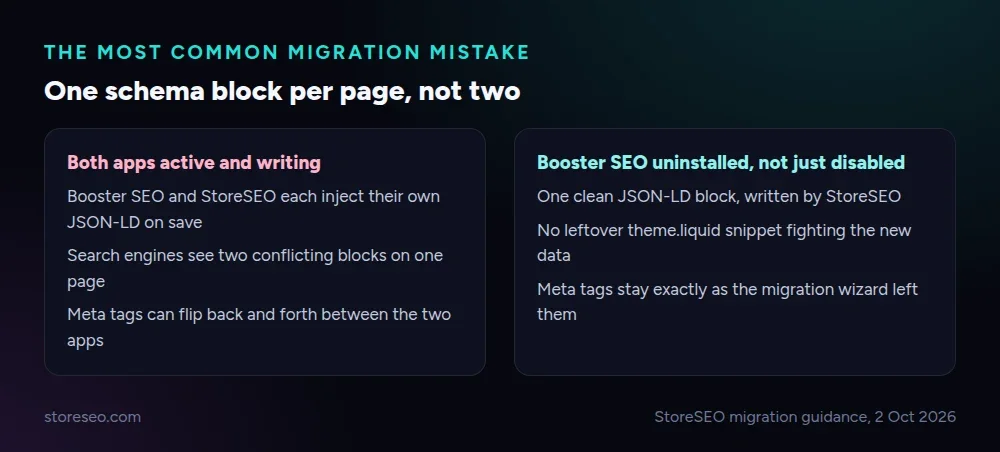 Running both apps briefly is normal; leaving both active for weeks is what causes the conflict.
Once StoreSEO’s Success tab confirms the import, uninstall Booster SEO from your Shopify admin rather than just disabling it, since a disabled app can still leave old theme snippets behind. After uninstalling, view the page source on two or three products and confirm exactly one BlogPosting-style schema block per page, written by StoreSEO. If you still see a second block, check your theme’s theme.liquid for a leftover snippet Booster SEO added directly, since not every setting an app makes lives inside the app itself.
Frequently Asked Questions (FAQs)
1. Does switching from Booster SEO to StoreSEO hurt your Google rankings?
Not if the core fields transfer correctly. Google re-crawls pages on its own schedule, and a meta title or description that reads the same after the switch gives it nothing new to react to. The real risk is a broken redirect or a missing canonical, which is why the post-switch checklist above exists.
2. How long does the Booster SEO to StoreSEO migration actually take?
The wizard itself runs in minutes once you reach the Analysis tab; most of the real time goes into the backup, the review, and recreating anything that does not carry over automatically. Budget an afternoon for a typical catalog, plus a week of watching Search Console before you uninstall Booster SEO.
3. Do you have to manually re-enter every meta title and description?
No. That is the point of the wizard: it reads what is already on your products and brings meta titles, meta descriptions and schema across without you retyping them. You only re-enter fields the wizard does not cover, such as any custom redirects.
4. What happens to Booster SEO’s speed and image compression settings?
They stay with Booster SEO and are not part of this migration at all; speed and image optimization are a separate concern from SEO metadata, and StoreSEO’s own image tools work differently. If speed tools were a reason you liked Booster SEO, test StoreSEO’s equivalents before you uninstall anything.
5. Should you uninstall Booster SEO before or after migrating?
After, and only once you have checked the post-switch list above. Running both apps briefly side by side is normal; leaving both installed and active for weeks is what causes duplicate schema and meta tag conflicts.
6. Does StoreSEO’s FAQ schema work the same way Booster SEO’s does?
Both can add FAQ structured data to a page, but neither app can promise a rich result in Google for it; that decision sits entirely with Google’s own search features, and FAQ rich results have not been guaranteed for any site since May 2026. Treat FAQ schema as a clarity signal for search engines and AI answers, not a guaranteed visual upgrade.
Switching SEO apps is only worth the afternoon if the one you land on keeps pace with where Shopify search is heading next: try StoreSEO on the Shopify App Store
Keep reading
Switch From TinySEO to StoreSEO Without Losing Data
Switching from TinySEO to StoreSEO takes about ten minutes with the built-in wizard, and your schema and image alt text carry over automatically.
Read article
Does a Sitemap Actually Speed Up Shopify Indexing?
A sitemap helps Google and Bing discover new Shopify pages faster, but IndexNow, StoreSEO's instant-indexing feature, never reaches Google at all.
Read article
Black Friday SEO Brief for Your Shopify Developer
A one-page brief hands your theme developer the freeze window dates, the SEO fields to protect, and the checks that sign off before Black Friday.
Read article