
Shopify Product Schema JSON-LD: Copy-Paste Code Blocks
 Written by M Asif Rahman
Shopify’s Dawn theme writes ProductGroup, variant-level Product and Offer JSON-LD into every product page automatically, confirmed by fetching Shopify’s own Dawn demo store. It writes no AggregateRating or Review block at all, even when the page shows star ratings. Here are the exact blocks, copy-paste ready, for what Shopify gives you and what it does not.
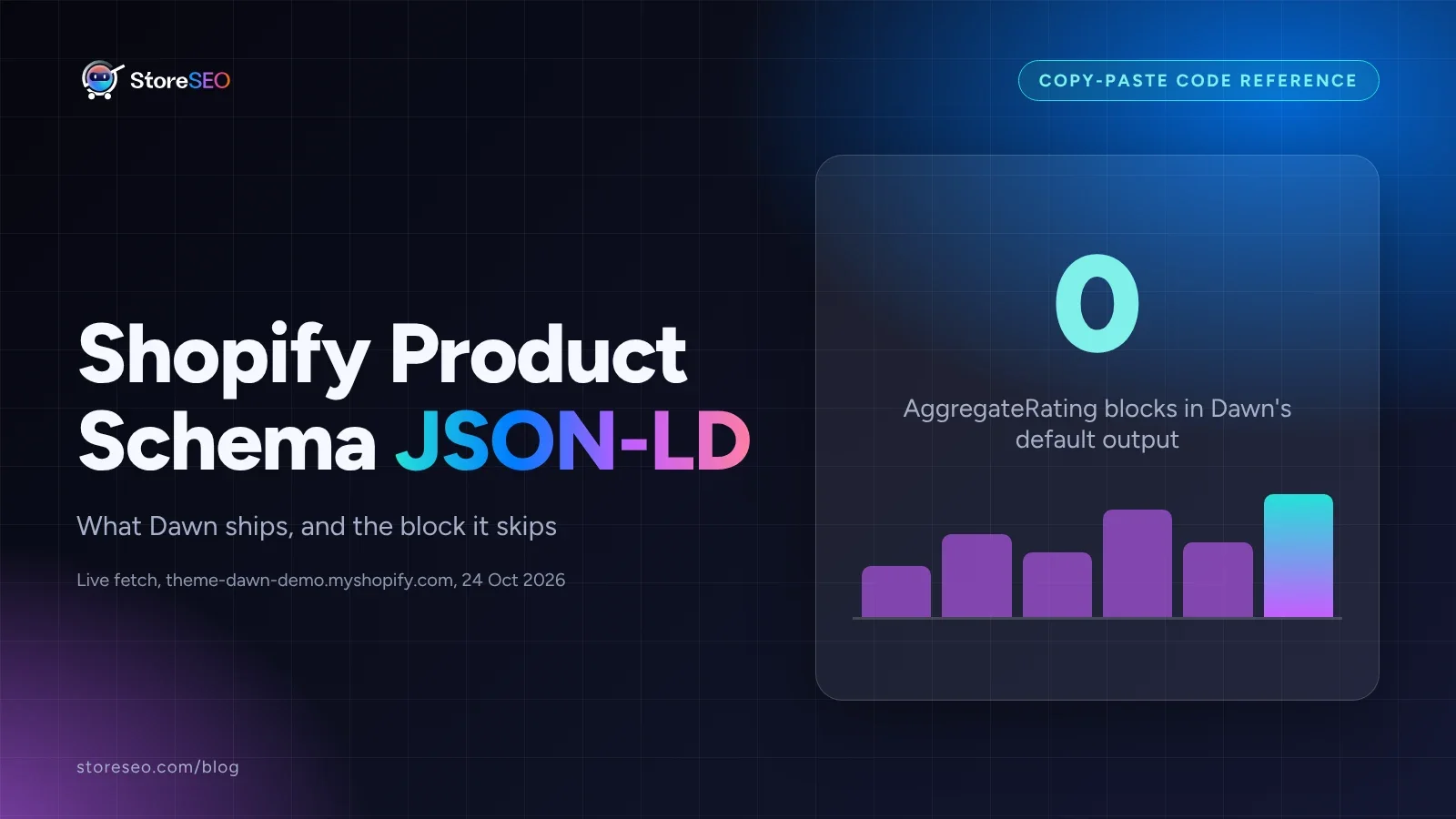
TL;DR: what Shopify’s Dawn theme ships by default, on a live fetch of its own demo store, and what to do about each block.
| Block | Shopify ships it by default | What’s missing | Action if missing |
|---|---|---|---|
ProductGroup + variant Product | Yes, confirmed on Dawn’s live demo | gtin, mpn, per-variant category are blank | Fine to leave; not required for basic eligibility |
Offer (nested in each variant) | Yes: price, priceCurrency, availability, url all present | priceValidUntil, shippingDetails, hasMerchantReturnPolicy | Add if you want the extra result enhancements |
AggregateRating / Review | No, not written anywhere on the page | The whole block | Add it yourself, only with genuine customer review data |
What Does Shopify’s Dawn Theme Actually Output?
We fetched a live product page on Shopify’s own Dawn demo store (theme-dawn-demo.myshopify.com/products/art-deco-cyclamen, checked 24 Oct 2026) and read its JSON-LD directly rather than assuming what a “standard Shopify theme” does. Two scripts are there: an Organization block for the store itself, and a ProductGroup block for the product, with each color or size variant nested inside as its own Product and Offer.
{
  "@context": "http://schema.org/",
  "@type": "ProductGroup",
  "name": "Art Deco",
  "brand": { "@type": "Brand", "name": "Mlouye" },
  "productGroupID": "6920725692505",
  "hasVariant": [
    {
      "@type": "Product",
      "name": "Art Deco - Mediterranean Blue",
      "sku": "3001-03-CY-2",
      "image": "https://yourstore.com/cdn/shop/products/your-image.jpg",
      "offers": {
        "@type": "Offer",
        "price": "165.00",
        "priceCurrency": "CAD",
        "availability": "http://schema.org/InStock",
        "url": "https://yourstore.com/products/your-handle?variant=123"
      }
    }
  ]
}
That is a real block, with the store’s own product and variant names left in place and only the domain and variant ID swapped for placeholders. Per Google’s own merchant listing requirements, a Product needs name, image and offers to qualify at all, and an Offer needs price and priceCurrency. Dawn’s default output clears that bar on its own, with no app and no theme edit required.
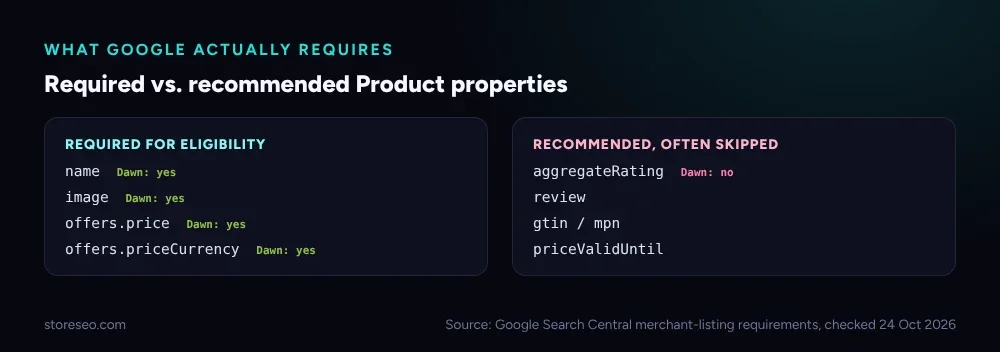 Required properties Dawn already covers; recommended ones, including aggregateRating, it does not.
This is the more technical half of the same ground Shopify Product Page SEO: Tips and Best Practices covers for a product page overall, zoomed into the one field, structured data, that a template or a theme edit cannot fix by itself.
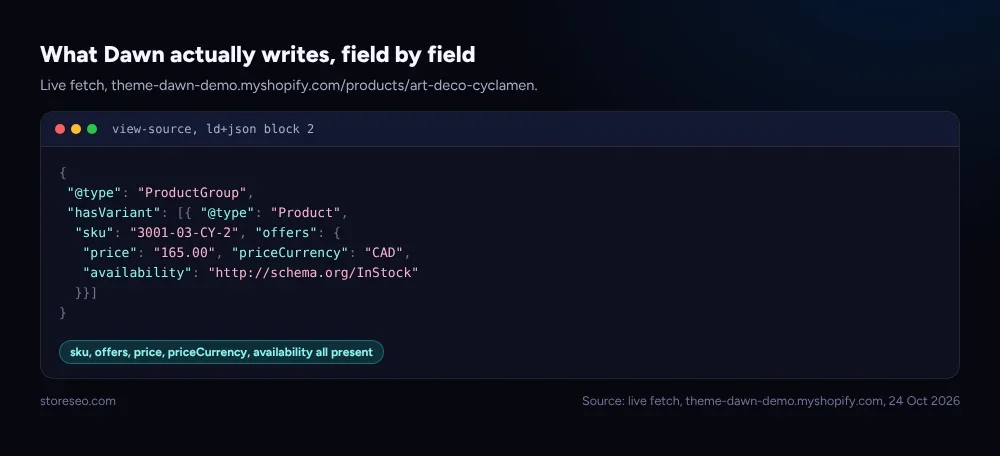 Live fetch, theme-dawn-demo.myshopify.com, 24 Oct 2026. Fields trimmed to the ones that matter here.
What’s Missing, and What’s the Copy-Paste AggregateRating Block?
Nothing in Dawn’s output mentions a rating or a review, on a demo store or on a real one. If your product page shows star ratings (from a reviews app, from your theme, or from StoreSEO’s own review display), that rating is visible to a shopper but invisible to a crawler reading the page’s structured data, unless something adds the block separately. This is the copy-paste AggregateRating block, meant to sit inside the Product (or variant Product) object above, right next to "offers":
"aggregateRating": {
  "@type": "AggregateRating",
  "ratingValue": "4.7",
  "reviewCount": "128"
}
Before you paste that in anywhere, read Google’s own review-snippet guidelines once. Three rules matter here: don’t aggregate reviews pulled from another website, don’t include fake or undisclosed incentivized reviews, and ratings “must be sourced directly from users,” not written or curated by hand. ratingValue and reviewCount have to match real numbers you can point to, the same two numbers your reviews app or StoreSEO’s own review widget already shows on the page. schema.org’s own AggregateRating definition lists ratingValue, bestRating, worstRating and reviewCount as its core properties; only the first and last are required to pass validation.
How Do You Validate the Blocks You Add?
Paste the page’s full JSON-LD, Shopify’s own blocks plus anything you added, into Google’s Rich Results Test. It flags a missing required field, a malformed nested object, or two competing blocks claiming the same product, before Google ever crawls the live page. Do this every time you add a block by hand or install an app that touches structured data, not just once.
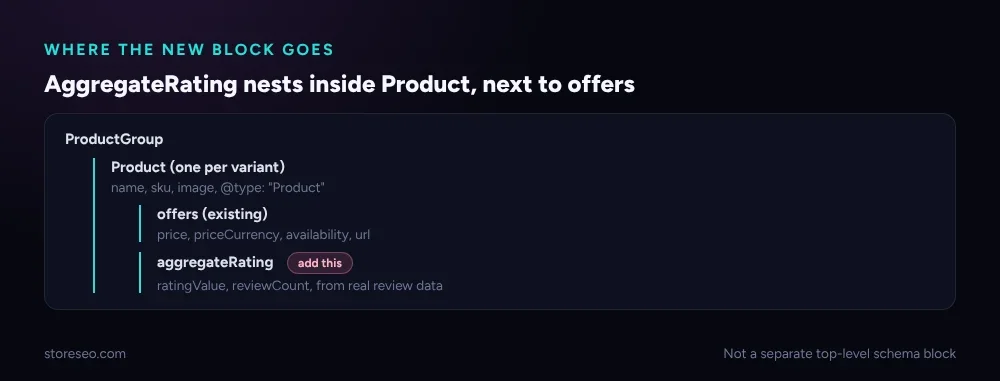 AggregateRating nests inside the same Product object as offers, it is not a separate block.
What Mistakes Break This Schema on Shopify?
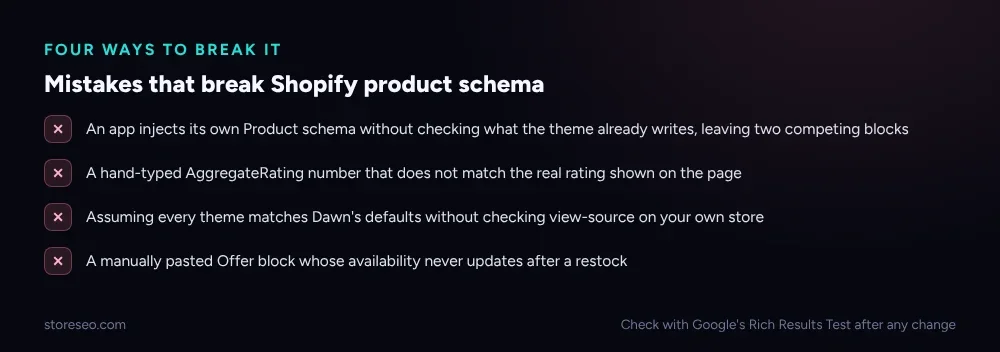 Four ways teams accidentally break valid schema after adding it correctly once.
- Two JSON-LD blocks competing for the same product. An app that injects its own
Productschema without checking what the theme already outputs leaves two, often disagreeing, blocks on one page. The Rich Results Test catches this; a quickview-sourceon one live product page catches it faster. - A fake or stale
AggregateRating. Hand-typing a rating number that is not the real one your reviews app shows is exactly what Google’s review-snippet guidelines name as disqualifying. - Assuming every theme matches Dawn. This post’s findings are Dawn’s defaults, confirmed by a live fetch. A customized or third-party theme can and does ship differently; check your own
view-sourcebefore assuming any of this applies to your store. - Leaving a variant’s
Offer.availabilitywrong after a restock. Dawn’s own feed updates this automatically from inventory, but a manually pasted block will not, and a staleOutOfStockvalue can suppress a product’s eligibility for shopping results.
Our own schema audit of 300 live Shopify product pages, We Analyzed 300 Shopify Product Pages for Schema, and the companion teardown, Dawn Theme SEO Audit, both cover what happens at scale when these mistakes compound across a catalog rather than one page. If you are deciding between a JSON-LD block and Shopify’s older microdata-attribute pattern on a custom theme, Differences Between JSON-LD and Microdata Schema covers that choice directly.
StoreSEO’s own Customize JSON-LD feature sits one layer up from everything above: it is a PRO feature for your store’s LocalBusiness schema, its name, logo, URL and multiple locations, not the Product-level blocks this post is about. Both layers matter, and neither replaces the other.
Frequently Asked Questions (FAQs)
1. Does every Shopify theme output Product JSON-LD like Dawn does?
Not necessarily. This post’s findings are specific to Dawn, confirmed by a live fetch of Shopify’s own demo store. Older themes, heavily customized themes and some third-party themes can output different fields, fewer fields, or none at all, so check your own product page’s view-source before assuming Dawn’s defaults apply.
2. Why doesn’t Shopify add AggregateRating by default?
Shopify’s base theme does not install a reviews system of its own, and structured data for ratings only makes sense once real review data exists somewhere on the page. Most stores get ratings from a dedicated reviews app, which is also the app best placed to supply the real numbers for the block.
3. Will adding a copy-paste AggregateRating block get me rich results automatically?
No. Google decides independently whether to show a star rating in search results, and a technically valid block is necessary but not sufficient. It also has to reflect genuine, verifiable review data, or Google’s own guidelines treat it as ineligible.
4. Can I just add schema through an app without checking what my theme already outputs?
You can, but check first. Several apps add their own Product or Offer schema without detecting what the theme already writes, which is how a page ends up with two competing blocks. A one-time view-source check before installing saves a validation headache later.
5. Does ProductGroup replace the simpler Product type everywhere?
No. ProductGroup is for a product with variants (size, color), with each variant nested as its own Product. A single-variant product, or a product type that does not use Shopify’s variant system, can use a flat Product block instead; both are valid schema.org types.
6. How often should I re-check my product schema?
After any theme update, any new schema-related app install, and at least once a quarter. Shopify theme updates can change what a theme outputs without an obvious announcement, which is exactly the kind of drift the Rich Results Test catches in under a minute.
If you would rather have your store’s full SEO setup checked in one pass instead of one block at a time, try StoreSEO on the Shopify App Store.
Keep reading
What Happens When You Skip Google Product Category?
Skipping Google Product Category rarely blocks a sale, but in apparel, phones, software and alcohol it can quietly get a listing disapproved.
Read article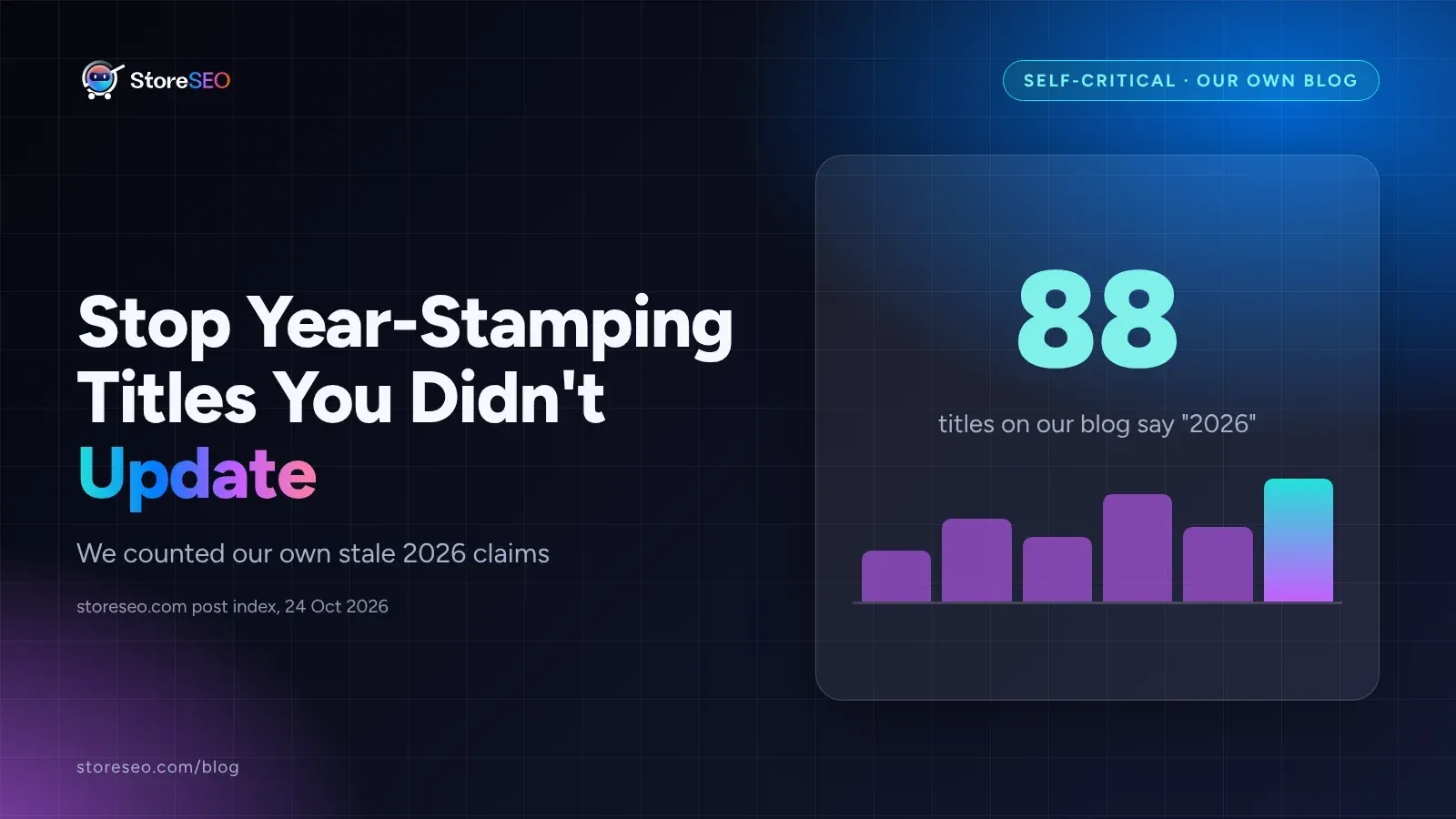
Stop Year-Stamping Blog Titles You Didn't Update
88 of our own blog titles say "2026," and 69 of those posts were actually published between 2021 and 2025 and never substantially updated since.
Read article
We Tested 3 Ways to Write Shopify Meta Descriptions
We tested three ways to write Shopify meta descriptions on five products, and only one method stayed inside Google's length window every time.
Read article