
Does an SEO App's Schema Conflict With Your Theme's?
 Written by M Asif Rahman
Yes, sometimes. Many Shopify themes, including Dawn, already output their own Product schema by default, and most SEO apps add theirs without checking for it first. Two blocks rarely break a page outright, but if they disagree on price or stock, Google is left with two conflicting answers.
TL;DR
| Scenario | What’s actually on the page | Risk | What to do |
|---|---|---|---|
| Theme schema only, no app toggle on | One Product/ProductGroup block from the theme | None | Nothing. This is the default on most themes. |
| Theme schema + app schema, same data | Two blocks, matching price, name, availability | Low: harmless redundancy | Optional cleanup. Not urgent. |
| Theme schema + app schema, different data | Two blocks disagreeing on price, stock or brand | Real: Google may trust either or neither for rich results | Fix the stale field. Don’t delete either block blindly. |
| Theme has no schema, app adds it | One block, from the app | None | Nothing. This is the common case on older or custom themes. |
Does Your Shopify Theme Already Add Product Schema?
On a lot of themes, yes, by default, with no app installed. Dawn, Shopify’s own reference theme, is the clearest case: a live fetch of a Dawn demo store’s product page on 27 November 2026 showed a ProductGroup schema block injected automatically, with no SEO app and no manual setup.
The block was not a bare placeholder. It carried a real brand name, a hasVariant array listing each product variant with its own SKU, image, and an Offer object giving price, currency and availability (InStock or OutOfStock, read directly from Shopify’s own inventory data). A separate Organization schema block for the store itself sat alongside it. Shopify’s theme layer, not any app, wrote both.
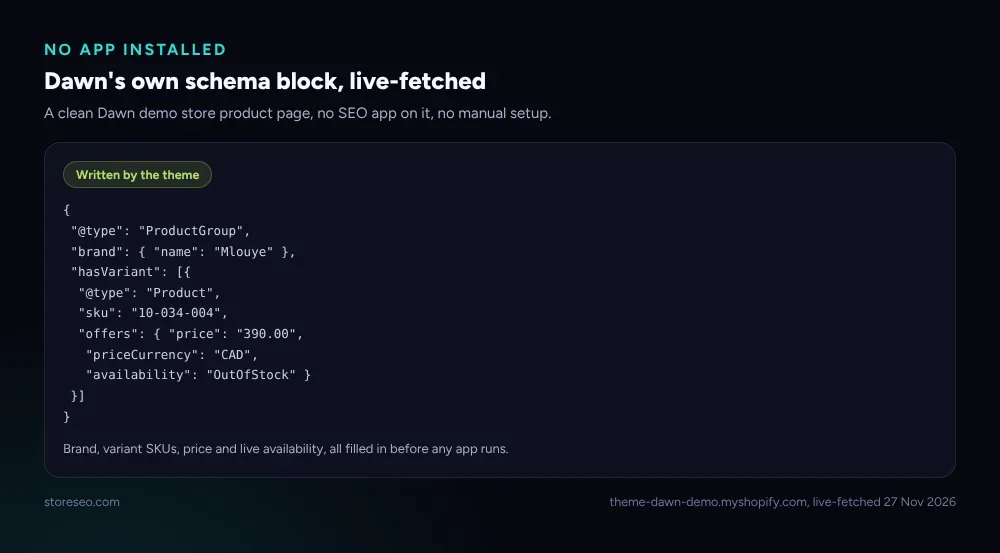 A Dawn theme product page’s own schema block, live-fetched, no app involved.
This matters because it means the starting assumption many merchants make, that schema only shows up once an SEO app is installed, is wrong for a meaningful share of stores. The real question is not “do I have schema,” it’s “how many sources am I now running.”
What Does an SEO App Add on Top of That?
A second source, if you turn it on. StoreSEO’s own documentation for its SEO Schema feature describes three separate toggles a merchant can enable from the app: Product Schema, Collection Schema and Breadcrumb Schema, each switched on independently from the app’s dashboard. The Product Schema toggle is explicit about what it adds: name, price, availability and reviews, the same fields a theme’s own block already carries on Dawn and similar themes.
Nothing in that documentation, or in the toggle’s own behavior, checks whether the theme is already emitting a Product block before adding another one. That is not a defect unique to StoreSEO; it is how nearly every Shopify SEO app’s schema feature works, because an app has no reliable way to inspect a theme’s Liquid templates before it renders its own script tag into the page’s <head>.
The practical result: on a theme that already outputs Product schema, turning on an app’s Product Schema toggle does not replace the theme’s block, it adds a second one next to it. Both are valid JSON-LD. Google’s crawler reads both.
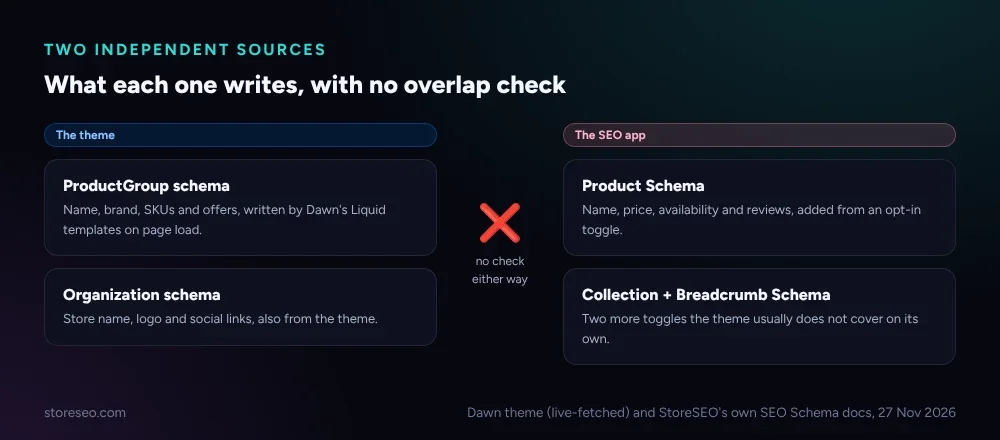 Two independent sources, neither checking what the other already wrote.
Does Having Two Schema Blocks Actually Hurt Rankings?
Not by itself. Multiple application/ld+json script tags on one page are valid and common; Google’s own structured data guidelines describe combining several blocks as normal, not a violation. Two blocks that fully agree, same price, same name, same availability, cost you nothing. They are redundant, not harmful.
The risk shows up only when the two blocks disagree. Google’s own general structured data guidelines are explicit that markup has to match what is actually on the page and be kept accurate; they do not spell out a specific rule for “two Product blocks with different prices,” but the accuracy requirement applies to each block individually. If a theme’s schema still shows a price from before a sale, while an app’s schema (synced closer to the live catalog) shows the discounted one, Google has two differently-dated claims about the same product and no documented rule for which one wins. That is the actual cost: not a penalty, but confusion over which number is correct wherever a rich result might appear, plus a possible markup review if a human happens to check the page.
What this run could not confirm, said plainly: no demo store with both a schema-emitting theme and StoreSEO’s Product Schema toggle switched on was available to test the two-block page directly. The mechanism above is built from Dawn’s real, live-fetched schema and StoreSEO’s own documented toggle behavior, not a screenshot of both at once. If your theme and your app both emit Product schema, the checks below take two minutes and settle it for your own store.
How Do You Check Your Own Store for This?
Three ways, from simplest to most thorough:
- View page source on a live product page (not the admin preview). Search the raw HTML for
application/ld+json. If it appears more than once with"@type": "Product"or"@type": "ProductGroup"inside different blocks, you have more than one source. - Run Google’s Rich Results Test against the live URL. It lists every structured data item it parsed from the page separately, so two Product items show up as two entries, not merged into one.
- Compare the fields that actually change: price,
availability, and any sale or stock status. A name mismatch is cosmetic; a price or stock mismatch is the one that can misrepresent the page to a shopper arriving from a rich result.
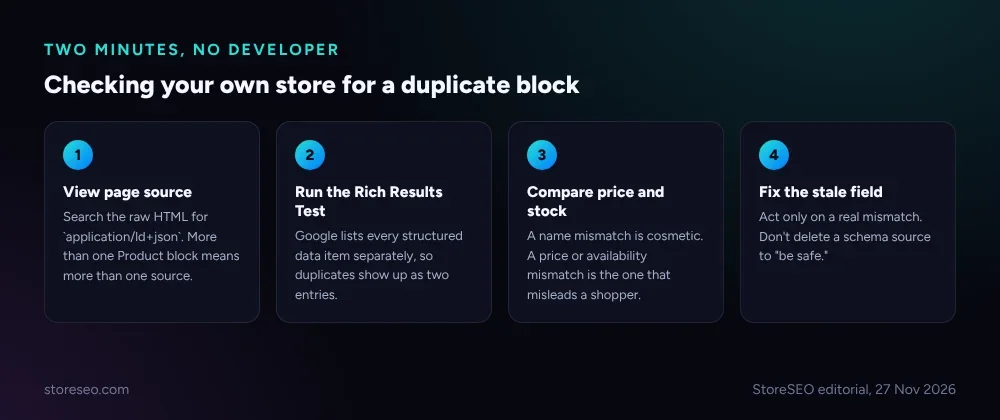 Checking your own store takes about two minutes, no developer needed.
What Should You Do if You Find Two Blocks?
Fix the mismatched field, don’t strip out a whole schema source to “be safe.” Deleting the app’s schema removes whatever extra structure it adds (StoreSEO’s version also covers Collection and Breadcrumb schema, which the theme usually does not). Deleting the theme’s schema means editing theme code, which breaks on the next theme update.
The practical fix in most cases: pick whichever source is kept current (usually the app, since it is editable from a dashboard without touching Liquid) as the source of truth for price and availability, and treat the other block as redundant rather than wrong, as long as its non-price fields (name, brand, SKU) still match. If the two blocks disagree on name or brand entirely, that is a data problem in one of the two sources, not a schema problem, and worth fixing at the source.
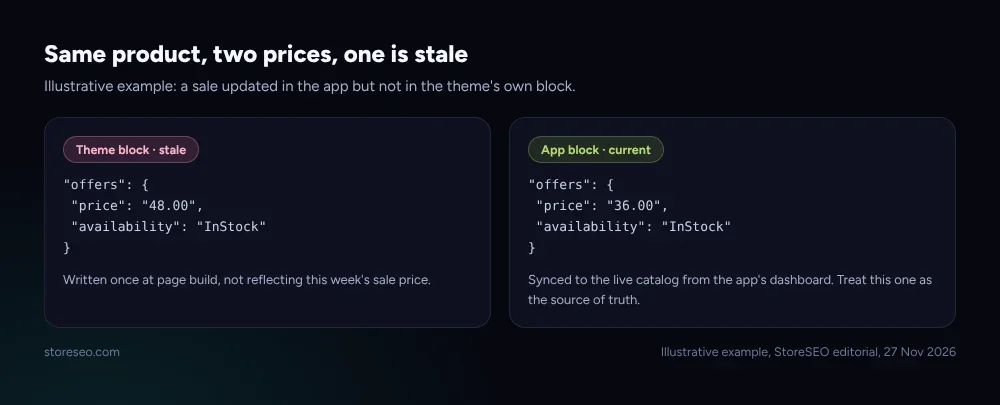 The fix is almost always a data update, not a feature to turn off.
For a broader look at how product-page schema is used across live Shopify stores, We Analyzed 300+ Shopify Product Pages’ Schema found most pages carry at least one schema source already, which is consistent with what Dawn’s own default behavior shows here. For the raw JSON-LD blocks themselves, copy-paste ready, see Shopify Product Schema JSON-LD: Copy-Paste Code Blocks.
Is This the Same as Duplicate Content?
No, and it’s worth keeping the two apart. Duplicate content is about two URLs serving the same or near-identical page content. This is about two structured data blocks on the same URL describing the same thing. Shopify Product Page SEO: Tips and Best Practices covers the broader page-level checklist, including the on-page basics that schema sits alongside, if you want the full picture rather than just the markup layer.
StoreSEO names this exact feature set, SEO Schema, with the Product, Collection and Breadcrumb toggles described above; the docs page is the place to see each toggle’s exact fields before switching one on.
Frequently Asked Questions (FAQs)
1. Does every Shopify theme add its own schema by default?
No. Dawn does, with a ProductGroup block confirmed on a live fetch, but older or heavily customized themes may add none at all. Check your own theme with a view-source search for application/ld+json before assuming either way.
2. Will Google penalize a page for having two schema blocks?
There is no documented penalty for having multiple valid JSON-LD blocks on one page. The actual risk is accuracy: if the two blocks disagree on price or availability, Google’s own structured data policies require each block to match the page, and a mismatch can cost a rich result rather than trigger a penalty.
3. Should I turn off my app’s schema feature if my theme already has one?
Not automatically. Check what each one adds first. A theme’s default block is usually limited to Product data; an app like StoreSEO can also add Collection and Breadcrumb schema the theme does not cover. Turning off the whole feature to avoid one duplicate field usually costs you more than it saves.
4. How do I know which schema source has the correct price?
Compare the price and availability fields in each block against what actually shows on the storefront right now. Whichever source updates automatically when you change a price in Shopify admin, usually the app, not a block you can only edit by touching theme code, is the one to trust going forward.
5. Does this affect AI assistants like ChatGPT the same way it affects Google?
The mechanism is similar: an AI assistant that reads structured data to answer a shopping question has the same two-block problem Google does, two differently-dated claims about the same product. Neither this run nor the research behind it found a published, assistant-specific policy on handling conflicting schema, so treat the fix the same way: keep one accurate source rather than assume either reader resolves it correctly.
6. Can I just delete the theme’s schema to avoid all of this?
You can, but it means editing Liquid theme files directly, and that edit is at risk of being overwritten the next time the theme updates. Fixing the data mismatch inside whichever block is wrong is almost always less fragile than removing a theme’s built-in markup.
Checking your own product page for a duplicate schema block takes about two minutes with Google’s Rich Results Test, and the fix is almost always a data update, not a feature to turn off. try StoreSEO on the Shopify App Store
Keep reading
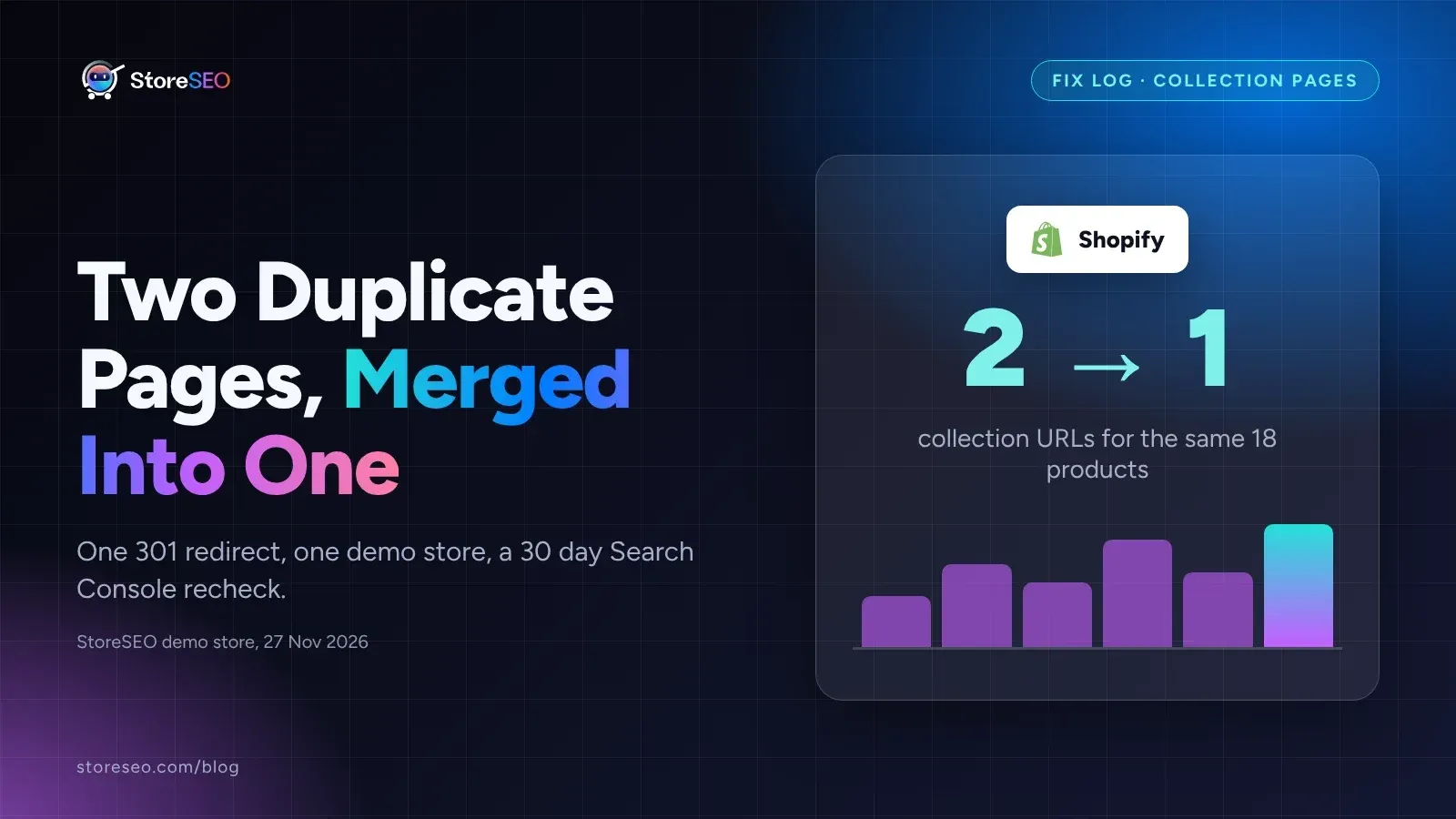
Fix Log: Merging Two Duplicate Collection Pages
We merged two Shopify collection pages that listed the same 18 products into one page with a 301 redirect, and this is what we are now tracking.
Read article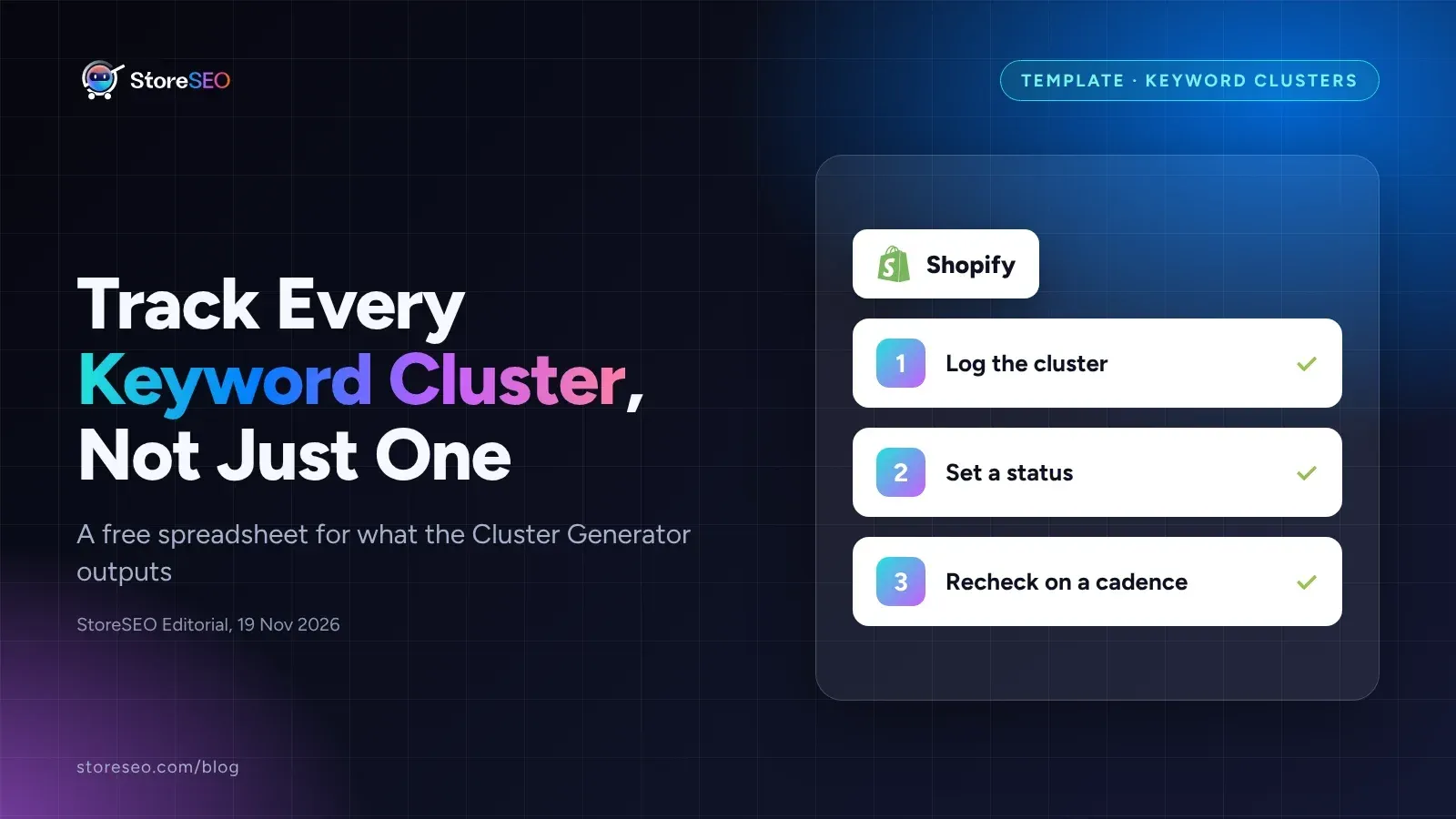
A Shopify Keyword Cluster Tracker Template
A free Shopify keyword cluster tracker turns each cluster from StoreSEO's generator into a primary keyword, supporting pages and a status to recheck.
Read article
Where StoreSEO's AI Still Gets Shopify SEO Wrong
StoreSEO's AI Content Optimizer turns one focus keyword into a meta title, description and tags, and that same strength is also its real limit.
Read article