
A Shopify Keyword Cluster Tracker Template
 Written by M Asif Rahman
A Shopify keyword cluster tracker is a short spreadsheet that takes what StoreSEO’s Keyword Cluster Generator outputs, one cluster, one primary keyword, the pages under it, and gives you a place to recheck that over time instead of re-running the generator on the same product every week.
TL;DR: one cluster, one primary keyword, a status you actually revisit.
| Column | What You Type In It | Example Entry | What To Do Next |
|---|---|---|---|
| Cluster | The cluster name from the generator’s output | organic cotton baby blanket | Confirm the dominant intent before writing anything |
| Primary keyword | The one term the cluster should rank for | gots certified baby blanket | Lock this in before you touch supporting pages |
| Supporting pages | Every product or post already covering it | /products/gots-certified-baby-blanket | Flag any second page chasing the same cluster |
| Status | New, Active, Needs Refresh or Stale | Active | Move to the fix list below when it turns Stale |
| Last checked | The date you last reviewed it | 2026-11-19 | Recheck every 4 to 6 weeks, not on a whim |
What Columns Does a Cluster Tracker Need?
Five columns are enough: the cluster’s name, the one primary keyword it should own, every page already supporting it, a status, and the date you last looked. The table above previews what goes in each, and StoreSEO’s own Keyword Cluster Generator is what produces the first three columns for you, so this sheet is not research from scratch, it is a place to put research you already ran.
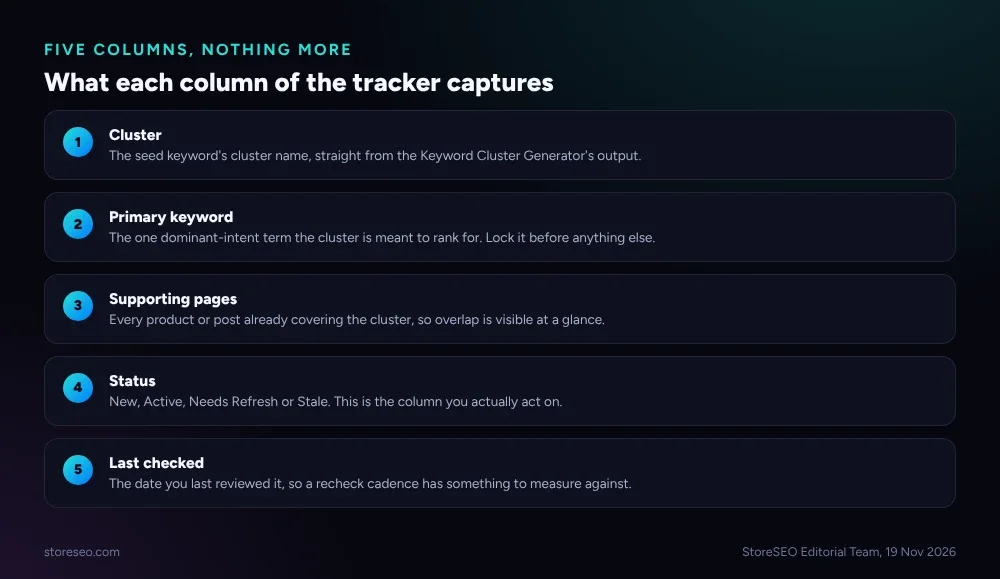 Five columns, nothing more: cluster, primary keyword, supporting pages, status and last checked.
The Status column is the one that does the actual work, the same way it does on a keyword mapping sheet. Everything else exists to feed it: once a cluster has a primary keyword and a list of supporting pages next to it, deciding whether to leave it alone, write the next page, or drop it becomes a comparison instead of a guess.
How Do You Fill It In Under 20 Minutes?
Open StoreSEO’s Optimize SEO tab and run the Keyword Cluster Generator against your top 5 products first, not the whole catalog at once. The generator groups each product’s keyword variations into intent-tagged clusters, informational, commercial or transactional, and flags any content gap a competitor already covers that you do not.
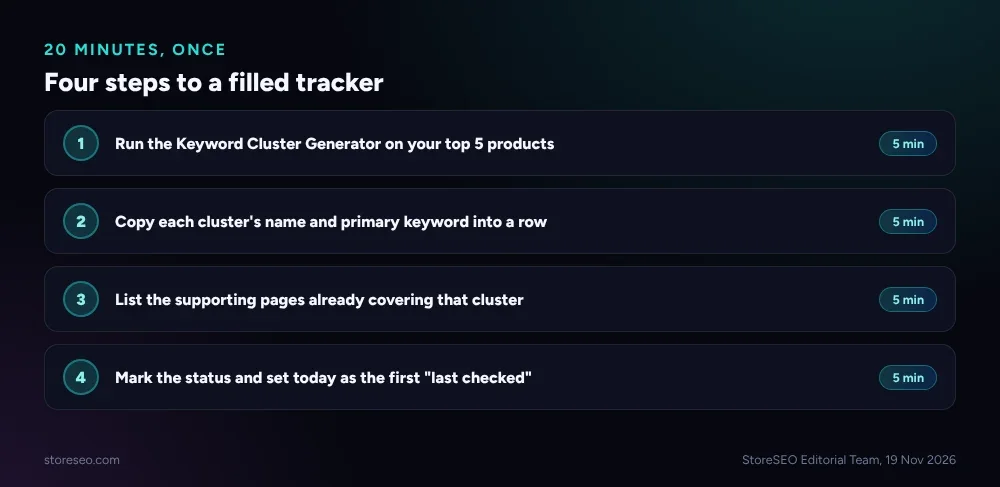 Four steps, five minutes each: generate, copy, list, mark.
Copy each cluster’s name and its dominant keyword into a row, list the pages already supporting it, mark a status of New for anything you have not acted on yet, and set today as the first “last checked” date. If the shorthand in the Status column is new, our Shopify SEO glossary defines search intent and the other terms used throughout this guide in one place. If you are mapping single keywords to single URLs rather than tracking a cluster’s output over time, our keyword mapping template answers that narrower, related job instead.
How Do You Spot Cannibalisation With It?
A cluster is not the same thing as a single keyword, so the overlap risk looks slightly different here. The generator groups keyword variations the way Google’s own ranking systems do, which means two different products in a large catalog can legitimately generate the same cluster if they are similar enough, and nothing stops you from running the tool on both without noticing.
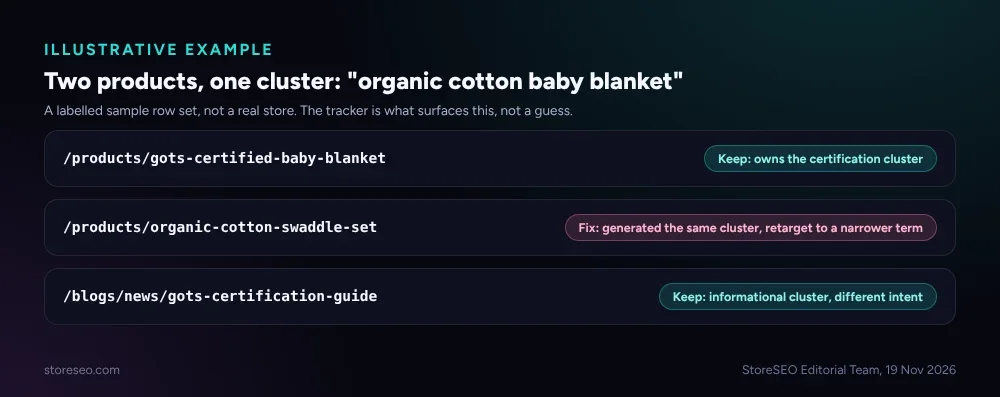 An illustrative example: two products generating the same cluster, and an informational post that legitimately differs.
The Supporting Pages column is what catches this. Two product pages competing for the same primary keyword is exactly the failure our guide on fixing keyword cannibalization covers in general, and at catalog scale it is a bigger risk the more products share a near-identical cluster output. Google’s own guidance on consolidating duplicate or near-duplicate pages is explicit that near-identical pages targeting the same query compete with each other rather than doubling your chances, which is the same reason a cluster needs one clear primary keyword and not two pages reaching for it. One cluster per primary keyword, with every supporting page named in the row, is what makes the overlap visible before a ranking drop forces you to go looking for the cause.
How Do You Keep the Tracker Updated?
A tracker filled in once and never revisited is not much better than no tracker, since a cluster’s status changes as pages are written, as Google’s own clustering shifts, and as competitors publish. Recheck each row every 4 to 6 weeks: has the primary keyword moved in Keyword Analytics, has a new supporting page gone live, has a competitor filled the content gap the cluster originally flagged.
Mark a cluster Active once a supporting page is live and ranking somewhere, Needs Refresh once a competitor closes the gap it flagged or its primary keyword stalls, and Stale once two consecutive checks show no movement at all. A Stale cluster is not a failure, it is information: stop spending product slots chasing it and regenerate a fresh cluster for that product instead. This tracker is one piece of a bigger routine; the ultimate Shopify SEO checklist covers everything else around it, from technical fixes to the content calendar that decides which product gets the next cluster run.
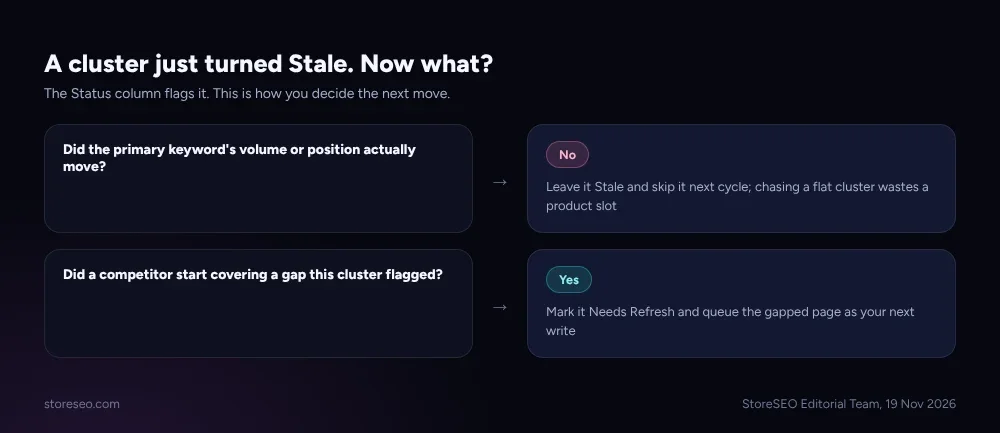 Two questions decide the next move once a cluster’s status needs a call.
Copy the Template
The columns above are the whole template: Cluster, Primary Keyword, Supporting Pages, Status, Last Checked. Build it in any spreadsheet tool with those five headers, one row per cluster you have generated, and you have the same tracker described here. The value is not in the format, it is in actually rechecking it on a cadence instead of letting the generator’s output sit untouched after the first run.
Frequently Asked Questions (FAQs)
1. What is a keyword cluster on Shopify?
It is a group of related keyword variations that Google’s own ranking systems already treat as one topic, rather than a flat list of individual terms. StoreSEO’s Keyword Cluster Generator builds one from a single seed keyword and tags it with a dominant intent so you know what kind of page to write for it.
2. Do I need the tracker if I only have a few products?
Probably not yet. A handful of clusters is easy to hold in your head. The tracker earns its place once you are running the generator across dozens of products and cannot remember which clusters already have a supporting page and which are still New.
3. How is this different from a keyword mapping sheet?
A keyword mapping sheet assigns one keyword to one URL to stop two pages from quietly competing for the same term. This tracker works one level up, at the cluster, and adds a time dimension: it records whether a cluster’s output is still worth acting on weeks after you generated it, not just which single URL owns a single keyword today.
4. How often should I recheck the tracker?
Every 4 to 6 weeks is enough for most stores. A store publishing several new products a week benefits from checking monthly instead, since a cluster can turn Stale or get overtaken by a competitor faster when more pages are going live around it.
5. What do I do with a cluster marked Stale?
Stop assigning it more content. Two consecutive checks with no movement in its primary keyword means the cluster is not pulling its weight, and generating a fresh cluster for that product is a better use of the next product slot than writing another page into a flat one.
Keep the Tracker Honest
A cluster tracker only works if someone reopens it on a cadence, not once after the first generator run and never again. StoreSEO’s Keyword Cluster Generator produces the clusters, and its Keyword Rank Tracker and Keyword Analytics supply the movement data that tells you whether a row should stay Active or turn Stale, all inside the same Shopify admin. try StoreSEO on the Shopify App Store
Keep reading
Where StoreSEO's AI Still Gets Shopify SEO Wrong
StoreSEO's AI Content Optimizer turns one focus keyword into a meta title, description and tags, and that same strength is also its real limit.
Read article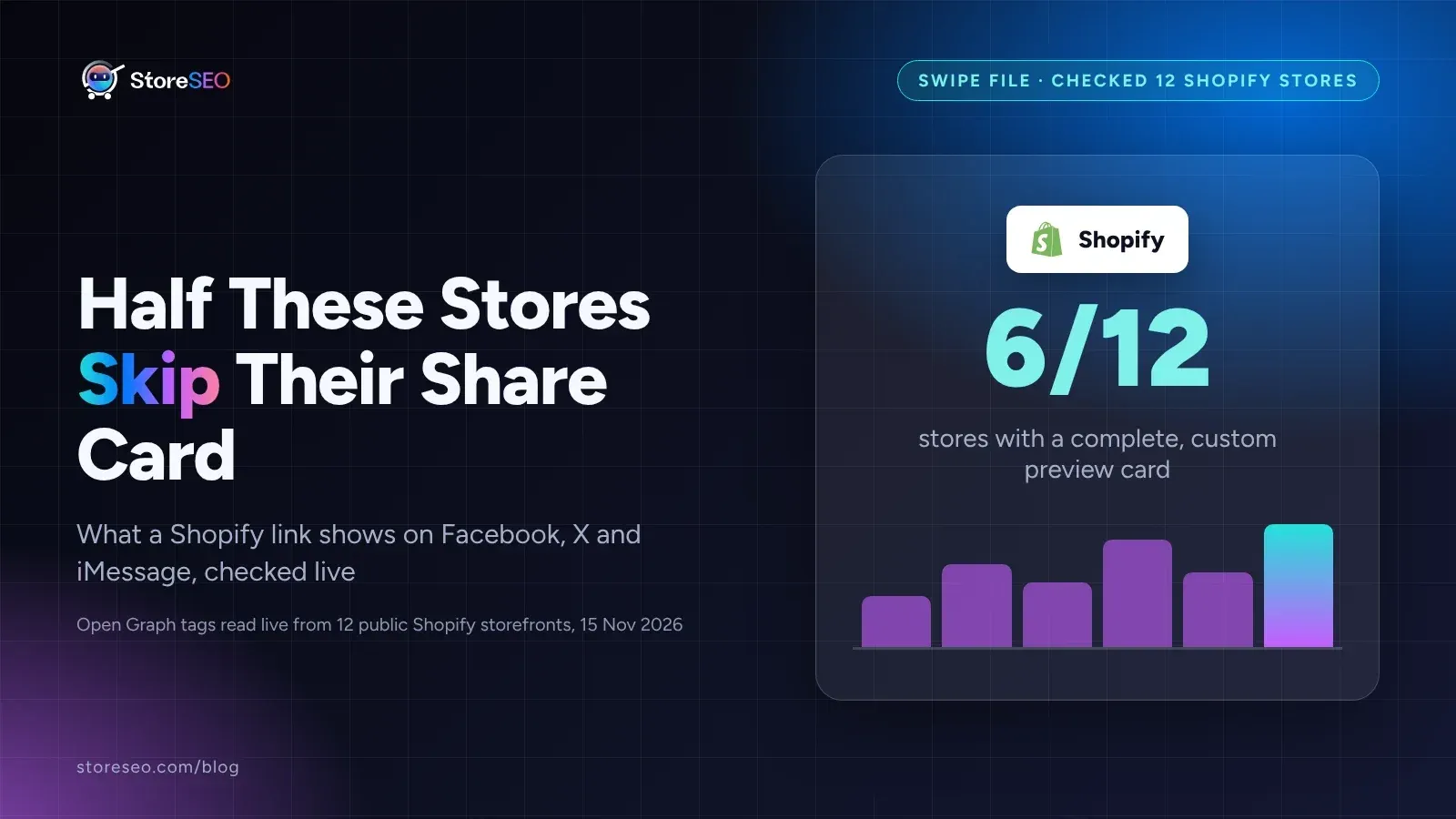
12 Shopify Social Preview Cards That Get Clicks
We checked 12 live Shopify stores' social preview cards, and only half ship a complete one; here is exactly what the other half are missing.
Read article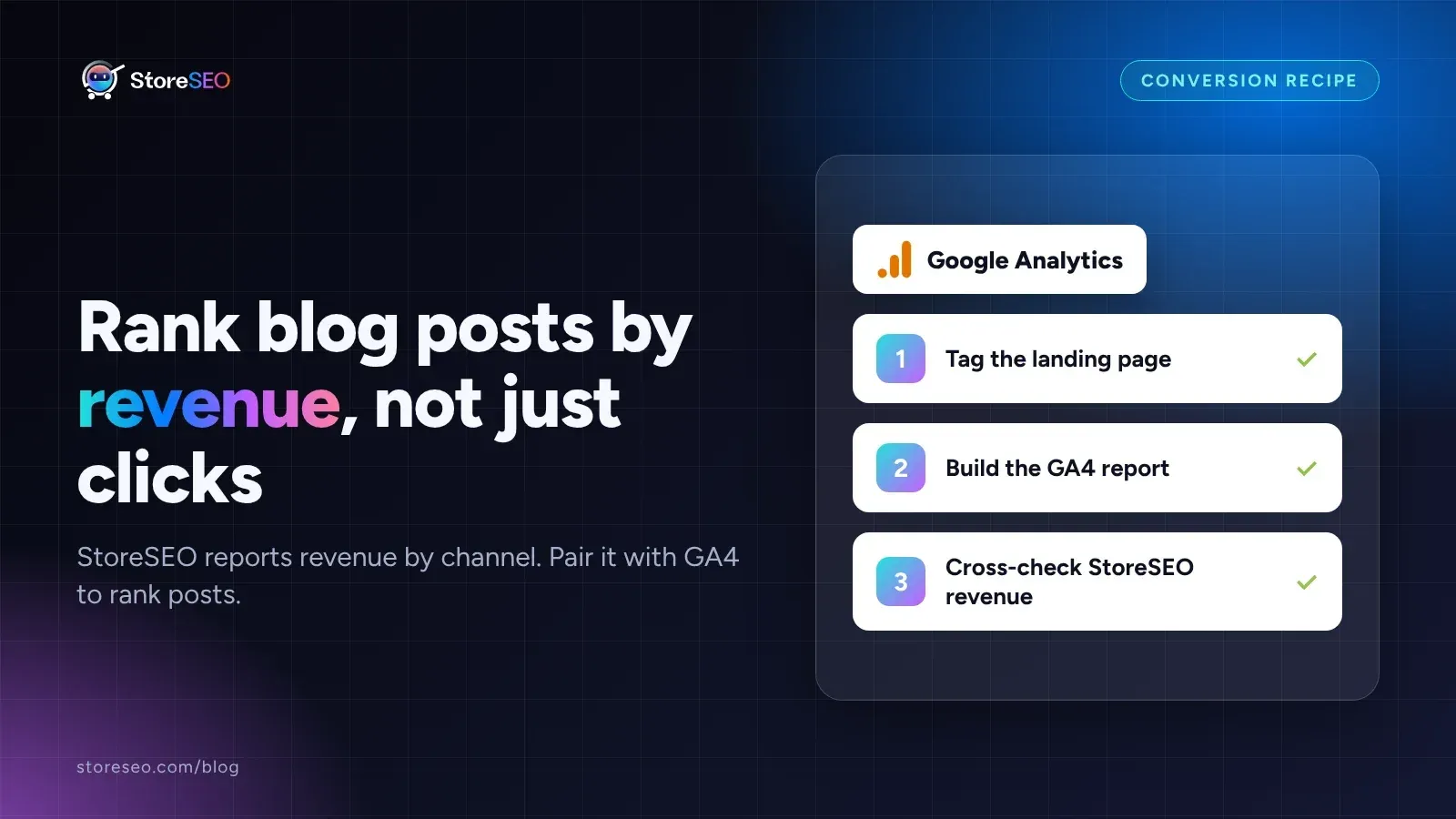
Find Your Highest-Converting Blog Post With StoreSEO
StoreSEO reports revenue by channel, not by post, so pair its Orders report with a GA4 landing page report to rank blog posts by actual sales.
Read article