
Find Your Highest-Converting Blog Post With StoreSEO
 Written by M Asif Rahman
Ten minutes, no new app. GA4’s Landing page + query string report already shows which blog post URL a session started on and whether it ended in a purchase. StoreSEO’s Orders & Revenue report shows which channel the money came from. Read both together and you get what neither gives alone: which specific post earns.
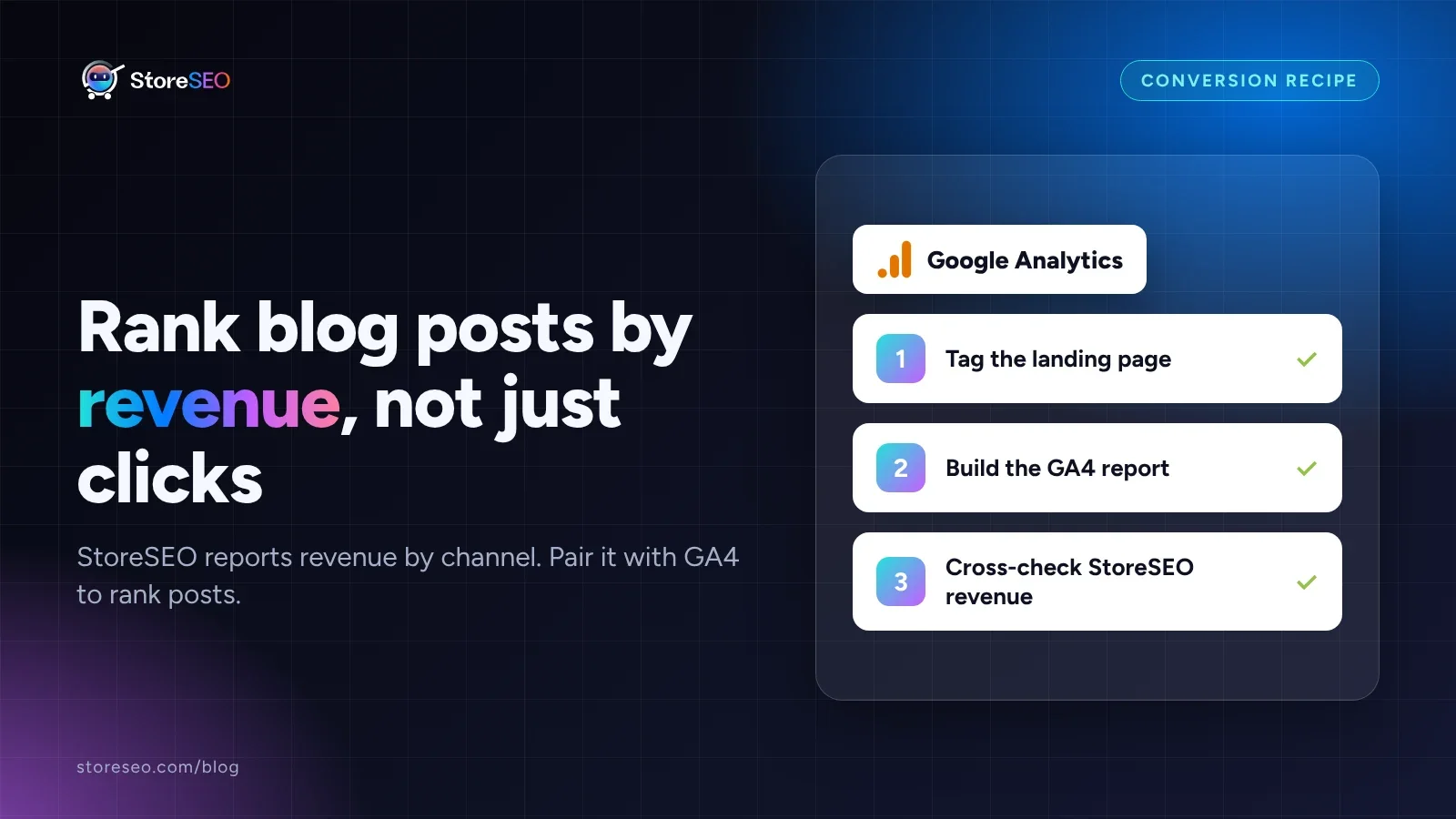
TL;DR: the ingredients, before the ten-minute read.
| You need | Where | Do this |
|---|---|---|
| GA4 ecommerce events already firing on checkout | Google Analytics, already wired to your store | Confirm Ecommerce purchases shows a number before you start |
| StoreSEO’s Web Pixel switched on | StoreSEO dashboard, setup checklist | Turn it Active before you read Orders & Revenue; it is not retroactive |
| A GA4 exploration, or the Pages report | GA4, Explore or Reports | Set the dimension to Landing page + query string |
| About 10 minutes | n/a | Read both reports for the same date range |
This is the StoreSEO blog, and StoreSEO is our product, so the second half of this guide names our own AI Orders and Revenue by channel feature. The GA4 half works whether or not you use StoreSEO, and every number below is sourced and dated.
What Does GA4 Already Track Per Blog Post?
Every Shopify blog post lives at its own URL, in the shape /blogs/<blog-handle>/<post-handle>, exactly as Shopify’s own Liquid article object reference documents it. GA4 already has a dimension built for exactly that: Landing page + query string, officially defined by Google as “the page path and query string associated with the first page view in a session.” It needs no setup or tagging and is populated automatically the moment GA4 is connected.
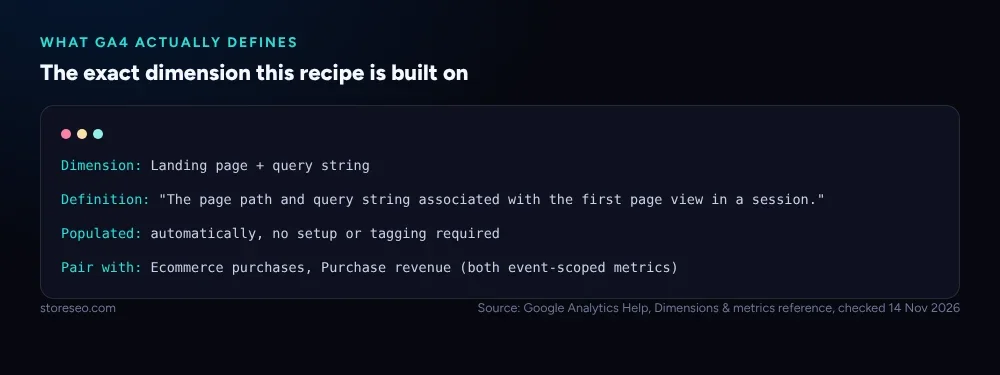 GA4’s own wording for the dimension this recipe is built on, fetched from Google Analytics Help on 14 November 2026.
Open Reports > Engagement > Pages and screens and switch the primary dimension to Landing page + query string, or build an Exploration with that dimension against two metrics: Ecommerce purchases and Purchase revenue, both event-scoped metrics populated by Shopify’s own purchase event once your store’s ecommerce tracking is live. Filter the rows to paths starting with /blogs/ and you have, in one table, every post ranked by how many of its visitors actually bought something, not just how many showed up. For the wider picture on wiring GA4 to a Shopify store in the first place, our Google Analytics integration guide covers the setup this section assumes.
How Do You Build the Blog-Only View?
- In GA4, open Explore and start a blank exploration.
- Add Landing page + query string as the only dimension in the rows.
- Add Sessions, Ecommerce purchases and Purchase revenue as values.
- Add a filter: Landing page + query string contains
/blogs/, so product and collection pages drop out of the table. - Sort by Purchase revenue, descending. The post at the top is your highest-converting post by revenue, not by traffic.
This table alone already answers more than most GSC or pageview reports do: it tells you which post closed a sale, not which one got clicked. What it cannot tell you is whether that sale came from someone who found the post through ChatGPT, through Google, or through a paid ad, because GA4’s own attribution here is session-to-purchase, not channel-labelled the way StoreSEO’s report is. That is the second half of the recipe.
How Do You Bring In StoreSEO’s Orders & Revenue?
StoreSEO’s AI Orders and Revenue by channel feature, inside AI Insights, sorts every visitor who buys into exactly one of four channels: AI Search (ChatGPT, Gemini, Perplexity, Claude and other AI assistants), Organic Search, Paid Search and Direct. It reports Sessions, Orders, Revenue, Conversion rate and Average order value per channel, which is the piece the GA4 landing-page table above does not carry on its own.
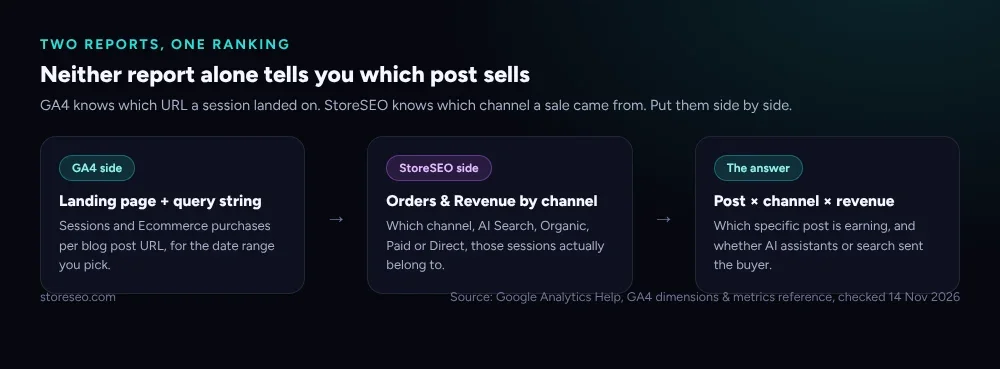 Neither report alone tells you which post sells; read them as one pipeline, fetched 14 November 2026.
StoreSEO’s own field-by-field reference walks through every card and tab, and the launch post covers what changed when the feature shipped.
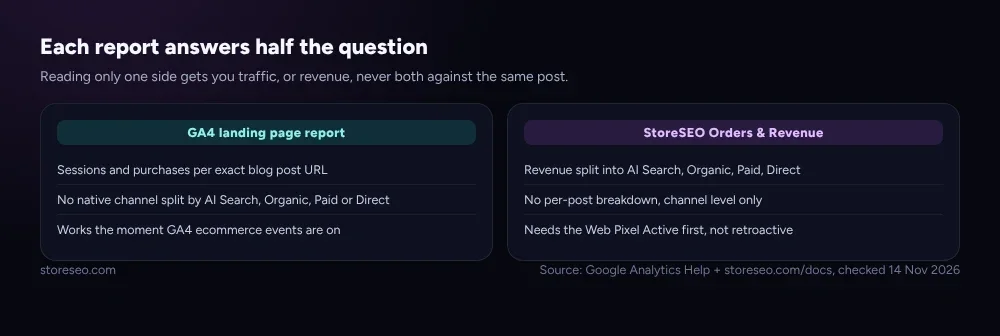 Each report answers half the question; neither one answers both on its own, fetched 14 November 2026.
Every number on StoreSEO’s side depends on one setting first: the Web Pixel, which records the checkout events that let StoreSEO connect a sale back to a channel. From the Dashboard tab, scroll to the setup checklist and confirm Web Pixel Enabled shows the green Active badge. Attribution only starts from that moment, so a post’s past sales will not appear retroactively once you turn it on. Open AI Insights > Orders & Revenue and read the Channel breakdown table: it will not tell you which post, but it will tell you which channel your top post’s traffic most likely belongs to, by checking which channel’s session count and revenue share moved in the same direction as your GA4 landing-page numbers for that date range. Worth noting while you read it: StoreSEO’s own documentation flags that the Share of sessions vs. revenue view carries no tracked sessions for Paid and Direct, so that particular comparison is really an AI Search versus Organic Search read.
How Do You Read the Numbers?
Pull both tables for the same date range, then look for the mismatch, not the top row. A post ranking first by Sessions in GA4 but fifth by Purchase revenue is a discovery post: it brings people in, and some other page in the funnel closes the sale. A post ranking modestly by Sessions but near the top by Purchase revenue is the opposite: whoever lands there is already close to buying, and it deserves the next internal link, the next refresh and the next mention in your email list, ahead of posts with bigger traffic but no sales to show for it.
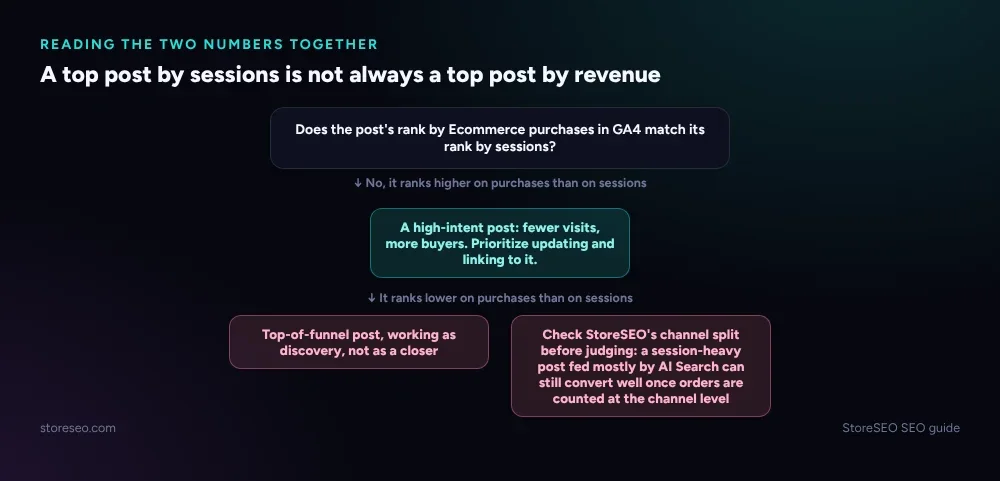 Read the mismatch between the two rankings, not either ranking alone.
Then check the channel. If your top-by-revenue post’s traffic leans AI Search in StoreSEO’s channel breakdown for that same window, that post is doing work your competitors who ignore AI visibility are not capturing, and it is worth the extra effort of keeping its facts current so an assistant keeps citing it correctly. Our guide on how ChatGPT, Gemini and Perplexity recommend Shopify products covers what keeps a post in that rotation. And if the Web Pixel was not Active for the whole date range you are comparing, read why Orders & Revenue sometimes shows zero before concluding a channel is dead.
What Are the Known Gaps in This Recipe?
Treat both numbers as directional, not exact. GA4’s ecommerce purchase event is tied to the session’s own last-click landing page, so a shopper who read your post on Monday and bought direct on Friday never credits that post in this table, only in their final session’s landing page, usually your homepage or a product page. StoreSEO’s channel labels are built from the same undisclosed kind of referrer matching every AI-traffic classifier uses, so a shopper whose assistant stripped its referrer header shows as Direct in both reports, not as AI Search, meaning the true AI-driven share of any post’s sales is always a floor, never a ceiling. And the two tables are never from the same system: GA4’s number is session-based and StoreSEO’s is channel-based, so treat an exact match between them as a coincidence worth noting, not a reconciliation you failed to balance to the cent.
Frequently Asked Questions (FAQs)
1. Can I see revenue by individual blog post directly inside StoreSEO?
Not yet. StoreSEO’s AI Orders and Revenue by channel feature reports by channel, AI Search, Organic Search, Paid Search and Direct, not by individual post or URL. The per-post ranking in this guide comes from GA4’s own Landing page + query string dimension, read alongside StoreSEO’s channel report rather than inside it.
2. Do I need the Pro plan to try this?
The Free StoreSEO plan shows the four headline cards: Orders, Revenue, Conversion rate and Average order value for the whole store. The channel-level Channel breakdown table that this recipe’s second half leans on is a Pro feature. The GA4 half of the recipe needs no StoreSEO plan at all.
3. Why does my top post by sessions show almost no purchases?
That post is usually doing a top-of-funnel job: bringing in readers who buy later, on a different page or a later visit, which GA4’s last-click landing-page report will not credit back to it. Check whether its traffic leans AI Search or Organic in StoreSEO’s channel view before assuming the post is not working.
4. Why does StoreSEO’s Orders & Revenue report show sessions but no revenue at all?
This almost always means the Web Pixel was not Active for part or all of the period you are checking. Attribution only begins the moment it switches on, so any order placed earlier will never appear, even after you enable it later.
5. Is a /blogs/ filter the right way to isolate blog traffic in GA4?
Yes, for a standard Shopify theme. Shopify’s own Liquid documentation for the article object shows blog post URLs in the shape /blogs/<blog-handle>/<post-handle>, so filtering Landing page + query string to paths containing /blogs/ reliably separates blog landing pages from product and collection pages.
6. How often should I re-run this comparison?
Monthly is enough for most stores. Checking weekly on a small blog mostly shows noise, since GA4’s reporting data can lag by up to 24 hours after a fresh connection, and revenue from a handful of posts moves in small, uneven steps.
Start With the Post You Already Suspect
If one post already gets you the most “where did that lead come from” questions, pull its GA4 landing-page numbers first and see whether its rank by Purchase revenue matches its rank by Sessions. Then open StoreSEO’s Orders & Revenue for the same window and check which channel moved with it. The gap between the two rankings, not either number alone, is what tells you which post to update next.
When you want AI Search sitting next to Organic, Paid and Direct in your own revenue numbers, try StoreSEO on the Shopify App Store.
Keep reading
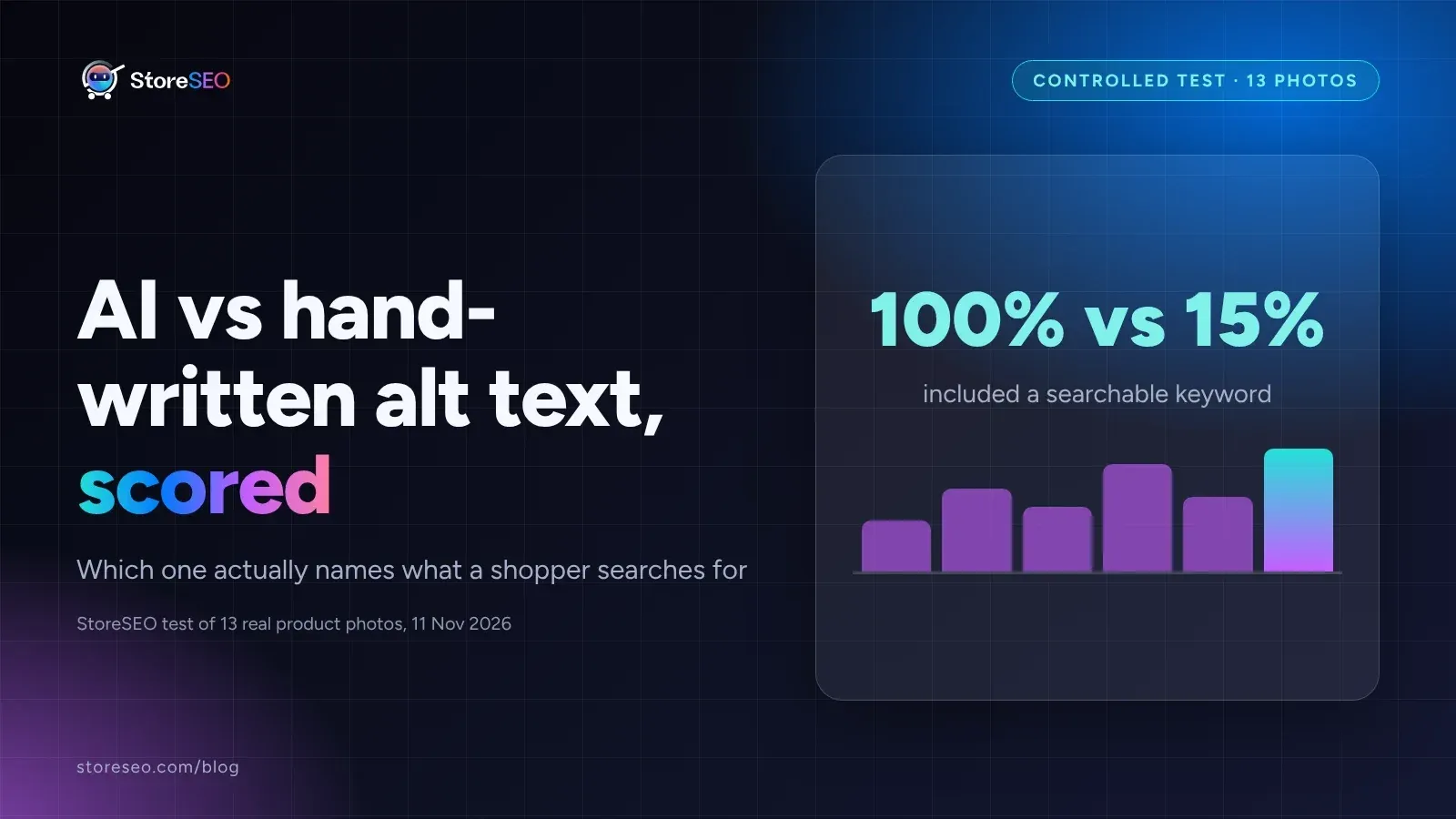
AI vs Manual Alt Text: We Tested 13 Shopify Photos
Hand-written alt text named a specific, searchable keyword in all 13 tests; AI-generated text matched it only twice, accurate but too generic.
Read article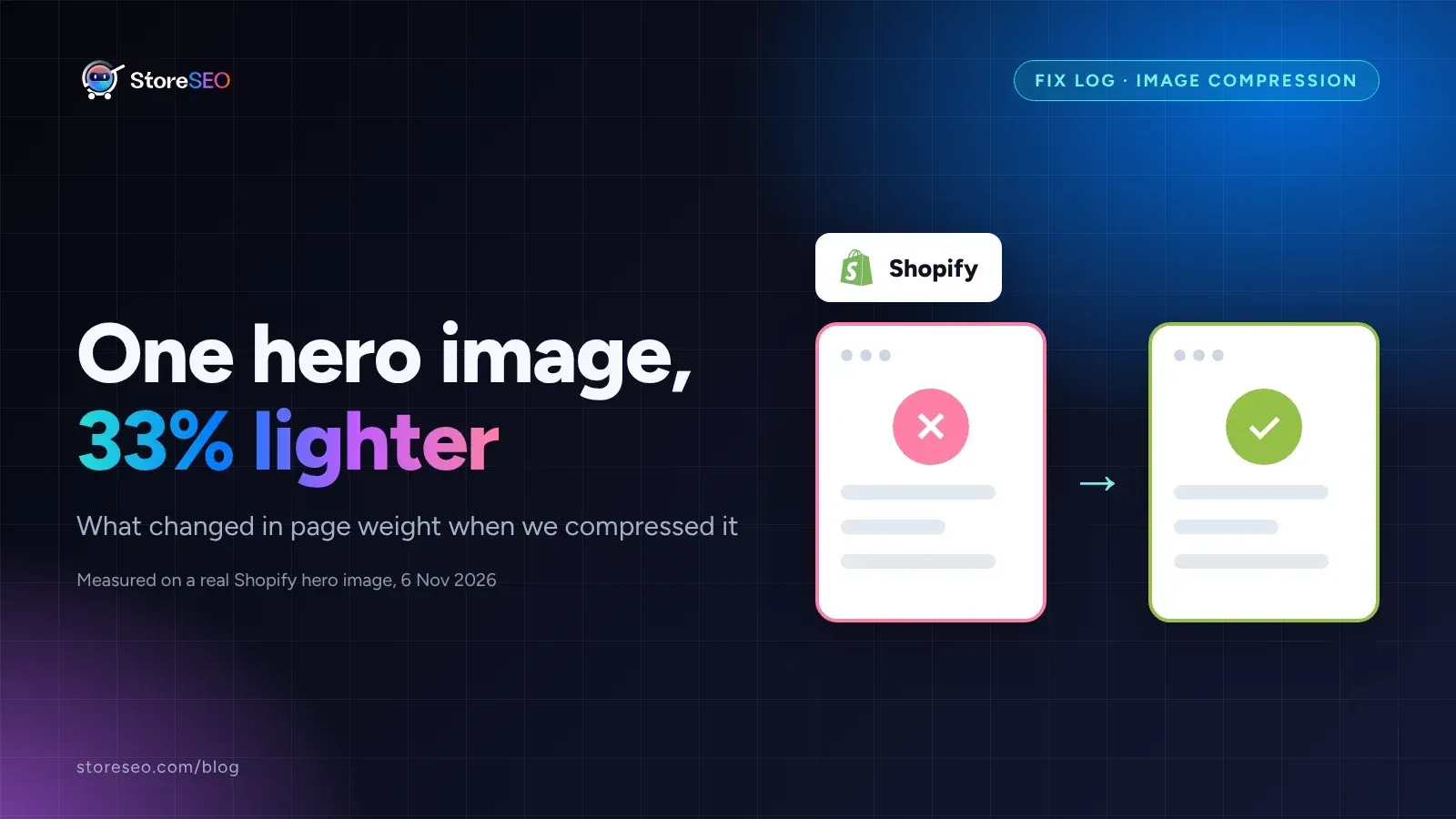
Fix Log: Compressing One Hero Image, and What It Did
We compressed one real Shopify hero image to WebP, kept its dimensions unchanged, and measured exactly what moved in file weight and download time.
Read article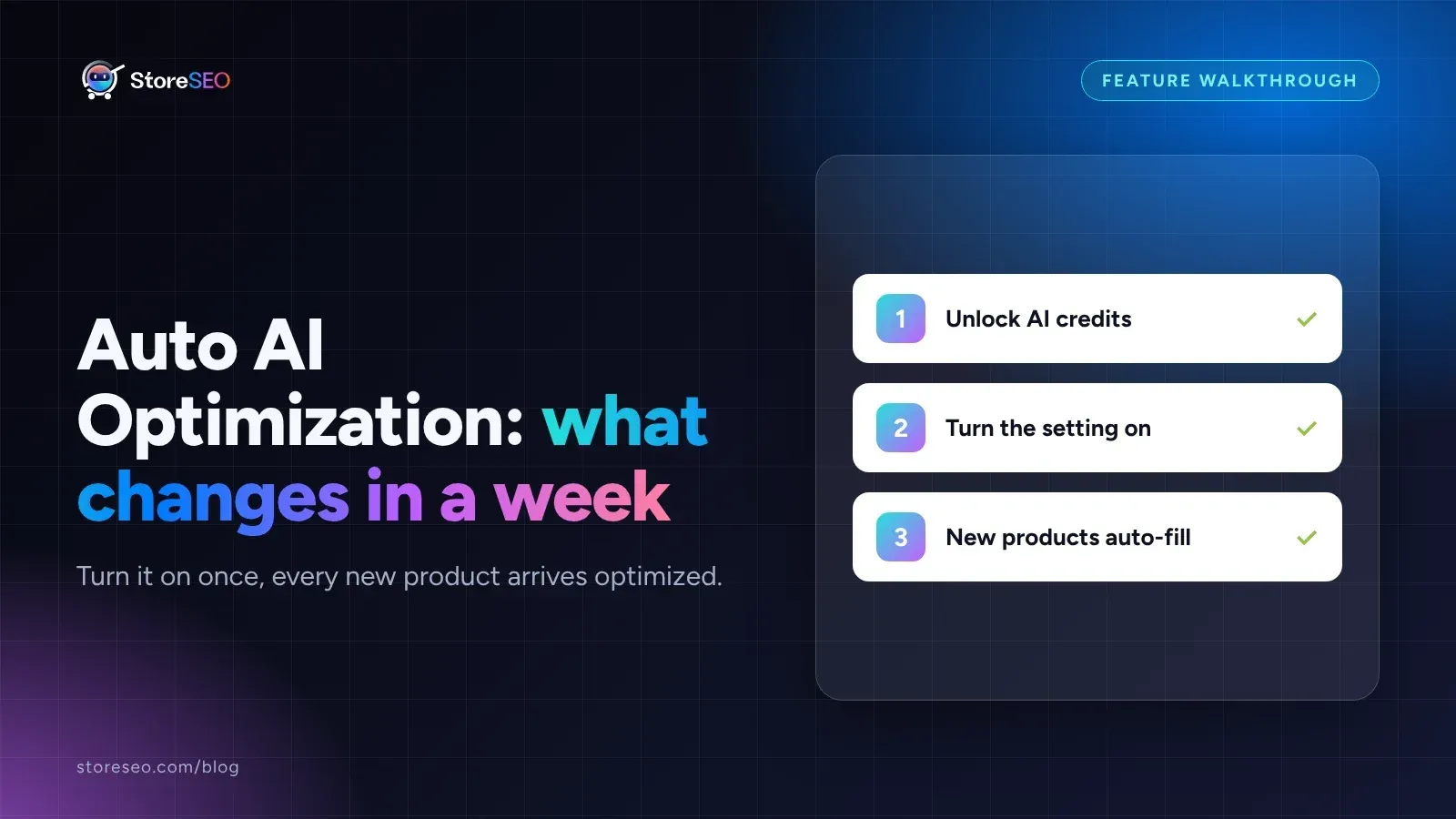
Turn On Auto AI Optimization: What Changes in a Week
Turning on Auto AI Optimization takes about five minutes; the visible change in your catalog builds up over roughly a week as new products arrive.
Read article