
Turn On Auto AI Optimization: What Changes in a Week
 Written by M Asif Rahman
Turn on Auto AI Optimization and nothing changes for products already in your catalog; it only acts on products you add from that moment forward. Over the next week, each new product gets its Meta Title, Meta Description, Tags and image alt text filled in automatically, from the focus keyword you save on it.
TL;DR: what you need before you flip the switch, and where it lives.
| You need | Where |
|---|---|
| An active AI Content Optimizer credit bundle | Settings → Auto AI Optimization |
| A focus keyword saved on every product you want covered | Optimize SEO → Products, before you add new ones |
| About five minutes to configure the toggle | View more → Settings → Auto AI Optimization → Manage Settings |
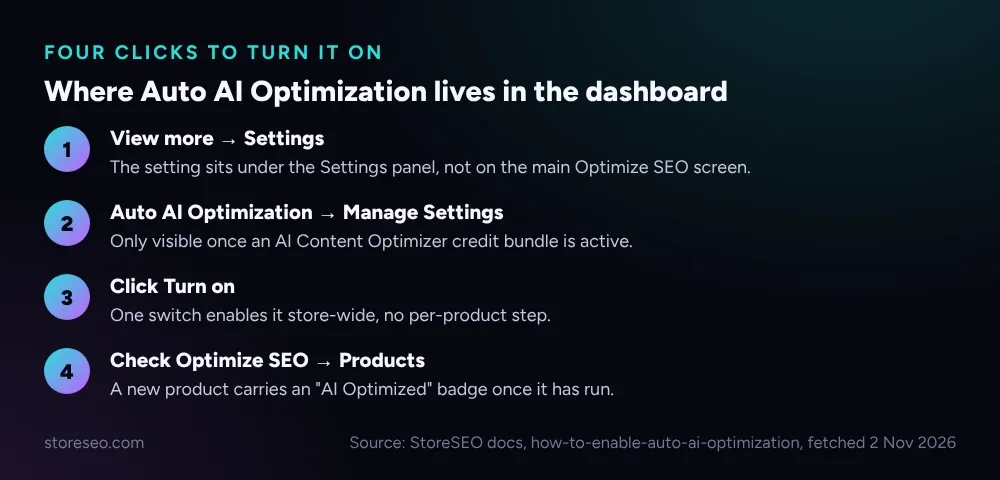 Where the setting actually lives, four clicks deep from the dashboard home.
What Changes on Day 1?
Nothing happens to your existing catalog the moment you turn the setting on, and that surprises people who expect a bulk sweep. StoreSEO’s own Auto AI Optimization documentation says the feature “will help you optimize the SEO content and generate image alt text automatically when you add products to your store.” It is forward-looking by design: a trigger on new arrivals, not a retroactive pass over everything already live.
What you choose on Day 1 is which fields it touches. You tick Meta Titles & Descriptions, Tags, or both by default, and you pick the image type, Featured image or Product images, for AI-generated alt text. The setting itself stays hidden until an AI Content Optimizer credit bundle is active, so the real first step is unlocking one of the three tiers below, not the toggle.
| Credit bundle | AI Credits | Price |
|---|---|---|
| Starter | 5,000 | $10 |
| Growth | 25,000 | $50 |
| Scale | 50,000 | $100 |
StoreSEO’s own AI Content Optimizer credit pricing, documentation checked 2 November 2026.
What Happens to Products You Add During the Week?
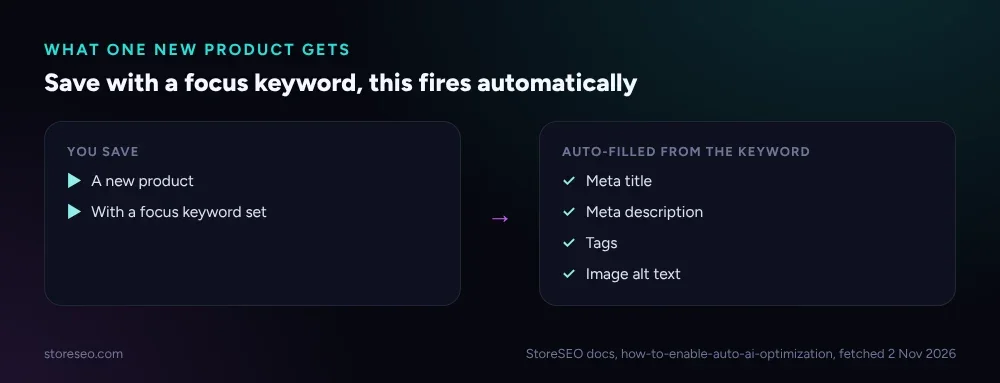 What one new product actually gets, the moment you save it with a focus keyword.
This is where the week’s visible change happens. Every product you add from Day 1 onward arrives already carrying a generated Meta Title, Meta Description, up to a handful of Tags and alt text on its images, as long as you saved a focus keyword when you created it. StoreSEO’s documentation is specific that the automatic generation works “based on your provided focus keywords,” so a product added without one does not get useful copy automatically; it just sits with nothing to generate from.
The table below is a labelled illustrative example, not a live store. It shows the kind of week a 40 to 60 product catalog with a steady trickle of new arrivals might see, built from the feature’s own documented behaviour rather than a real demo account.
| Day | New products added | Auto-filled on save | What to do |
|---|---|---|---|
| 1 | 3 | Meta title, meta description, 2 tags, 6 alt texts | Nothing, move on |
| 3 | 2 | Meta title, meta description, 1 tag, 4 alt texts | Nothing, move on |
| 7 | 4 | Meta title, meta description, 3 tags, 8 alt texts | Trim the 1 title that ran long |
By day 7 in this illustrative run, nine new products carry a complete Basic SEO Analysis pass with no manual entry, and the one exception, a title that ran past the recommended length, is exactly the kind of edge case the Fix button’s review step exists for.
What About the Products Already in Your Catalog?
Auto AI Optimization will not touch them, by design. If you are sitting on a backlog of products added before you turned the setting on, Bulk SEO Optimization: One by One or All at Once? walks through using the Fix button to clear that backlog first, one product at a time, with a review step before anything saves. Turning on Auto AI Optimization is the step that stops a new backlog from building after that; it is not a substitute for clearing the old one.
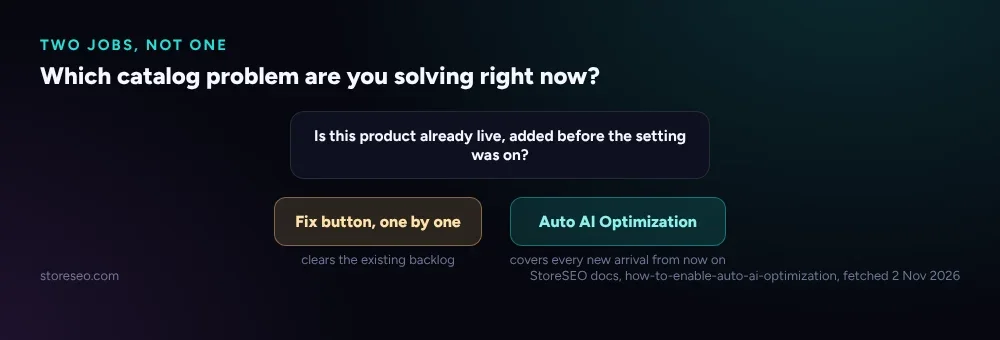 Two different jobs, not one. Auto AI Optimization and the Fix button answer different questions.
If your catalog is large enough that even the backlog pass is a multi-week project, Shopify SEO for Stores With 10,000+ Products covers prioritising which products to fix first rather than working the list top to bottom.
How Do You Read the Numbers?
The honest reading of a week under Auto AI Optimization is “how many new products arrived with complete SEO fields on save, with no manual entry,” not a ranking or traffic change. Rankings move on a much longer horizon than seven days, and Google’s own guidance on crawl budget notes that fast recrawling matters most for sites with 1 million or more pages that change weekly, or 10,000 or more that change daily; most Shopify catalogs sit well under that line, so the bottleneck a week of Auto AI Optimization removes is your own time per product, not how fast Google notices.
Track two things across the week instead: how many new products needed zero manual SEO entry, and how many of those still needed a human edit afterward, the way day 7 in the table above needed one. If that second number stays near zero, the setting is doing its job quietly in the background, which is the whole point of turning it on.
If you have run a recent batch of manual fixes instead and want to judge whether the generated copy is worth keeping, We Tested 3 Ways to Write Shopify Meta Descriptions is a useful next read before you assume Keep is always the right click.
What Are the Known Gaps in Auto AI Optimization?
Two gaps are worth knowing before you turn it on, both from StoreSEO’s own documentation rather than a guess. First, it reads the focus keyword already saved on a product at the moment you add it; there is no second pass later that retroactively fills a product that was saved without one. Second, both Auto AI Optimization and the manual Fix button draw from the same AI Content Optimizer credit balance, so a high-volume week of new products spends credits the same way a week of manual clicks would, just without you watching each one happen.
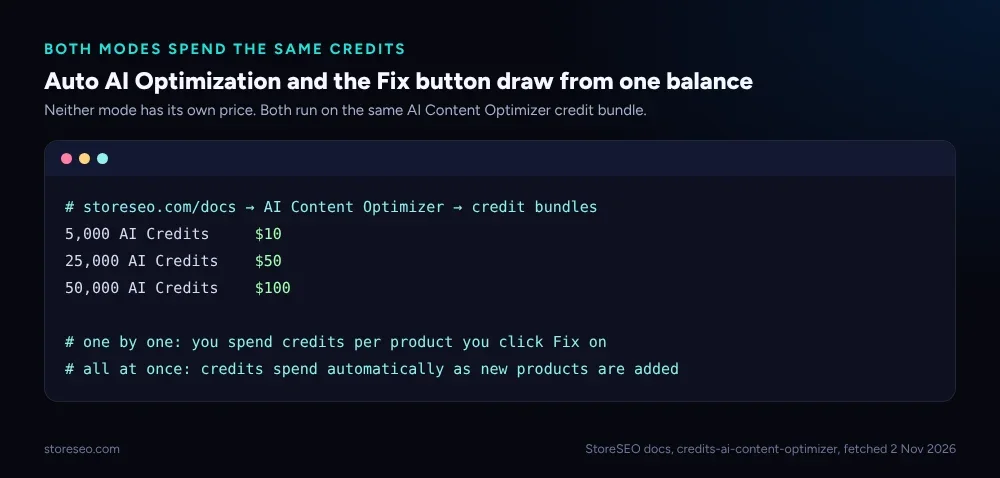 Neither mode has its own price; both spend from one shared balance.
There is also no single bulk action that clears an existing backlog in one click. The one-time catch-up stays a one-by-one pass through Optimize SEO; Auto AI Optimization only covers what arrives after that pass is done. Pair the setting with a short recurring check so the backlog never has the chance to reappear, which is the same habit the Ultimate SEO Checklist builds its weekly routine around.
Frequently Asked Questions (FAQs)
1. Does Auto AI Optimization rewrite content I already wrote by hand?
No. The documentation describes it acting “when you add products to your store,” meaning new products going forward. It is not described as rewriting fields already populated on products already live in your catalog.
2. How long until I see the first auto-filled product?
The generation happens the moment you save a new product with a focus keyword, inside the same session. There is no delay and no overnight batch job to wait for. Check under Optimize SEO → Products for the AI Optimized badge beside the title to confirm it ran.
3. Can I turn it off again if a week of results does not match what I expected?
Yes. It is a toggle under Settings → Auto AI Optimization, the same screen you used to turn it on. Switching it off has no catalog-wide side effect beyond new products no longer being optimized automatically.
4. Does it work without a focus keyword on the product?
No, it does not generate anything without one. The documentation describes the process as working from your provided focus keywords, so a product saved without one has nothing to generate from. It stays blank until you add a keyword and save the product again.
5. Will a week of Auto AI Optimization clear my existing backlog too?
No. The setting only reaches products added after you turn it on. An existing backlog needs the Fix button first, run one product at a time from Optimize SEO.
6. Does enabling it cost anything beyond the credit bundle?
No separate charge. Automatic generation draws AI Credits from the same bundle the manual Fix button uses, at the same per-generation rate, so the only cost is the credits each generation spends.
If a week of automatic coverage is what your catalog needs, try StoreSEO on the Shopify App Store
Keep reading
Why Isn't AI Referral Traffic Showing in StoreSEO?
AI referral traffic in StoreSEO usually shows zero because the Web Pixel just went live, no AI visit has landed yet, or the plan or consent blocks it.
Read article
Fix Log: Cutting a Meta Description From 220 to 155
We trimmed one Shopify product's meta description from 220 characters to 155 and tracked exactly what moved in its live Google search snippet.
Read article
What Is Content Gap Analysis in StoreSEO?
StoreSEO's Content Gap Analysis report lists the Shopify SEO topics your store has not covered yet, delivered inside its scheduled report email.
Read article