
Bulk SEO Optimization: One by One or All at Once?
 Written by M Asif Rahman
“All at once” (Auto AI Optimization) fills in Meta Title, Meta Description, Tags and image alt text the moment a new product is added, from its saved focus keyword. “One by one” (the Fix button) does the same job for one product at a time, with a review step before anything saves. An existing backlog needs the second one first.
TL;DR: which mode fits your situation, in one table.
| Situation | Recommendation | Why |
|---|---|---|
| New products you are about to add | All at once (Auto AI Optimization) | Runs automatically from the focus keyword you save, no manual step per product |
| Existing products with no focus keyword saved yet | Neither yet, set keywords first | Both modes generate from the focus keyword already on the product; without one there is nothing to generate from |
| An existing backlog that was never optimized | One by one (Fix button) | Auto AI Optimization only acts on products added after you turn it on; it does not reach back through a live catalog |
| A full catalog relaunch, hundreds or thousands of SKUs | Both, in order | Clear the backlog one by one once, then leave Auto AI Optimization on so every new SKU is covered without a repeat pass |
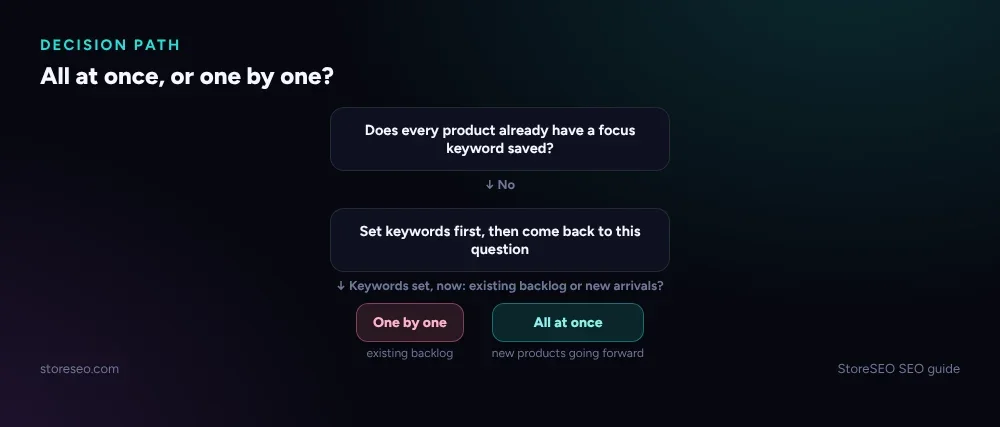 The same table above, as a decision path.
What Does “All at Once” Actually Trigger?
Auto AI Optimization is a store-wide setting, not a button you press per product. Once it is on, StoreSEO’s own Bulk SEO optimization documentation says it “will help you optimize the SEO content and generate image alt text automatically when you add products to your store,” working from the focus keyword already saved on each one. You choose what it touches, Meta Titles and Descriptions, Tags, or both, and which images get AI-generated alt text, Featured image or Product images. The setting only appears once an AI Content Optimizer credit bundle is active.
The part worth noticing: it triggers on products added after you turn it on. It is forward-looking by design, not a retroactive sweep of everything already in your catalog.
What Does “One by One” Actually Cover?
The Fix button is the same AI engine, used manually, one item at a time, and it reaches further than products alone. From Optimize SEO, you can run it against Products, Collections, Pages or Blog Posts: open the item, click Fix, enter a focus keyword, click Generate, then Keep the result, Re-generate it, or Revert to what was there before. Nothing saves until you click Save.
That review step is the trade-off. All at once has none, every generation it produces is saved automatically; one by one puts a human decision between the AI output and the live page, at the cost of one click per item.
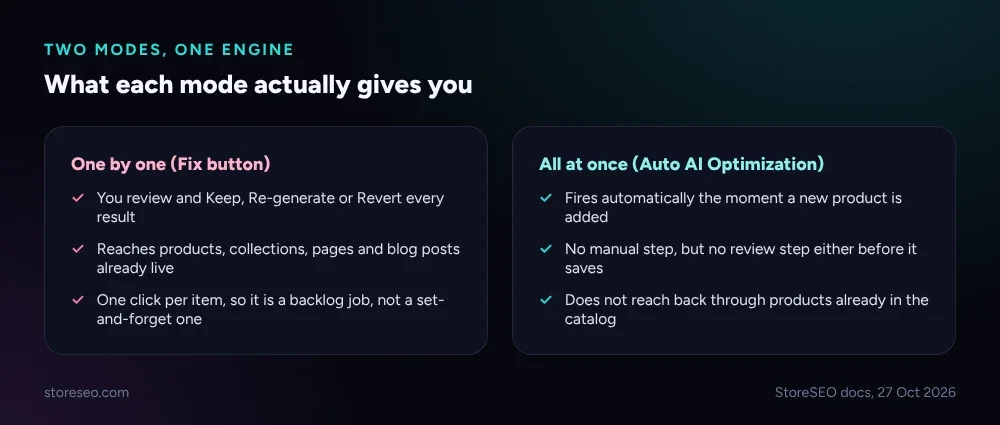 What each mode actually gives you.
Does Catalog Size Change the Decision?
Less than it sounds like it should. Google’s own guidance on crawl budget says that optimization is really aimed at sites with 1 million or more pages that change weekly, or 10,000 or more pages that change daily. Most Shopify catalogs, even large ones, sit well under that line, so Google finding and recrawling your products is rarely the bottleneck. The real constraint is your own time and your AI credit balance, which is exactly what this decision is actually about.
Where size does matter is the one-time backlog. A 40-product store can click Fix 40 times in an afternoon. A 4,000-product store cannot, realistically, and that is the case Shopify SEO for stores with 10,000+ products covers in more depth, including how to prioritise which products to fix first rather than working the list top to bottom.
How Do You Turn On Auto AI Optimization in Shopify?
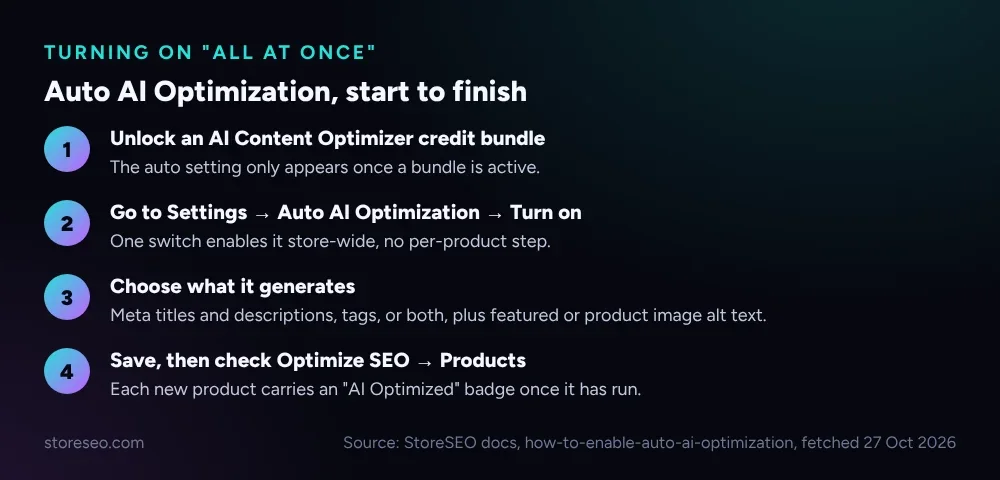 Auto AI Optimization, start to finish.
- Unlock an AI Content Optimizer credit bundle. The auto setting is hidden until a bundle is active.
- From the StoreSEO dashboard, go to View more → Settings → Auto AI Optimization, click Manage Settings, then Turn on.
- Choose what to optimize automatically: Meta Titles & Descriptions, Tags, or both by default, plus the image type (Featured image or Product images) for AI-generated alt text. Click Save.
- Check your work under Optimize SEO → Products: an optimized product carries an “AI Optimized” icon beside its title.
Pairing this with a fixed cadence keeps the backlog from quietly reappearing; the 30-minute weekly Shopify SEO routine is built around exactly that kind of short, repeatable check, and it sits inside the broader Ultimate SEO Checklist if you are setting up the rest of your store’s SEO at the same time.
What Should You Check Before You Turn It On?
Two things, both from StoreSEO’s own documentation rather than guesswork. First, Auto AI Optimization reads the focus keyword you have already saved on a product, so a product added without one will not generate useful copy automatically; set the habit of entering a keyword at the same time you create the product. Second, both modes draw from the same AI Content Optimizer credit balance, so running Auto AI Optimization on a high-volume store with frequent new-product additions spends credits the same way manual Fix clicks do, just without you watching it happen.
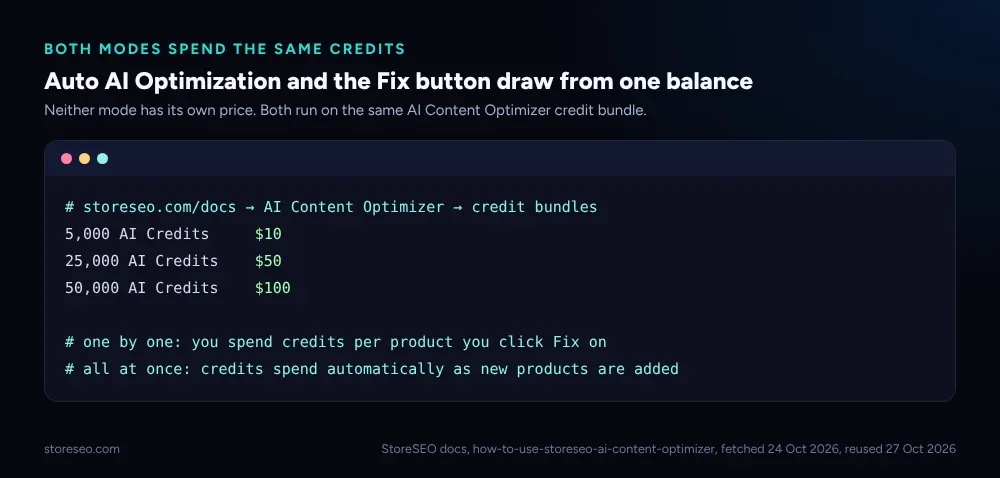 Neither mode has its own price; both spend from one balance.
If you have run a recent round of manual fixes, We Tested 3 Ways to Write Shopify Meta Descriptions is a useful next read on judging whether what AI Content Optimizer generated is actually the version worth keeping, rather than assuming Keep is always the right click.
Frequently Asked Questions (FAQs)
1. Does Auto AI Optimization overwrite content I already wrote by hand?
No. By its own description, it acts “when you add products to your store,” which means new products going forward. It is not described as rewriting existing, already-populated fields on products already live.
2. Can I turn Auto AI Optimization off again later?
Yes, it is a toggle under Settings → Auto AI Optimization, the same place you turned it on. Switching it off has no catalog-wide side effect beyond new products no longer being optimized automatically.
3. Do I need a focus keyword for every product before either mode works?
Yes, for both. The documentation is specific that the auto feature works “based on your provided focus keywords,” and the manual Fix flow asks you to enter one before it will generate anything.
4. Does the Fix button work on anything besides products?
Yes, the same Optimize SEO flow runs against Collections, Pages and Blog Posts. Each has its own Fix button, with the same Generate, Keep, Re-generate and Revert options once you provide a focus keyword.
5. Is there a bulk button that fixes the whole backlog in one click?
Not as a single action in the documentation reviewed here. The one-time backlog is a one-by-one pass through Optimize SEO; Auto AI Optimization is the setting that stops a new backlog from building after that.
If you found this useful, try StoreSEO on the Shopify App Store
Keep reading
What Is Content Gap Analysis in StoreSEO?
StoreSEO's Content Gap Analysis report lists the Shopify SEO topics your store has not covered yet, delivered inside its scheduled report email.
Read article
We Tested 3 Ways to Write Shopify Meta Descriptions
We tested three ways to write Shopify meta descriptions on five products, and only one method stayed inside Google's length window every time.
Read article
Does Local Business Schema Help an Online Store?
Local Business schema needs a real street address and set opening hours, so a fully online Shopify store has little practical reason to add it.
Read article