
StoreSEO Orders & Revenue by Channel, Field by Field
 Written by M Asif Rahman
StoreSEO’s Orders & Revenue report lives inside AI Insights and shows real orders, revenue, conversion rate and average order value for each traffic channel, AI Search, Organic Search, Paid Search and Direct, once the Web Pixel is active. Free sees the four headline cards; Pro unlocks the full channel breakdown.
TL;DR: every field on the Orders & Revenue screen, what it controls and what to do with it.
| Admin Field | What It Controls | Effect on Your Revenue Picture | Recommendation |
|---|---|---|---|
| Web Pixel Enabled (Dashboard setup checklist) | Whether StoreSEO can connect a checkout event back to the channel that referred the shopper | Off means sessions show but no order or revenue ever attaches to a channel | Turn on at install, before you judge any number below |
| AI Insights → Orders & Revenue tab | Where every channel figure in this guide lives | n/a | Check weekly, not daily, on a small store |
| Headline cards: Orders, Revenue, Conv. rate, AOV | The four totals for the selected period | These are the only numbers a Free plan sees | Use as your at-a-glance check before digging into channels |
| Date range selector + Run analysis | Which period the report covers | A short range can show a channel as zero simply for lack of visits | Default to 30 days; widen before calling a channel dead |
| Channel breakdown table (Pro) | Sessions, Orders, Revenue, Conv. rate, AOV and Revenue share for AI Search, Organic, Paid and Direct | The only view that tells you which channel actually converts | Sort by revenue share, not by sessions |
| Share of sessions vs. revenue (Pro) | A side-by-side of traffic share against revenue share per channel | Flags a channel punching above its traffic weight | Invest more where revenue share beats session share |
| Sessions vs. revenue over time (Pro) | A trend line of visits and earnings across the period | Shows whether traffic and sales move together or drift apart | Watch a widening gap as an early warning, not a monthly curiosity |
Where Does the Orders & Revenue Report Live?
Open the StoreSEO app from your Shopify admin and click AI Insights in the left menu. Four tabs sit across the top: Overview, AI Traffic, Orders & Revenue and Brand Visibility. Click Orders & Revenue to load the report for StoreSEO’s AI Orders and Revenue by channel feature, which turns AI Insights into a sales number, not just a traffic number. The full field-by-field reference lives in StoreSEO’s own documentation.
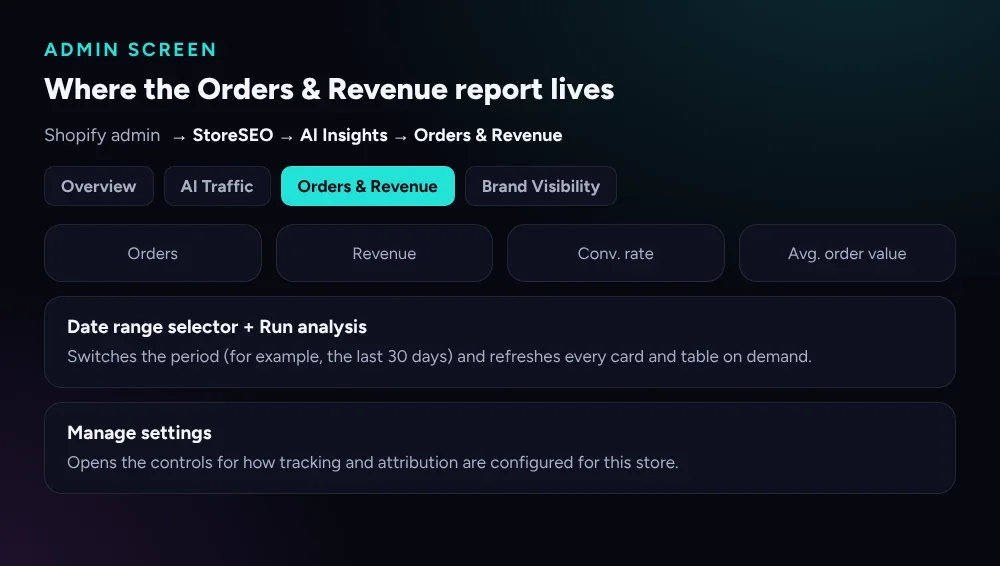 Shopify admin → StoreSEO → AI Insights → Orders & Revenue, exactly as the setup screen lays it out.
The top of the report always shows four cards for the period you have selected: Orders, Revenue, Conversion rate and Avg. order value. A date range selector sits to the right, switching between periods such as the last 30 days, with a Run analysis button to refresh on demand. A Manage settings button nearby controls how tracking itself is configured for the store.
What Must Be Turned On Before Any Order Shows Up?
Every number on this screen depends on one setting: the StoreSEO Web Pixel. A web pixel is a sandboxed script that subscribes to checkout and other customer events, which is how StoreSEO connects a completed order back to the channel that sent the shopper. From the Dashboard tab, scroll to the setup checklist and look for Web Pixel Enabled. A green Active badge means tracking is live.
Attribution only starts from the moment the pixel goes live, not retroactively. An order placed the day before you enabled it will never appear in this report, which is the single most common reason a fresh install looks empty. If a channel stays stuck at zero after the pixel has been active for a while, work through the usual reasons in order before assuming anything is broken.
What Do the Four Headline Cards Actually Measure?
Orders and Revenue count every completed purchase and its total value in the selected period, across every channel combined. Conversion rate divides orders by the sessions the pixel recorded in that window. Avg. order value divides revenue by orders, so a jump in AOV with flat order counts usually means fewer, bigger carts rather than more buyers.
These four cards are the only numbers a Free plan account sees on this screen. They answer “is the store selling,” but not “which channel is responsible,” which is where the channel-level detail comes in.
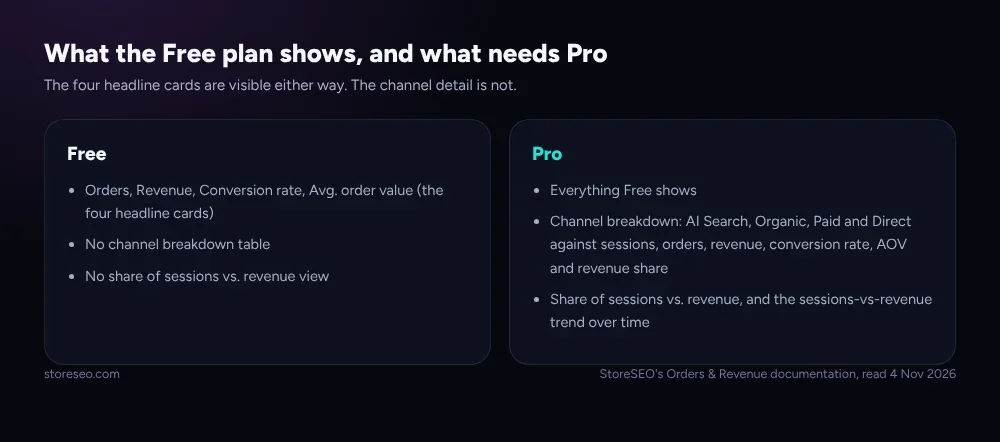 Free sees the four cards; Pro adds the channel breakdown, the share comparison and the trend view.
How Does the Channel Breakdown Table Work?
Scroll past the headline cards on a Pro account and three sections follow. Share of sessions vs. revenue is a side-by-side comparison: a channel with a small share of sessions but a large share of revenue is the one worth investing in next, because it is converting better than its traffic volume suggests. Channel breakdown is the full table, listing AI Search, Organic Search, Paid Search and Direct against Sessions, Orders, Revenue, Conv. rate, AOV and Revenue share, so every channel sits on the same terms. Sessions vs. revenue over time plots both lines across the period, which is the fastest way to spot the days traffic and sales moved together and the days they drifted apart.
These are the same four channel labels StoreSEO already uses when it reports sessions through its Google Analytics integration, now applied to revenue instead of just traffic. Every visitor lands in exactly one of them before any of this renders:
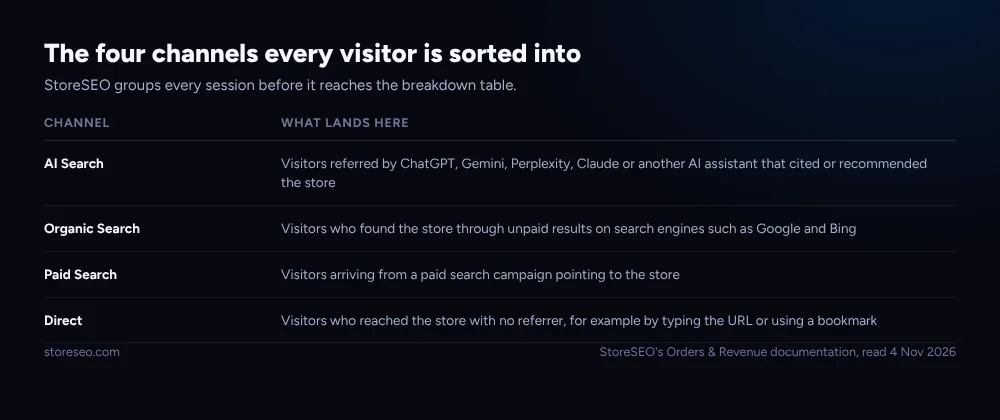 Admin screen reference, StoreSEO’s Orders and Revenue documentation, read 4 Nov 2026.
AI Search is the channel most merchants check first: visitors referred by ChatGPT, Gemini, Perplexity, Claude or another AI assistant that cited or recommended the store. Seeing sessions but no orders in that row for a week or two is not automatically a problem; it can simply mean no AI-referred shopper has bought yet.
Which Settings Break Your Revenue Picture If You Get Them Wrong?
Most of what looks like a tracking bug is a setting, a plan limit or a date range, not a defect.
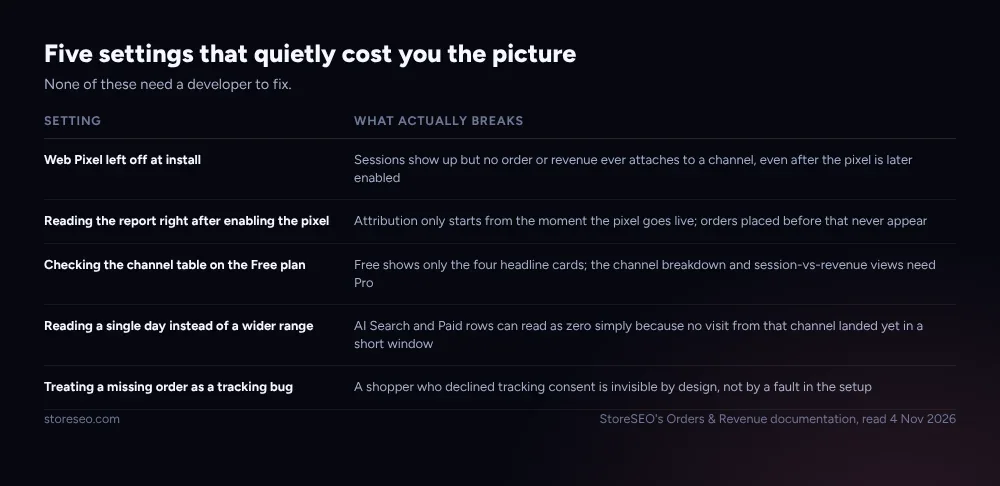 None of these five need a developer to fix.
A shopper who declined tracking consent is invisible by design on that one order, which is expected behavior under privacy law rather than a gap in StoreSEO. Everything else on that list, from the pixel to the plan to the date range, is a setting you control from inside the app.
Frequently Asked Questions (FAQs)
1. Why does my Orders & Revenue report show sessions but no orders?
The StoreSEO Web Pixel is most likely off, or was only recently enabled. Check the setup checklist on the Dashboard tab for the Web Pixel Enabled badge, and remember that attribution begins from the moment the pixel goes live, not before.
2. Can I see which channel drives the most revenue on the Free plan?
Not directly. Free shows the four headline cards, Orders, Revenue, Conversion rate and Avg. order value, for the store as a whole. The channel breakdown table, the share-of-sessions-vs-revenue view and the trend chart are Pro features.
3. Why is the AI Search row stuck at zero?
Widen the date range first; a short window can genuinely show zero AI-referred visits even on a healthy store. If it stays at zero past 90 days, that channel simply has not sent a buying visitor yet rather than something being broken.
4. Does Orders & Revenue track every order, or only ones attributed to a channel?
The headline cards count every completed order in the period, including ones with no clear referrer. The channel breakdown table only distributes orders across AI Search, Organic Search, Paid Search and Direct where the pixel could identify a source.
5. What is the difference between Conversion rate here and the one in Shopify’s own analytics?
StoreSEO’s conversion rate divides the orders and sessions its own Web Pixel recorded, so it can differ slightly from Shopify’s native analytics, which uses its own session definition. Treat StoreSEO’s figure as directional for channel comparison, not as a replacement for Shopify’s reporting.
6. Will enabling the Web Pixel slow down my storefront?
No. The Web Pixels API runs app pixels inside a sandboxed context designed to execute without blocking the storefront’s own scripts, which is the same mechanism every Shopify app pixel uses.
Getting the most out of this report comes down to turning the pixel on early, reading it on a wide enough date range, and remembering which views are gated behind Pro before calling a number wrong. try StoreSEO on the Shopify App Store
Keep reading
How to Enable Multilingual SEO on Shopify
Enable multilingual SEO on Shopify by publishing a translated language, then turning on StoreSEO to optimize each language's meta data and SEO score.
Read article
Bulk Shopify URL Redirects: Step-by-Step Setup
Shopify redirects broken URLs in bulk through a two-column CSV import under Content and Menus, but only once every old URL already returns a 404.
Read article
How to Do a GEO Audit of Your Shopify Store with StoreSEO
Learn how to run a complete GEO audit for your Shopify store in 2026 using StoreSEO. Improve AI search visibility, optimize structured data, boost GEO scores, and prepare your products for ChatGPT, Google AI Overviews, Perplexity, and Gemini.
Read article