
How to Enable Multilingual SEO on Shopify
 Written by M Asif Rahman
Shopify adds the language URL and the hreflang tag automatically the moment you publish a translated language, but that is not the same as multilingual SEO being finished. The real sequence is: translate the store, publish the language, turn on StoreSEO’s Multilingual SEO Support, then optimize each translated product on its own terms.
TL;DR: four steps get a Shopify store from one language to a search-ready multilingual store.
| Step | What happens | Verdict |
|---|---|---|
| Translate the store | Shopify’s Translate & Adapt app translates products, collections, blog posts and pages | Required first |
| Publish the language | Shopify creates the language URL and adds hreflang tags on its own | Automatic |
| Turn on StoreSEO Multilingual SEO | Syncs the newly published language into StoreSEO | Required, Growth plan or higher |
| Optimize each language | Fix the SEO score, meta title and description per translated product | Ongoing |
What Do You Need Before You Start?
Multilingual SEO on Shopify rests on two separate systems: Shopify’s own language and translation tools, and StoreSEO’s Multilingual SEO Support, which reads what Shopify already published and lets you optimize it.
| Requirement | Where it lives | Notes |
|---|---|---|
| A published Shopify language | Settings > Languages | Unpublished languages have no hreflang tag and no public URL |
| Translate & Adapt app (or a compatible alternative) | Shopify App Store | Installs automatically the first time you add a language |
| StoreSEO on the Growth plan or higher | StoreSEO > Settings | Multilingual SEO Support is not on StoreSEO’s free plan |
| A market assigned to the language’s domain | Settings > Markets | Decides which customers actually see the translated version |
If your store sells internationally through separate domains or subfolders by market, read StoreSEO’s guide to Shopify Markets SEO settings first: it covers the domain and currency side of international selling that sits next to language.
How Do You Translate Your Shopify Store?
Shopify’s own Translate & Adapt app is the standard route. It installs automatically the first time you add a new language from Settings > Languages, or you can add it yourself from the Shopify App Store.
Two ways to translate:
- Manually, which gives full control over exact wording and lets you swap images or logos per market.
- Automatically with Shopify’s AI translations, kept current every week through Auto-sync in the countries where it is available.
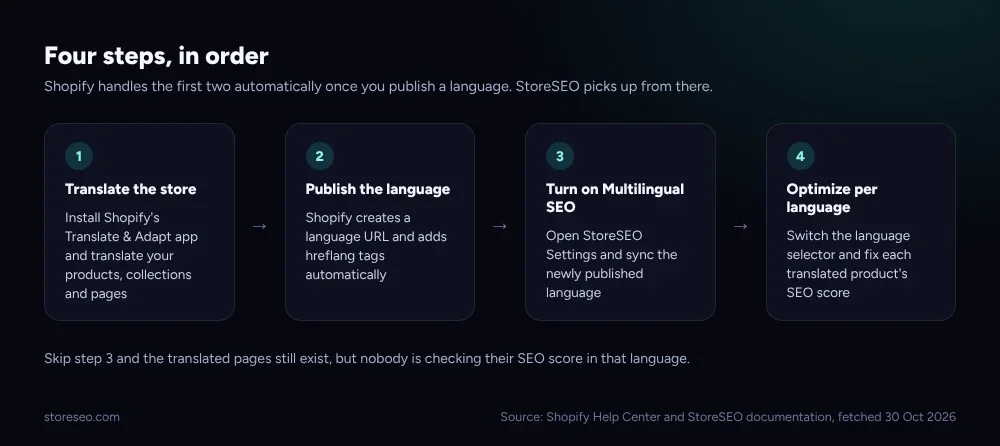 Shopify handles translation and the language URL automatically; StoreSEO picks up from the point the language is published.
Once products, collections, blog posts and pages are translated, publish the language from Settings > Languages. That single click is what triggers everything search engines rely on: a dedicated URL, like example.com/fr, and an automatic hreflang tag pointing search engines to it.
What Does Shopify Add Automatically When You Publish?
Shopify does not wait for a plugin to handle the technical side of a new language. The moment a language is published:
- A unique URL is created for every translated page, by adding the language code to the path.
- A hreflang tag is added to that URL automatically, confirmed in Shopify’s own documentation on managing languages, so search engines know which language version to show which searcher.
- URL slugs can optionally be translated too, for example
/products/chairto/produkte/stuhl, which improves localization without breaking the hreflang relationship. - Every published language is included in the store’s sitemap, which is how search engines discover the translated pages in the first place.
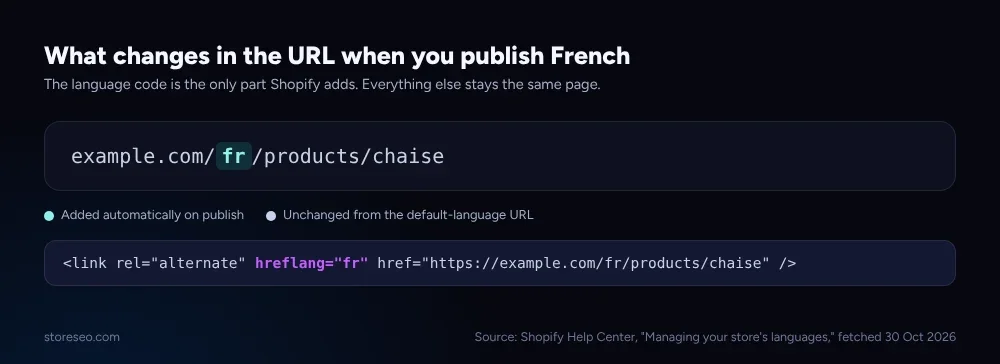 The language code is the only part of the URL Shopify changes; the rest of the path and the hreflang tag follow automatically.
None of this requires a theme edit or a developer. It is also, by itself, not optimization: a hreflang tag tells Google which page matches which language, but it says nothing about whether that page’s title, meta description or content actually rank in that language.
How Do You Turn On StoreSEO’s Multilingual SEO Support?
This is the step that gets skipped most often, because the translated pages already look finished.
- Open StoreSEO, click View more in the left panel, then go to Settings > Multilingual SEO.
- Click Turn on to enable Multilingual SEO Support.
- Under Published Language, click Sync next to the language your products were translated into.
- Wait for the sync-complete message before moving on.
Read StoreSEO’s documentation on optimizing translated products for the full walkthrough with screenshots, including the plan requirement: Multilingual SEO Support ships on StoreSEO’s Growth and Advanced plans only.
How Do You Optimize a Translated Product for SEO?
Once the language is synced, go to Optimize SEO > Products and pick the language from the selector at the top of the screen. Every product in the list now shows its SEO status for that specific language, separate from the default one.
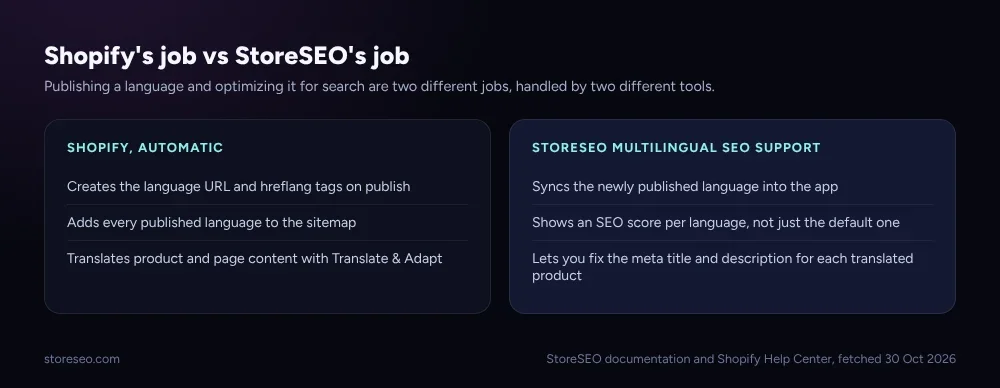 Shopify’s automation stops at discoverability. StoreSEO is where the translated page’s own SEO score gets fixed.
Click Fix issue next to any translated product to see its SEO Score, Basic SEO Analysis and Detailed SEO Analysis for that language, and correct the title and meta description the same way you would for the default language. The language selector is also available from inside any single product’s optimization screen, so a merchant who prefers working product by product never has to leave that view.
This is the part Shopify’s own tools do not do: translating a product description is not the same as writing a meta title that works for a French or German searcher’s actual query.
How Do You Know Multilingual SEO Is Working?
Three checks, in the order they become true:
- The URL exists. Visit
yourstore.com/<language-code>/<handle>directly. A 404 means the language is not published yet. - The hreflang tag is present. View the page source of the translated URL and confirm a
<link rel="alternate" hreflang="...">tag points back to it. This is Shopify’s job, not StoreSEO’s, and it needs no manual step once the language is live. - The translated page has an SEO score in StoreSEO. Open Optimize SEO > Products, switch the language selector, and confirm the product shows a score rather than an empty or default-language result.
If a language passes step 1 and step 2 but step 3 still looks like the default language, the sync in the previous section has not run yet. For the mechanics of hreflang itself, including how it interacts with your main-language pages, see StoreSEO’s hreflang setup guide.
What Are the Common Multilingual SEO Errors?
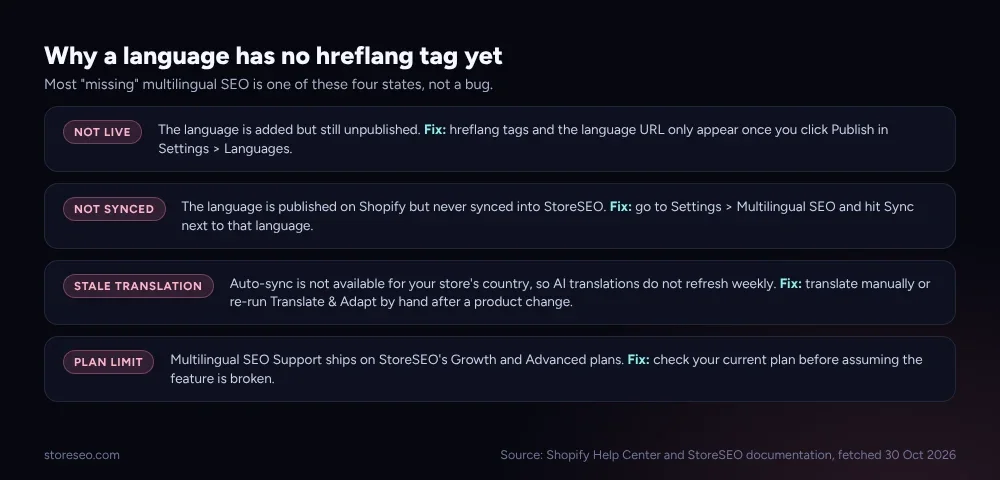 Most “missing” multilingual SEO is one of these four states resolving itself once the right button is clicked.
- The language is added but not published. Adding a language in Shopify does not make it live. Hreflang tags and the public URL only appear after you click Publish.
- The language is published but never synced into StoreSEO. Shopify and StoreSEO are two separate systems; publishing on one side does not automatically notify the other.
- Auto-sync is not available for the store’s country. Shopify’s AI translations do not refresh on their own everywhere, so content can go stale without a manual re-run of Translate & Adapt.
- The store is on a plan below Growth. Multilingual SEO Support is a Growth and Advanced plan feature in StoreSEO; it will not appear on a lower plan no matter how many languages Shopify has published.
For the bigger picture of where multilingual pages fit against the rest of a store’s technical SEO, StoreSEO’s complete Shopify SEO guide covers the full checklist.
Frequently Asked Questions (FAQs)
1. Does publishing a language automatically improve SEO in that language?
No. Publishing creates the URL and the hreflang tag, which lets search engines find and correctly attribute the page. It does not write or optimize the meta title, description or content for that language; that is a separate step.
2. Do I need a developer to add hreflang tags on Shopify?
No. Shopify adds hreflang tags automatically to every published language’s URLs. There is no theme file to edit and no app required just for the tag itself.
3. Can I use Multilingual SEO Support on StoreSEO’s free plan?
No. StoreSEO’s Multilingual SEO Support is available on the Growth and Advanced plans. A store on a lower plan can still publish languages through Shopify, but will not see a per-language SEO score in StoreSEO.
4. What happens to a language’s SEO if I unpublish it?
Unpublishing hides the language from customers and removes it from every domain it was assigned to. Any existing links or bookmarks to that language’s URLs will return a 404, so Shopify recommends setting up redirects for an unpublished language.
5. Should I translate URL slugs too, not just the page content?
It is optional but recommended for localization. Shopify lets you translate a slug, for example turning /products/chair into /produkte/stuhl, without breaking the hreflang relationship between the two language versions of the page.
6. How is this different from the Shopify Markets settings?
Markets controls which domains, currencies and regions a customer sees, and languages are assigned to those markets. StoreSEO’s Shopify Markets SEO settings guide covers that side in detail. This guide covers what happens once a language itself is published and needs its own SEO work.
Keep the Automation and the Optimization Separate
Multilingual SEO on Shopify is really two jobs stacked on top of each other: Shopify’s automatic plumbing, and the per-language optimization that plumbing makes possible but does not do for you. Translate the store, publish the language, sync it into StoreSEO, then treat each language’s product pages as their own SEO project. try StoreSEO on the Shopify App Store
Keep reading
Bulk Shopify URL Redirects: Step-by-Step Setup
Shopify redirects broken URLs in bulk through a two-column CSV import under Content and Menus, but only once every old URL already returns a 404.
Read article
How to Do a GEO Audit of Your Shopify Store with StoreSEO
Learn how to run a complete GEO audit for your Shopify store in 2026 using StoreSEO. Improve AI search visibility, optimize structured data, boost GEO scores, and prepare your products for ChatGPT, Google AI Overviews, Perplexity, and Gemini.
Read article
Best Keyword Rank Tracker Apps for Shopify (2026)
Wizardo is the cheapest dedicated Shopify rank tracker; StoreSEO and SEOKart bundle tracking with SEO tools. Prices verified. Updated Oct 2026.
Read article