
Shopify Keyword Mapping Template: One URL Each
 Written by M Asif Rahman
A Shopify keyword mapping template is a simple spreadsheet that assigns exactly one primary keyword to one URL, so you can see at a glance which pages compete for the same search term. Fill it in once, and you catch keyword cannibalization before it splits your own rankings between two pages.
TL;DR: one keyword, one URL, no exceptions.
| Column | What You Type In It | Example Entry | What To Do If It’s Duplicated |
|---|---|---|---|
| Keyword | The exact search term | wireless earbuds | Check it is not already assigned to another URL first |
| Target URL | The one page meant to rank for it | /products/wireless-earbuds-pro | Reassign the losing page to a different, narrower keyword |
| Search intent | TOFU, MOFU or BOFU | BOFU | Group duplicates by intent before you decide what to merge |
| Monthly volume | From keyword suggestions or a research tool | 880 | Keep the row with the bigger number, fix the smaller one |
| Status | Unique, Duplicate or Needs Redirect | Duplicate | Move it to the fix list in the section below |
What Columns Does a Keyword Mapping Sheet Need?
Five columns are enough: the keyword itself, the one URL that should own it, the search intent behind it, the monthly search volume, and a status flag. Nothing fancier. The table above previews what goes in each, and the sheet below spells out why each one earns its place.
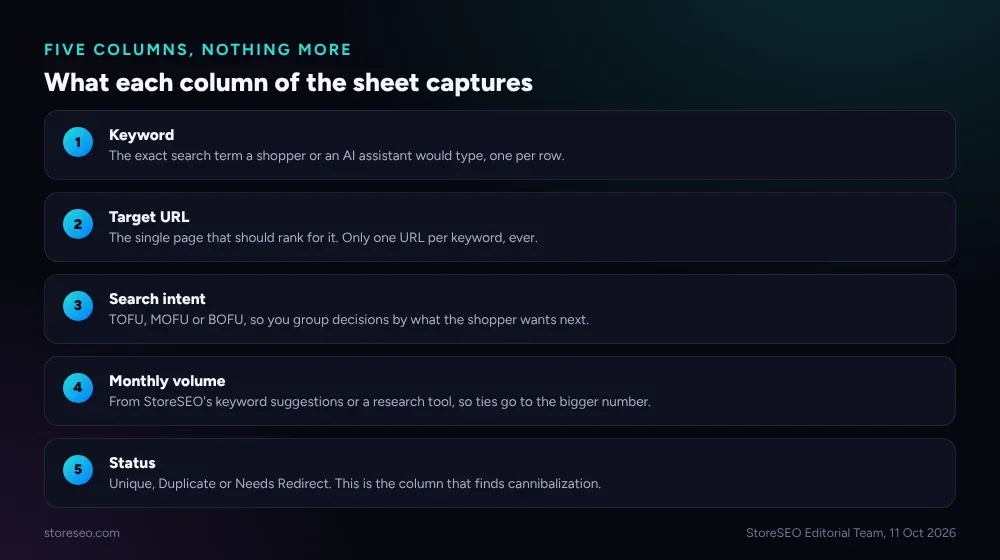 Five columns, nothing more: keyword, URL, intent, volume and status.
The Status column is the one that does the actual work. Every other column exists to feed it: once a keyword has a volume number and an intent label next to it, spotting which of two rows should win becomes a comparison, not a guess. Leave this column blank and the sheet is just a list; fill it in and it becomes a decision log.
How Do You Fill It In Under 20 Minutes?
Start from your sitemap, not your keyword tool. List every page that is meant to rank for something specific: product pages, collection pages, and any blog post written with a keyword in mind. Then write the one keyword each page already targets, or should.
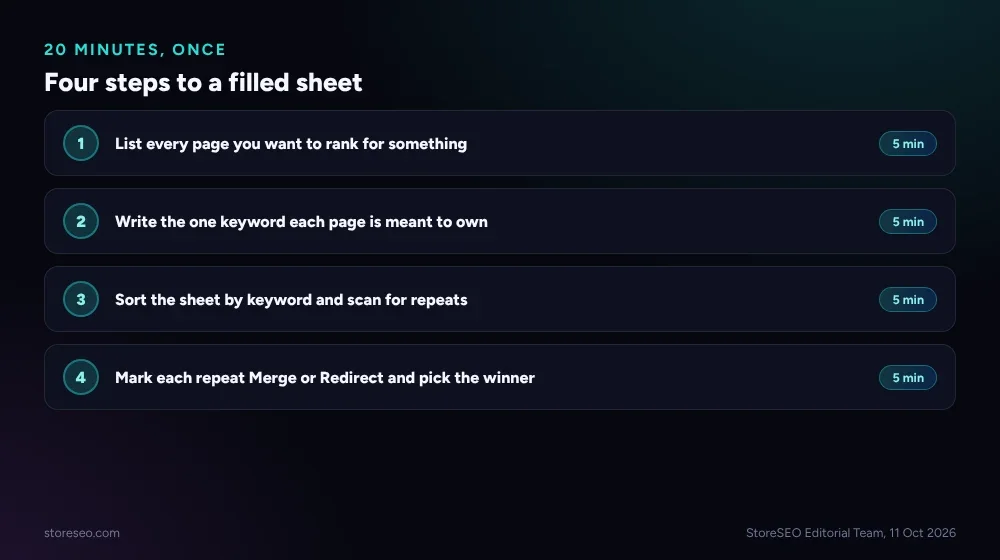 Four steps, five minutes each: list, assign, sort, decide.
Sort the finished sheet alphabetically by keyword. Any keyword that appears on two or more rows is now sitting right next to its duplicate, which is the entire point of putting this in a spreadsheet instead of trying to hold it in your head across a few hundred products. StoreSEO’s own Keyword Rank Tracker can supply the volume and suggestion columns directly from its keyword suggestion panel, which saves a separate research pass, and it lets you add up to five competitor URLs to check whether a rival already owns the term before you fight your own pages over it. If you are choosing between tracking tools first, our roundup of the best keyword rank tracker apps for Shopify compares what each one pulls into a sheet like this.
If any of the shorthand in the Search Intent column is new to you, TOFU, MOFU and BOFU included, the Shopify SEO glossary defines every term used in this guide in one place.
How Do You Spot Cannibalization With the Sheet?
A duplicate row is not always a mistake: sometimes two pages legitimately deserve a share of a broad term. But far more often it is three pages that were each optimized in isolation, by different people or different app defaults, all reaching for the same obvious phrase.
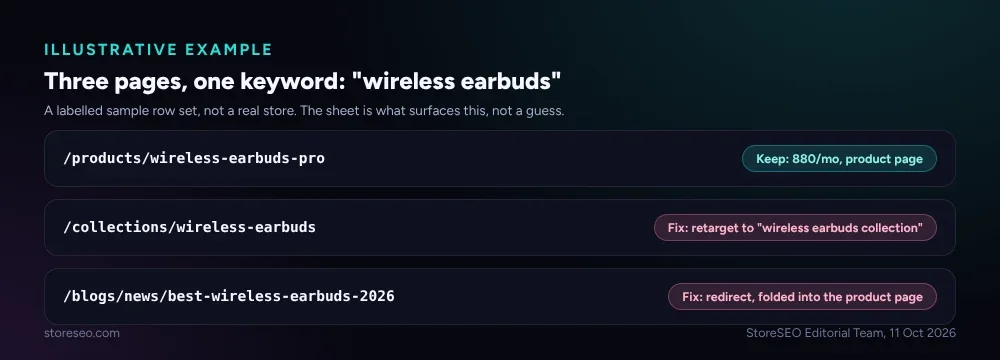 An illustrative example: a product page, a collection page and a blog post all targeting the same term.
StoreSEO’s own audit of 100-plus Shopify stores found that over 78 percent had critical on-page SEO gaps, and missing or duplicate meta titles and descriptions were the single most common issue (our 100-store ranking audit, 10 Mar 2026). Duplicate titles and duplicate keyword targeting tend to travel together: a title written without checking what the rest of the catalog already owns is exactly how two product pages end up both called “Wireless Earbuds for Running.”
What Do You Do When Two Pages Target the Same Keyword?
Once the sheet flags a pair, the fix depends on one question: does the weaker page still need to exist on its own?
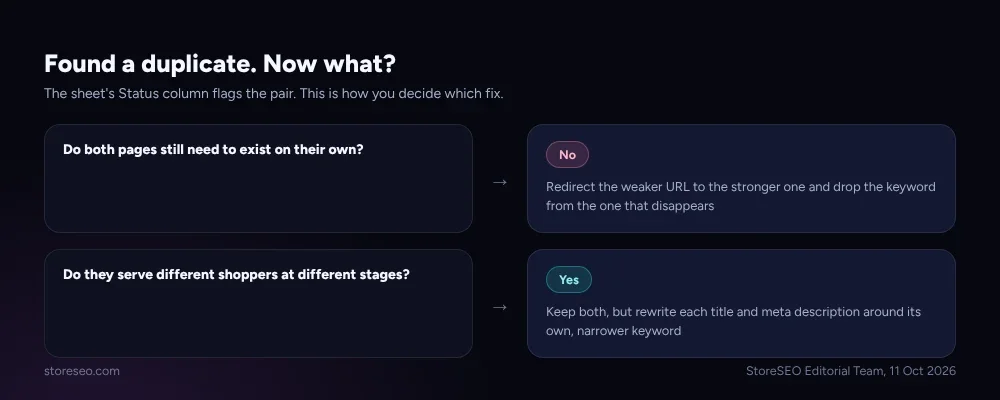 Redirect when one page can absorb the other; keep both only if they serve genuinely different shoppers.
If the answer is no, redirect the weaker URL into the stronger one with a 301 and drop the keyword from the row that disappears. If both pages genuinely serve different shoppers at different stages, for example a product page for buyers and a guide for people still comparing options, keep both, but rewrite each one’s title and meta description around its own narrower keyword so they stop aiming at the same ten blue links.
How Do You Keep the Map Updated?
A keyword map that is accurate once and stale forever is not much better than no map at all. The cheapest way to keep it current is to update it the moment you publish anything new: a product, a collection, or a blog post. Add the row before the page goes live, not after a ranking problem forces you to go looking for the cause.
Revisit the whole sheet roughly once a quarter, or whenever you notice a page’s ranking drop for no obvious reason. A sudden position swap between two of your own URLs for the same query in Google Search Console is often cannibalization showing up in the data before you spot it in the sheet.
This sheet is one piece of a bigger routine. The ultimate Shopify SEO checklist covers everything else around it, from technical fixes to the content calendar that keeps new pages from colliding with old ones in the first place.
Copy the Template
The columns above are the whole template: Keyword, Target URL, Search Intent, Monthly Volume, Status. Build it in any spreadsheet tool with those five headers, one row per page, and you have the same sheet described here. There is nothing proprietary about the format; the value is in filling it in and actually checking it before you publish the next page.
Frequently Asked Questions (FAQs)
1. What is keyword cannibalization on Shopify?
It is when two or more pages on the same store target the same keyword, which forces Google to pick one and often splits ranking signals between both. It is especially common on Shopify stores where a product page, a collection page and a blog post all cover the same obvious search term without anyone checking the overlap first.
2. Do I need an app to build a keyword mapping sheet?
No. A spreadsheet with the five columns in this guide is enough to start, and it costs nothing. An app like StoreSEO’s Keyword Rank Tracker speeds up the research and ranking-check steps, but the mapping itself is just disciplined bookkeeping you can do in any tool.
3. How often should I update the keyword map?
Add a row the moment a new page goes live, and review the full sheet about once a quarter. Stores that publish often, several new products or posts a week, benefit from checking monthly instead, since cannibalization usually creeps in a few pages at a time rather than all at once.
4. Should I always redirect the losing page?
Only when it no longer serves a distinct purpose. If two pages genuinely answer different questions for different shoppers, keep both and narrow each one’s keyword instead of redirecting; a redirect is for pages that are truly duplicates of intent, not just duplicates of topic.
5. Can one keyword ever belong to two URLs?
In practice, no, not if you want both to rank well. Search engines pick one page to show for a given query far more often than they show two, so splitting your own catalog across two pages for the same term usually weakens both instead of doubling your chances.
Keep the Sheet Honest
A keyword map only works if someone checks it before a new page goes live, not after a ranking problem sends you looking for the cause. StoreSEO’s Keyword Rank Tracker pulls live positions and competitor comparisons straight into your Shopify admin, so the Monthly Volume and Status columns stay current without a separate spreadsheet session. try StoreSEO on the Shopify App Store
Keep reading

Turn On Auto AI Optimization: What Changes in a Week
Turning on Auto AI Optimization takes about five minutes; the visible change in your catalog builds up over roughly a week as new products arrive.
Read article
Why Isn't AI Referral Traffic Showing in StoreSEO?
AI referral traffic in StoreSEO usually shows zero because the Web Pixel just went live, no AI visit has landed yet, or the plan or consent blocks it.
Read article
Fix Log: Cutting a Meta Description From 220 to 155
We trimmed one Shopify product's meta description from 220 characters to 155 and tracked exactly what moved in its live Google search snippet.
Read article