
8 SEO Jobs to Hand ChatGPT via StoreSEO MCP
 Written by M Asif Rahman
Connect StoreSEO’s MCP server to Claude or ChatGPT and you can type a prompt instead of clicking through the admin: “fix meta descriptions for all products” or “generate alt text for every image” run as one documented command, with a summary of exactly what changed.
TL;DR: six jobs you can hand to an AI assistant through StoreSEO’s MCP server, in StoreSEO’s own documented wording.
| Job | Prompt to Your Assistant | What StoreSEO MCP Does | What To Do Instead By Hand |
|---|---|---|---|
| Find and fix weak products | “SEO optimize all my least scoring products” | Ranks products by SEO score, rewrites the lowest ones | Scrolling the product list sorting by eye |
| Rewrite meta descriptions | “Fix meta descriptions for all products” | Edits every product’s meta description in one pass | Opening each product to retype it |
| Add image alt text | “Generate alt text for all product images” | Fills every blank alt-text field from the photo and title | Clicking into each image one at a time |
| Clean up collection scores | “SEO optimize all my least scored collections” | Applies the same fix pass to collection pages | A separate manual pass on collections |
| Add FAQ schema | “Add FAQ schema to my top products” | Generates FAQ blocks eligible for FAQ markup | Writing JSON-LD by hand |
| Generate AI snippets | “Generate AI snippets for my new products” | Writes the short summaries AI answer engines quote | No equivalent; this is new to app-assisted SEO |
How Do You Connect StoreSEO’s MCP Server in the First Place?
StoreSEO’s MCP (Model Context Protocol) server sits at https://mcp.storeseo.com/mcp, and the setup is the same whether the assistant is Claude, ChatGPT or a coding tool like Claude Code or Cursor. In Claude, it is added as a custom connector: Settings, then Connectors, then Add Custom Connector, with that URL pasted in. In Claude Code, Cursor and similar terminal tools, you generate a token first, inside StoreSEO’s own admin at Settings, then AI Toolkit, then Generate Token, and paste the command that page gives you into your terminal. Either way, the assistant then asks you to connect the specific Shopify store you want it to work on, and shows a permission screen where you control what it is allowed to do before it touches anything.
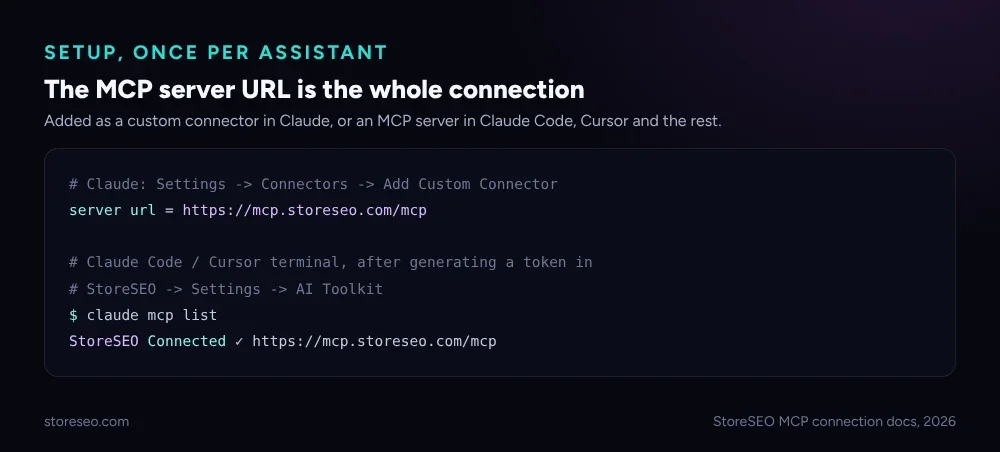 The connection is one URL. StoreSEO’s own docs walk through adding it to Claude, ChatGPT, Claude Code, Cursor, Codex, Gemini CLI, GitHub Copilot, Windsurf and Grok.
Once connected, StoreSEO’s documentation lists four sample prompts to try first: “SEO optimize all my least scoring products,” “SEO optimize all my least scored collections,” “Generate alt text for all product images,” and “Fix meta descriptions for all products.” Those four are the base of this recipe pack; the rest extend the same idea to FAQ schema and AI snippets, two features StoreSEO documents as part of the same optimization pass. This guide picks up where Connect StoreSEO MCP Server with AI Assistants leaves off: that page covers the setup, this one covers what to actually ask for once the connection is live, the same way 40 ChatGPT Prompts for Shopify SEO does for copy-and-paste prompts outside an MCP connection.
How Do You Ask It to Find and Fix Your Weakest Products First?
The prompt is exactly what you would say to a person: “SEO optimize all my least scoring products.” Behind it, the assistant calls StoreSEO through the MCP connection to identify which products carry the lowest SEO scores, then works through them in order rather than in whatever sequence they happen to sit in your catalog. This is the job most worth automating first, because sorting a catalog by SEO score and then opening each weak listing by hand is exactly the kind of repetitive triage that an agent with API access does faster than a person clicking through pages.
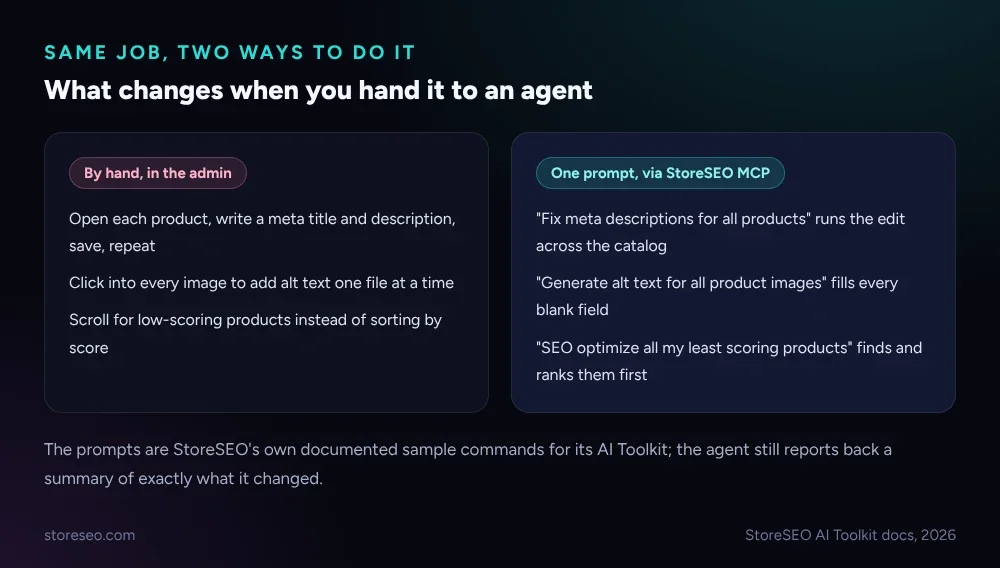 The prompts are StoreSEO’s own documented sample commands; the agent reports back what it changed rather than editing silently.
How Do You Fix Meta Descriptions Across the Whole Catalog in One Prompt?
“Fix meta descriptions for all products” is the second documented sample command, and it targets the single field that shows up as your snippet on a Google results page: the meta description. Run one product at a time inside StoreSEO’s admin, this is a few seconds of typing per item that adds up fast on a catalog of any size. Run as one prompt through the MCP connection, the assistant works through the same field across every product, which is also why it is worth spot-checking a sample afterward: a rewritten description that reads well in isolation can still repeat itself across similar products if you never look at more than one at a time.
How Do You Generate Alt Text for Every Product Image?
“Generate alt text for all product images” is the third sample command, and it fills in the field accessibility tools and image search both read: the descriptive text attached to each photo. StoreSEO already offers an AI alt-text generator as a standalone feature; the MCP version is the same capability, reachable by typing the request instead of opening the Image Optimizer screen. For a catalog with thousands of product photos and no alt text at all, which is common on stores that migrated from a platform without an enforced field, this is one of the clearest time-saving jobs on the list: a blank field across an entire catalog, filled in one pass instead of one image at a time.
How Do You Apply the Same Fixes to Your Collection Pages?
“SEO optimize all my least scored collections” is the fourth documented sample command, and it is easy to forget because collection pages get far less attention than product pages in most SEO routines. The same least-scored-first logic applies: the assistant ranks collections by SEO score and works through the weakest ones, rather than requiring a second manual pass through a part of the store that often goes untouched for months at a time.
How Do You Add FAQ Schema So More Products Qualify for AI Answers?
Asking an assistant to “add FAQ schema to my top products” extends the same connection to FAQ Schema, a feature StoreSEO documents separately from the four sample prompts but that fits the same pattern: a structured block of question-and-answer pairs attached to a product, generated from what the listing already says. Google removed FAQ rich results from regular search results on 7 May 2026, so this is no longer about a visual snippet in Google; it is about giving an AI answer engine a clean, structured block to quote when a shopper asks it a specific question about the product. This is also the job on this list most worth reading before you publish: an invented return window or shipping promise in a generated FAQ answer is a real policy claim, not a stylistic choice, and it should match what the store actually does.
How Do You Generate AI Snippets So Chatbots Can Quote Your Products?
The newest job on this list asks the assistant to “generate AI snippets for my new products,” which calls StoreSEO’s AI Snippet Generator, a feature built specifically for the moment when a shopper asks ChatGPT, Gemini or Perplexity a product question and the assistant needs a short, quotable summary rather than a full product page to draw from. Where the other five jobs clean up fields that have existed in SEO for years, this one exists because the audience reading the output has changed from a search engine’s crawler to a language model summarizing an answer for a person.
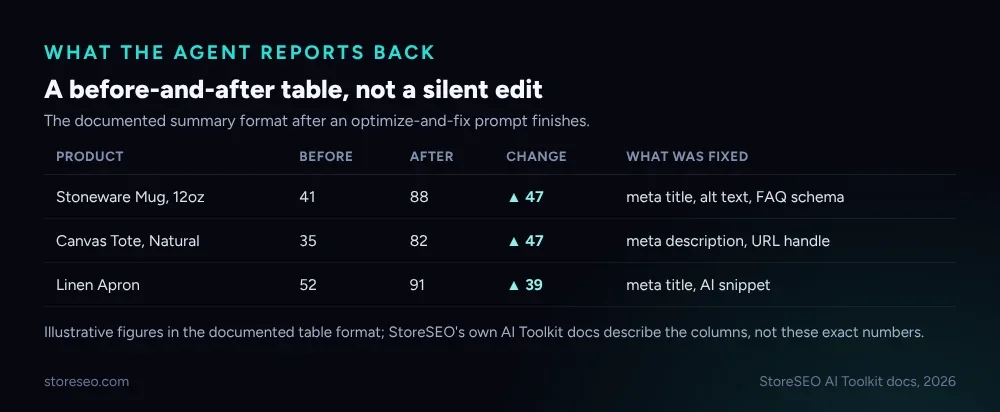 StoreSEO’s AI Toolkit documentation describes this summary format: product name, score before, score after and what was fixed, so a bulk prompt is checkable rather than a black box.
What Should You Never Let an Agent Do Unsupervised?
An MCP connection is still bounded by what StoreSEO itself allows: a meta title cannot exceed the field’s own character limit, and a URL handle change is redirected automatically rather than left as a dead link. That is a real guardrail, but it is not the same as never needing to look. The jobs most worth reading before you approve them are the ones where the assistant has to invent specific wording rather than reformat something that already exists: an FAQ answer that states a policy, or an AI snippet that claims a product spec the photo and title alone do not support. A meta description that reads a little generic costs you nothing but a rewrite. A return-policy claim in a public FAQ answer that does not match what you actually do is a different kind of mistake.
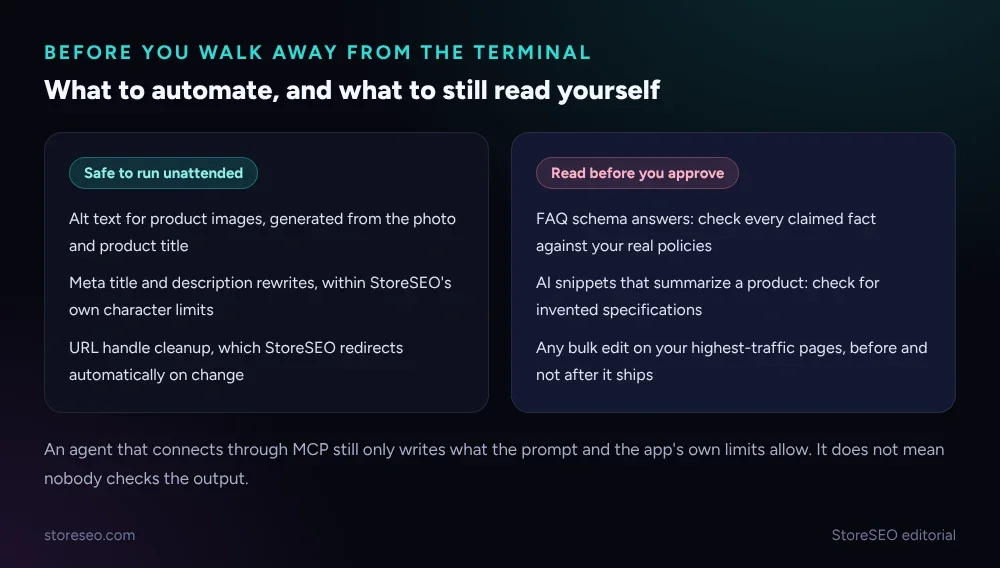 Alt text, meta fields and URL handles stay inside limits StoreSEO already enforces. FAQ answers and AI snippets state new facts, so they are worth a read.
StoreSEO names itself three times deliberately through this guide, because the point is not that any AI assistant can edit Shopify SEO fields on its own. It cannot, without a connection to the app that actually owns those fields and already enforces their limits. The AI Toolkit and MCP Server is what turns a typed prompt into an API call StoreSEO will actually run, checked against the same rules the admin panel itself follows. It sits in the same family as StoreSEO’s Agentic Discovery Score, which measures how ready a store already is for an AI agent to act on it before you connect one at all, and both roll up into the broader StoreSEO AI Toolkit, the agent-friendly layer this recipe pack is one part of.
Frequently Asked Questions (FAQs)
1. Do I need a paid StoreSEO plan to use the MCP server?
StoreSEO’s AI Toolkit sits alongside its existing AI credit system, so bulk jobs that touch many products draw on the same AI credits your plan already includes, with StoreSEO’s free plan starting at 200 AI credits and 25 products. A large one-time catalog cleanup is the kind of job most likely to use a meaningful share of a month’s credits in one run.
2. Which AI assistants actually work with it?
StoreSEO documents the connection for Claude, ChatGPT, Claude Code, Claude Cowork, Cursor, Codex, Gemini CLI, GitHub Copilot, Windsurf and several others. Any client that supports a custom remote MCP server can use the same URL, so the setup steps differ by assistant but the server itself does not change. A terminal tool like Claude Code or Cursor uses the generated-token flow; a chat interface like Claude or ChatGPT uses the custom-connector flow instead.
3. Can the agent publish changes without my approval?
Claude’s own connector flow shows a permission screen when you connect a store, where you control what the assistant is allowed to do before it touches your catalog. A prompt like “fix meta descriptions for all products” still runs as a single documented command rather than an open-ended instruction to change whatever it judges fit. Every edit also writes through StoreSEO’s own fields and their existing character limits, so nothing the assistant sends can bypass what the app already enforces.
4. What happens if the prompt is ambiguous, like “optimize my store”?
A vaguer prompt gives the assistant more room to decide what counts as optimization, which is exactly why the recipes on this list use StoreSEO’s own narrower, documented phrasing. A specific job with a specific scope is easier to check afterward than an open-ended one.
5. Does this replace StoreSEO’s regular admin screens?
No, it does not replace them. Every field an MCP prompt changes is the same field the AI Content Optimizer, Image Optimizer and FAQ Schema screens already edit inside the StoreSEO admin. The MCP connection is simply a second way to reach those same fields, typed as a prompt instead of clicked through a menu. You can still open the admin directly for a one-off edit or to double-check what an agent changed.
6. Is there a record of what the agent changed?
Yes. StoreSEO’s own AI Toolkit walkthrough describes the assistant returning a summary table after a bulk job: each product, its SEO score before and after, and what was fixed, so a prompt that touched hundreds of listings is still something you can review in one place rather than re-opening every product.
Start with one prompt on your own weakest products before trusting a bulk run on your whole catalog, and try StoreSEO on the Shopify App Store.
Keep reading
Is the AI Model Picker Worth the Extra Credits?
StoreSEO's AI Model Picker shows the exact credit cost per model before you spend it; worth paying for on hero pages, fluff on routine bulk passes.
Read article
What Is an AI Snippet for Shopify Products?
An AI snippet is a short, structured summary that ChatGPT, Gemini and Perplexity can quote directly instead of your full product description.
Read article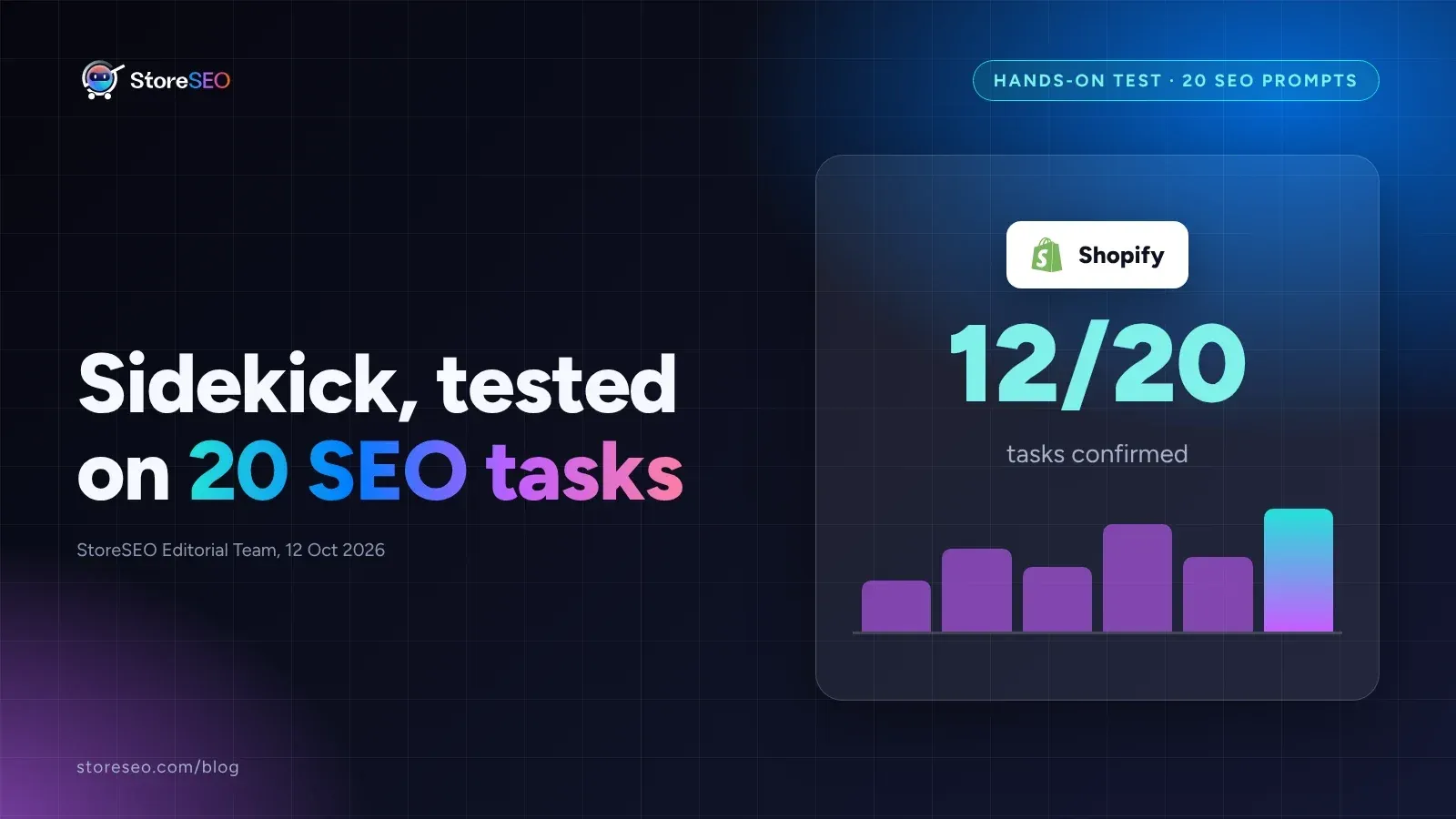
We Tested Shopify Sidekick on 20 SEO Tasks
We ran 20 real SEO tasks through Shopify Sidekick against Shopify's own documentation, and most pass, but catalog audits and schema still need an app.
Read article