
Shopify Keyword Cluster Generator: How to Use It

StoreSEO’s Keyword Cluster Generator takes one seed keyword, groups the related terms Google already treats as one topic, and tags each group by intent. You get a ready-made content map instead of a flat keyword list, so you know exactly which cluster needs a blog post and which needs a sharper product description.
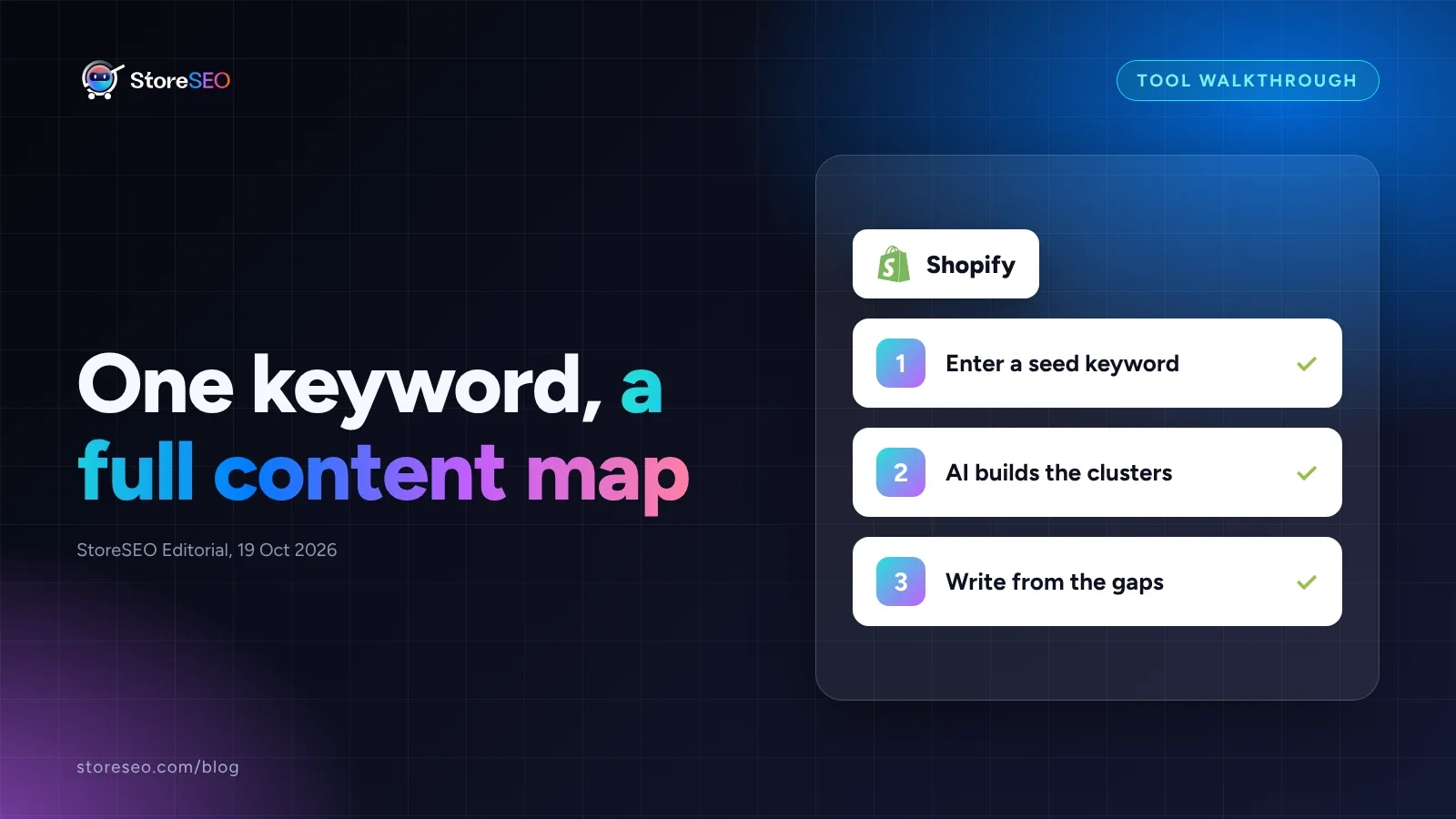
TL;DR:
| What the tool does | Where to find it | Action |
|---|---|---|
| Groups one seed keyword into intent-tagged clusters | Optimize SEO tab, Keyword Research panel | Generate a cluster for your top 5 products first |
| Tags each cluster informational, commercial or transactional | Same panel, labelled automatically | Write a blog post for informational clusters; tighten the product page copy for transactional ones |
| Flags topics competitors cover that you do not | Content gap note on the cluster output | Queue the gap as your next content topic, not a guess |
| Feeds the cluster into the AI product description writer | Generate Product Description button | Regenerate until it reads naturally, then Keep and Replace |
How Does the Generator Turn One Keyword Into a Content Plan?
The Keyword Cluster Generator lives inside the Optimize SEO tab, next to the product or page you are working on. It runs in four steps: select the product, generate the cluster, create a description from it, then fine-tune and save. StoreSEO’s own documentation walks through each screen; the short version is below.
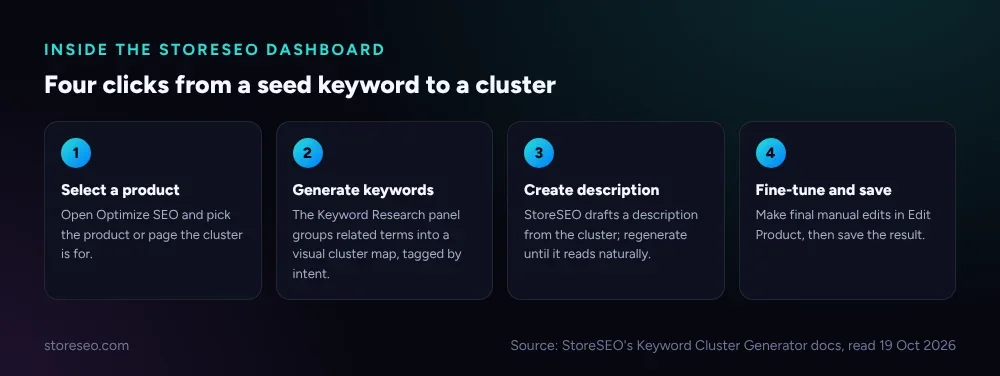 StoreSEO’s own four-step flow: select, generate, create, save.
Under the hood, the generator applies semantic analysis rather than a flat volume sort: it groups keyword variations that share a topic the way Google’s own ranking systems do, not keyword by keyword. Each resulting cluster is tagged with a dominant intent, informational, navigational, commercial or transactional, so you know what kind of page to write before you write it.
What Does a Good Cluster Output Look Like?
Not every cluster is worth acting on. A thin cluster wastes a product slot; a real one tells you exactly what to write next. Here is a worked example built from the tool’s documented behaviour (illustrative, since no live demo store was reachable to this automated run): a seed keyword of “organic cotton baby blanket” groups into an informational cluster around certification questions, a commercial cluster comparing brands, and a transactional cluster ready for product-page copy.
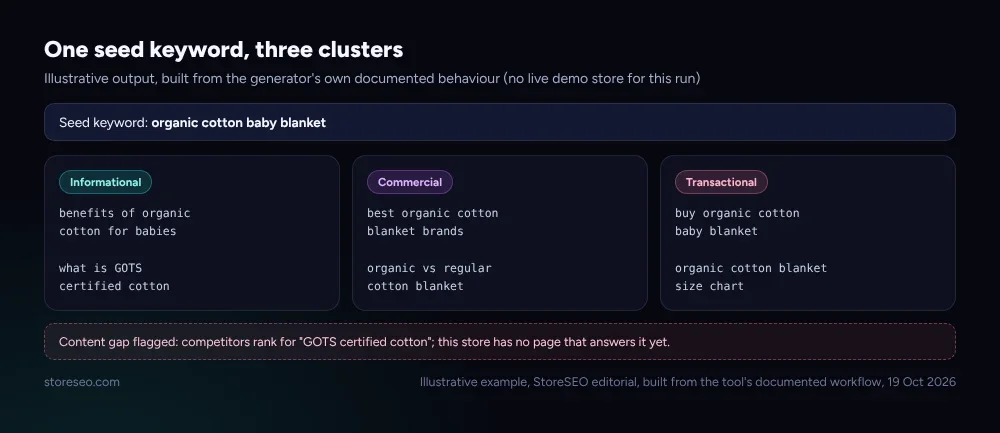 Illustrative output: one seed keyword, three intent-tagged clusters, and a flagged content gap.
| Signal | A cluster worth acting on | A cluster to skip |
|---|---|---|
| Keyword count | 8 to 15 genuinely related terms | 2 or 3 generic terms the tool could not group further |
| Intent tag | One dominant, clearly stated intent | Mixed intents with no single tag |
| Content gap | Names a topic a competitor covers that you do not | No gap named, just a restated keyword list |
| Search volume | At least one term shows real, non-zero volume in Keyword Analytics | Every term shows zero or unavailable volume |
| What to do next | A specific page or description to write today | Nothing concrete; the cluster adds no direction |
That last row matters most. A cluster that cannot answer “what do I write today” is not ready to act on, however many keywords it lists. Cross-checking volume against StoreSEO’s Keyword Analytics before you commit a product slot to a cluster catches the thin ones early, the same discipline our SEO glossary covers under search intent.
How Do You Run This Across Your Whole Catalog?
One cluster at a time does not scale to a 500-product catalog, so the generator is built to run product by product rather than store-wide. Start narrow, confirm the output is useful, then widen.
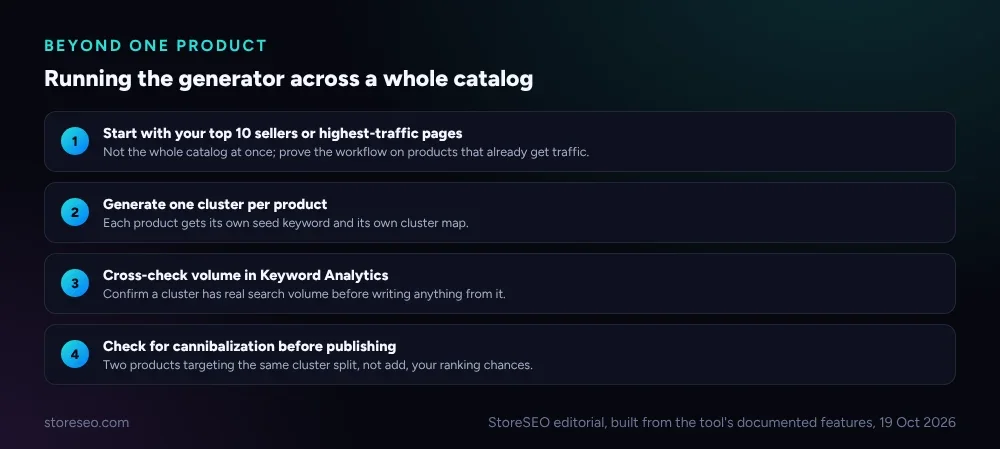 Running the generator past one product: start small, cross-check volume, then watch for overlap.
Two products chasing the same cluster is a real risk at catalog scale, and it works against you rather than for you: splitting ranking signals between two pages for the same topic is the exact failure our guide on fixing keyword cannibalization walks through. Once a cluster is live on a page, StoreSEO’s Keyword Rank Tracker is the natural next step for watching whether it actually moves, rather than re-running the generator on the same product every week.
Where the Keyword Cluster Generator Fits in Your SEO Stack
The generator is a planning tool, not a publishing one: it tells you what to write and roughly why it should rank, and StoreSEO’s other features carry the result the rest of the way. The cluster feeds the AI product description writer directly, Keyword Analytics confirms the volume is real, and the Keyword Rank Tracker measures what happens after you publish. None of that replaces Google’s own guidance on building genuinely helpful content: a cluster map only earns a ranking once a real answer sits behind it. For the fundamentals this page assumes, our Shopify SEO checklist is the starting point.
This page used to be a launch announcement; it earned 2,572 impressions and 3 clicks at an average position of 9.4 over three months (Search Console, baseline to 24 Sep 2026), evidence that the ranking was never the problem.
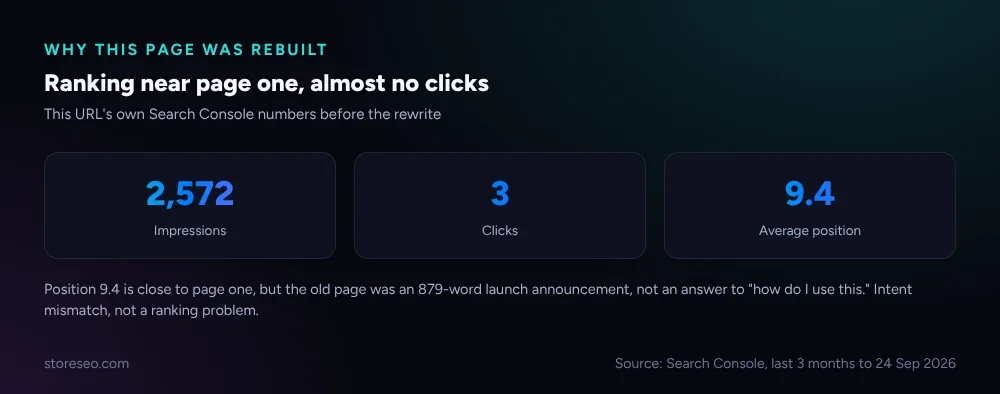 Position 9.4 with 3 clicks: an intent mismatch, not a ranking failure.
Frequently Asked Questions (FAQs)
1. What is a seed keyword, and where do I get one?
A seed keyword is the single broad term you start from, usually your product name or its main category. Pull it from your own product title, or from a term Keyword Analytics already shows you ranking for, rather than guessing.
2. Does the Keyword Cluster Generator replace keyword research tools?
Not entirely. It groups and tags keywords by intent inside your Shopify workflow, which a standalone research tool does not do. It works alongside StoreSEO’s own Keyword Analytics for raw volume and competition data, rather than replacing that step.
3. What do the intent tags actually mean for what I write?
Informational clusters call for a blog post or guide; commercial clusters call for comparison or buying-guide content; transactional clusters call for sharper product-page copy, since that searcher is close to buying. Matching the content type to the tag is the point of clustering at all.
4. Is the AI-generated product description ready to publish as-is?
Treat it as a strong first draft. StoreSEO lets you regenerate the description from the same cluster until it reads naturally, and the Fine-Tune and Save step exists specifically for a final manual pass before it goes live.
5. How is this different from just sorting keywords by search volume?
A flat volume sort tells you popularity, not relationship. The generator groups keywords that share a topic the way search engines evaluate a page, topic by topic, so a high-volume term with no supporting cluster around it is a weaker signal than a mid-volume term backed by eight related ones.
6. How often should I regenerate a cluster for the same product?
Only when the product’s own content changes meaningfully, or roughly once a quarter. Regenerating weekly on an unchanged page tells you nothing new; use the Keyword Rank Tracker to watch results in between instead.
Clustering by intent is one piece of a wider Shopify SEO setup, and the rest of that workflow, from the cluster to the published page, lives in one dashboard: try StoreSEO on the Shopify App Store.
Keep reading
Turn On Auto AI Optimization: What Changes in a Week
Turning on Auto AI Optimization takes about five minutes; the visible change in your catalog builds up over roughly a week as new products arrive.
Read article
Why Isn't AI Referral Traffic Showing in StoreSEO?
AI referral traffic in StoreSEO usually shows zero because the Web Pixel just went live, no AI visit has landed yet, or the plan or consent blocks it.
Read article
Fix Log: Cutting a Meta Description From 220 to 155
We trimmed one Shopify product's meta description from 220 characters to 155 and tracked exactly what moved in its live Google search snippet.
Read article