
Exibir as FAQs na sua loja virtual com o recurso de personalização permite que você mostre perguntas e respostas específicas de cada produto diretamente nas páginas de produtos do Shopify. Depois de criar as FAQs para seus produtos no StoreSEO, elas são apresentadas em uma seção organizada e clara, facilmente visível para os clientes. Isso ajuda os compradores a encontrar as informações de que precisam rapidamente, a tomar decisões de compra mais seguras e reduz a necessidade de entrar em contato com o suporte.
Esta documentação orienta você em cada etapa para exibir as perguntas frequentes (FAQs) em sua loja virtual, desde o painel de controle do StoreSEO até a sua loja online.
Passo 1: Ative o bloco de perguntas frequentes sobre o produto no painel de controle. #
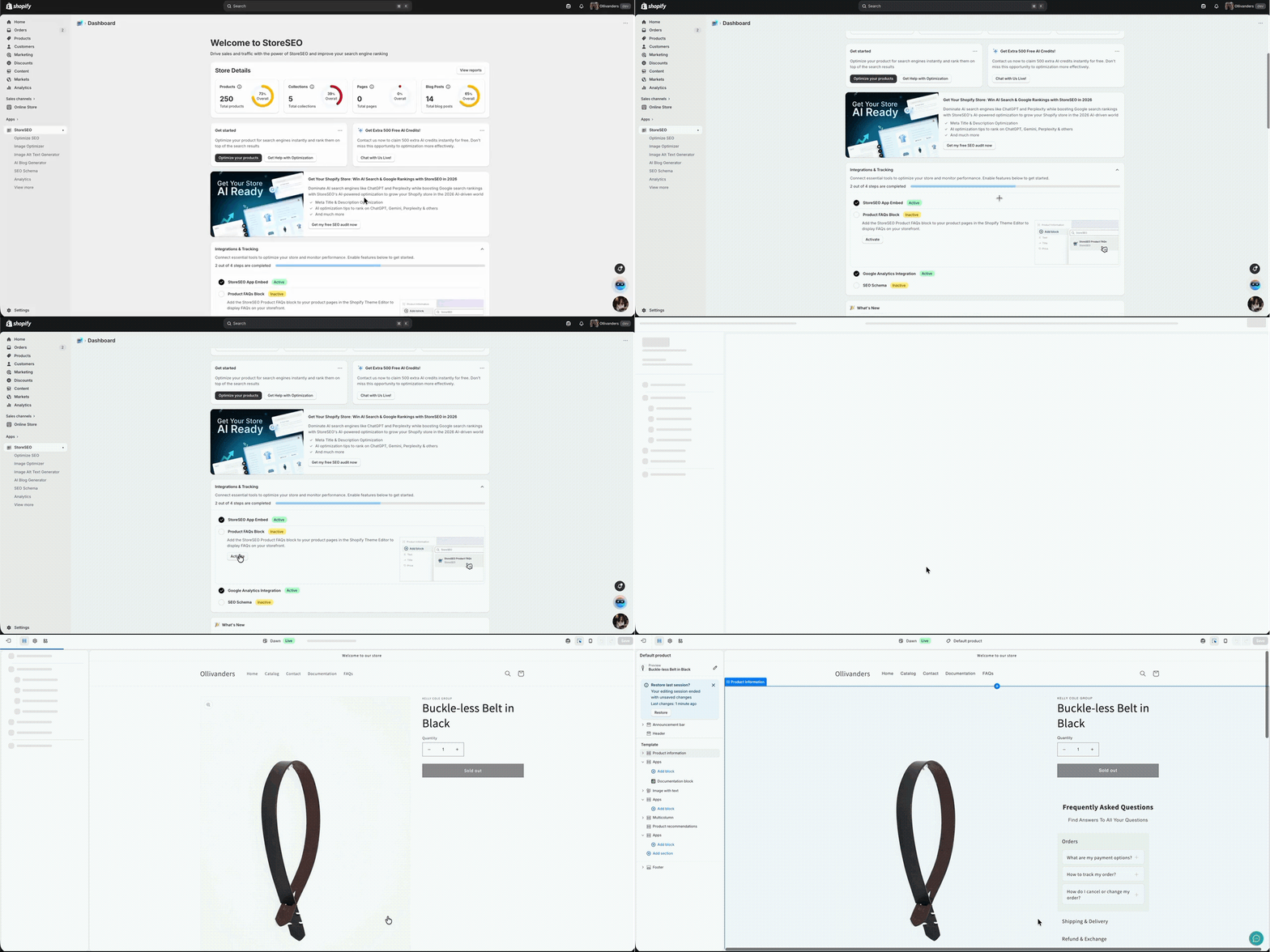
Para começar, abra o Aplicativo StoreSEO A partir do seu painel de administração do Shopify. Uma vez lá dentro, navegue até... Painel e role para baixo até o Integrações e Rastreamento seção. Aqui você encontrará um cartão com a etiqueta Bloco de Perguntas Frequentes sobre o Produto.
Clique no Ativar Este botão está presente neste cartão. Essa ação registra o bloco de perguntas frequentes (FAQ) do StoreSEO no seu tema do Shopify, permitindo que você o adicione a qualquer modelo de página de produto. Você não verá as perguntas frequentes na sua loja até que esta etapa seja concluída.
Passo 2: Abra o Editor de Temas do Shopify e localize a página do seu produto. #
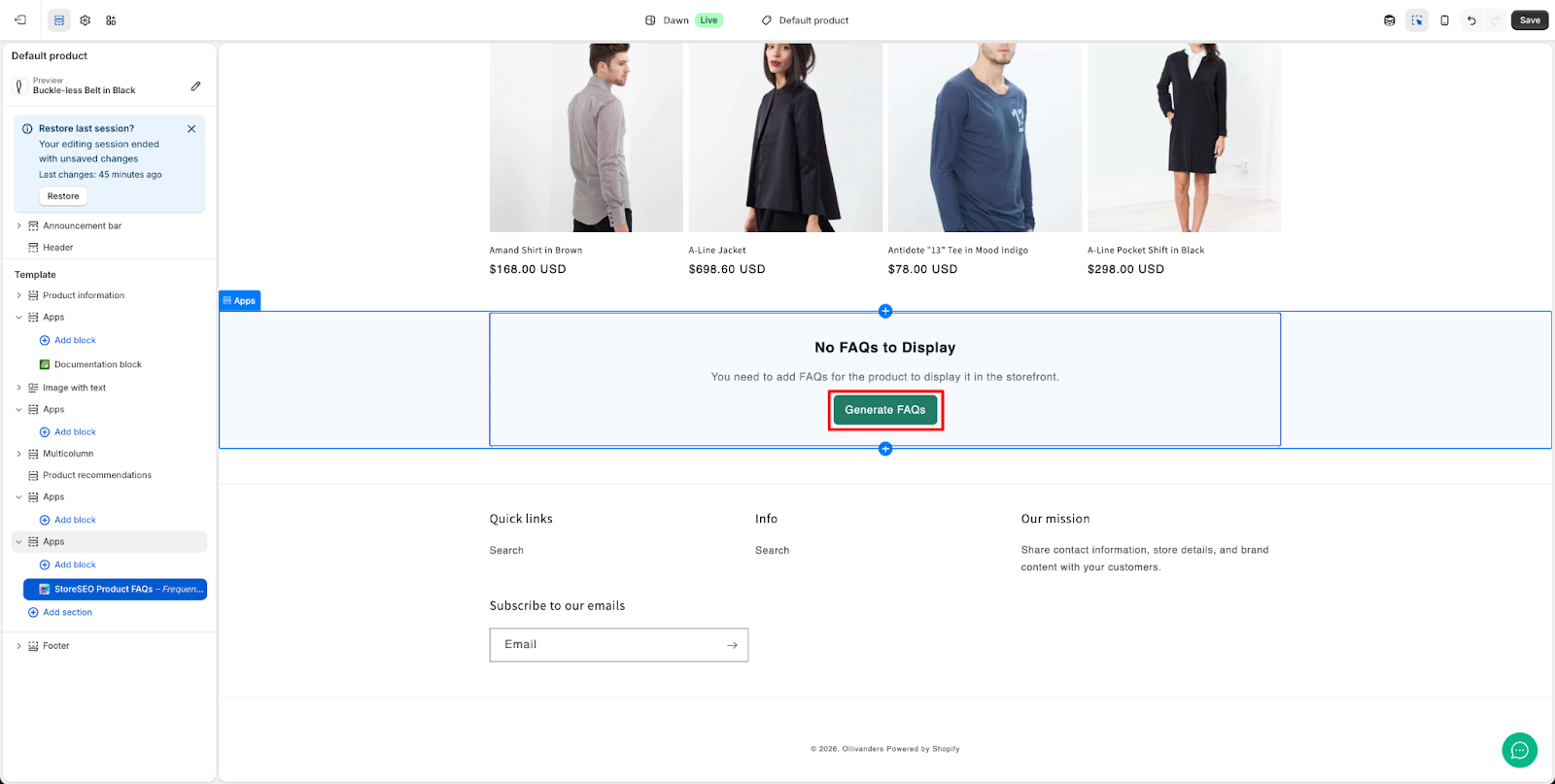
Após ativar o bloco, dentro do Editor de Temas, use o seletor de páginas na parte superior para navegar até uma página. página do produto. Nesta fase, se ainda não tiver sido adicionado um bloco de perguntas frequentes (FAQ), você verá uma mensagem na pré-visualização da página do produto com o seguinte texto: “Nenhuma FAQ para exibir”, “Você precisa adicionar FAQs para este produto para que ele seja exibido na loja virtual.” Isso é esperado e confirma que o bloco precisa ser adicionado ao modelo. Clique em Gerar perguntas frequentes botão.
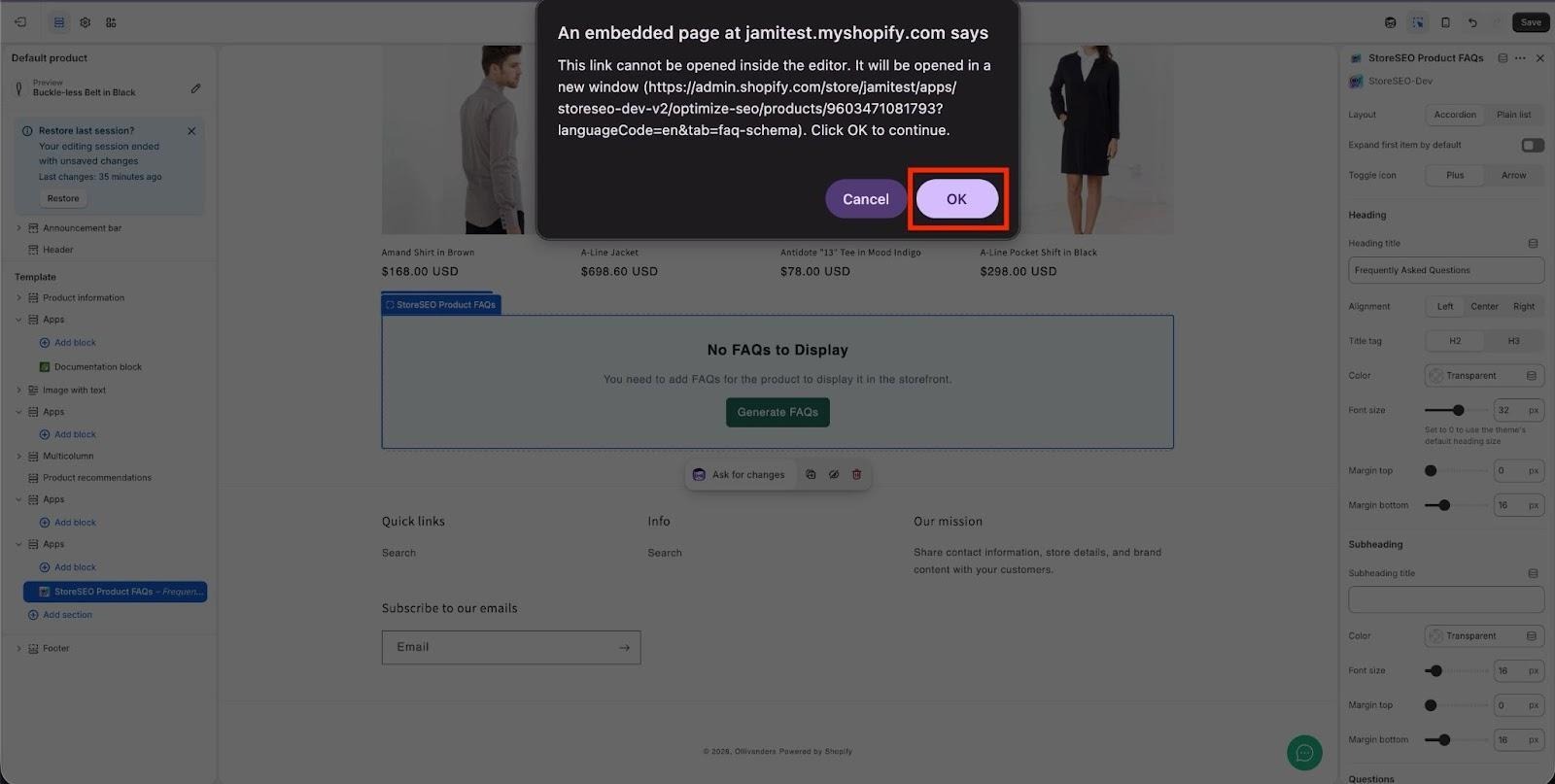
Para continuar, clique em '‘OK’na notificação pop-up. Isso é necessário porque o link será aberto em uma janela separada e conceder permissão é preciso para que o processo prossiga.
ObservaçãoCertifique-se de clicar em “Salvar”Clique no botão para garantir que suas alterações sejam atualizadas na página.
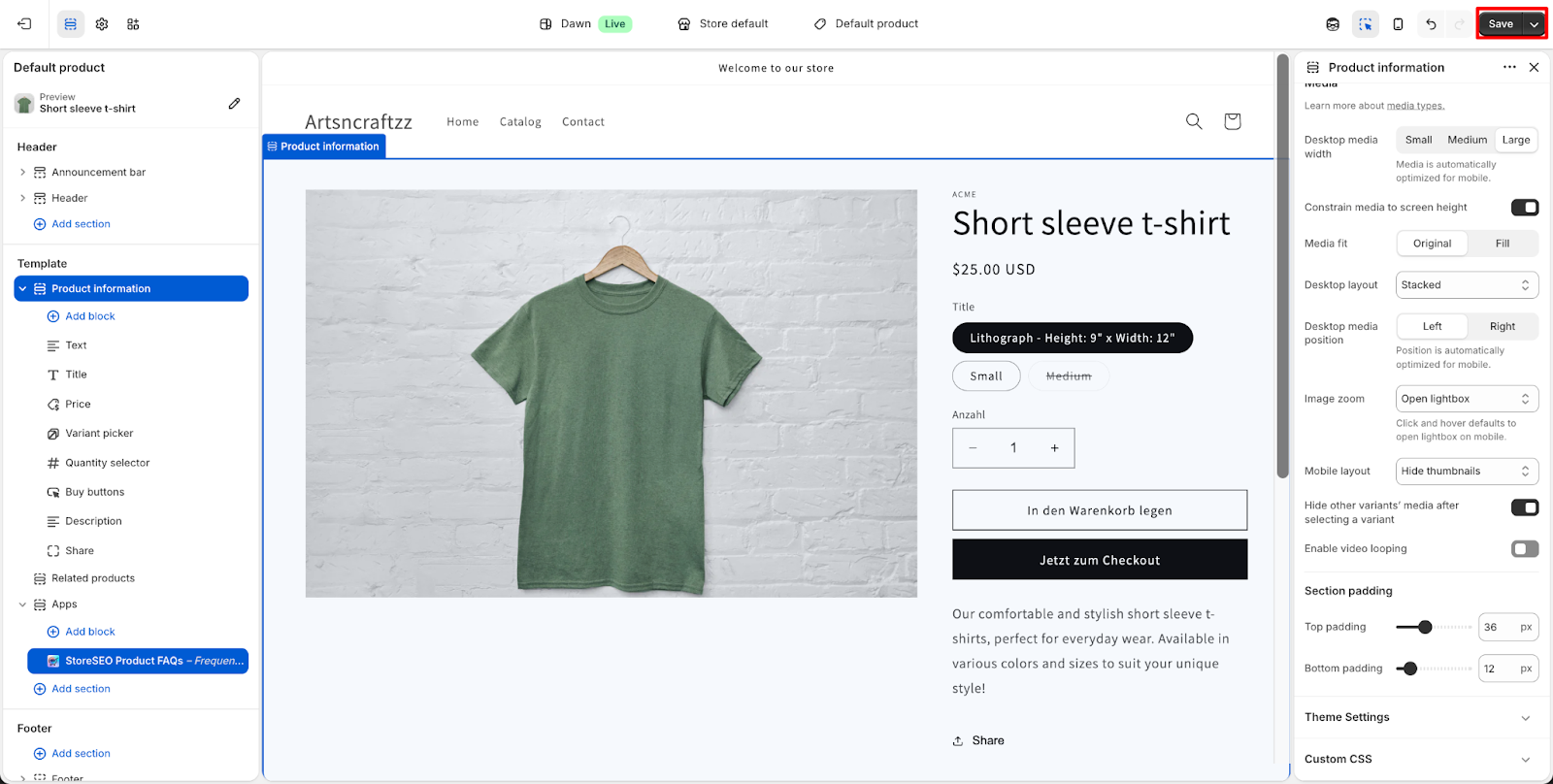
Passo 3: Adicione o bloco de perguntas frequentes do produto StoreSEO à sua página de produto. #
No painel esquerdo do Editor de Temas, role para baixo até... Aplicativos seção, que está localizada perto da parte inferior da lista de seções do modelo. Clique Adicionar bloco e, na lista de blocos disponíveis, selecione Perguntas frequentes sobre os produtos StoreSEO.
Após adicionado, o bloco aparecerá no painel esquerdo, em Aplicativos, e a pré-visualização da página do produto, no centro, exibirá imediatamente um “Perguntas frequentes”A seção “Perguntas Frequentes” contém as perguntas e respostas de FAQ criadas para esse produto no StoreSEO. Se nenhuma FAQ tiver sido adicionada ao produto no StoreSEO, a seção permanecerá vazia. Certifique-se de criar FAQs na seção “Perguntas Frequentes”.“Esquema de FAQ”Primeiro, acesse a aba do produto dentro do aplicativo StoreSEO.
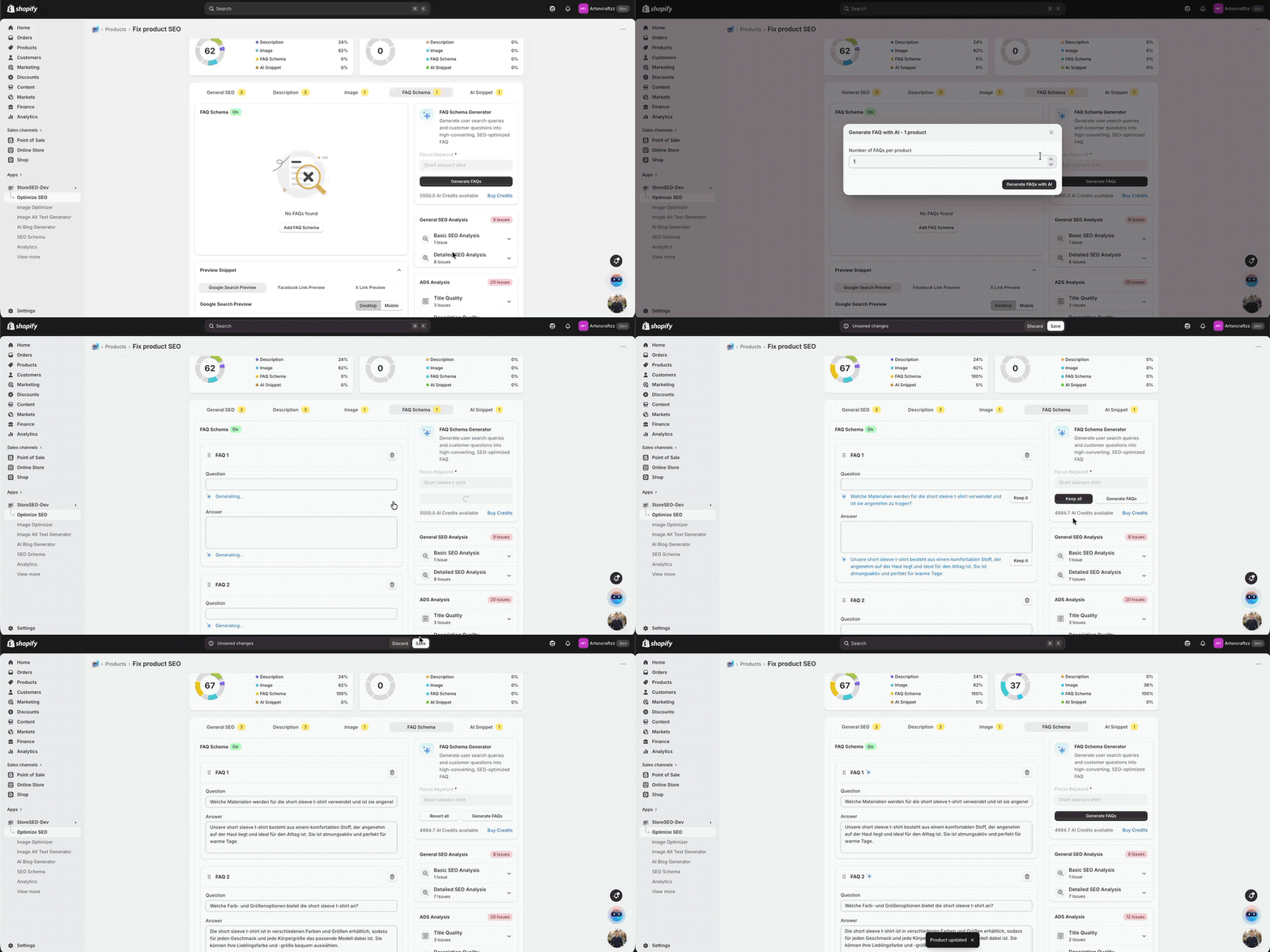
Passo 4: Verifique se as suas FAQs estão sendo exibidas na loja virtual. #
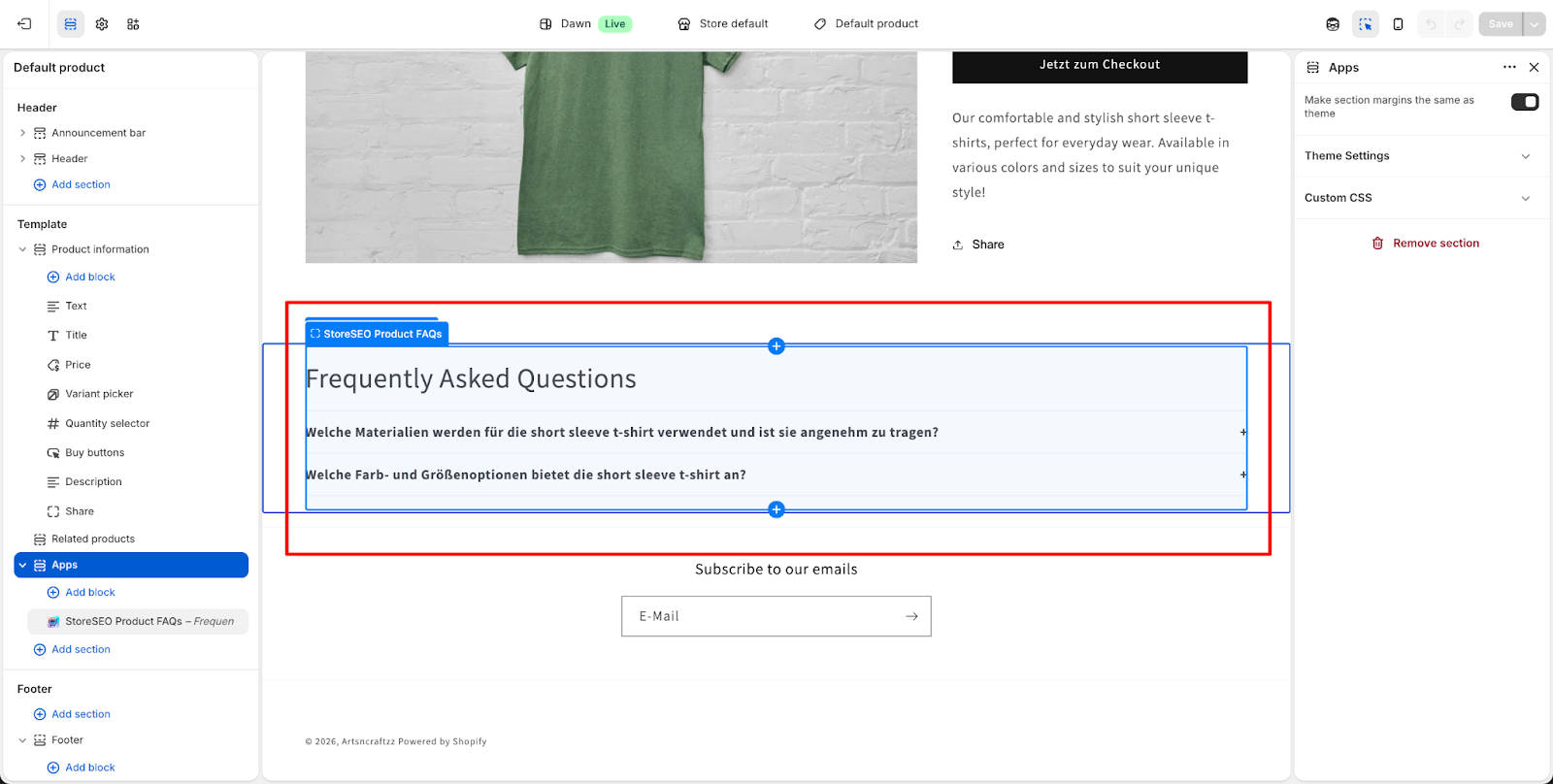
Assim que o Perguntas frequentes sobre os produtos StoreSEO O bloco foi adicionado com sucesso ao modelo da sua página de produto. Você verá o Perguntas frequentes A seção aparece na pré-visualização ao vivo do Editor de Temas, destacada com uma borda azul.
Esta seção exibirá todas as perguntas frequentes relacionadas ao produto selecionado, confirmando que o bloco está funcionando corretamente. Neste ponto, clique em “Salvar”Clique no botão “Publicar” no canto superior direito do Editor de Temas para publicar as alterações na sua loja online. Seus clientes agora poderão ver a seção de perguntas frequentes diretamente na página do produto sempre que a visitarem.
Passo 5: Personalizar a exibição das perguntas frequentes (opcional) #
Com o bloco de Perguntas Frequentes selecionado no painel esquerdo, o lado direito do Editor de Temas exibe uma variedade de opções de estilo e layout que permitem personalizar a aparência da seção de Perguntas Frequentes para combinar com a identidade visual da sua loja.“Layout”A configuração “ permite que você escolha entre”Acordeão“, “Lista“", ou "“Lista simples”Formatos de exibição. O layout em acordeão é recomendado para lojas com muitas perguntas frequentes, pois mantém a página organizada e permite que os clientes expandam apenas as perguntas de seu interesse.
Você também pode ativar/desativar “Expandir o primeiro item por padrão”"para que a primeira seção de perguntas frequentes seja aberta automaticamente ao carregar a página e para que você possa escolher entre uma Mais ou Seta ícone como ícone de gatilho. Abaixo do Cabeçalho Nesta seção, você pode editar o título e ajustar seu alinhamento, tamanho da fonte, cor e cabeçalho (H2 ou H3). Questões e Respostas As configurações permitem controlar o tamanho, a espessura e a cor da fonte para o texto da pergunta e da resposta, respectivamente. Quando estiver satisfeito com o estilo, clique em Salvar Para aplicar todas as alterações.
Dicas importantes e soluções de problemas sobre como exibir as perguntas frequentes na sua loja virtual. #
Se a seção de perguntas frequentes (FAQ) não estiver aparecendo na página do seu produto após seguir os passos acima, o motivo mais comum é que as FAQs ainda não foram criadas para esse produto no StoreSEO. Para resolver isso, volte para a seção de FAQs. Aplicativo StoreSEO, Abra o produto relevante e navegue até o Esquema de FAQ Na aba correspondente, crie suas perguntas e respostas de perguntas frequentes antes de retornar ao Editor de Temas.
É importante notar também que o Perguntas frequentes sobre os produtos StoreSEO Um bloco é adicionado à página do produto. modelo, Isso significa que se aplicará a todos os produtos que usam esse modelo. Cada produto exibirá seu próprio conjunto exclusivo de perguntas frequentes, desde que essas perguntas frequentes sejam criadas individualmente no StoreSEO. Se um produto não tiver perguntas frequentes atribuídas, o bloco permanecerá vazio para esse produto, mesmo que o bloco exista no modelo.
Se você vir uma janela pop-up dizendo “Substituir as personalizações de tema recentes” Ao salvar, clique em “Substitua e salve as alterações” Para confirmar e aplicar suas configurações mais recentes. Esta mensagem pode aparecer se outro usuário ou sessão fez alterações no editor de temas quase ao mesmo tempo.
Veja como é fácil usar o esquema de perguntas frequentes (FAQ) na sua loja virtual e o recurso de personalização da sua loja Shopify com o StoreSEO. Se precisar de ajuda, entre em contato. nossa equipe de suporte.