
Shopify Image Filenames Are Hurting Your SEO: The Fix
 Written by M Asif Rahman
Shopify keeps whatever filename you upload and publishes it straight into the live image URL, unedited. A photo saved as IMG_4821.jpg stays IMG_4821.jpg on your storefront forever, telling Google nothing about the product, while a file renamed canvas-tote-bag-front.jpg gives it a real clue. Rename before you upload.

TL;DR: the cause, how to confirm it, and the fix.
| Cause | How to confirm | Fix |
|---|---|---|
| Camera or phone default name (IMG_1234.jpg, DSC00123.jpg) | Open Shopify admin, Content, Files; the name shown is the one in the public URL | Rename the file on your computer, then re-upload it |
| Generic export name (image1.jpg, Untitled-3.png, photo.jpg) | View the product page’s source and check the cdn/shop/files/ path against the product name | Same fix: rename locally first, upload second |
| Already live and ranking, URL not worth breaking | Check the current filename against the “when to leave it” section below | Leave the filename, fix the alt text and on-page title instead |
What Does Google Actually Say About Filenames?
Google’s own image SEO documentation is specific here, down to the examples it uses: “the filename can give Google very light clues about the subject matter of the image,” and a name like my-new-black-kitten.jpg is better than IMG00023.JPG. The same page names image1.jpg, pic.gif and 1.jpg as generic filenames to avoid “when possible.” Google calls it a light signal, not a ranking lever, which is exactly why it is worth fixing before upload rather than chasing after the fact: it costs nothing extra at the moment you save the file, and it compounds across every product photo your store will ever have.
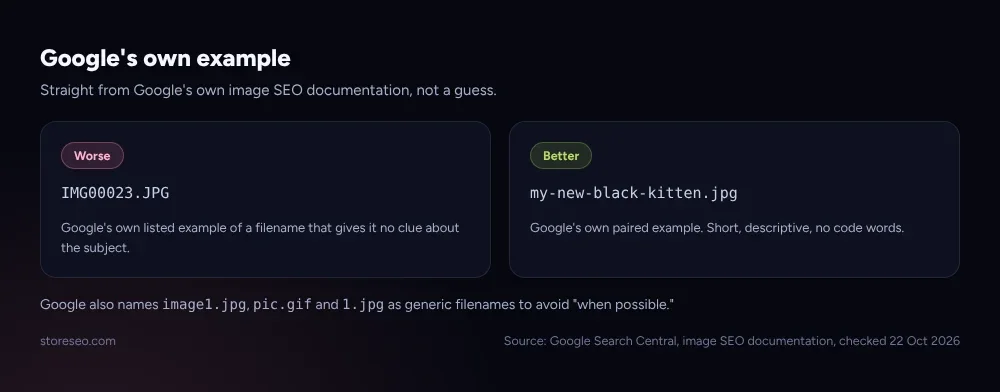 Source: Google Search Central, image SEO documentation, checked 22 Oct 2026.
Why Does This Happen On Shopify?
Shopify does not rename your files for you, and it does not strip a bad name either. What you upload becomes part of the permanent CDN URL, with only a size suffix and a version hash appended on top of the base name you gave it. Check the live product grid on Shopify’s own Dawn demo theme and you can see it in the page source today: Circle.png, Dawn_logo.png, an image uploaded as imgwithtext still carrying that exact word in its public filename months later. None of that is a bug. It is simply what happens when nothing in the upload flow asks a merchant to rename a file before it goes live, on the reference theme every other Shopify theme is built against.
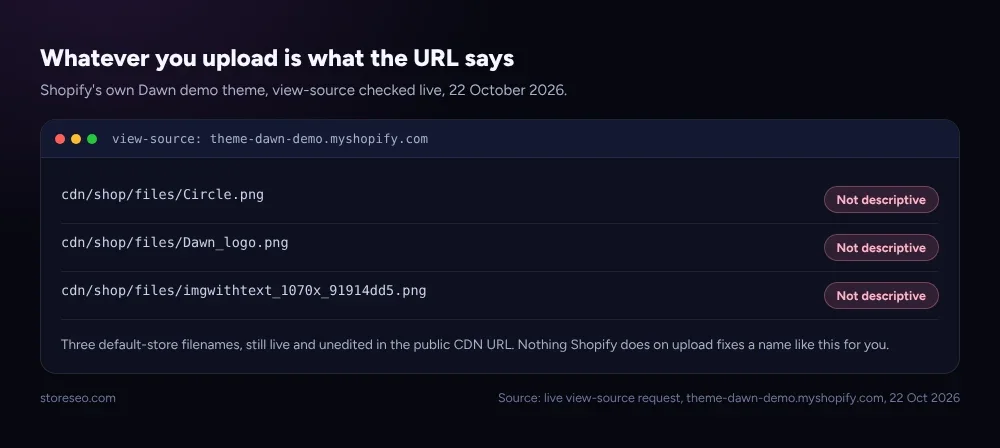 Source: live view-source request, theme-dawn-demo.myshopify.com, checked 22 Oct 2026.
How Do You Fix It, Step By Step?
The fix is cheap if you catch it before upload and more work if you catch it after, so check which case you are in first.
Step 1: rename the file before you upload it. Lowercase, hyphens instead of spaces, the product name plus one or two attributes: canvas-tote-bag-front.jpg rather than whatever your camera or export tool called it. This is the only step that actually changes the base name; nothing later in the process will do it for you.
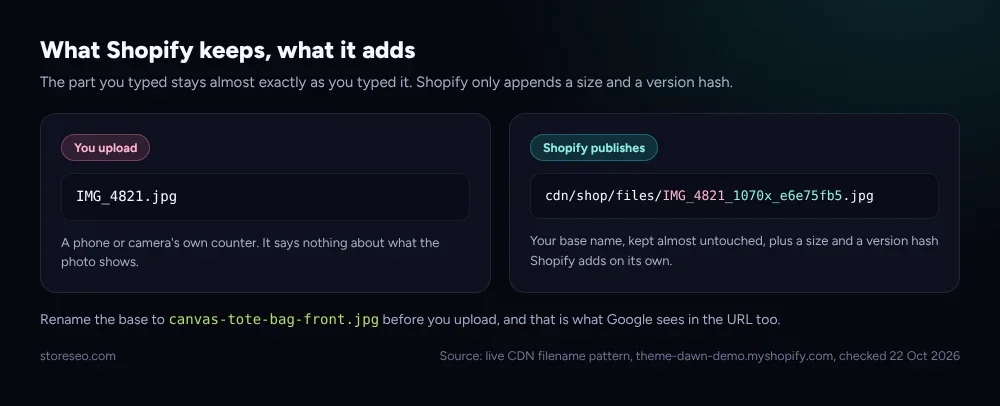 Source: live CDN filename pattern, theme-dawn-demo.myshopify.com, checked 22 Oct 2026.
Step 2: already live? Use Replace, not a second upload. Shopify’s own product media documentation describes replacing a file through the Files admin, clicking Replace next to the file’s name and selecting the renamed version, rather than uploading a duplicate and deleting the old one by hand. That keeps a single entry instead of leaving an orphaned file sitting unused in your Files library.
Step 3: verify the live URL actually changed. View-source the product page after the swap and confirm the new filename is what loads. A cached edge copy can keep serving the old URL for a short while after the change goes out, so check again if the first look still shows the old name.
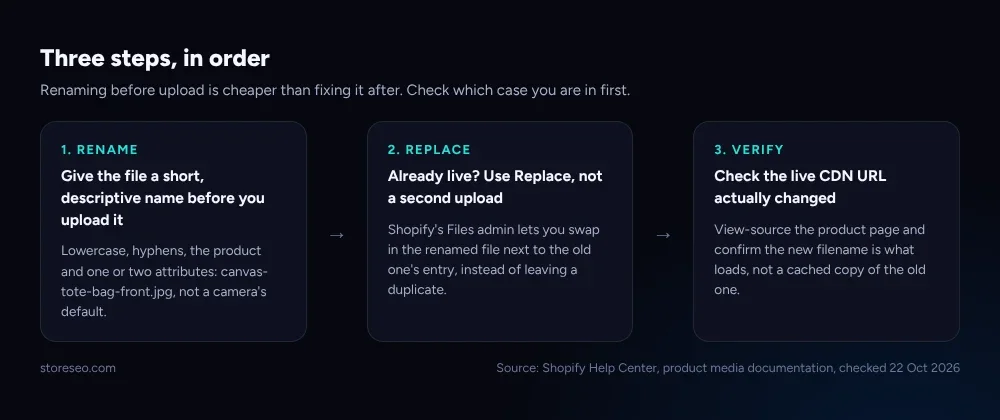 Source: Shopify Help Center, product media documentation, checked 22 Oct 2026.
When Is It Fine To Leave It?
Not every generic filename is worth touching. If the image is already indexed, ranking in Google Images, or linked to from elsewhere with its current URL, renaming it changes that URL and risks losing the signal it already built, for a gain Google itself calls light. The better move there is to leave the filename alone and put the effort into the alt text instead, which Google’s own documentation calls the most important attribute for describing an image, well ahead of the filename. New products going up for the first time are the clear case for renaming: there is no existing URL to protect, and the cost of doing it right is one extra minute at upload time.
This is exactly the gap StoreSEO’s Image Filename Optimization sits next to today rather than closing outright. The feature lives inside StoreSEO’s wider Image Optimizer, which handles compression, format conversion and resizing from inside the Shopify admin with a one-click Restore, but neither StoreSEO nor Shopify’s own API currently exposes a bulk rename for files already uploaded. StoreSEO is our product, and we would rather say that plainly than imply a button exists that does not: for now, the filename itself is still a decision you make before the upload, not a setting you fix afterward. For the step most merchants skip entirely, pairing a renamed file with a written product page and a clean URL handle closes out the three things Google reads around an image: the page, the link, and the file itself. If you have already run a compression pass on your product photos, renaming the source file first means the compressed export inherits the good name too, instead of carrying the camera default one step further down the pipeline. And where the filename sits inside the page’s own markup, our schema study of 300+ Shopify product pages is the place to check whether your image is even showing up in structured data correctly, name aside.
Frequently Asked Questions (FAQs)
1. Does renaming an image hurt my Shopify SEO if it is already ranking?
It can, if the image is indexed in Google Images or linked to elsewhere with its current URL; renaming changes that URL. Leave an already-ranking image alone and fix new uploads going forward instead.
2. Can I bulk-rename all my Shopify product image filenames at once?
Not through Shopify’s own admin or its API; there is no bulk-rename function for files already uploaded. The practical fix is catching the name before each new upload rather than trying to fix a whole catalog retroactively.
3. Does Shopify let me edit a filename after I have uploaded the image?
Shopify does not offer an in-place rename on an uploaded file. The documented path is replacing the file through the Files admin with a renamed version, which swaps the content behind a new filename rather than editing the old one directly.
4. How much does a descriptive filename actually help my Shopify SEO?
Google’s own documentation calls it a light clue, not a ranking factor on its own. It costs nothing extra at upload time and adds up across a catalog, but it will not move rankings by itself the way alt text, page content and links do.
5. What is the difference between a filename and alt text?
The filename is part of the image’s URL and is set once, at upload. Alt text is a separate, editable field attached to the image and is the attribute Google’s own documentation calls the most important one for describing what the image shows.
6. Should every image filename include my main keyword?
No. Describe what the photo actually shows, the product and a relevant attribute, rather than stuffing a keyword into every file. A filename that reads like a label for a human is also the one that reads clearly to Google.
Catching this at upload costs one extra minute per photo; catching it after means weighing a URL change against a signal that is already live. try StoreSEO on the Shopify App Store
Keep reading

Common Shopify SEO Problems, Ranked by Impact
Six Shopify SEO problems ranked by real cost, each scored for how common it is in our 100+ store audit, how severe, and how fast you can fix it.
Read article
12 Shopify SEO Questions Merchants Ask Most
These are the 12 Shopify SEO questions merchants ask most often, answered straight with sources, from Google indexing to AI search visibility.
Read article
How Long Shopify SEO Takes, Month by Month
Most new Shopify pages get crawled within days to a few weeks, and most stores see real organic traffic building between month 3 and month 6.
Read article