
Shopify robots.txt Guide: Rules for Google & AI Bots
 Written by M Asif Rahman
Shopify generates robots.txt for every store and blocks admin, cart and checkout automatically. It does not name AI crawlers like GPTBot or ClaudeBot by default, so allowing or blocking them for training, search or answers is a choice you still have to make yourself.
TL;DR: what to allow and why.
| Bot | Owner | Purpose | Recommendation | Rule |
|---|---|---|---|---|
| Googlebot | Classic search ranking | Allow | (already allowed; do not touch) | |
| Google-Extended | Feeds Gemini and AI Overviews | Allow | User-agent: Google-Extended / Allow: / | |
| GPTBot | OpenAI | Crawls content for model training | Your call | User-agent: GPTBot / Allow: / or Disallow: / |
| OAI-SearchBot | OpenAI | Surfaces pages in ChatGPT search answers | Allow | User-agent: OAI-SearchBot / Allow: / |
| ClaudeBot | Anthropic | Crawls content for model training and Claude’s answers | Your call | User-agent: ClaudeBot / Allow: / or Disallow: / |
| PerplexityBot | Perplexity | Crawls content Perplexity cites in answers | Allow | User-agent: PerplexityBot / Allow: / |
Most stores never open robots.txt at all: as one line above shows, edits are optional, not required to be found.
Can You Edit robots.txt on Shopify?
Yes, but not by uploading a file. Every Shopify theme generates robots.txt from a templates/robots.txt.liquid file, and if your theme does not already have one, you add it yourself: in the theme’s code editor, right-click the Templates folder, choose New File, and name it robots.txt.liquid. Editing that file changes the rules; there is no separate static file to swap in, and duplicate content will not save you from the crawl-trap patterns below.
What Does Shopify’s Default robots.txt Block?
Fetched fresh from Shopify’s own Dawn demo theme (theme-dawn-demo.myshopify.com/robots.txt, checked 26 September 2026), the default file runs to 116 lines under one User-agent: * group, plus a second group just for adsbot-google. It disallows the pages every store should keep out of the index: /admin, /cart/, /checkout, /orders, /account and their localized /*/ variants, then a long tail of crawl-trap patterns for sort order, pagination and filter combinations (/collections/*sort_by*, /*?*preview_theme_id=* and similar). It closes with a Sitemap: line pointing at /sitemap.xml.
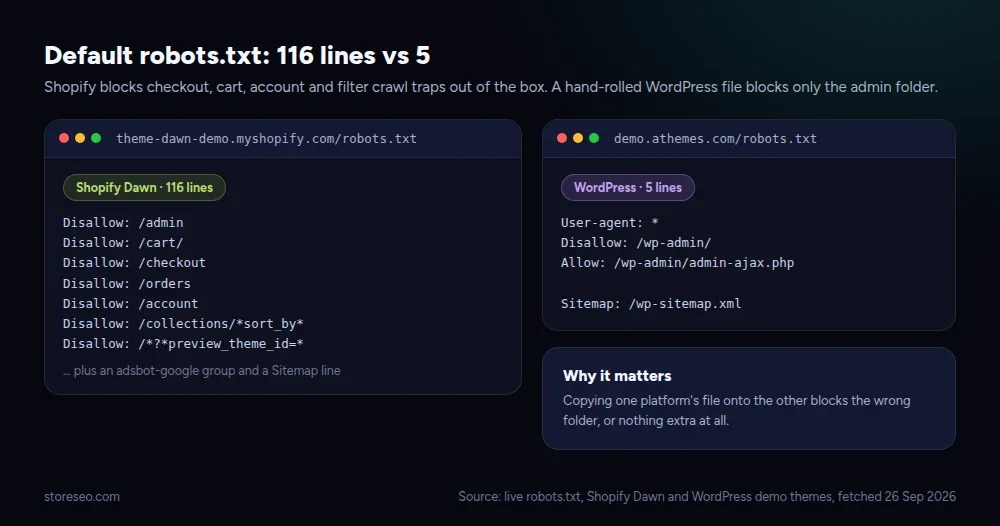 Source: live robots.txt fetched from Shopify’s Dawn demo theme and a live WordPress demo site (demo.athemes.com), 26 September 2026.
What it does not do is name a single AI crawler. Allow: / under User-agent: * covers GPTBot, ClaudeBot and every other bot that does not have its own named group in the file, because a wildcard group applies to any crawler without a more specific match. If you want a different rule for one AI bot than for search engines generally, you have to add that bot’s own group.
Which AI Crawlers Should You Allow?
Start from what each bot is actually for, not from its name. OpenAI documents two separate agents with two separate jobs (developers.openai.com, checked 26 September 2026): GPTBot crawls pages that may be used to train its models, and disallowing it opts your content out of that training use; OAI-SearchBot is the one that determines whether your pages can appear in ChatGPT’s search answers, and the two settings are independent, so you can allow search visibility while opting out of training. ChatGPT-User is different again: it fires only when a person asks ChatGPT to open a specific page, so it is not a crawler in the usual sense and robots.txt rules for it may not apply the same way.
Here is a working AI-crawler block, taken from storeseo.com’s own live robots.txt (checked 26 September 2026), which allows search and answer engines while opting out of model training:
User-agent: *
Allow: /
Disallow: /_preview/

Content-Signal: search=yes, ai-train=no, ai-input=yes

User-agent: GPTBot
Allow: /
Disallow: /_preview/

User-agent: OAI-SearchBot
Allow: /
Disallow: /_preview/

User-agent: ChatGPT-User
Allow: /
Disallow: /_preview/

User-agent: ClaudeBot
Allow: /
Disallow: /_preview/

User-agent: PerplexityBot
Allow: /
Disallow: /_preview/

User-agent: Google-Extended
Allow: /
Disallow: /_preview/
The Content-Signal line is not part of the older Robots Exclusion Protocol (RFC 9309); it is a newer, separate directive under the Cloudflare-led Content Signals Policy that states your preference in one place (search yes, AI training no, AI-assisted answers yes) alongside the per-bot rules, for the crawlers that read it. Named groups always override the wildcard * group for the bot they name, which is why each one repeats its own Disallow line instead of relying on the group above it.
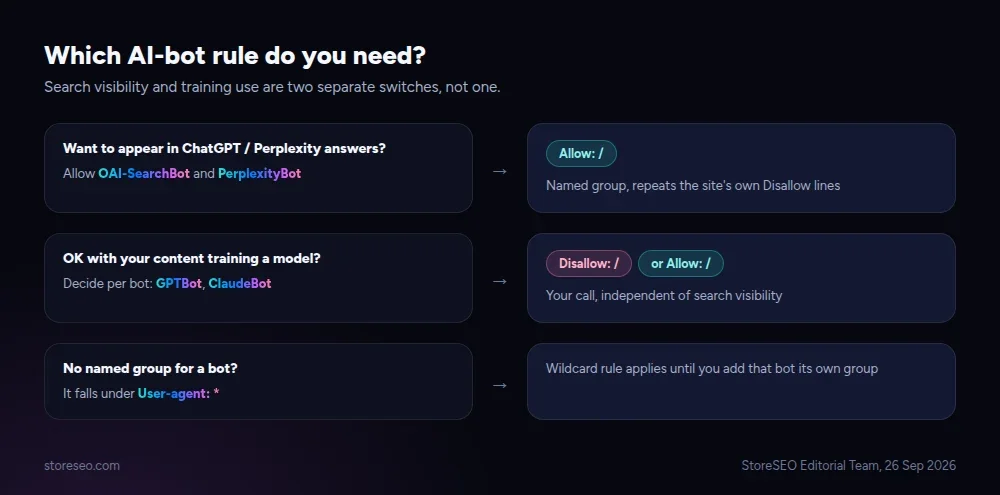 Decision path for choosing a per-bot robots.txt rule, StoreSEO Editorial Team, 26 September 2026.
How Do You Test Your Changes?
Save the theme file, then request the live URL directly: https://yourstore.com/robots.txt, in an incognito window, to rule out a cached copy. Check three things against the version you meant to publish: the Disallow list still blocks cart, checkout and account; any AI bot group you added appears by its exact user-agent string (case-sensitive); and the Sitemap line still resolves. Google Search Console’s URL Inspection tool will report whether Googlebot itself is blocked from a given page, which is the fastest way to catch a rule that is broader than you intended.
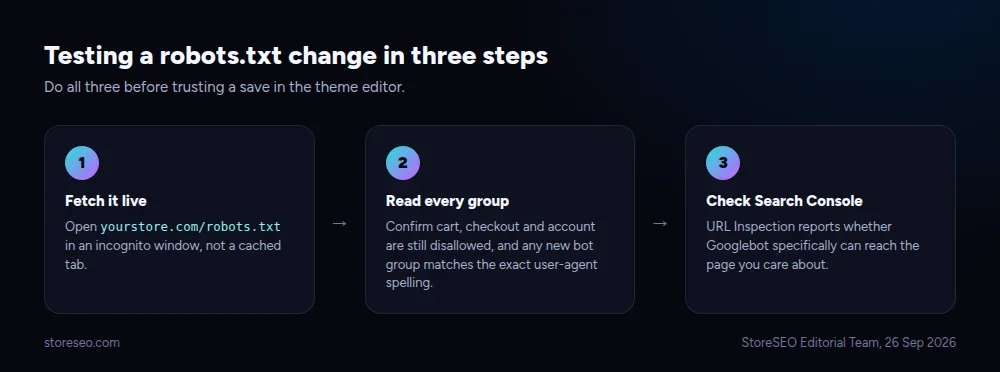 StoreSEO Editorial Team, 26 September 2026.
What Mistakes De-Index a Shopify Store?
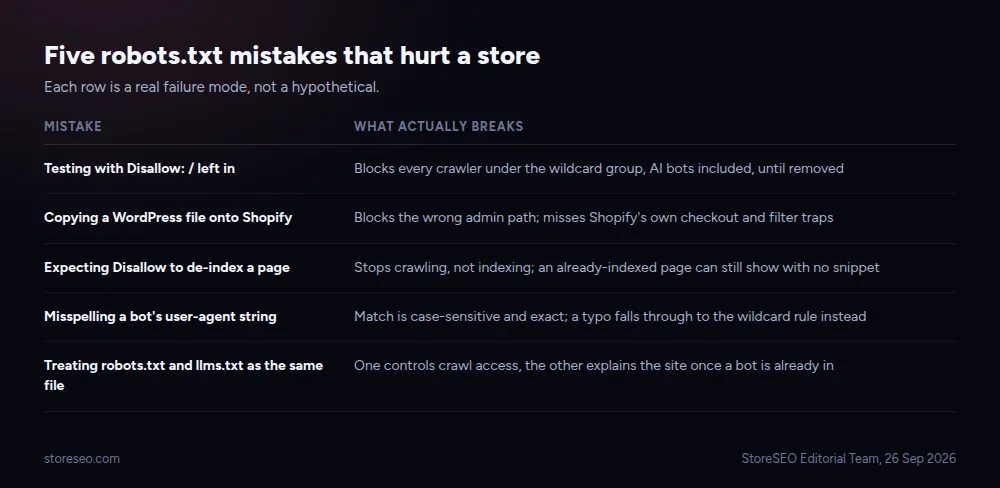 StoreSEO Editorial Team, 26 September 2026.
- Blocking
/underUser-agent: *while testing, then forgetting to remove it. This is the single most common way a whole store drops out of search, and it blocks every AI bot too, since they fall under the same wildcard group unless they have their own. - Copying a WordPress robots.txt onto Shopify. A WordPress file (five lines, one
Disallow: /wp-admin/) assumes a different admin path and none of Shopify’s checkout or filter crawl traps, so pasting it in either blocks nothing extra or blocks the wrong folder. - Assuming a Disallow rule removes an already-indexed page. robots.txt stops crawling, not indexing; a page Google indexed before the rule existed can still appear, often with no snippet. Use a
noindextag or Shopify’s noindex setting to remove it from the index directly. - Naming a bot’s user-agent string incorrectly.
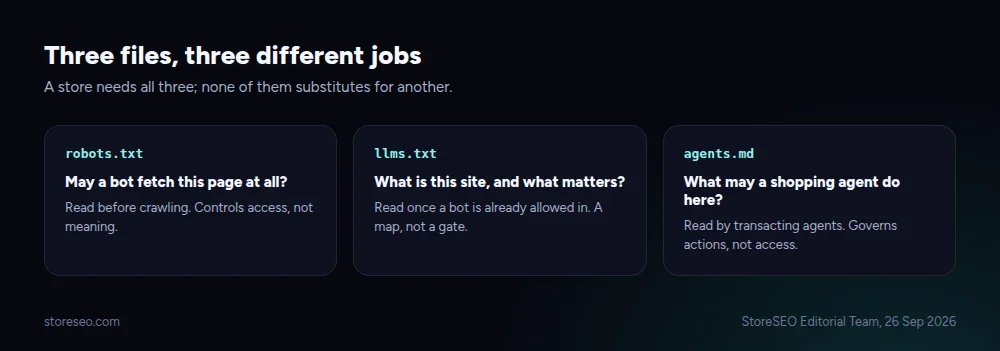
GptbotorGPT-Botwill not matchGPTBot; the match is case-sensitive and exact, so a typo silently falls through to the wildcard group instead of the rule you wrote. - Forgetting that robots.txt and llms.txt answer different questions. robots.txt controls whether a bot may fetch a page at all; llms.txt tells an AI system what your site is and which pages matter once it is already allowed in. A store needs both, not one instead of the other.
Newer Shopify themes are also starting to publish machine-readable instructions for shopping agents alongside the classic crawl rules, as part of the wider move toward agentic commerce: a separate agents.md file and a Universal Commerce Protocol endpoint that let an AI agent browse a catalog through a defined API instead of scraping HTML. robots.txt still governs crawling; these newer files govern what an agent may do once it is on the page. If your store is not ranking or being crawled at all yet, the fixes usually sit upstream of robots.txt: work through StoreSEO’s guide to a store not appearing in Google search results and indexing setup before assuming a crawl rule is the cause.
 StoreSEO Editorial Team, 26 September 2026.
Frequently Asked Questions (FAQs)
1. Does Shopify create a robots.txt file automatically?
Yes. Every Shopify theme generates one from a templates/robots.txt.liquid file, whether or not you have opened the code editor. If your theme predates this template, you can add the file yourself and Shopify will serve it at /robots.txt.
2. Should I block GPTBot on my Shopify store?
It depends on what you are optimizing for. Disallowing GPTBot opts your product pages out of being used to train OpenAI’s models, but it does not affect whether your store can appear in ChatGPT’s search answers; that is controlled separately by OAI-SearchBot. Most stores that want AI-search visibility allow both and use the training-specific opt-out only if training use is the actual concern.
3. Does blocking a bot in robots.txt remove pages already in Google’s index?
No. robots.txt only tells a bot whether it may crawl a page going forward. A page Google already indexed can remain in results, sometimes without a description, until you add a noindex directive or remove the page. Crawling and indexing are governed by different signals.
4. What is the Content-Signal directive in robots.txt?
It is a newer, optional line, separate from the classic Allow and Disallow rules, that states in one place whether a site wants to permit search indexing, AI training and AI-assisted answers. It is not yet part of the original robots.txt standard (RFC 9309), so only some crawlers read it, and it does not replace naming individual bots for the crawlers that do not.
5. Can I use one robots.txt rule for every AI bot at once?
Only the wildcard User-agent: * group applies to every crawler that has no more specific rule of its own, so it is the closest thing to an “every AI bot” setting, but any bot with its own named group in the file ignores the wildcard entirely. If you want different treatment for search bots than for training crawlers, you need a named group per bot.
6. How do I check which bots are currently blocked on my Shopify store?
Open https://yourstore.com/robots.txt directly in a browser and read the Disallow lines under each User-agent group. Google Search Console’s URL Inspection tool additionally confirms whether Googlebot specifically can reach a given page, which robots.txt alone will not tell you for other crawlers. StoreSEO checked 148 live Shopify stores and found almost none of them have touched this file for AI bots at all, so do not assume your own store matches the default.
Keep Your Whole Crawl Policy Consistent
robots.txt is one line of defense, not the whole AI-visibility picture: pair it with a current sitemap, a clear noindex policy on the pages that should stay out, and an llms.txt file for the AI systems that read it. If you want a second opinion on your store’s crawl setup alongside its on-page SEO, try StoreSEO on the Shopify App Store.
Keep reading
Common Shopify SEO Problems, Ranked by Impact
Six Shopify SEO problems ranked by real cost, each scored for how common it is in our 100+ store audit, how severe, and how fast you can fix it.
Read article
12 Shopify SEO Questions Merchants Ask Most
These are the 12 Shopify SEO questions merchants ask most often, answered straight with sources, from Google indexing to AI search visibility.
Read article
How Long Shopify SEO Takes, Month by Month
Most new Shopify pages get crawled within days to a few weeks, and most stores see real organic traffic building between month 3 and month 6.
Read article