
Shopify Search Console Indexing Statuses, Explained
 Written by M Asif Rahman
Google Search Console sorts every URL it has seen into one of about a dozen coverage statuses, from Submitted and indexed to Excluded by noindex tag. Most Shopify merchants only need to act on three or four of them. The table below maps each status to its usual Shopify cause, the fix, and whether it is worth losing sleep over.
TL;DR: here is what each status means on a Shopify store, the usual cause, the fix, and whether it is worth your time.
| GSC status | What it means | Common Shopify cause | Fix | Worry? |
|---|---|---|---|---|
| Indexed | Google has the page and can show it in results | A normal product, collection or blog page | Nothing, leave it alone | No |
| Crawled - currently not indexed | Google visited the page but chose not to add it yet | A thin or near duplicate variant page, or a filtered collection URL | Add unique copy and link to it from a page Google already indexes, then wait | Only if it is a page you actually want to rank |
| Discovered - currently not indexed | Google knows the URL exists but has not crawled it | A brand new store, or crawl budget spent on thousands of filter combinations | Request indexing for high-value pages, otherwise be patient | Rarely, this usually clears within weeks |
| Duplicate without user-selected canonical | The page matches another one and no canonical was declared | Shopify’s own /collections/x/products/y and /products/y paths for one product | Set a canonical tag; StoreSEO’s schema tools handle this automatically | No, Google is doing the right thing |
| Duplicate, Google chose different canonical than user | A canonical was declared and Google picked a different page | A thin page marked canonical that looks less complete than its duplicate | Inspect the URL, strengthen the page you want to win, or accept Google’s pick | Yes, worth fixing, see below |
| Page with redirect | The URL forwards elsewhere, so only the target can be indexed | A product that moved collection, or an old permalink after a migration | Nothing, if the redirect points to the right page | No |
| Excluded by noindex tag | A noindex instruction told Google to skip the page on purpose | A password page, a theme-noindexed duplicate, or a leftover from an app | Remove the tag only if the page should actually be found | No, unless it was added by mistake |
| Blocked by robots.txt | robots.txt rules stopped Google from crawling the page at all | Shopify’s default disallow rules on cart, checkout and account paths | Nothing for admin paths; fix the rule for anything else | No, for the paths Shopify blocks by default |
| Not found (404) | The page returned a true 404 when Google asked for it | A deleted product or discontinued collection with no replacement | Add a 301 redirect if something should replace it, otherwise leave it | No, if nothing should live at that URL |
| Soft 404 | The page looks like “not found” to Google but returned 200 | A sold out product page the theme renders as empty instead of a real 404 | Return a true 404, or redirect it; StoreSEO’s redirect on out of stock feature does this automatically | Yes, worth fixing |
What Does “Crawled - Currently Not Indexed” Mean on Shopify?
Google’s crawler visited the page, read it, and decided not to add it to the index yet. It is not an error. Google is telling you the page exists and was readable, but was not good enough on its own to earn a spot. On Shopify this usually hits product variant pages that repeat most of their parent’s copy, or collection pages filtered down to one or two items.
The fix is content, not a technical setting. Add detail that the parent product page does not already cover, link to the page from somewhere Google already indexes, and give it a few weeks. Resubmitting the same thin page to Search Console does not change the outcome.
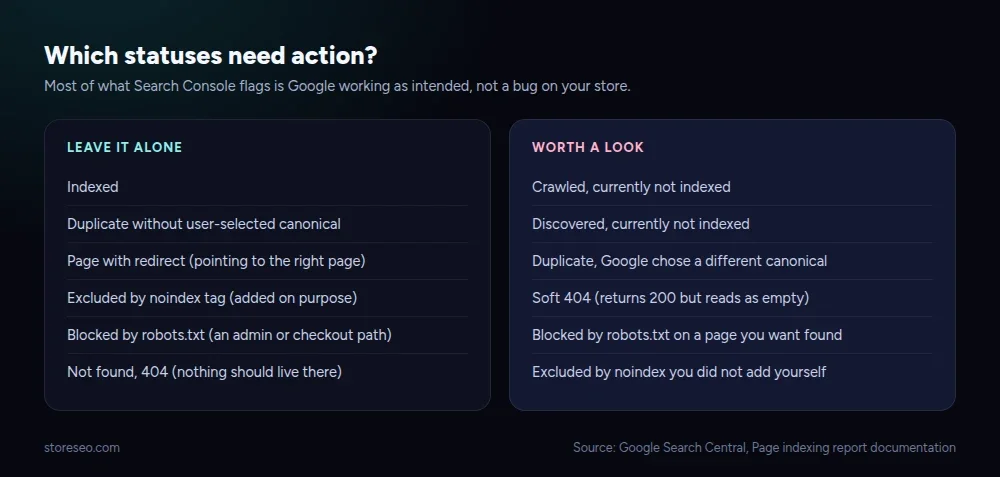 Most of what this report flags is Google working as intended, not a bug on your store.
What Does “Discovered - Currently Not Indexed” Mean on Shopify?
This one sits a step earlier than “crawled but not indexed”: Google knows the URL exists, usually from a sitemap or an internal link, but has not spent a crawl on it yet. The Last crawled date in the report stays empty, because there has not been one. On a brand new store this is normal. On an established store with thousands of filtered or tagged URLs, it is Google rationing crawl budget sensibly rather than wasting it on near-identical pages.
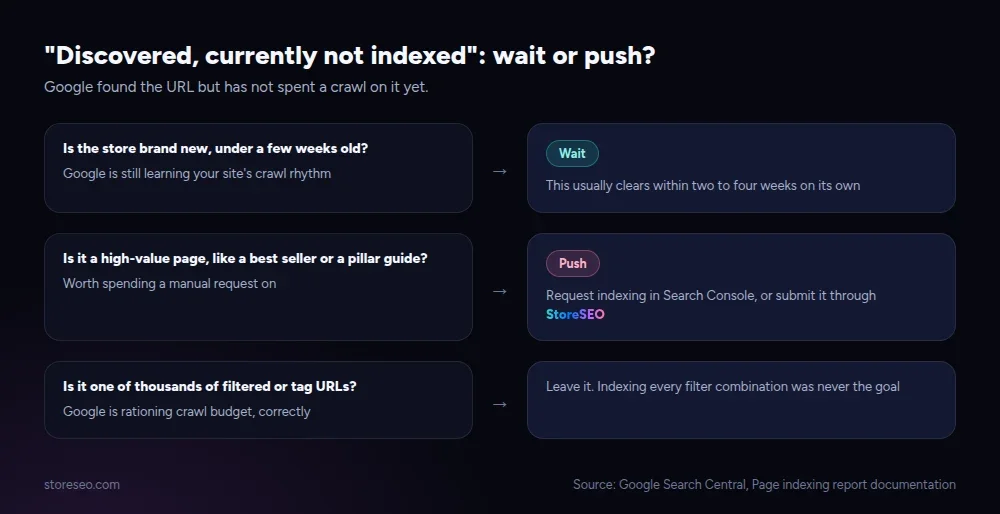 Three questions settle most cases: how old the store is, how much the page matters, and how many near-duplicates sit behind it.
StoreSEO’s own Google Search Console integration pulls the same coverage data into your Shopify admin, so you can see which URLs are sitting in this status without switching tools, and request indexing for the ones that matter straight from there.
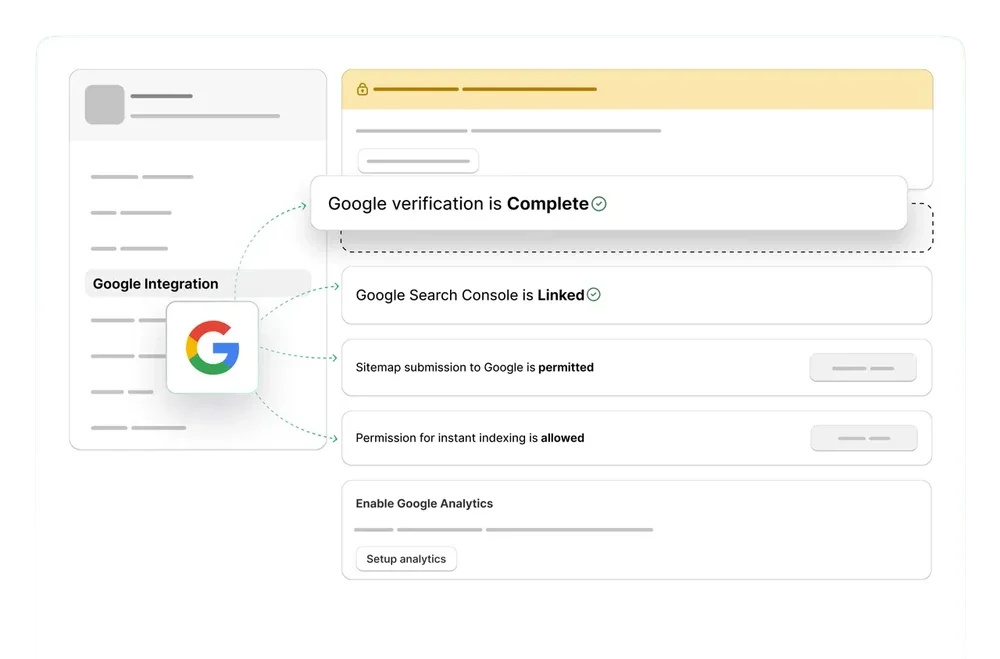 StoreSEO’s Google Integration screen: verification, Search Console linking and sitemap submission in one place.
Why Did Google Choose a Different Canonical Than You Did?
Google indexes the page it considers the best representative of a duplicate set, and that is not always the one you marked as canonical. This shows up on Shopify when a collection-scoped product URL is set as canonical but is thinner than the plain product URL, or when a legacy page still carries more backlinks than the one you want to win. It is one of the more confusing statuses because it looks like an error when it is really Google overriding a weak signal.
Our “Google Chose Different Canonical”: Shopify Fix walks through the exact inspection steps; the short version is below.
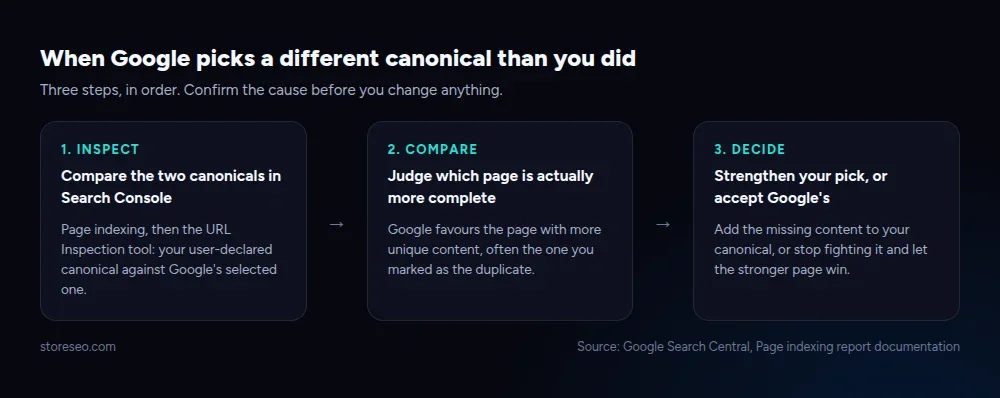 Confirm the cause before changing anything. The fix is different depending on which page is actually stronger.
What Does “Excluded by Noindex Tag” Mean on Shopify?
Google found a noindex instruction on the page and respected it, so the page never entered the index. This is working as intended most of the time: Shopify password pages, cart and account pages some themes mark noindex, and duplicate pages an app added on your behalf. The only time this status needs action is when it shows up on a page you actually want ranking, which usually means a theme setting or an app added the tag without telling you.
Confirm the cause with the URL Inspection tool before changing anything: the live test shows whether the tag is still present right now, separate from what Google saw on its last crawl. If a page you expect to rank is missing from the index entirely, our docs on why a Shopify store stops appearing in Google cover the other common causes beyond noindex.
Why Is a Page “Blocked by Robots.txt” on Shopify?
Shopify ships a default robots.txt that disallows crawling on checkout, cart, account and a handful of filter-trap paths, and every store inherits it. A page in this status is not indexed, though Google notes that a very thin chance remains if other signals point to it, so robots.txt alone is never a reliable way to keep a page out of search. If you want a page genuinely excluded, pair the block with a noindex tag, or use noindex alone and skip the robots.txt rule entirely.
Our Shopify robots.txt Guide covers Shopify’s default rules in full, plus the separate question of which AI crawlers to allow.
Which Statuses Are Safe to Leave Alone?
Six of the ten statuses above need nothing from you: Indexed, Duplicate without user-selected canonical, Page with redirect pointing to the right place, Excluded by noindex tag you added on purpose, Blocked by robots.txt on an admin path, and Not found for a page that should no longer exist. Seeing these in your report is Google confirming the store behaves the way it is supposed to.
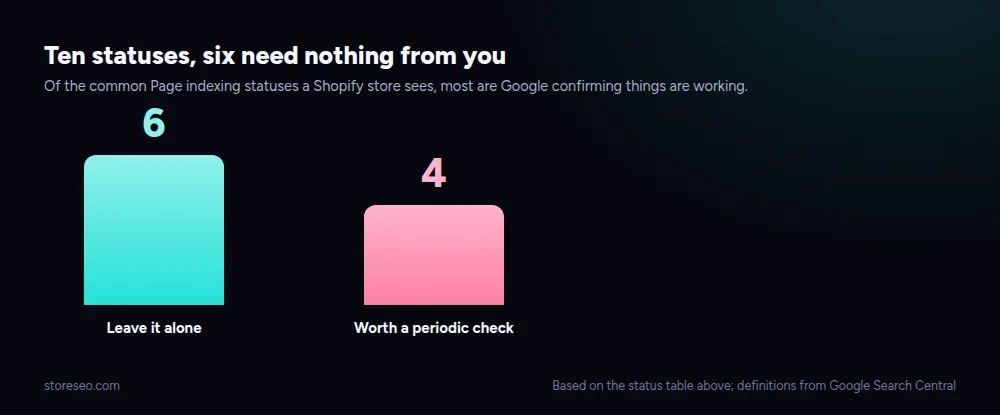 Most of what this report shows is confirmation, not a to-do list.
The other four are worth a periodic check: Crawled or Discovered but not indexed on pages you actually want ranking, a canonical Google overruled, and Soft 404 on anything that is not genuinely empty. Reviewing those four every few weeks, after you connect StoreSEO to Google Search Console, catches most indexing problems before they cost real traffic. For the broader picture of how a Shopify store gets found by Google in the first place, our indexing guide covers the sitemap and verification steps this report assumes you already completed.
Frequently Asked Questions (FAQs)
1. How long does a status take to update after I fix the cause?
Google typically recrawls a changed page within a few days to two weeks, depending on how often it already visits your site. You can speed up a single important URL with Request Indexing in the URL Inspection tool, but there is no way to force a full-report refresh on demand.
2. Does a lower indexed count always mean a problem?
No. A falling count is often duplicate or thin pages correctly dropping out, which is healthy. Check whether the pages that disappeared were ones you wanted ranking before treating the drop as a problem.
3. Can I block a page with robots.txt instead of adding noindex?
Not reliably. Google can still index a blocked page if other signals point to it, just without a snippet. Use noindex if you want a page genuinely out of search results.
4. Why does Search Console show a status for a page I deleted months ago?
Google keeps crawling known URLs for a while after they start returning 404, in case the error is temporary. This is expected and fades out on its own; it is not a sign your fix did not work.
5. Does StoreSEO change any of these statuses automatically?
StoreSEO sets canonical tags, generates and submits your sitemap, and applies schema, which influences several of these statuses indirectly. It does not and cannot flip a status directly, because the status is Google’s own judgment, made after its next crawl.
6. Is “Discovered - currently not indexed” the same as “Crawled - currently not indexed”?
No. Discovered means Google has not crawled the URL yet at all. Crawled means Google already visited and read the page, then chose not to index it. The fix is different for each: content for Crawled, patience or a manual request for Discovered.
Reading the Report Without the Guesswork
Reading this report correctly means acting on the four statuses that call for it and leaving the rest exactly as they are. StoreSEO names the real feature behind most of the fixes above, from canonical tags to sitemap submission, inside one Shopify app, and it is the fastest way to confirm a fix stuck without re-learning Search Console from scratch. try StoreSEO on the Shopify App Store
Keep reading
Crawl, Understand, Recommend: A Shopify SEO Model
Most Shopify stores pass the crawl layer, fail the understand layer, and never reach the recommend layer where AI engines cite pages by name.
Read article
Migrate From SearchPie to StoreSEO (Step by Step)
Switching from SearchPie to StoreSEO takes about ten minutes with the built-in wizard, and your meta titles and schema carry over automatically.
Read article
Shopify SEO Teardown #1: Allbirds
We audited Allbirds.com's live pages and found a 27 mobile Lighthouse score, zero homepage schema, three h1 tags, and a typo in the title tag.
Read article