StoreSEO Keyword Rank Tracker, Field by Field
 Written by M Asif Rahman
StoreSEO’s Keyword Rank Tracker has four parts: an empty dashboard where you add competitors and keywords, a results table with SERP feature icons and ranking columns, and a per-keyword chart that splits one term’s visibility by search vertical. Here is what each field actually does.
TL;DR
| Admin field | What it controls | SEO effect | Recommendation |
|---|---|---|---|
| Add Competitor | Up to five rival URLs tracked next to your own for every keyword | Turns one bare number into a comparison, so a drop reads as “we fell” or “everyone fell” | Add real stores you would lose a sale to, not aspirational brands |
| Location, device, search engine | The exact SERP StoreSEO checks for each keyword | A rank from the wrong market or device tells you nothing about the customer who actually searches | Match the country, device mix and engine your buyers use most |
| SERP Features column | Which rich result types (image, video, shopping, AI Search) show for that query | Tells you whether to optimize for a snippet, a shopping card or an AI answer, not only a blue link | Check it before rewriting a page for a keyword that already shows a different result type |
| My Ranking vs competitor columns | Your position next to each tracked rival, with week-over-week movement | Separates a real loss from a market-wide swing everyone felt | Review weekly; rank updates can take up to 7 days to appear |
| Per-keyword detail view | One keyword split into Overall, Link, Video, Shopping Result and AI Search lines over a date range | Shows which search vertical actually moved, not just that the overall number moved | Open it before you credit or blame a page edit for a rank change |
Where Do You Find the Keyword Rank Tracker?
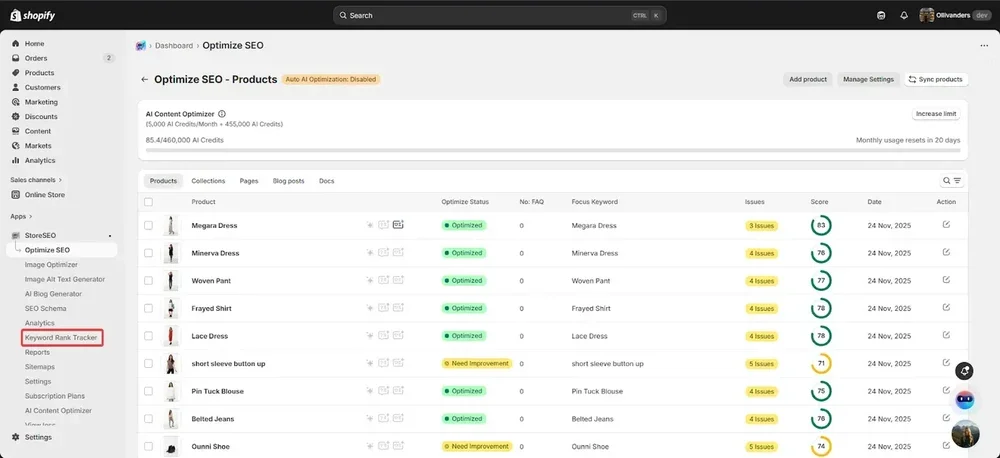
It lives in its own menu item inside the StoreSEO app, under Optimize SEO in the Shopify admin sidebar, alongside Image Optimizer, Image Alt Text Generator, AI Blog Generator, SEO Schema and Analytics. There is no separate install: every StoreSEO plan from Free upward ships the tool, with the keyword allowance scaling from 5 keywords on Free up to 1,000 on the Advanced plan, per StoreSEO’s own pricing page.
 StoreSEO’s own documentation, fetched 26 Nov 2026.
Opening it the first time, before anything is tracked, shows the screen the next section walks through field by field.
How Do You Add Competitors and Keywords?
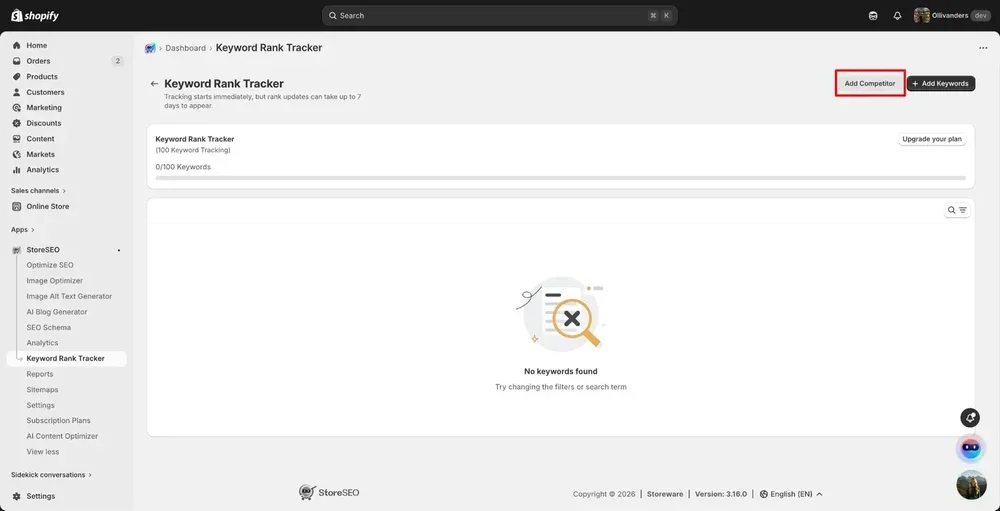
The empty dashboard has exactly two buttons: Add Competitor and Add Keywords, plus a usage bar showing your plan’s keyword allowance (0 of 100 keywords, in the screen below, on an Essential-tier store). StoreSEO’s own setup guide recommends starting with competitors first, so every keyword you add afterward already has a comparison baseline.
 StoreSEO’s own documentation, fetched 26 Nov 2026.
Add Competitor takes up to five valid rival URLs. There is no limit lower than five on any plan; it is a flat cap. Save the list once it is final; you can delete or adjust entries later as your competitive set changes.
Add Keywords opens four dropdowns before a term is saved: location, device, search engine and language. These are not cosmetic. A keyword tracked for Bangladesh on mobile through AI Search is a different measurement from the same word tracked for the United States on desktop through Google, and StoreSEO reports them as separate rows. Next to the keyword field, a suggestion box surfaces AI-generated terms already driving traffic in your niche; clicking Add next to a suggestion moves it into your list the same way a manually typed term does, and Save locks the batch in. Tracking starts immediately, but StoreSEO’s own documentation is explicit that rank updates can take up to seven days to appear, so checking a brand-new keyword the next morning is reading noise, not a trend.
What Do the SERP Features and Ranking Columns Mean?
Once keywords have at least one update, the dashboard becomes a table: one row per tracked keyword and location/device/engine combination, with your My Ranking position next to the same position for every competitor you added, each with a week-over-week movement arrow.
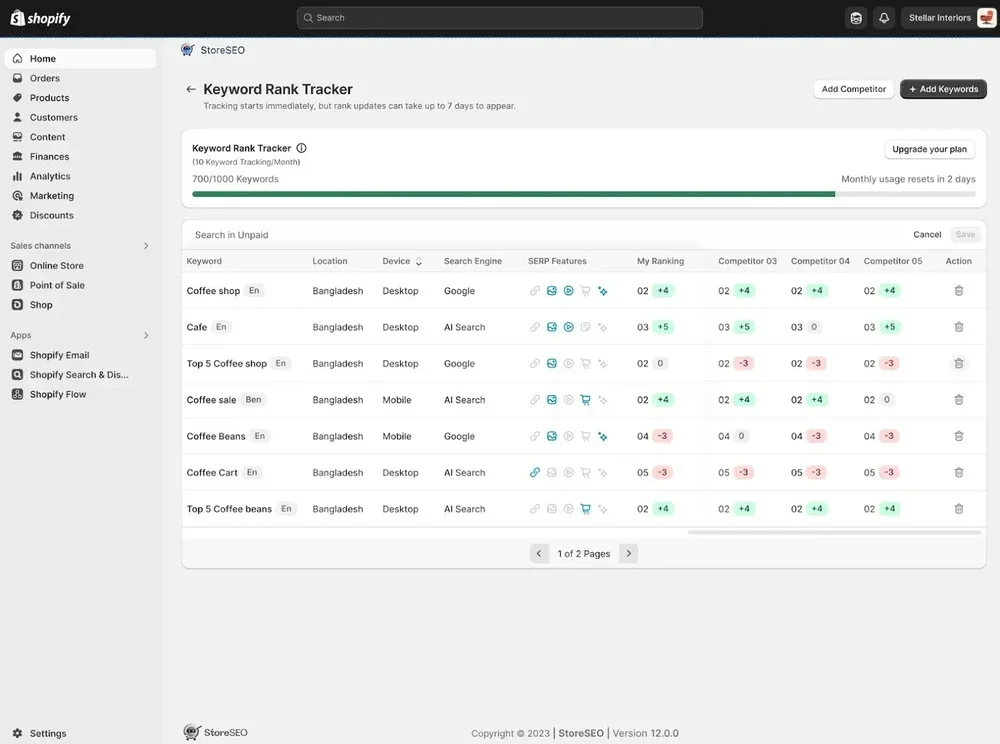 StoreSEO’s own documentation, fetched 26 Nov 2026.
The row of small icons in the SERP Features column is the part most setup guides skip. Each icon marks a rich-result type that is actually present on that keyword’s results page right now: an image pack, a video carousel, a shopping result, or an AI-generated answer. If a keyword already shows a shopping result, pouring more effort into a blog-style page for it is solving the wrong problem; the icon tells you before you write a word.
This is also where Google Search Console’s own numbers diverge from what you see here on purpose, not by mistake. Search Console’s own help page on impressions, position and clicks explains that the “position” metric is “shown as average position, which averages the position value for all impressions,” across every device, location and query variant a page received. StoreSEO’s tracker instead holds device, location, search engine and language fixed per row, so a single keyword can show rank 2 for one combination and rank 5 for another at the same moment, both correct, measuring different things.
How Do You Read the Per-Keyword Analytics View?
Clicking into any tracked keyword opens its own page: a trend chart with five toggleable lines (Overall, Link, Video, Shopping Result and AI Search) over a selectable date range, plus daily ranking cards listing your position and every competitor’s for that day.
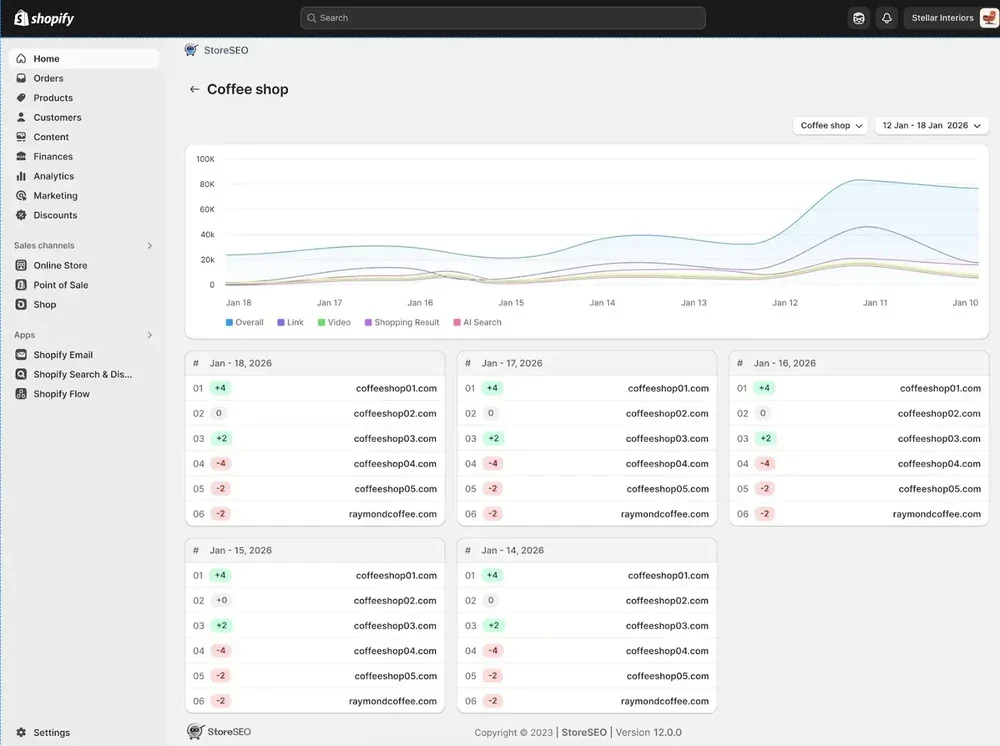 StoreSEO’s own documentation, fetched 26 Nov 2026.
This view is the honest answer to “did my change work?” A page edit aimed at winning a shopping result should move the Shopping Result line, not necessarily the Overall one. If only AI Search moves while Link stays flat, the content change reached an AI answer engine before it reached classic organic, which is a different, equally real kind of progress the daily ranking cards alone would not separate out.
Which Settings Break SEO Data If You Get Them Wrong?
Three mistakes account for most of the confused readings this tool produces, and none of them is a bug.
- Wrong device, location or search engine. A store selling mainly to US desktop shoppers that tracks its keywords on mobile in a different country is measuring a customer who is not buying.
- Comparing the tracker’s rank to Search Console’s average position directly. The two numbers are not supposed to match, per the averaging difference above; treating the gap as a tracking error wastes a support ticket.
- Checking a brand-new keyword inside the seven-day update window. It has simply not finished its first measurement cycle yet.
None of the three is fixed by changing a StoreSEO setting; they are fixed by reading the four dropdowns and the seven-day note before drawing a conclusion from the table.
The Keyword Rank Tracker is one item on StoreSEO’s own ultimate Shopify SEO checklist, not a replacement for the rest of it. Set up alongside StoreSEO’s Keyword Cluster Generator, the tracker tells you which keyword in a cluster is actually moving, not only which cluster exists. A keyword cluster and tracker template is a useful companion for planning which terms to add first. For a wider view of what else is worth tracking before you commit to StoreSEO’s own tool, our roundup of keyword rank tracker apps for Shopify compares it against the alternatives. The full field reference, including plan-by-plan keyword limits, is in StoreSEO’s own setup documentation.
Frequently Asked Questions (FAQs)
1. How many keywords can the Keyword Rank Tracker follow?
It depends on your plan: 5 on Free, 50 on Lite, 100 on Essential, 200 on Growth and 1,000 on Advanced, per StoreSEO’s pricing page. The limit is the number of tracked keyword rows, not the number of products.
2. How long until a new keyword shows a rank?
Tracking starts immediately, but StoreSEO’s own documentation says rank updates can take up to seven days to appear. A keyword added this morning with no number yet is normal, not broken.
3. Why does my Keyword Rank Tracker position not match Google Search Console?
They measure different things on purpose. Search Console reports an average position across every device, location and query variant a page received impressions for. StoreSEO’s tracker reports a position for one fixed location, device, search engine and language combination at a time, so the two numbers are expected to differ.
4. Can I track the same keyword for more than one country or device?
Yes. Add it again with a different location, device, search engine or language selected, and it tracks as a separate row with its own history. This is the intended way to compare, for example, mobile and desktop performance for the same term.
5. What does the AI Search line in the per-keyword chart actually track?
It tracks that keyword’s visibility inside AI-generated answer results specifically, separate from classic links, video, shopping results or the overall blended number. A page can move in AI Search before it moves in classic organic results, or the other way around.
6. Do I need to add competitors before I add keywords?
No, but StoreSEO’s setup guide recommends it. Adding competitors first means every keyword you add afterward already has a side-by-side comparison, instead of you going back later to fill one in.
Four screens, five fields and one seven-day waiting period are the whole tool; read them in this order and the ranking table stops looking like noise. try StoreSEO on the Shopify App Store
Keep reading
StoreSEO Orders & Revenue by Channel, Field by Field
StoreSEO's Orders & Revenue report attributes sessions, orders, and revenue to AI Search, Organic, Paid, and Direct once the Web Pixel is active.
Read article
How to Enable Multilingual SEO on Shopify
Enable multilingual SEO on Shopify by publishing a translated language, then turning on StoreSEO to optimize each language's meta data and SEO score.
Read article
Bulk Shopify URL Redirects: Step-by-Step Setup
Shopify redirects broken URLs in bulk through a two-column CSV import under Content and Menus, but only once every old URL already returns a 404.
Read article