How to Get Your Shopify Store Ready for ChatGPT With StoreSEO
More shoppers now ask ChatGPT what to buy. When it answers, it can only work with what it can read about your store: your business details, your product data in Shopify’s catalog, the structured data on your pages and discovery files like llms.txt. A missing barcode, a 20-word description or a business name that doesn’t match from one place to the next makes your products harder for ChatGPT to match, compare and recommend.
ChatGPT readiness in StoreSEO checks all of this in one place. It scores your store out of 100, shows what to fix first, and links every gap to the screen where you fix it. Use it before you claim your store in ChatGPT Business Hub, and keep coming back so what ChatGPT says about your store stays accurate.
This guide is about how ChatGPT sees your store. If you want ChatGPT to run StoreSEO tasks for you, see How to Connect StoreSEO MCP to ChatGPT instead.
How ChatGPT Readiness Helps You Get Mentioned
No app can promise that ChatGPT will mention your store, and OpenAI says that claiming your business doesn’t guarantee higher placement or sales. What you can control is the quality of the information ChatGPT has to work with. ChatGPT readiness covers the four parts of it:
- Products ChatGPT can match. Barcodes (GTIN), Shopify product categories, SKUs, inventory tracking and full descriptions let ChatGPT recognize your products and compare them with others.
- Business facts it can trust. The same business name, address and phone on your homepage, your structured data and your Google Business Profile, plus live store policies.
- Files it reads first. Product schema, llms.txt and agents.md tell AI crawlers and shopping agents what you sell without guessing.
- Proof that it works. StoreSEO’s Web Pixel tracks the visits and orders ChatGPT and other AI assistants send you.
How the ChatGPT Readiness Score Works
Your overall score runs from 0 to 100 and combines three parts:
- Store identity (40%): who you are and whether your details are consistent.
- Product data (40%): how complete your product data is, measured across every product StoreSEO has analysed for its GEO score.
- AI discovery (20%): the structured data and files that AI assistants read.
Each check shows a badge:
- Pass: done. The check earns its full points.
- Needs work: partly done. The check earns half its points.
- Blocker: missing. Fix every blocker before you claim your store.
- Check: StoreSEO can’t confirm this on its own, so it needs your input (or a page sync) first.
Products that StoreSEO hasn’t analysed yet are left out of the Product data score, and the Product data tab tells you how many there are.
Guide to Getting Your Store Ready for ChatGPT
Step 1: Open ChatGPT Readiness From the Dashboard
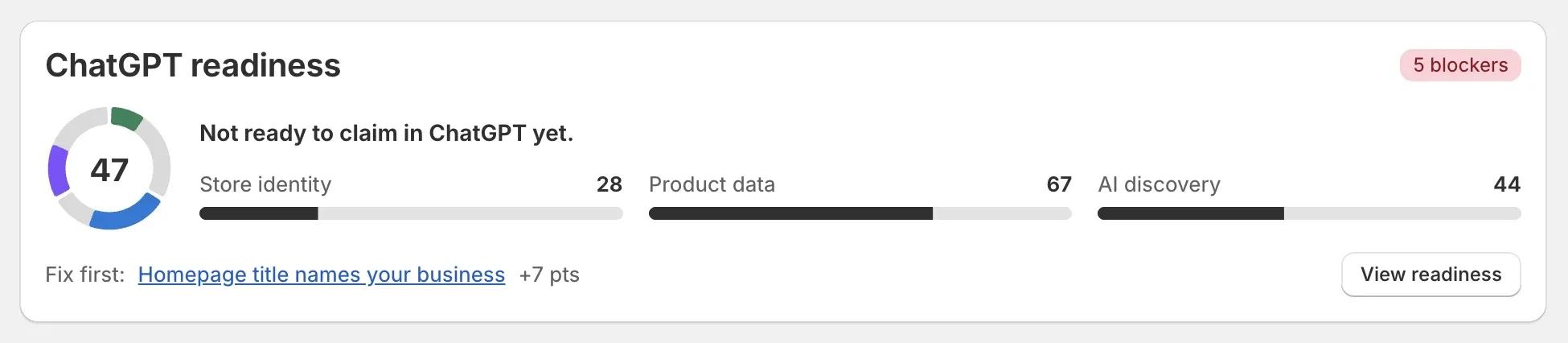
Open the StoreSEO app from your Shopify admin. On the Dashboard, find the ‘ChatGPT readiness’ card. It shows your overall score, a short verdict, the three part scores and the number of blockers. Click ‘View readiness’ to open the full page, or click the item next to ‘Fix first’ to jump straight to the most valuable fix.
Step 2: Review Your Score and Fix These First
At the top of the page, the score ring shows your overall score with the three part scores below it. Next to it, the verdict tells you whether you’re ready to claim, and ‘Fix these first’ lists the three fixes that add the most points, with how far they would raise your score. Click any of them to jump to the right tab.
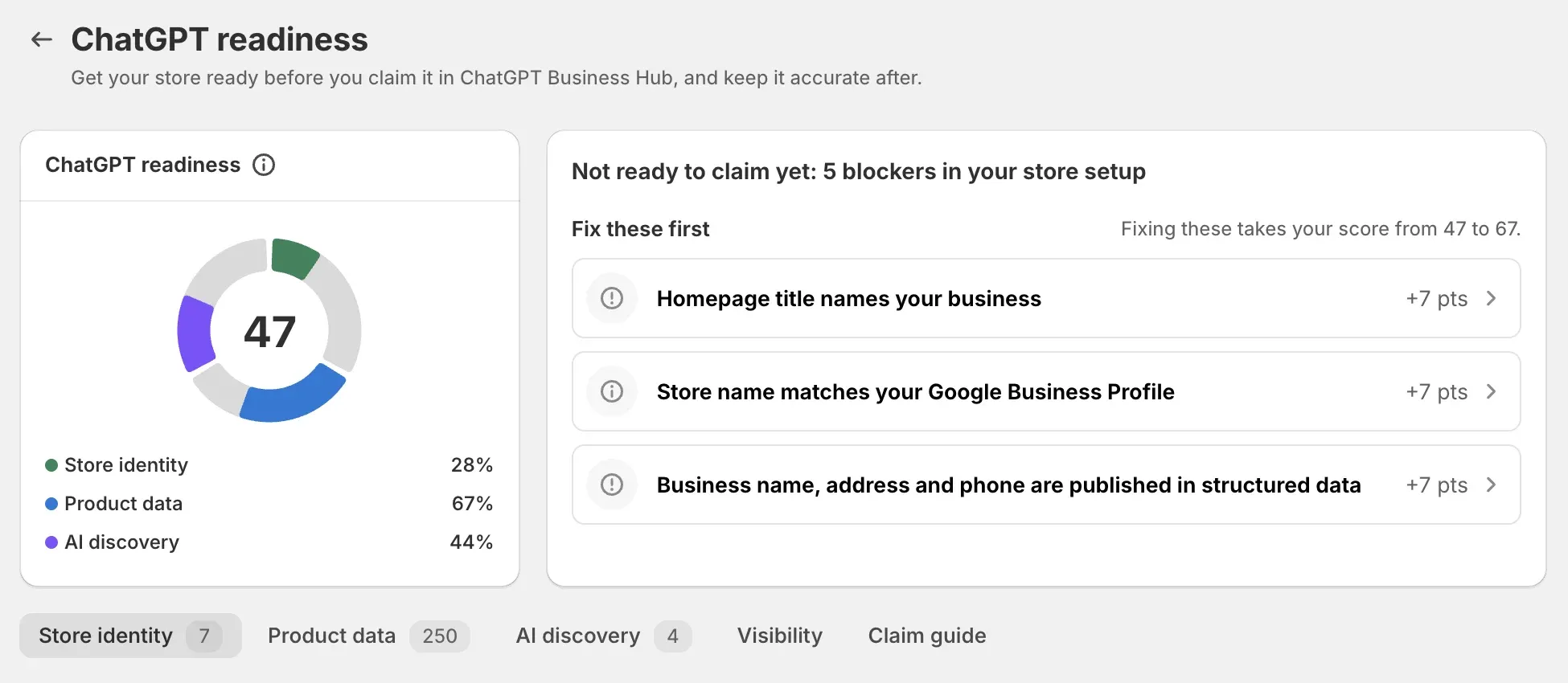
The tabs below hold the details. The number on each tab is how many items still need attention.
Step 3: Fix Your Store Identity
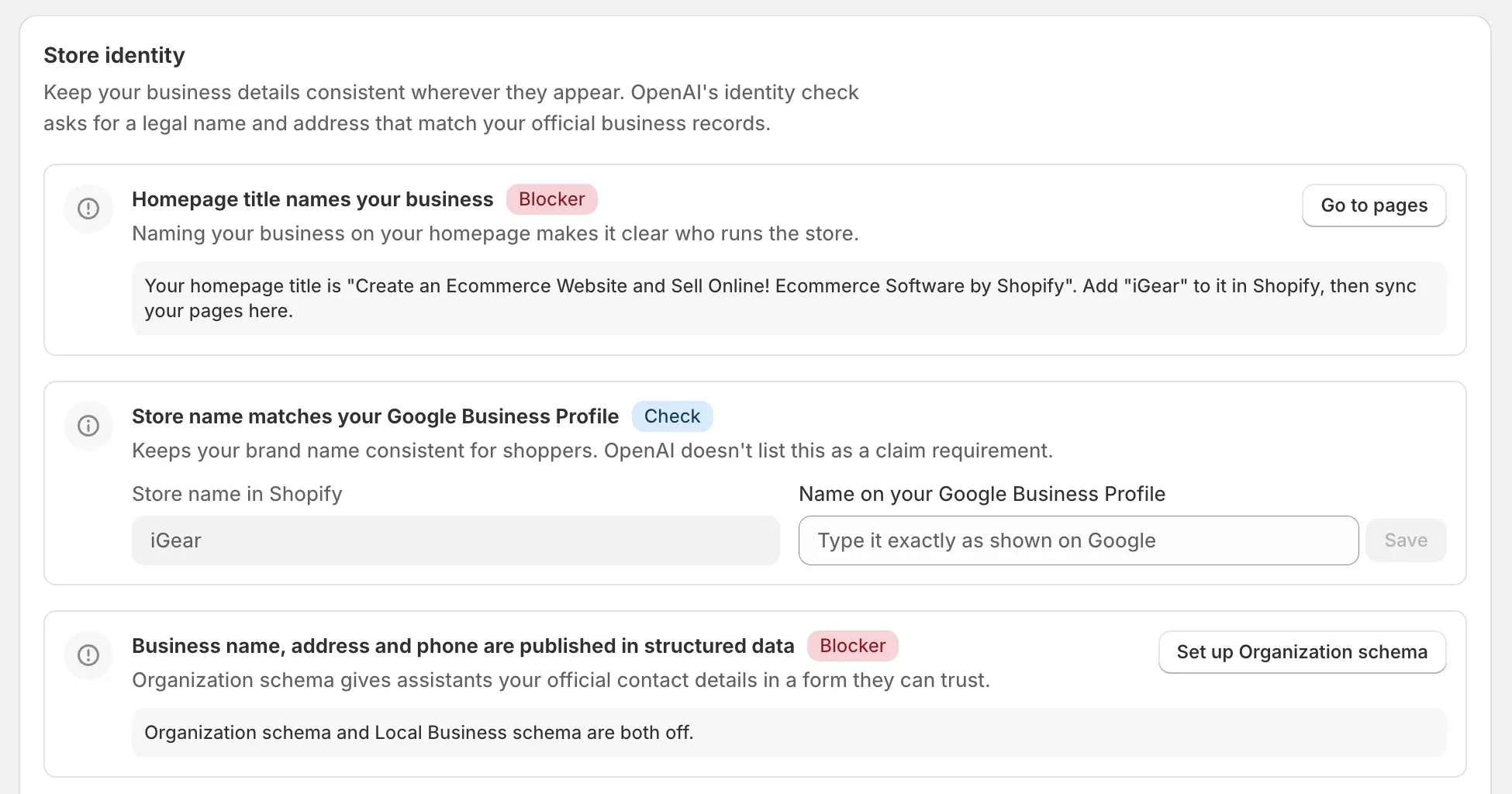
The ‘Store identity’ tab checks that your business looks the same everywhere ChatGPT might read about it. OpenAI’s identity check also asks for a legal name and address that match your official business records, so it pays to get these right before you claim. Each row explains what StoreSEO found, and a button takes you to the fix:
- Homepage title names your business. Add your store name to your homepage title in Shopify, then click ‘Go to pages’ and sync your pages so StoreSEO sees the new title. See how to optimize your homepage in Shopify.
- Store name matches your Google Business Profile. Type the name exactly as it appears on Google and click ‘Save’.
- Business name, address and phone are published in structured data. Click ‘Set up Organization schema’ and fill in your street address and phone. See how to enable schema markups in Shopify.
- Contact page exists and About page describes the business. Add a contact page in Shopify, and give your About page more than 300 words.
- Store uses a domain you control. Only needed if you plan to verify with a DNS record. Shopify verification works without it.
- Products use your real brand as vendor and Product titles are unique. Click ‘Review products’ to fix empty vendors and duplicate titles.
StoreSEO can’t read your store policies, so tick Refund, Shipping, Privacy and Terms once each policy is live in Shopify. ChatGPT answers questions like “can I return this?” from these pages.

Step 4: Improve Your Product Data
The ‘Product data’ tab lists your analysed products, lowest GEO score first, so the products that need the most work are at the top. For each product you see its GEO score and how many high, medium and low impact issues it has. Use the search field to find a product by title.
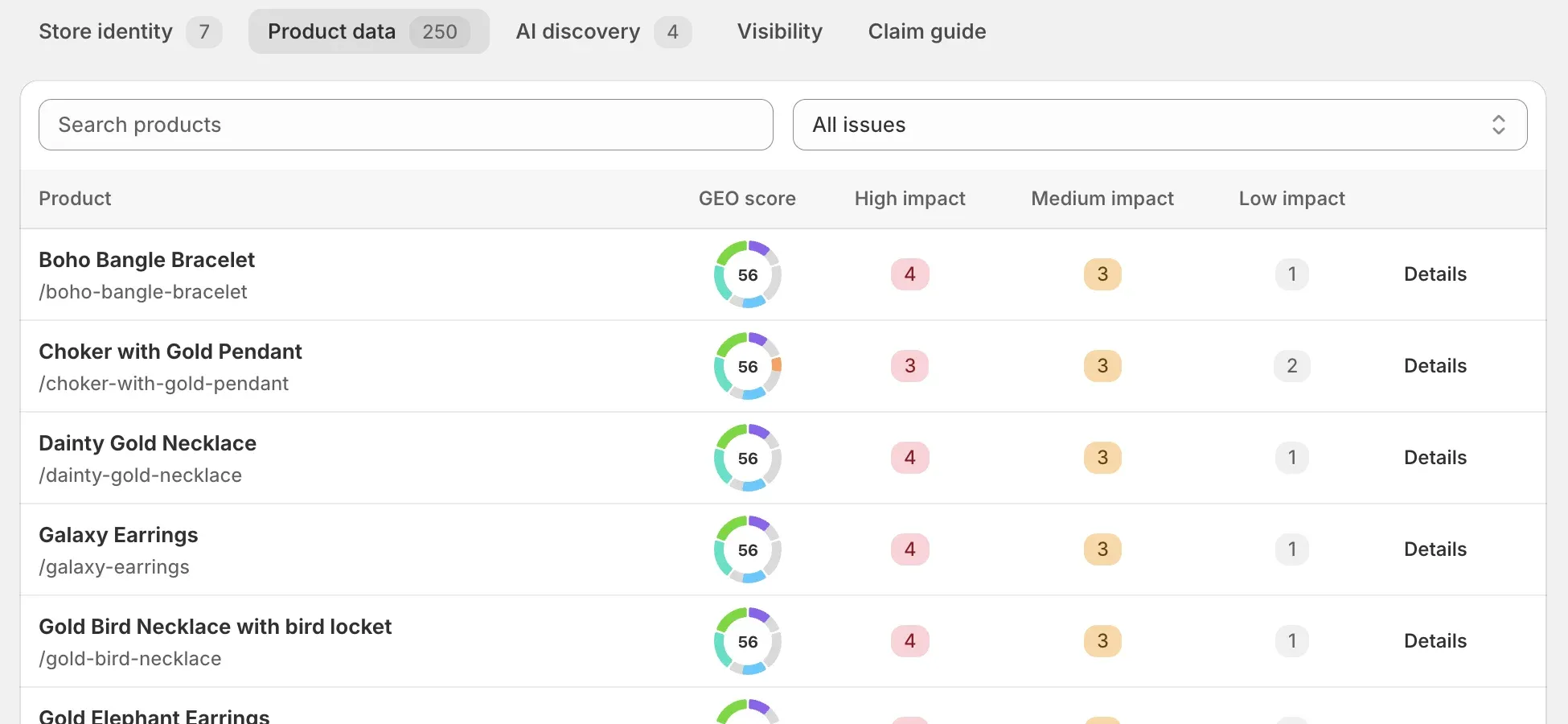
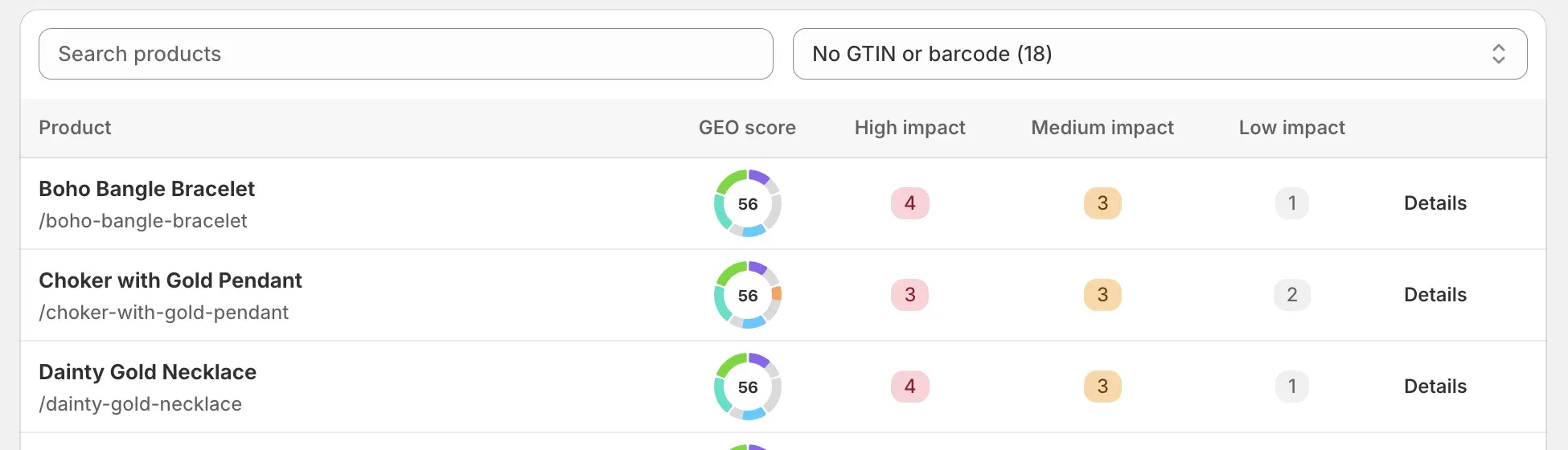
To work through one issue across your catalog, pick it from the ‘All issues’ menu. Each option shows how many products have that issue, for example ‘No GTIN or barcode (18)’.
Click ‘Details’ on a product to see every issue, why it matters to ChatGPT, and the field to change. Issues are grouped by where you fix them: ‘Open in Shopify’ for barcodes, categories, inventory, SKUs, images and titles, ‘Open description writer’ for descriptions under 50 words or ones that aren’t agent-friendly, and ‘Edit tags’ for products with no tags. The AI description writer can rewrite those for you.
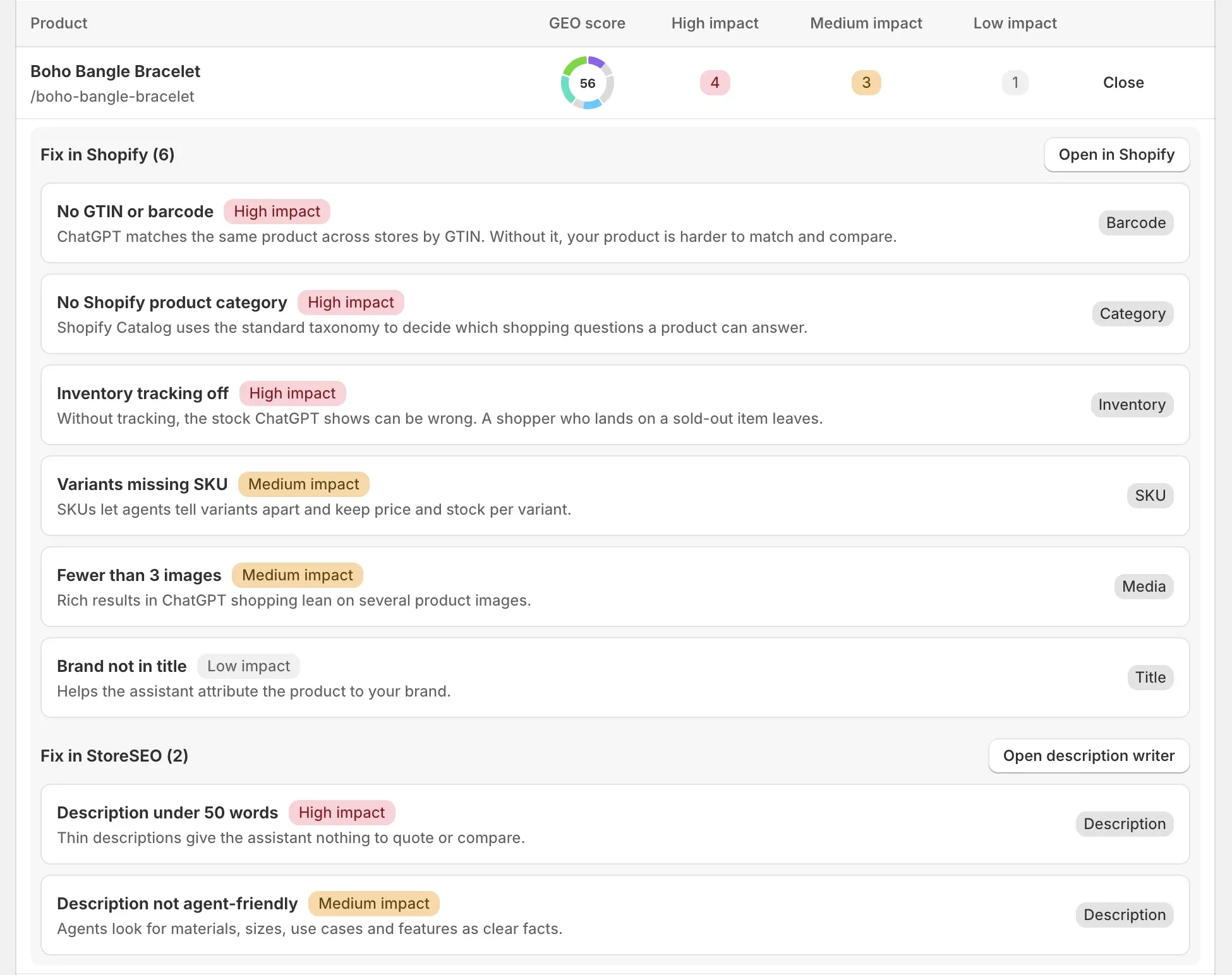
High impact issues are a missing barcode (GTIN), a missing Shopify product category, inventory tracking turned off and a description under 50 words. Start with those. These checks come from the same analysis as your GEO score, so fixing them improves both. For a field-by-field walkthrough, see how to optimize the Agentic Discovery Score.
Step 5: Turn On AI Discovery
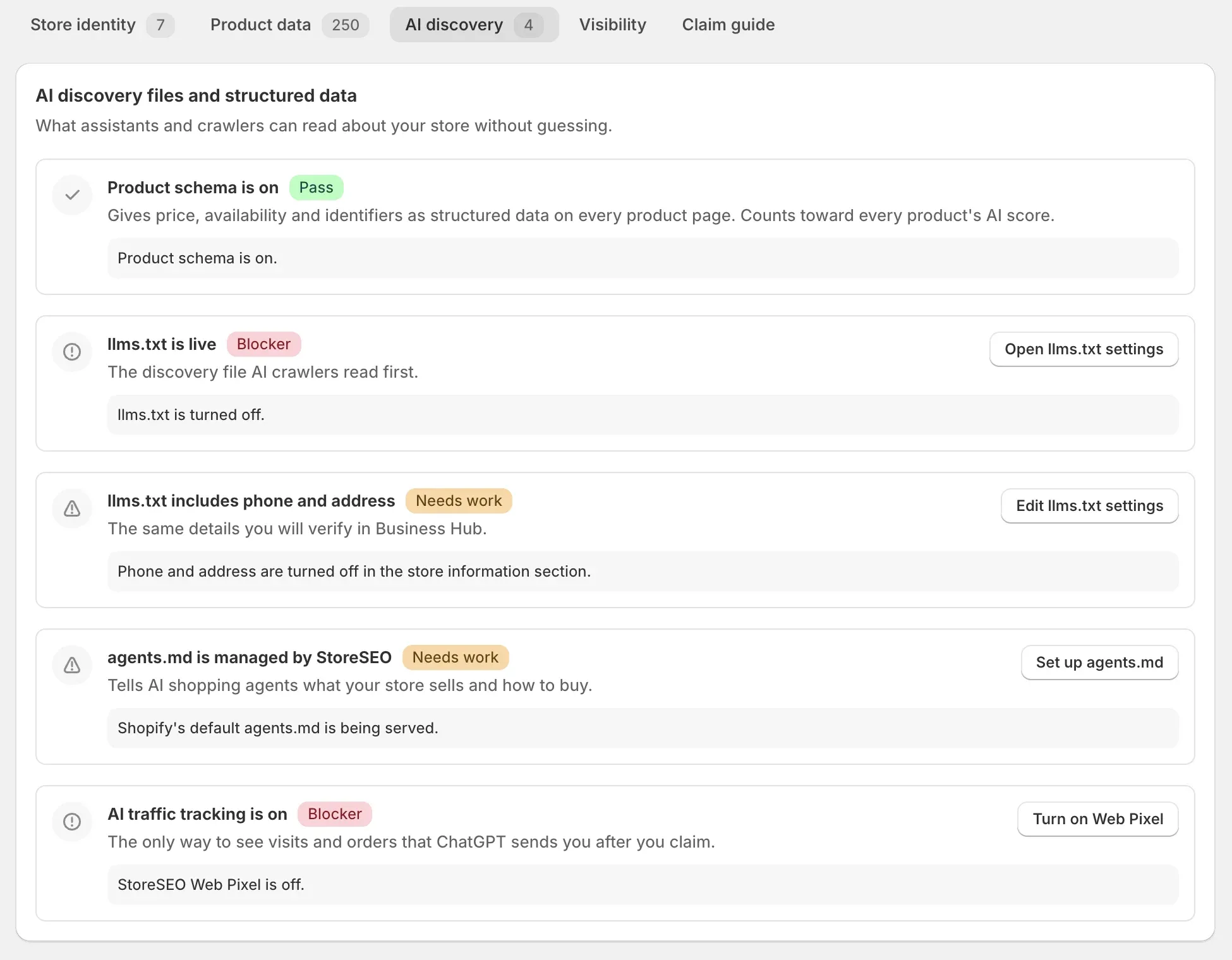
The ‘AI discovery’ tab checks what AI assistants and crawlers can read about your store without guessing:
- Product schema is on: gives price, availability and identifiers as structured data on every product page.
- llms.txt is live: the discovery file AI crawlers read first. Click ‘Open llms.txt settings’ to turn it on. See how to generate llms.txt with StoreSEO.
- llms.txt includes phone and address: the same details you will verify in Business Hub.
- agents.md is managed by StoreSEO: tells AI shopping agents what your store sells and how to buy.
- AI traffic tracking is on: turns on StoreSEO’s Web Pixel so you can see the visits and orders ChatGPT sends you.
If your schema checks say the StoreSEO app embed is off, click ‘Enable app embed’. Schema only appears on your storefront while the app embed is on.
Step 6: Track Your Results
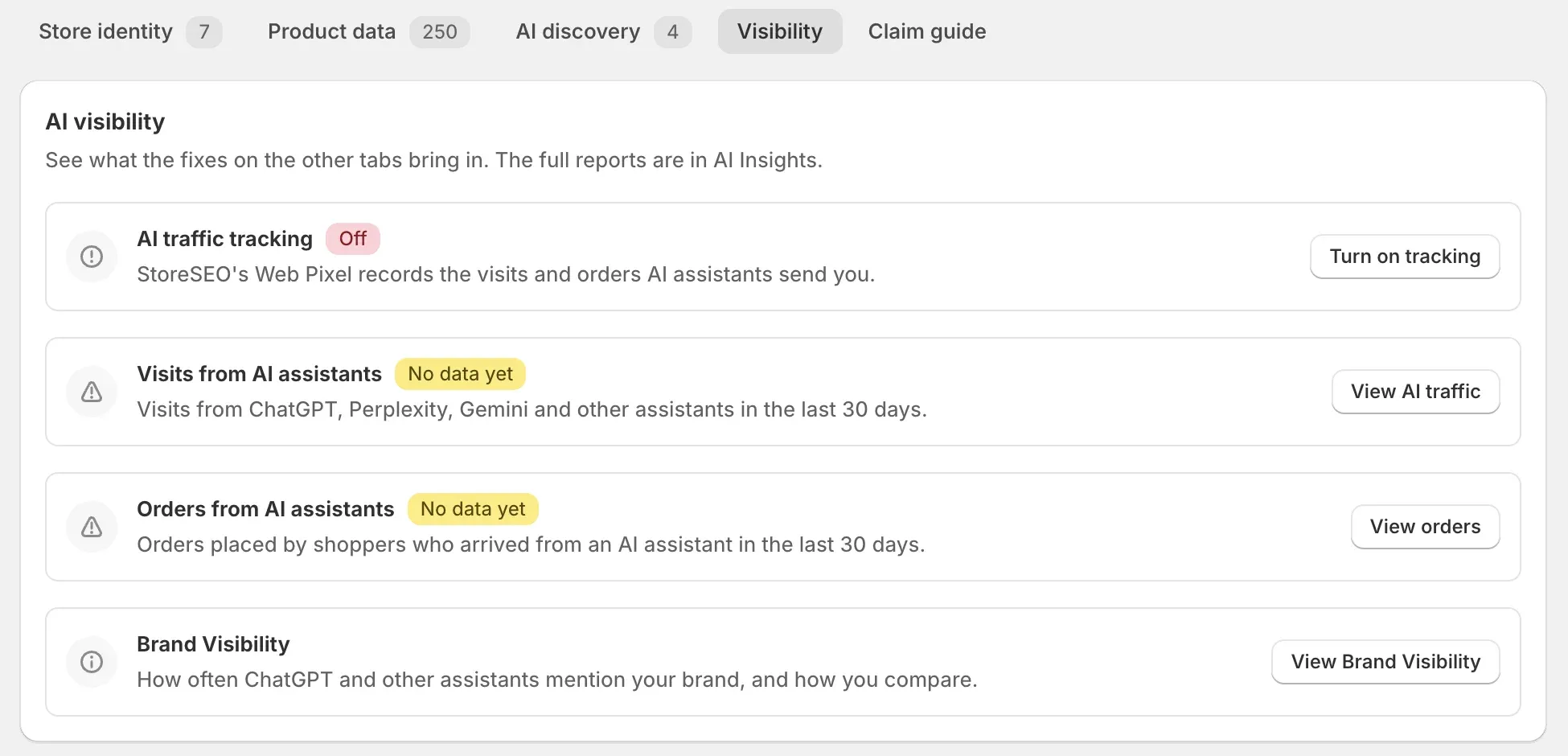
The ‘Visibility’ tab shows whether your fixes are paying off. It tells you if AI traffic tracking is on, how many visits and orders AI assistants sent you in the last 30 days, and links to Brand Visibility, which shows how often ChatGPT and other assistants mention your brand compared with your competitors. Each button opens the full report in AI Insights. To set up Brand Visibility, see how to set up your store for AI Brand Visibility.
Step 7: Claim Your Store in ChatGPT
Once your blockers are cleared, open the ‘Claim guide’ tab. It walks you through claiming your store in ChatGPT Business Hub step by step. See How to Claim Your Shopify Store in ChatGPT Business Hub for the full walkthrough.
Your score updates each time you come back to the page after a fix. Changes you make in Shopify show up once StoreSEO has synced them. ChatGPT readiness is available on every StoreSEO plan, though some of the tools its fix buttons open depend on your plan.
This is how you can get your Shopify store ready for ChatGPT with StoreSEO. Need assistance? Reach out to the StoreSEO support team for any questions.
Still need help?
Our support team is happy to assist you.